

Overview
The ReadyPay payroll run wizard at/hr/payroll/runs/proliant drives a single payroll cycle end-to-end against the Proliant ReadyPay engine. It is the HR-side cockpit for the embedded payroll engine. You pick a pay calendar, push inputs, preview Proliant’s gross-to-net, clear verification checks, reconcile totals, and approve the batch. Once you submit, Proliant funds the deposits and files taxes.
The seven steps map 1:1 to a server-side run state machine
(draft → started → preprocessed → verified → approved → submitted → posting → posted | failed),
so the wizard’s active step is always derived from the live phase. If you reload the page mid-run, you land back on the correct step.
Who it’s for
HR and Finance admins responsible for cutting payroll. The page is gated by thehr.proliant-payroll.run permission. Reconciliation overrides additionally require hr.proliant-payroll.override-reconciliation.
Prerequisites
- Your organization has the Proliant HCM integration configured and active.
- A Proliant pay calendar is open for the period you want to run.
- Employee data, rates, deductions, and timesheets are synced to Proliant (or pushed via the integration’s
push_timesheetsand employee push scopes). - Earning, deduction, and accrual code mappings are reviewed in the Code mappings tab on the Proliant integration page.
- You hold the
hr.proliant-payroll.runpermission.
Wizard steps
The wizard opens at Select calendar (step 1 of 7) and advances through the run state machine.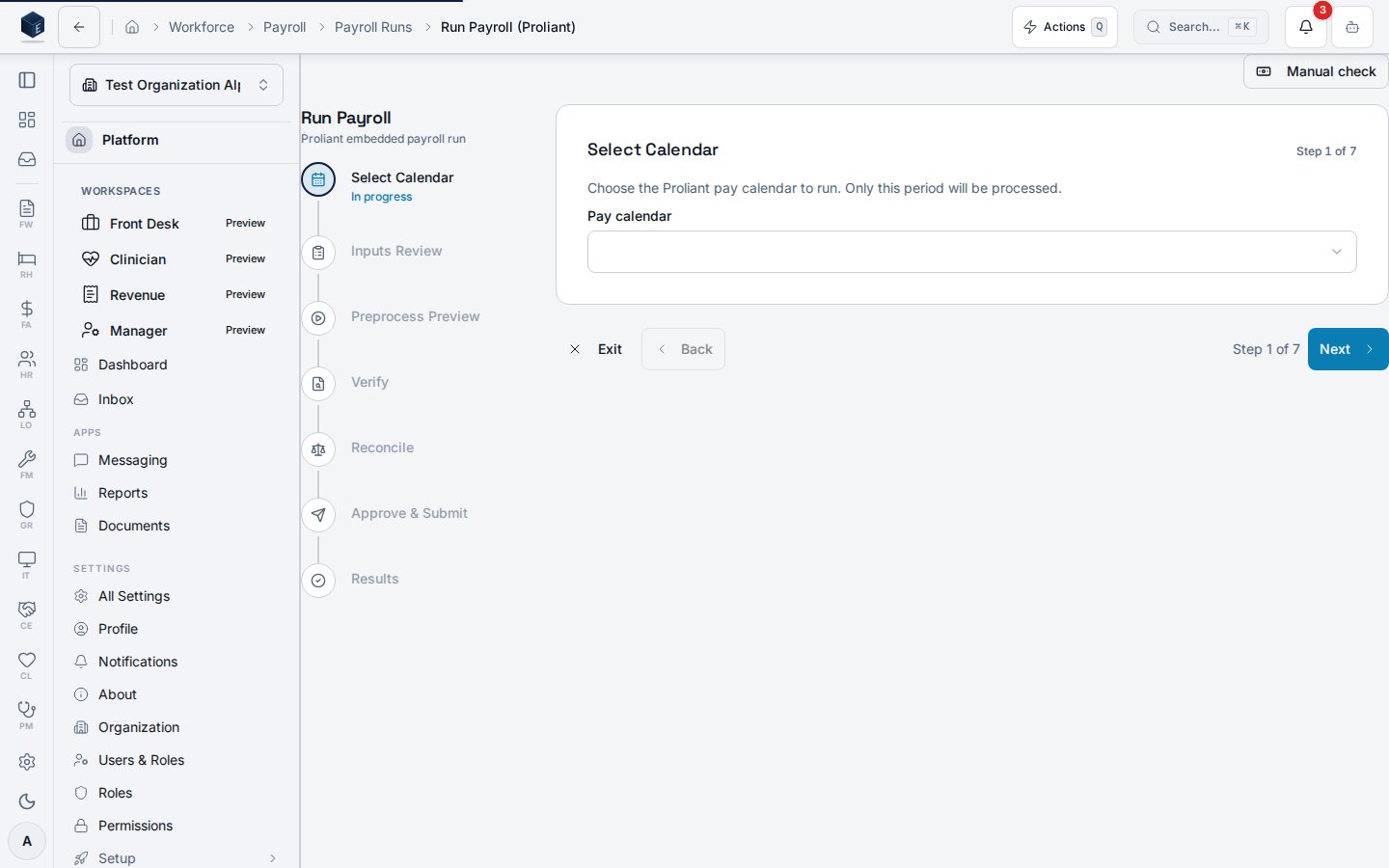
1
Select calendar
Pick the Proliant pay calendar for the period. Only calendars returned by
GET /Company/{companyId}/Earnings/calendars appear here — if the calendar you expect is missing, confirm the period is open in Proliant.2
Inputs review
Confirm the inputs that will be sent for preprocessing: employees in scope, pushed earnings, deductions, and timesheets. This is the last step before Proliant touches the data — back out here if the input set looks wrong. Selecting Next dispatches
start and preprocess against the proliant-payroll-run edge function.3
Preprocess preview
Review Proliant’s gross-to-net preview: employee count, gross, net, taxes, and deductions. Numbers come from Proliant’s preprocess response, not from Encore. Select Next to advance to verify.
4
Verify
Work through each verification check Proliant returns (missing rates, blocked employees, zero-hour exceptions, and similar gates). Each row has its own Approve action; you cannot continue until every check is approved or resolved at the source.
5
Reconcile
The reconciliation panel compares Encore’s expected totals (gross, headcount, deductions) against Proliant’s returned totals. Rows outside the tolerance are flagged.
- If everything is within tolerance, the panel passes and Next unlocks.
- If a row breaches tolerance, you can either fix the underlying input and re-run preprocess, or — if you hold
hr.proliant-payroll.override-reconciliation— select Override & continue. Overrides are stamped with your profile ID and timestamp on the reconciliation row for audit.
6
Approve & submit
Selecting Submit dispatches 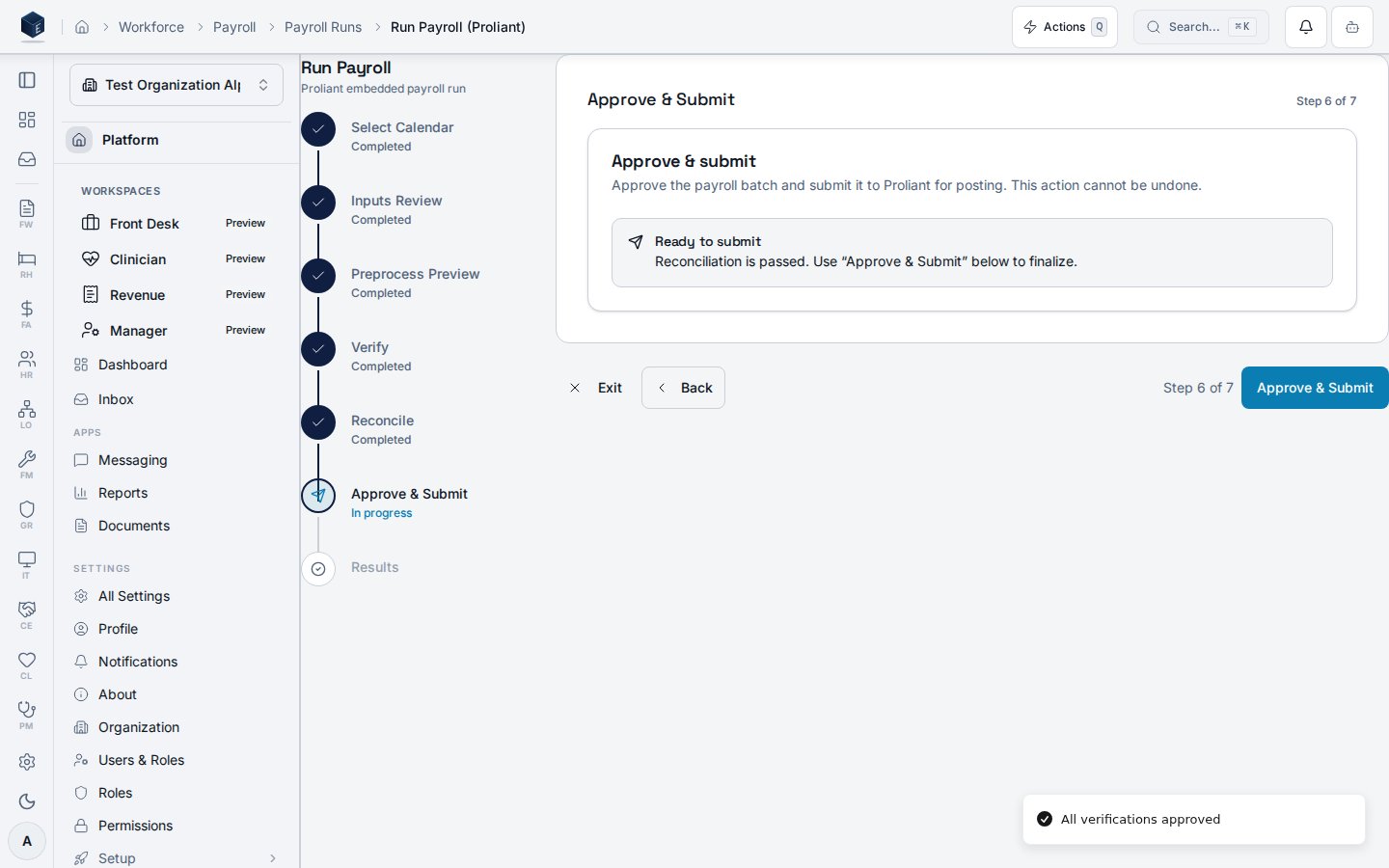
approveBatch followed by submit against the orchestration edge function. Once Proliant accepts the batch, the run cannot be cancelled from Encore — funding and tax filing are now in Proliant’s hands.7
Results
The final step is a read-only view of the submitted run: Proliant run identifiers, totals, and the status the run-poller has observed (
submitted, posting, posted, or failed). Once Proliant emits the JournalEntry, the FA-43 consumer drafts a balanced GL entry for review in Finance & Accounting. This step exposes no mutating action — the run is already in Proliant’s hands.Run state machine
The wizard never advances local state alone; each “Next” calls an orchestration action and the server-side phase moves the wizard forward on the next poll.
A run only ever rewinds from the server side — the UI does not let you step backwards once the run leaves
draft.
Reconciliation tolerance
Reconciliation compares expected vs. returned values for gross pay, headcount, and total deductions. The default absolute tolerance is0 — any variance trips a breach. To loosen this for a tenant, set reconciliation_tolerance (a positive number) on the integration row’s custom_fields:
0.50 means expected and returned values within $0.50 of each other are treated as a match. Raise this only when you have a documented reason (for example, rounding between Encore’s expected total and Proliant’s per-employee math).
Journal entry handoff
After Proliant marks a runPosted, the proliant-run-poller fetches the JournalEntry and emits an event the FA-43 payroll JE consumer handles. The consumer:
- Translates Proliant’s
gl1…gl6GL codes into Encore accounts via the GL account code mapping. - Builds a balanced draft
fa_journal_entriesrow using Proliant’s debit/credit transaction types. - Routes any unmapped GL code or unbalanced line set to the exception queue — nothing auto-posts.
Permissions
Both permissions are tenant-scoped. Assign them to HR/Finance admins responsible for cutting payroll. Platform and organization admins inherit access.
Manual checks
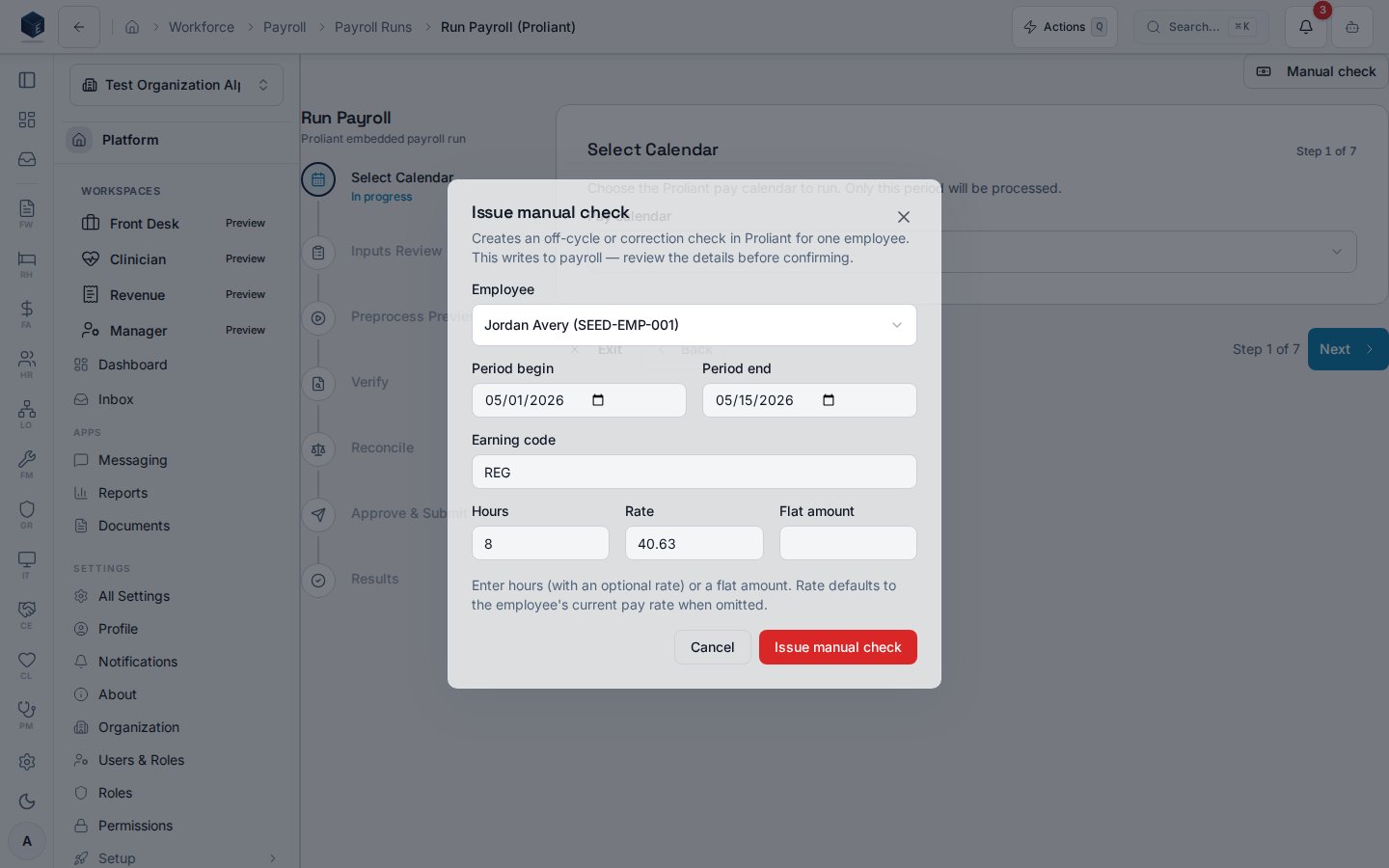
For an off-cycle or correction payment outside a calendar run, use the Manual check button on the payroll-run page. It targets exactly one actively mapped employee, a pay-period window, and a single earning line — enter hours (with an optional rate, defaulting to the employee’s current pay rate) or a flat amount — and requires explicit confirmation before anything is written to payroll. The edge function re-validates everything server-side (admin role, the vendor’sManualCheck
grant, idempotency); if ReadyPay has not granted the ManualCheck scope to your credentials yet, the
request comes back as an explicit skip (an info toast), never a silent success.
Troubleshooting
- No calendars appear. No open calendars for the company. Confirm the pay period is open in Proliant before retrying.
- Verify step never clears. A verification check is unapproved or unresolvable. Resolve the source data (missing rate, blocked employee) in Proliant or Encore and re-run preprocess.
- Reconciliation always fails. Tolerance is
0by default and Proliant’s per-employee rounding can produce a 0.50 variance. Either raisereconciliation_toleranceon the integration, or override the breach if you hold the override permission. - Run stuck on
submittedorposting. The run-poller pulls Proliant on a schedule (suggested every 15 minutes). If your environment’s poller schedule has not been registered, contact your platform admin. - GL entry never appears in Finance. The FA-43 consumer routes unmapped GL codes to the exception queue. Open the Code mappings tab on the Proliant integration page, ensure all
gl_accountrows have an Encore account assigned, and re-run the JE consumer.
Related
Embedded payroll engine (Proliant ReadyPay)
Proliant HCM integration — admin guide
Proliant HCM integration — user guide
Production cutover runbook
This page documents shipped product behavior. It is not medical, legal, or
billing advice. Verify against your organization’s policies and applicable
regulations before using it for clinical, compliance, or billing decisions.
Protected health information (PHI) shown in the product is governed by your
tenant’s access controls and is never exposed in this documentation.