

Overview
Mapping Proliant codes to Encore values is the most tedious part of setting up the Proliant HCM integration: an admin hand-types an Encore value for every Proliant code across roughly twenty code-type groups. The Code mappings tab on the Proliant integration page (HR Settings → Integrations → Proliant → Code mappings) can propose those values for you with AI, turning a long typing exercise into review-and-accept. This feature is part of HR-44-EN-02 and is built on the reusable PF-118 AI mapping-suggestion service.Code mappings are reference/configuration data, not PHI — the suggestion request carries
only earning/deduction/accrual code identifiers and the candidate Encore values, never any
employee data. The request runs on the standard model lane with a fail-closed PHI tripwire.
Who it’s for
HR administrators configuring the Proliant integration. The AI controls appear only when the HR AI module is enabled for your organization and you hold thehr.proliant_integration.manage permission. When the AI module is off — or the AI service is
unavailable — the controls are hidden and the manual sync → type → save flow is unchanged.
The AI controls
Once you have synced codes from Proliant, the Code mappings tab shows two AI controls in the header: Suggest mappings with AI and Accept all ≥ 80%.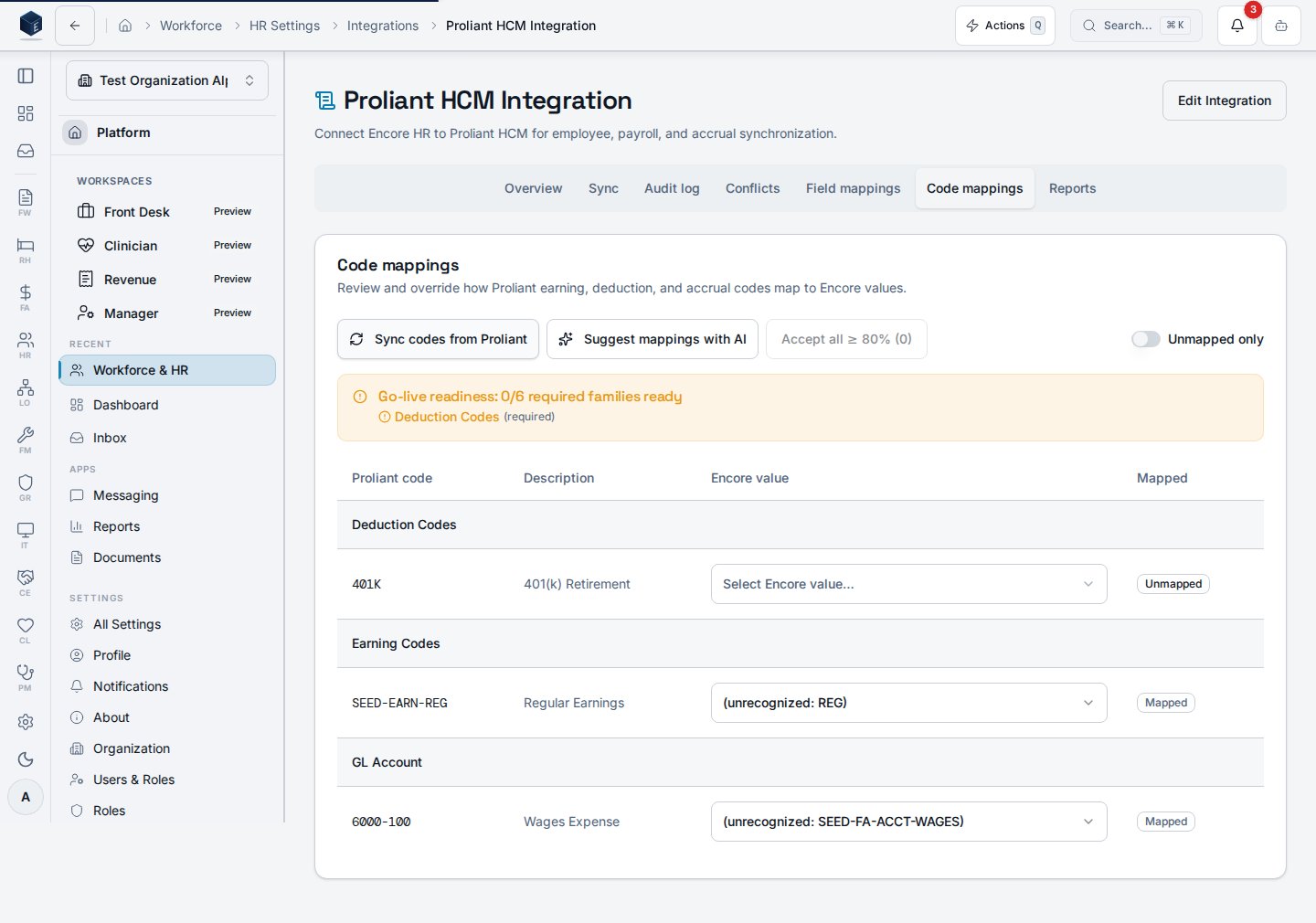
Because both the dropdown and the AI candidate list resolve from the same registry, the values
you see in the cell are exactly the values the AI can suggest — they cannot drift apart. If a
family has no candidate source for your organization (for example, you haven’t defined any
earning types yet), the cell falls back to manual entry and no suggestion
is shown.
Reviewing and accepting a suggestion
Select Suggest mappings with AI. Each unmapped, candidate-backed code gains an inline suggestion: the proposed Encore value, a confidence badge, and a rationale (hover the badge). Nothing is applied automatically — accepting is always an explicit action.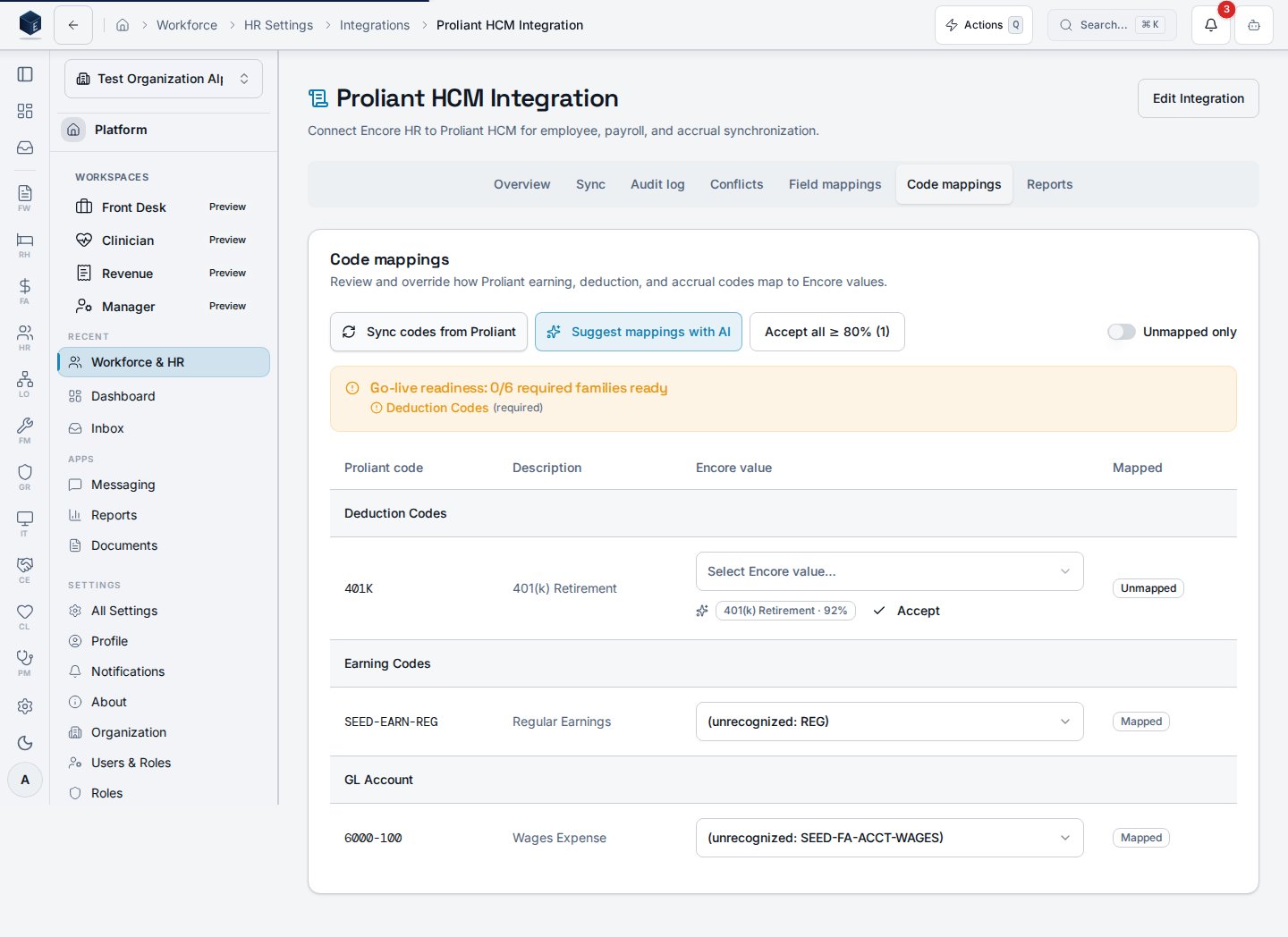
- Accept (per row) pre-fills the row’s Encore value and saves it through the normal save path, marking the code mapped.
- Accept all ≥ 80% applies every suggestion at or above the 80% confidence threshold for the unmapped rows. The button shows how many rows qualify, so you always know the blast radius before you click.
- Low-confidence suggestions are left for you to review and accept (or override) by hand.
Graceful degradation
AI is strictly additive. If the suggestion service is unavailable, the tab surfaces an “AI suggestions are unavailable” notice and the manual mapping flow continues to work exactly as before — you can still sync codes, type an Encore value, and save. Turning the HR AI module off hides the AI controls entirely.Related
Proliant integration — setup walkthrough
Run payroll with ReadyPay (Proliant)
Proliant HCM integration — admin guide
This page documents shipped product behavior. It is not medical, legal, or
billing advice. Verify against your organization’s policies and applicable
regulations before using it for clinical, compliance, or billing decisions.
Protected health information (PHI) shown in the product is governed by your
tenant’s access controls and is never exposed in this documentation.