

Overview
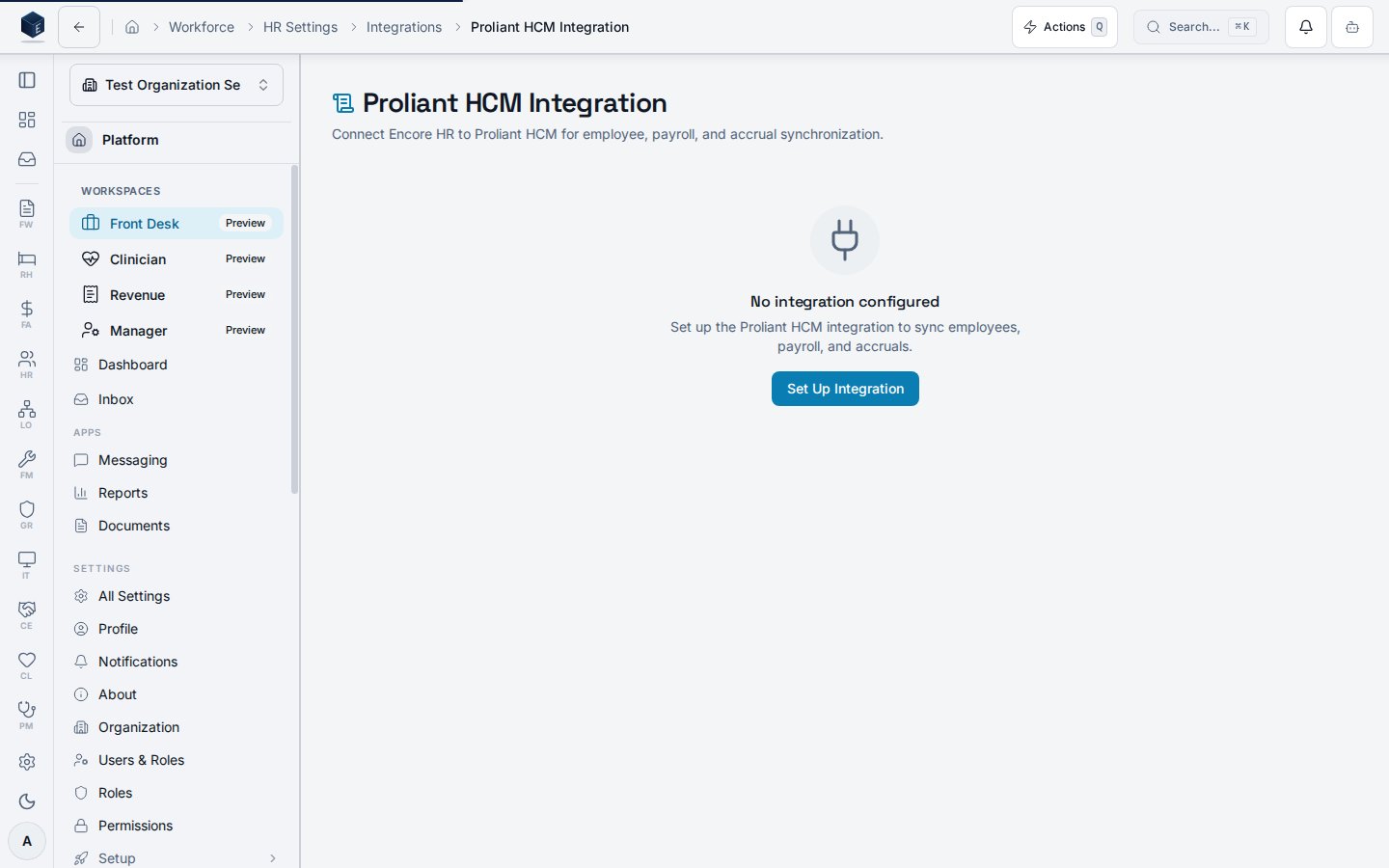
The Proliant setup wizard connects Encore HR to your Proliant/ReadyPay company in six guided steps. Open it from HR Settings → Integrations → Proliant. A clean organization (no integration yet) shows an empty state with a Set Up Integration call to action.The wizard now pulls and maps codes before Activate, and Activate stays disabled until every
required code family is mapped (or explicitly marked N/A) and the connection test has passed.
You can no longer go live with unmapped payroll inputs.
Credentials are stored in the platform credential vault, never in the wizard draft. A successful
connection test is required before the integration can be activated.
The wizard, step by step
1
Credentials & Environment
Enter your Proliant API key and secret and choose Sandbox or Production. The sandbox base
URL is pre-filled. Confirm a signed BAA is on file before enabling production access.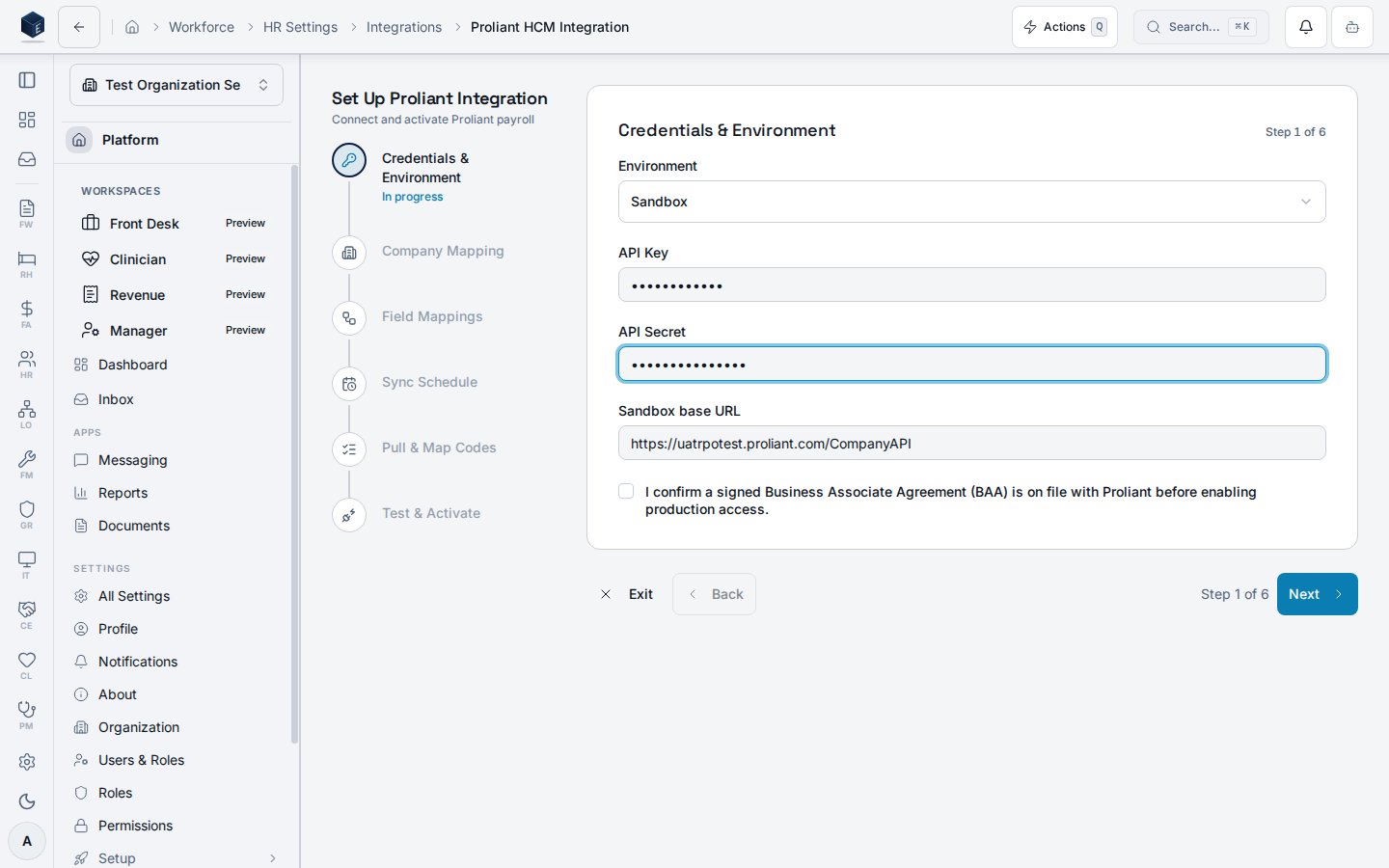
2
Company Mapping
Map this organization to its Proliant company code (for example 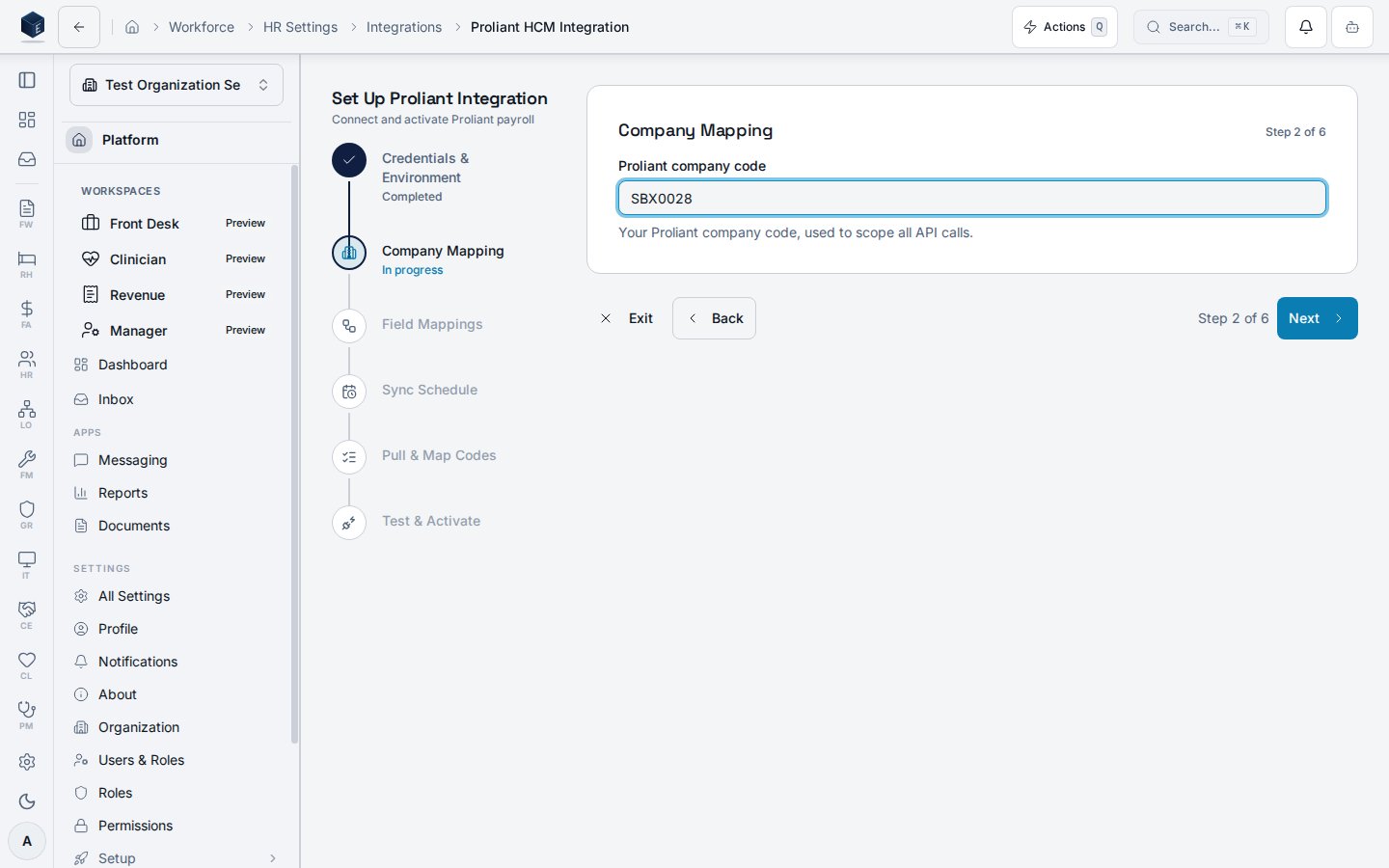
SBX0028). Saving this step
creates the draft integration.3
Field Mappings
Review which Encore fields sync to Proliant for employees, earnings, deductions, and accruals.
Defaults are sensible; adjust only where your Proliant configuration differs.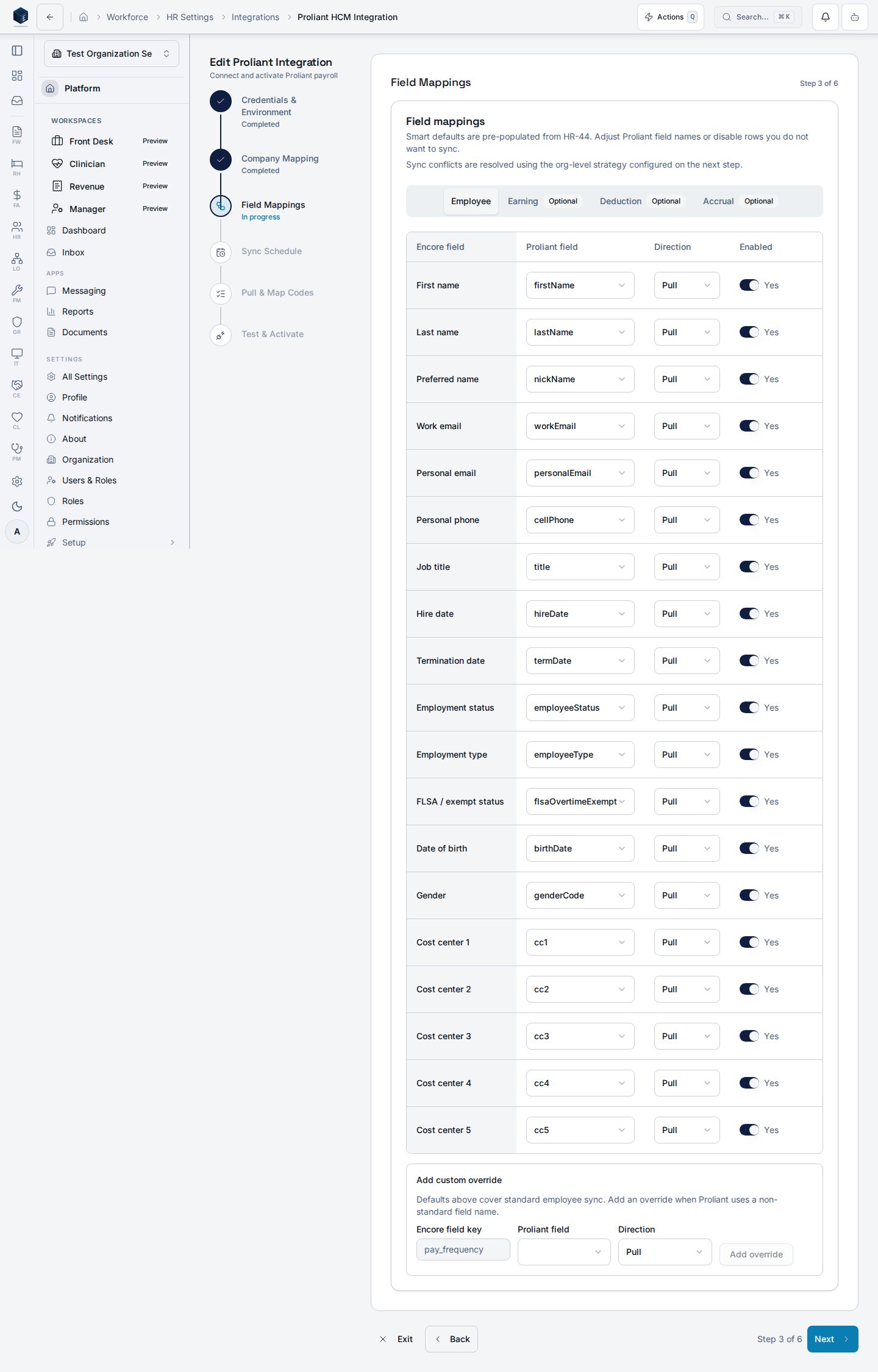
4
Sync Schedule
Choose how often Encore syncs with Proliant. The default is daily at 02:00 (Proliant has no
webhooks, so sync is polling-based).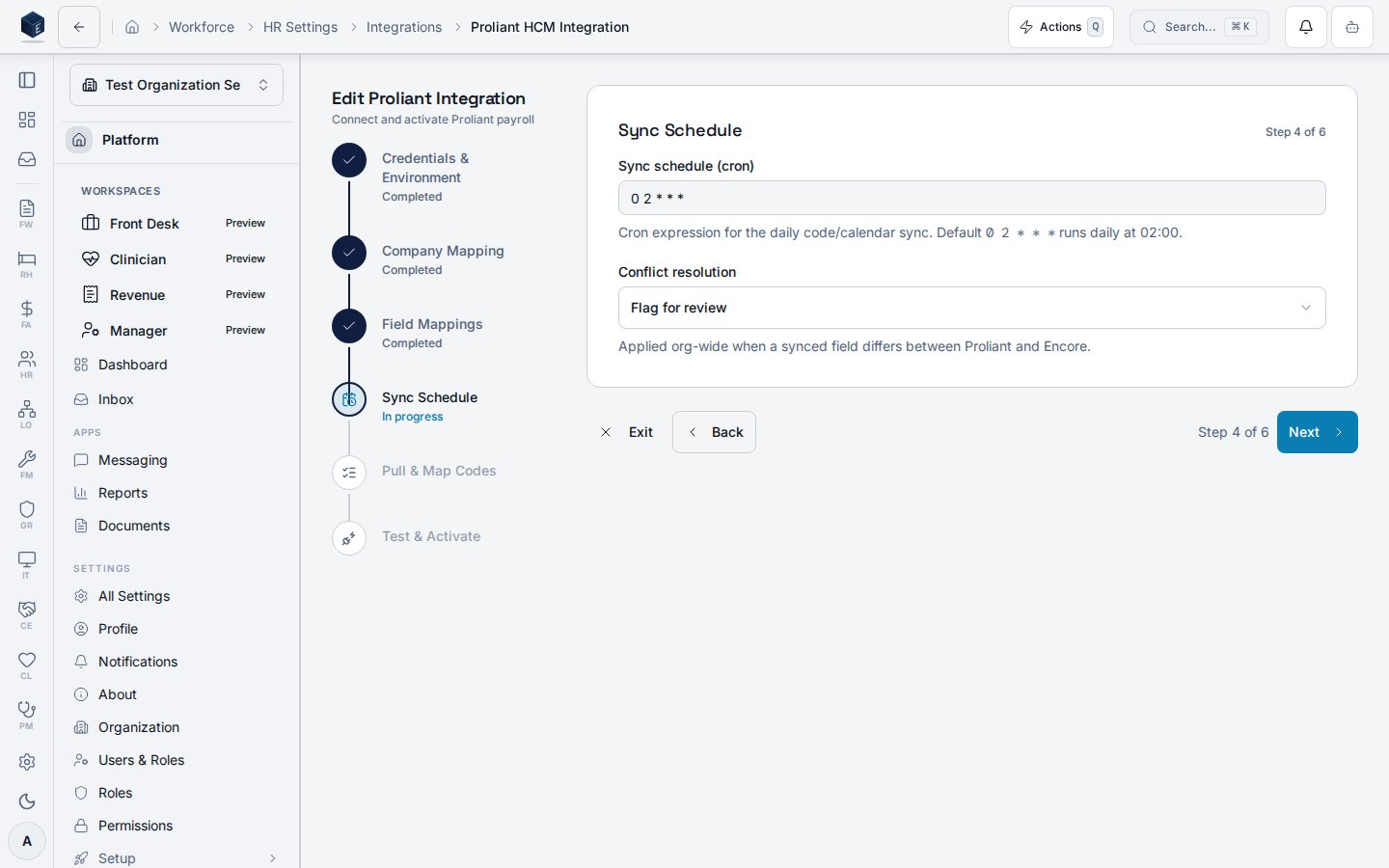
5
Pull & Map Codes
Pull reference codes from Proliant (earnings, deductions, accruals, jobs, pay frequencies,
tax forms, employee status, and more) and assign each one to an Encore value from the
constrained dropdown. Codes that don’t apply to your organization can be marked
N/A — skip this code.A readiness banner at the top of the table reports “N/6 required families ready” across
employee_status, employee_type, pay_frequency, tax_form, deduction, and accrual.
job, gender, and earning are recommended but don’t block. Define your Encore earning
types in Earning Types before mapping so the earning family has a
constrained dropdown and is eligible for AI suggestions.Use Suggest mappings with AI to pre-fill candidates across all go-live families, or pick
each Encore value by hand — see AI-assisted code mapping.6
Test & Activate
Run the connection test. A successful result (“Connection successful”) confirms Encore can reach
Proliant with the supplied credentials and company.Activate Integration stays disabled until both gates are green: the connection test passes
and every required code family is mapped (or explicitly N/A). Once activated, the page
switches to the Manage view.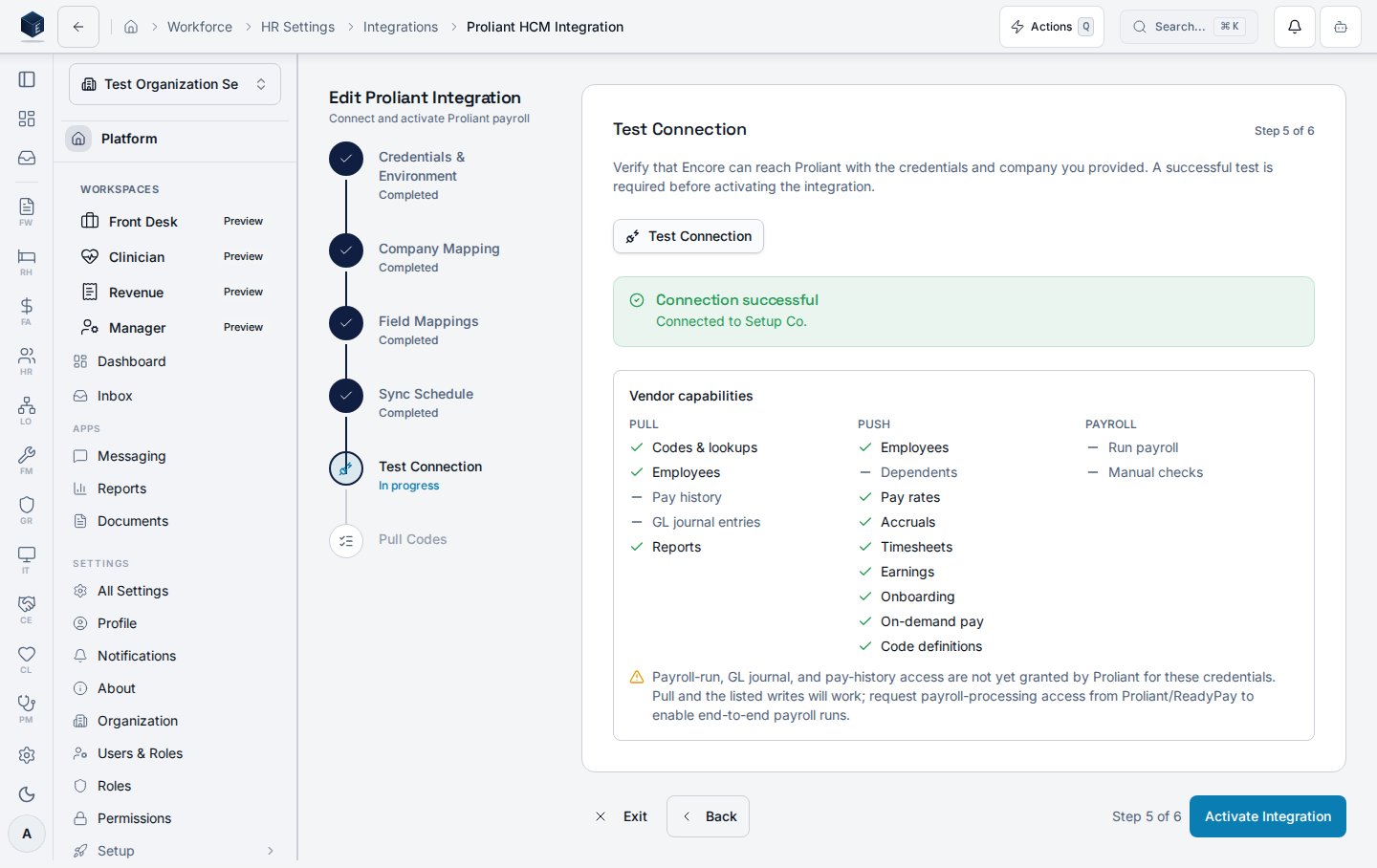
Resuming an in-progress setup
The wizard autosaves a credential-safe draft after every step in Set Up mode, so you can close the page and come back later without losing your place. Drafts capture the step you were on and the non-secret values you entered (for example, company mapping, sync schedule, field-mapping choices). API keys and secrets are never persisted — you re-enter them on resume. When you reopen HR Settings → Integrations → Proliant with an in-progress draft, the wizard prompts you to choose:- Resume — Reopen the draft at the step where you left off, with your saved non-secret values restored. Re-enter credentials on the Credentials & Environment step.
- Start Fresh — Begin a new run. The previous draft is left intact and can be deleted from the resume dialog.
- Delete — Remove a stale draft you no longer want. When the last draft is deleted, the wizard starts a fresh run automatically.
Resume only applies in Set Up mode (no integration exists yet). Once the integration is
activated, the Manage view treats the database record as the source of truth. Reopening the
wizard via Edit Integration hydrates from that record instead of from any draft.
After activation
When you finish, the page switches from the empty state to the Manage view, with an Edit Integration button and the connection summary. From here you manage sync, conflicts, field mappings, code mappings, and the audit log — see the admin guide.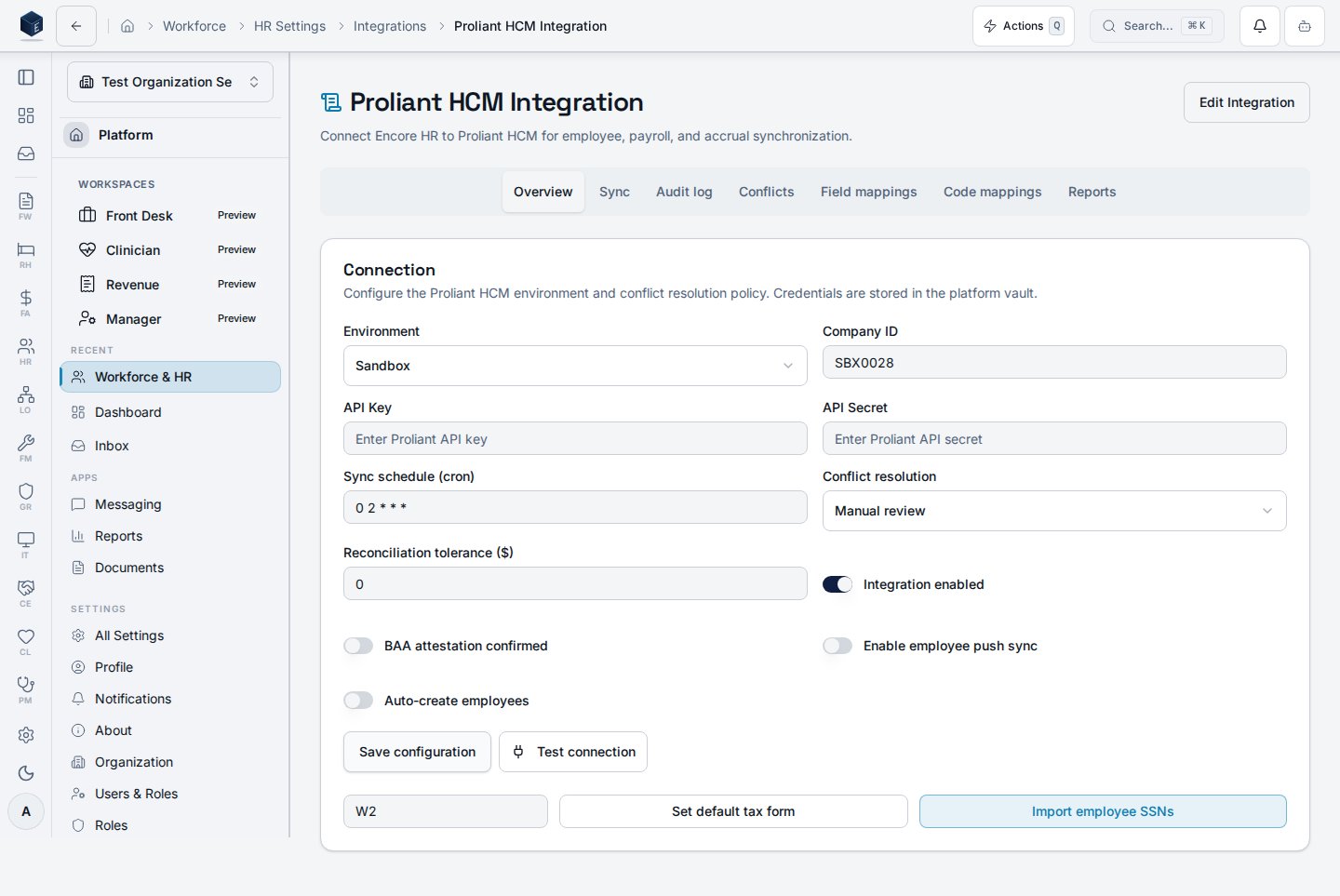
What syncs to Proliant
Encore is the system of record; Proliant/ReadyPay runs tax calculation, payroll processing, and filing. With push enabled, Encore writes employee data to Proliant so you never re-key it there:- Pull: employees + all reference codes (earning, deduction, job, shift, cost centers, taxes, pay frequencies, positions, and more).
- Push (per employee): demographics, pay rate, tax elections (W-4), direct deposit, deduction and earning assignments, emergency contacts — a new-hire sync sends them together. Values are mapped to Proliant’s codes automatically using your code mappings. Every push is idempotent: re-running a sync never double-applies (a record that already exists for its date is left as-is).
- Push (codes): Encore-defined earning/deduction/job/shift/cost-center definitions can be written back so they exist in Proliant before assignment.
These screenshots are generated automatically from the local end-to-end test lane
(
npm run docs:shots:proliant) and kept fresh by the docs:shots:check gate, so they stay in sync
with the live UI.