Overview
The Proliant HCM integration syncs employees, payroll, accruals, and rates from Proliant ReadyPay into Encore, and pushes timesheets back to Proliant. It runs on a polling schedule (Proliant does not expose webhooks) and writes every operation to the sync log for audit. This guide covers what you configure as a tenant admin, how to interpret sync run outcomes, and what to do when a run reports a failure.Initial setup
1
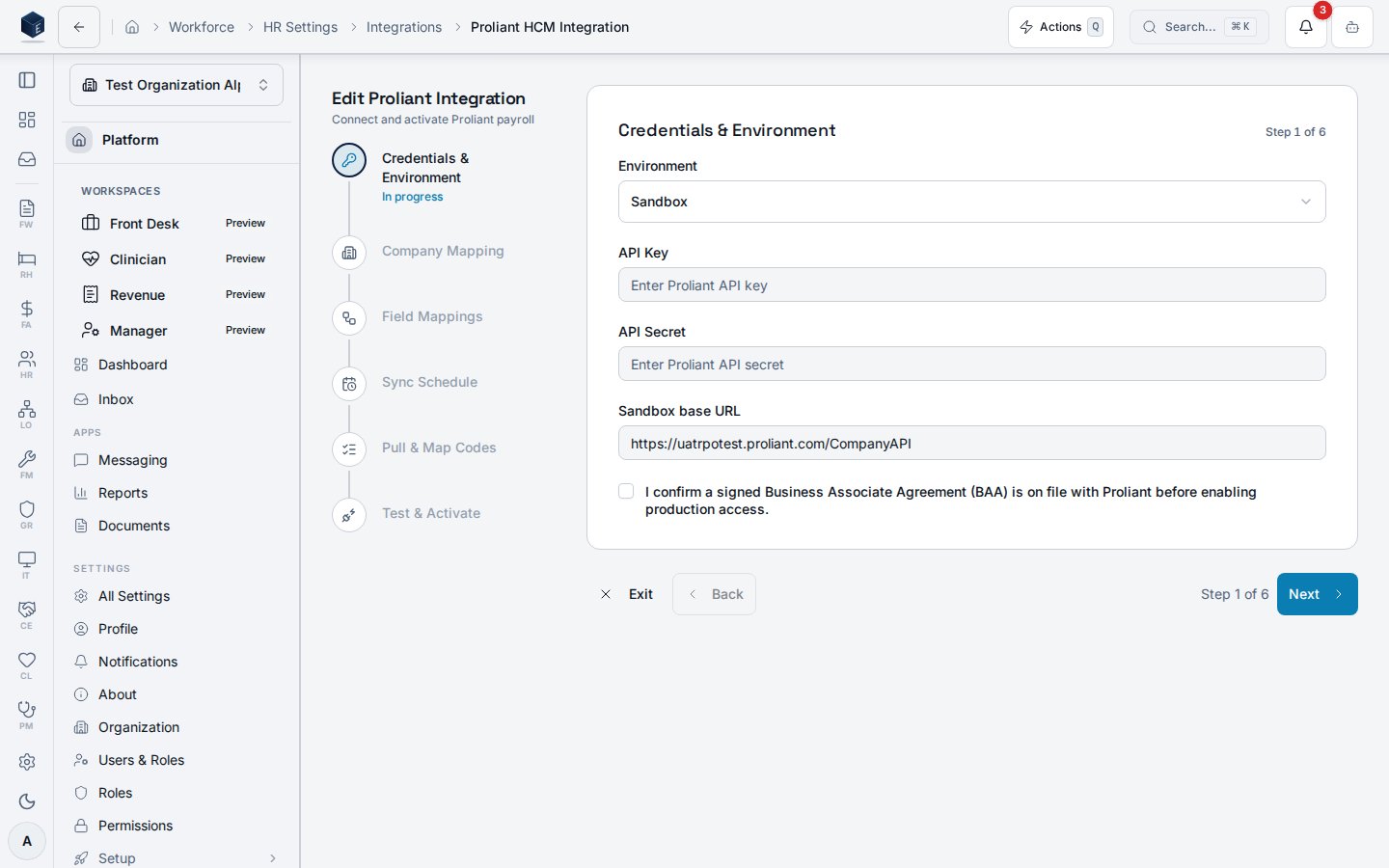
Confirm prerequisites
- Proliant sandbox credentials (client ID + secret) issued by your Proliant account manager.
- The sandbox base URL Proliant provisioned for your organization at onboarding. Proliant assigns this per client — there is no shared sandbox host.
- Feature flag
proliant_integration_enabledturned on for your organization. - Role
hr.proliant-integration.manageon the admin user.
2
Create the integration record
Open HR → Integrations → Proliant and create the integration row. Leave
environment set to sandbox until cutover.3
Set the sandbox base URL
Paste the per-org sandbox URL Proliant gave you into the Sandbox base URL field (column
sandbox_base_url on hr_proliant_integrations). A sandbox integration cannot be activated until this is set — the integration no longer falls back to a hardcoded host.Production integrations leave this field empty; the production base URL is fixed in code.4
Store credentials and test
Save the client ID and secret to the credential vault through the integration settings, then run Test connection.Test connection now performs a live OAuth token exchange against Proliant before returning the company list. A green result confirms that the credentials are valid and that the sandbox base URL is reachable. If Proliant rejects the credentials, the test surfaces the specific failure (for example,
invalid_client) instead of a generic error. A successful test returns the Proliant company list — pick the company that maps to your tenant.5
Enable sync scopes
Toggle the scopes you want active:
sync_employees— pull employee demographics, status, and supervisor links.sync_payroll— pull pay history runs and per-line detail rows.sync_accruals— pull PTO, sick, and other accrual balances.push_timesheets— push approved timesheets back to Proliant through theTimeImportendpoint.
Configuration options
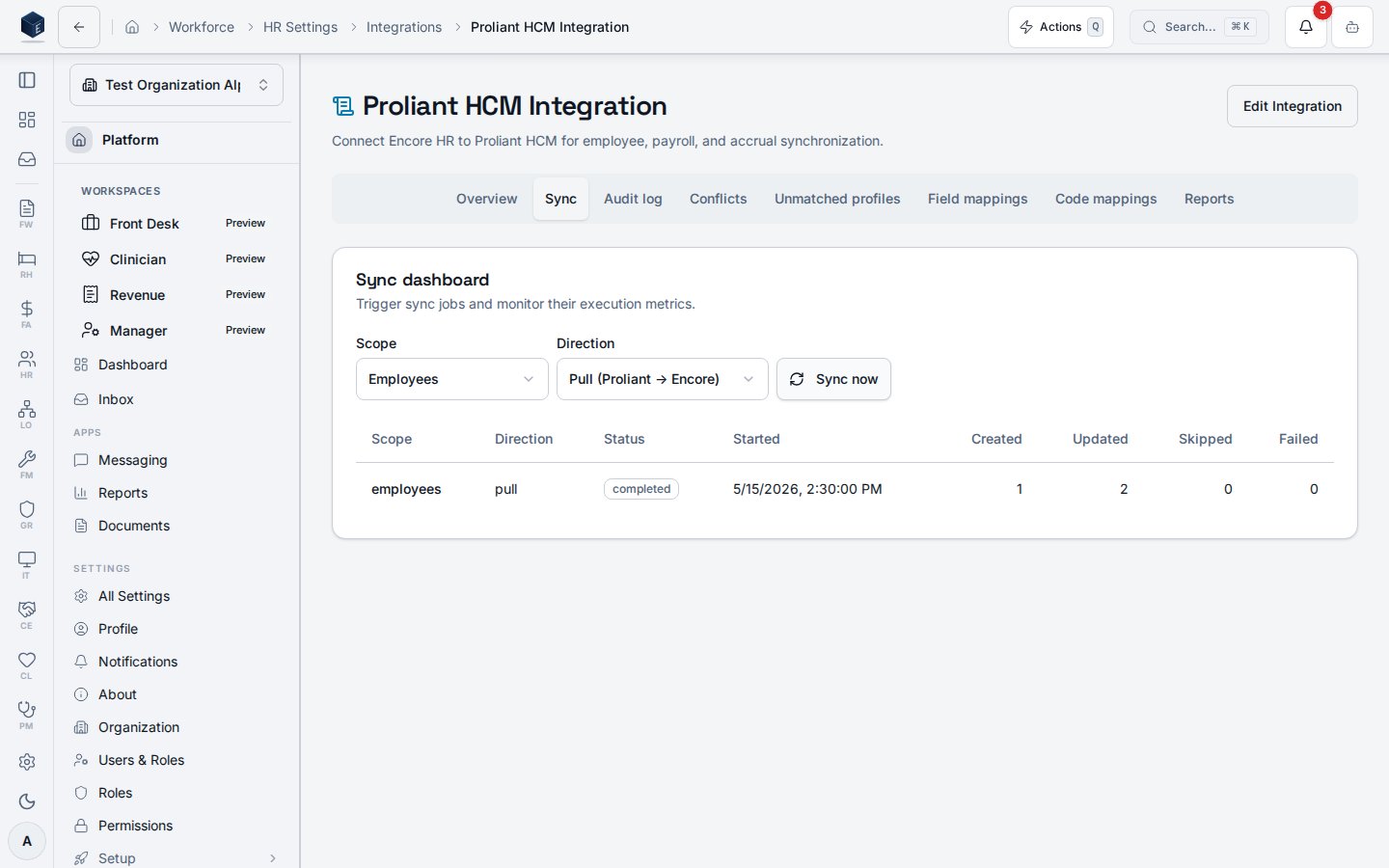
Sync run outcomes
Every run is classified into one of three outcomes and written tohr_proliant_sync_runs:
Previously, a run that pulled zero records — even when Proliant reported records exist — would silently finalize as
completed. As of HR-44 contract remediation, this case is surfaced as failed so that endpoint or mapping drift cannot hide behind an empty result.
Bounded pulls and checkpoint resume
The employee pull is now bounded by a per-invocation record budget and a wall-clock deadline. When a large roster exceeds the budget, the run finalizes aspartial and writes a structured checkpoint to hr_proliant_sync_runs.checkpoint (company index, next page, running totals). The next scheduled employees tick resumes from exactly that checkpoint, so no rows are reprocessed and no running row is left orphaned by a timeout. The full roster drains across consecutive ticks and the final tick reports completed. Checkpoint resume applies to scope employees; a scope=all tick re-starts the employee pull from the top on the next invocation (the pull is idempotent, so no rows are double-applied).
Scheduled-sync dispatcher fairness
The hourlyproliant-scheduled-sync dispatcher attempts orgs in least-recently-run order, enforces a wall-clock deadline below the edge limit, and applies an abort timeout per org fetch. The dispatcher returns {dispatched, skipped, failed, deferred}. Orgs it could not start before the deadline are reported as deferred and picked up on the next hourly tick — a single slow tenant can no longer consume the whole window.
Code mappings (earnings, deductions, accruals, GL accounts)
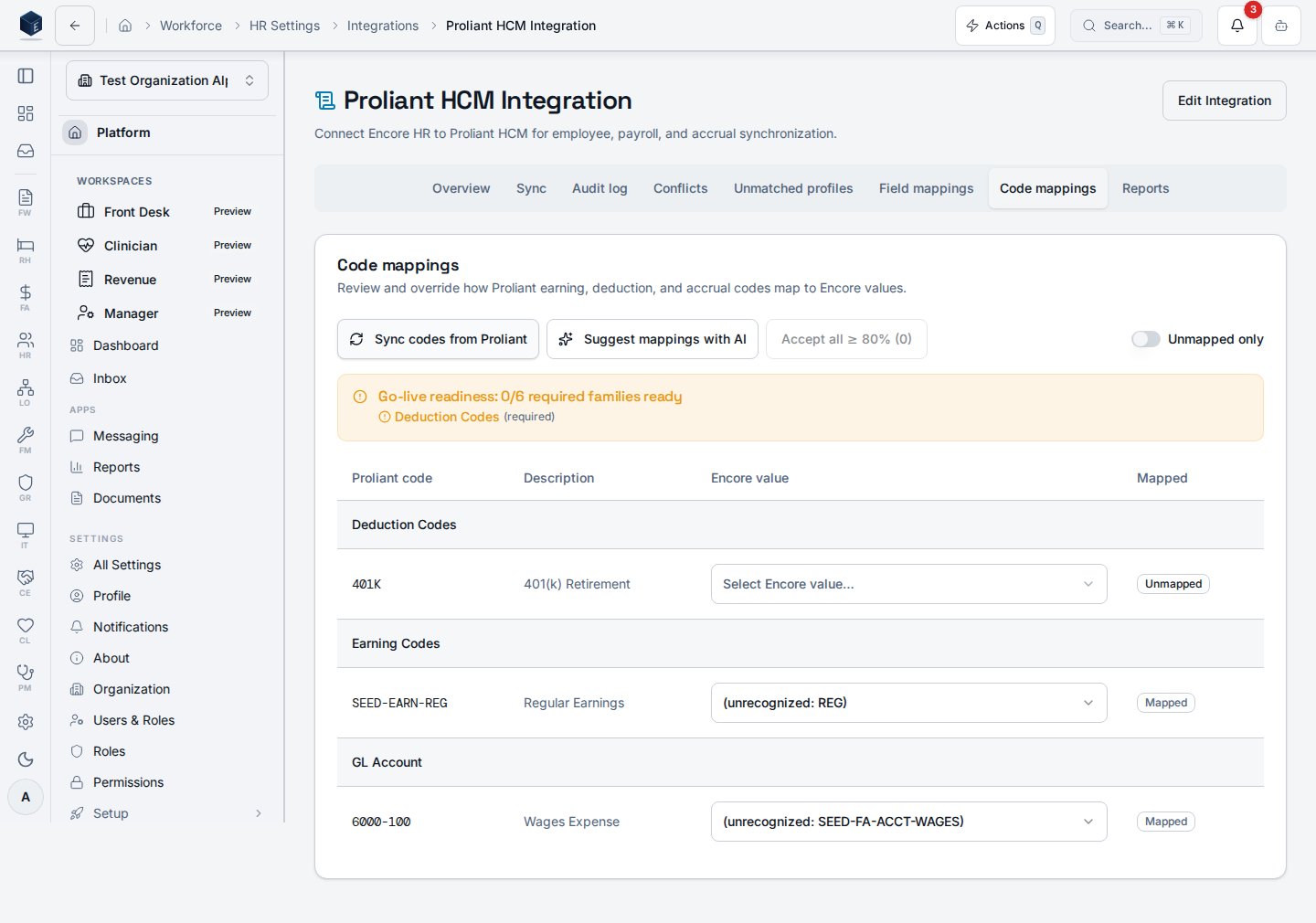
The Code mappings tab on the Proliant integration page lets an admin pull the latest earning, deduction, accrual, and GL-account codes from Proliant and assign each one to the matching Encore value.1
Sync codes from Proliant
Select Sync codes from Proliant. The integration calls the
proliant-code-lookup edge function and writes results to hr_proliant_code_mappings, grouped by code_type (earning, deduction, accrual, gl_account).2
Filter and review
Toggle Unmapped only to focus on codes that still need an Encore value. Each row shows the Proliant code, description, and the Encore value field.
3
Pick an Encore value or N/A
The Encore-value cell is a constrained dropdown populated from the platform mapping-target registry, so you cannot mistype a value that silently breaks payroll. If a code does not apply to your organization, choose N/A — skip this code. The row is stored with
is_mapped=true and a NULL Encore value, and the family-readiness gate counts it as satisfied.4
Save mappings
Saved rows are marked mapped; cleared rows revert to unmapped and route to the exception queue on the next payroll JE.
N/6 required families ready across employee_status, employee_type, pay_frequency, tax_form, deduction, and accrual. job, gender, and earning are recommended but don’t block — the earning family resolves from your Earning Types catalog. Activate in the setup wizard is hard-gated on this readiness check — see the setup walkthrough.
Existing free-text values saved before the constrained dropdown shipped are preserved; any that fall outside the dropdown’s value set are flagged read-only so you can re-pick them.
Unmapped earning, deduction, or accrual codes block the affected lines from posting. Unmapped gl_account codes route the related journal entry line to the FA-43 exception queue rather than auto-posting — review the queue in Finance & Accounting and back-fill the mapping.
Unmatched profiles
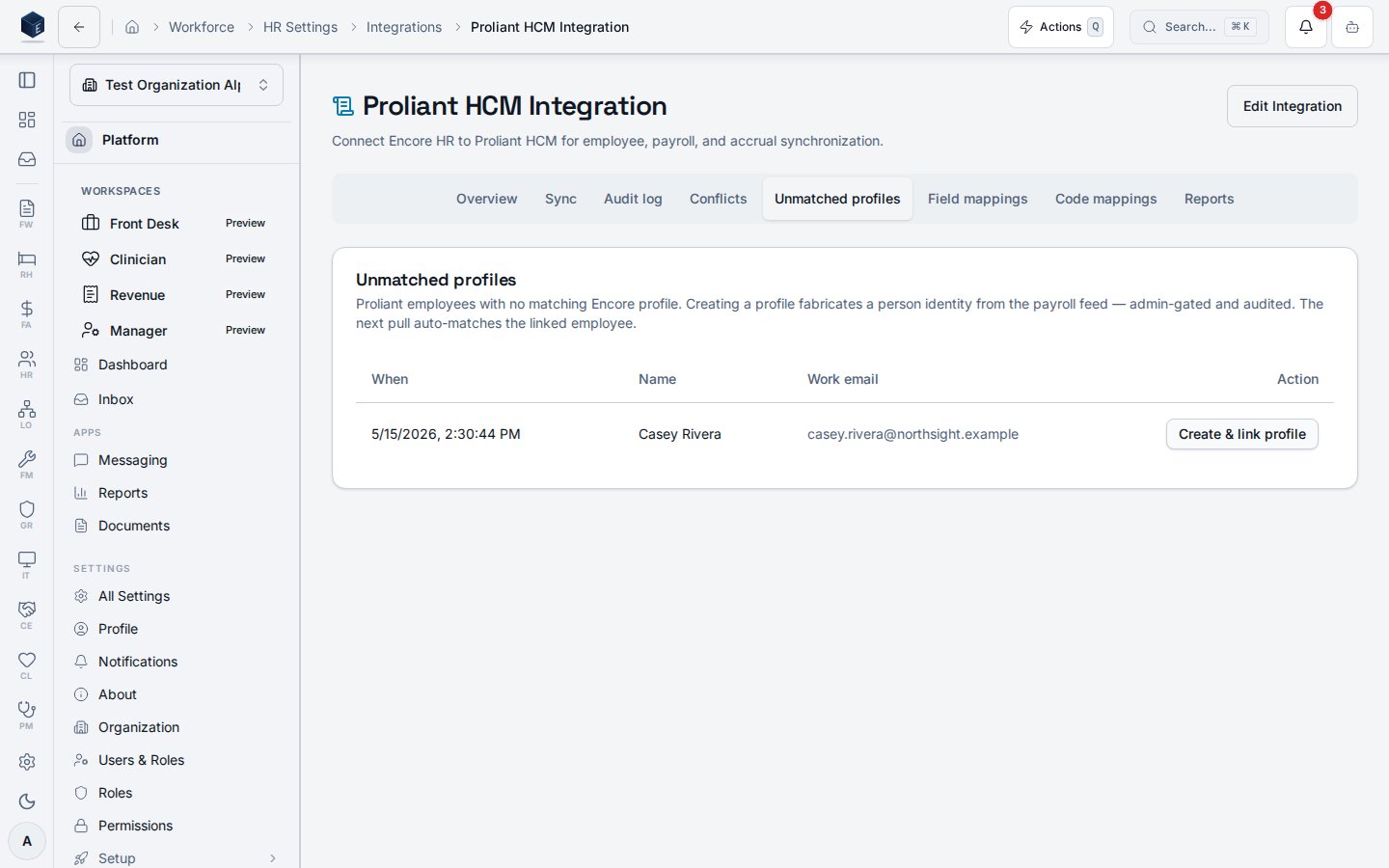
The Unmatched profiles tab lists payroll employees that Proliant returned but Encore could not link to an existing profile by work email. These rows are kept separate from the Conflicts tab. Conflicts is for field-level disagreements between the two systems; Unmatched profiles is for people who have no Encore identity yet. Each row shows only the minimum non-PHI identity needed to recognize the employee: Proliant employee ID, company ID, work email, first and last name, and employee number. SSN, date of birth, and address are never stored on these rows or displayed in the UI.Resolve an unmatched row
Use this workflow when the employee is real and should exist in Encore. Creating a profile from a payroll feed is a deliberate, audited action — every create is attributed to the admin who ran it.1
Confirm the permission
You need
hr.proliant-integration.resolve-conflicts on the same organization that owns the row. The action is rejected for any other tenant.2
Open the row and review the identity
Confirm the work email and name match a person you expect to onboard. If the row looks wrong (for example, a test record or a terminated employee that should not exist in Encore), leave it alone — see Skip an unmatched row below.
3
Select Create & link profile
Encore finds or creates an auth identity for the work email and creates the matching
pf_profiles row. It then inserts an hr_employees row with the same defaults the inline pull path uses (job_title “Unspecified”, hire_date today, status active) and writes a Proliant mapping marked match_method = manual. If an auth user already exists for that email, Encore reuses it instead of creating a duplicate.4
Verify the next sync auto-matches
On the next pull, the employee matches through the new mapping and no longer appears on the Unmatched profiles tab. Their record updates flow through the normal Conflicts queue from then on.
resolved_manual with your user ID and a timestamp on hr_proliant_sync_log, which is append-only for audit.
Skip an unmatched row
If the employee should not exist in Encore (test data, mis-keyed record, or an employee who is staying payroll-only), leave the row in the Unmatched profiles tab and do not run Create & link profile. Unmatched rows are excluded from the Conflicts resolver and do not block payroll runs for other employees.Permissions
All five permissions are tenant-scoped; assignment is configurable per organization (constitution §5.2.3). The
resolve-conflicts permission is granted to org_admin by default.
Auditing & monitoring
- Every outbound Proliant call is recorded in
pf_integration_audit_logwith actor, organization, endpoint, status code, and a SHA-256 hash of any PII identifier (never the raw value). - Sync runs write summary rows to
hr_proliant_sync_runsand per-record entries tohr_proliant_sync_log. - The sync dashboard surfaces counts for
completed,partial, andfailedruns per scope. - 4xx/5xx responses that contain PHI trigger an
IT-incident.createevent instead of a UI toast.
Troubleshooting
- Sandbox integration won’t activate. Confirm
sandbox_base_urlis populated. Sandbox runs no longer fall back to a default host. - Test connection or sync fails with
invalid_client. Proliant rejected the OAuth credentials. The UI message reads “Proliant rejected the credentials (invalid_client). Re-save API key and secret for this integration.” Open the integration settings, re-enter the client ID and secret from your Proliant account manager, save, and run Test connection again. The integration automatically retries the token exchange with HTTP Basic auth when Proliant returnsinvalid_client. A persistent failure means the credentials themselves are wrong or revoked — not the auth style. - Run finalized as
failedwith zero records. Proliant reported records in scope, but the integration processed none. This is almost always a credential, company-mapping, or endpoint-contract problem. Verify thecompanyIdmapping and re-run the Test connection flow. - Run finalized as
partial. Openhr_proliant_sync_log, filter to the failed rows, and check the per-record error messages. Common causes: missing required Proliant fields on the source record, or an Encore employee that does not match byproliantEmployeeId. - Timesheet push returns 404. The push path now uses
POST /Company/{companyId}/TimeImport/{calendarId}against an open calendar. If no open calendar is returned byGET /Company/{companyId}/Earnings/calendars, no push is attempted — confirm the pay period is open in Proliant. - Configuration changes don’t take effect. Some settings require a session refresh; sign out and back in.
The integration UI
The integration is managed at HR Settings → Integrations → Proliant. When an integration is active the page shows the Manage view with eight tabs: Overview, Sync, Audit log, Conflicts, Unmatched profiles, Field mappings, Code mappings, and Reports. (To connect a brand-new integration, see the setup walkthrough.)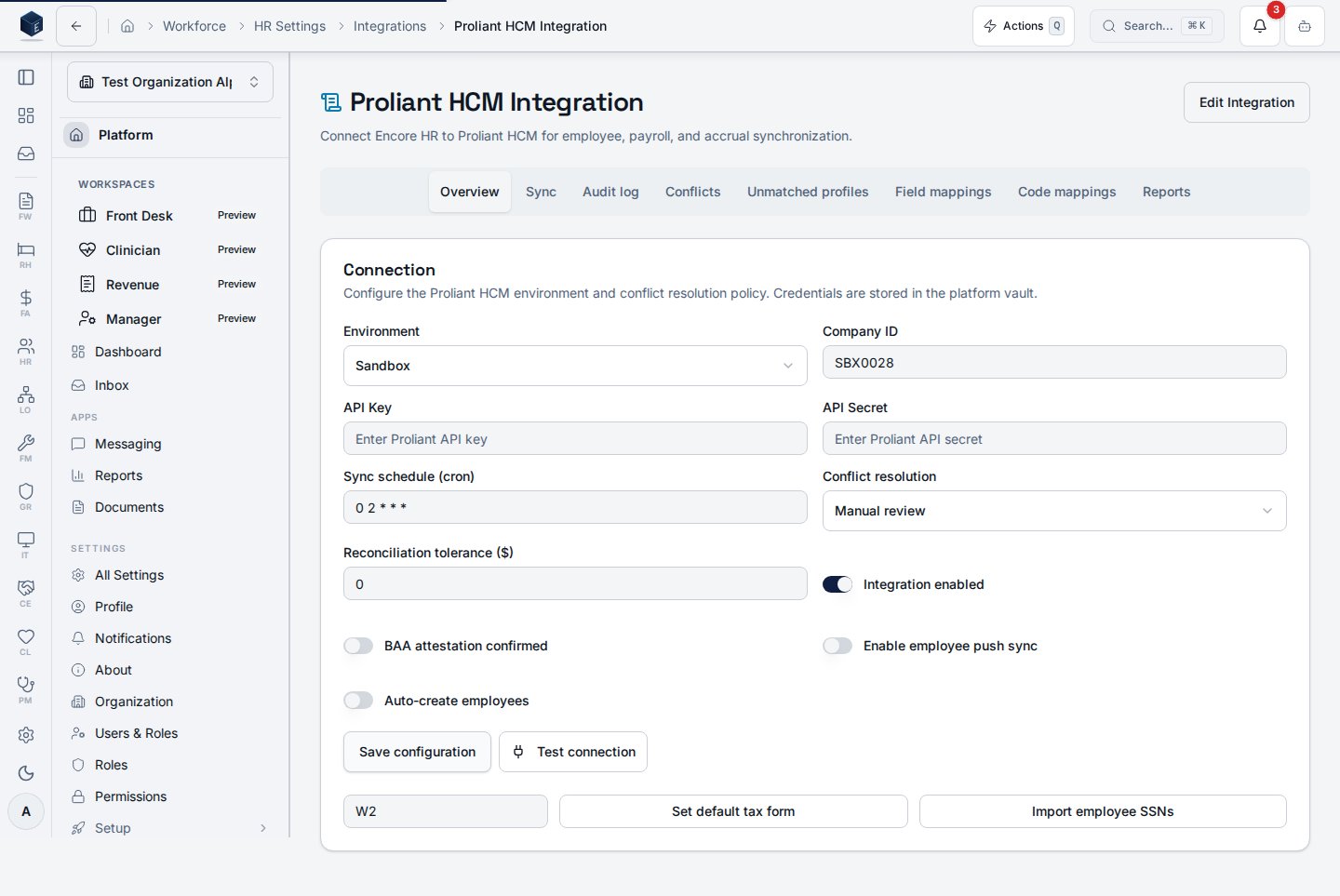
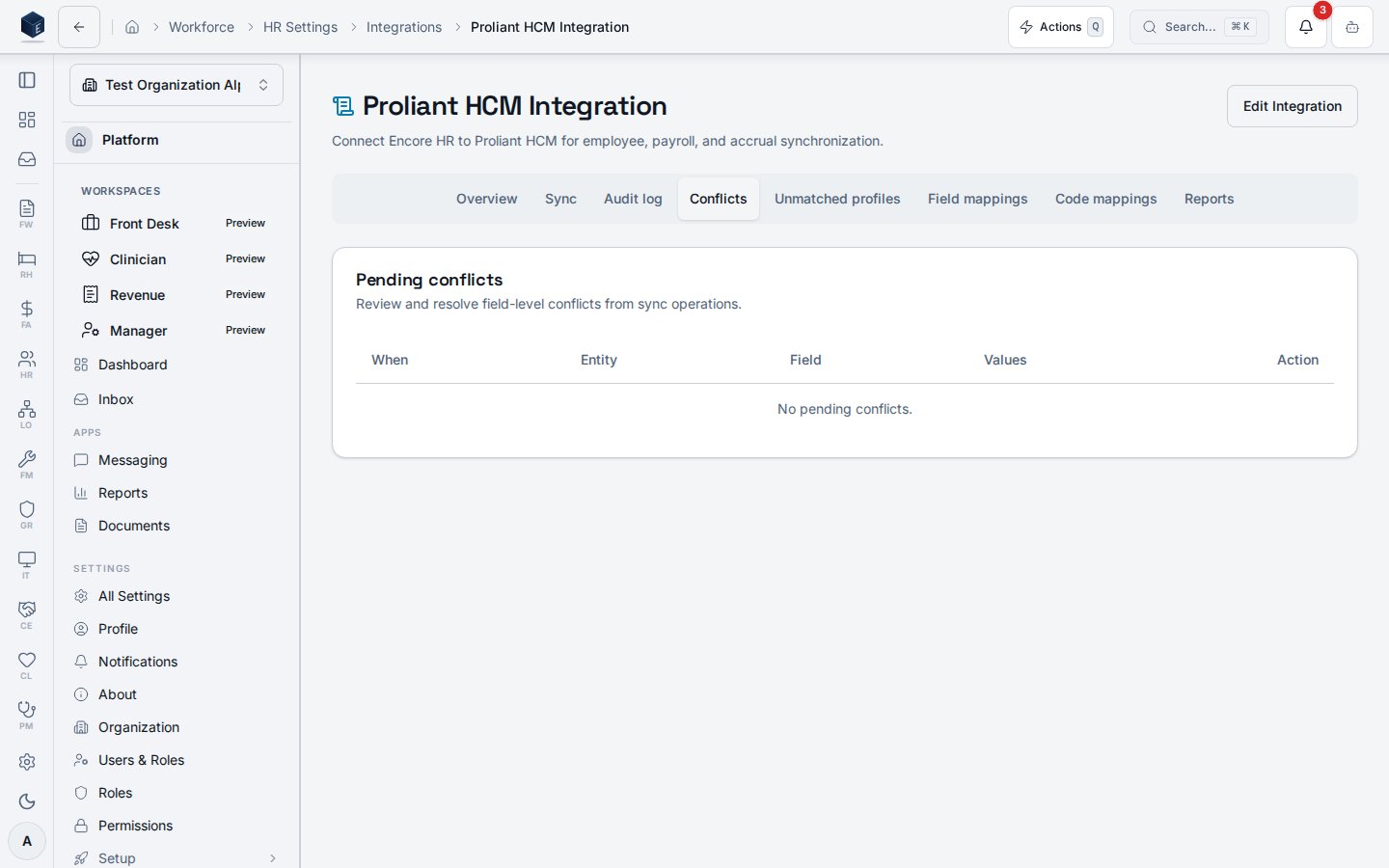
hr.proliant-integration.resolve-conflicts; resolutions are recorded with the resolving user and
timestamp.
The Unmatched profiles tab lists Proliant employees whose work email did not match any Encore
profile during the most recent pulls — these rows used to land in Conflicts and crowd out real
data conflicts. Each row shows the captured name and work email, with a Create & link profile
action that:
- Creates an Encore auth identity and
pf_profilesrow for the work email (existing identities are reused). - Inserts an
hr_employeesrow using the same fallbacks as the inline pull (employee_number,job_title = 'Unspecified',hire_date = today,status = active). - Links the Proliant mapping (
match_method = manual) so the next pull auto-matches the employee. - Marks the log row
resolved_manualwithresolved_by = auth.uid()andresolved_at.
hr.proliant-integration.resolve-conflicts and a valid work email on the
captured row; rows with no email render the button disabled. Only non-PHI identity fields
(work_email, first_name, last_name, employee_number, Proliant employeeId/companyId) are
ever persisted to the audit payload — SSN, DOB, and address are never written.
Creating a profile from a payroll feed is a meaningful data-provenance change for a regulated core.
Use it deliberately, and confirm the captured work email matches the intended person before
selecting Create & link profile.
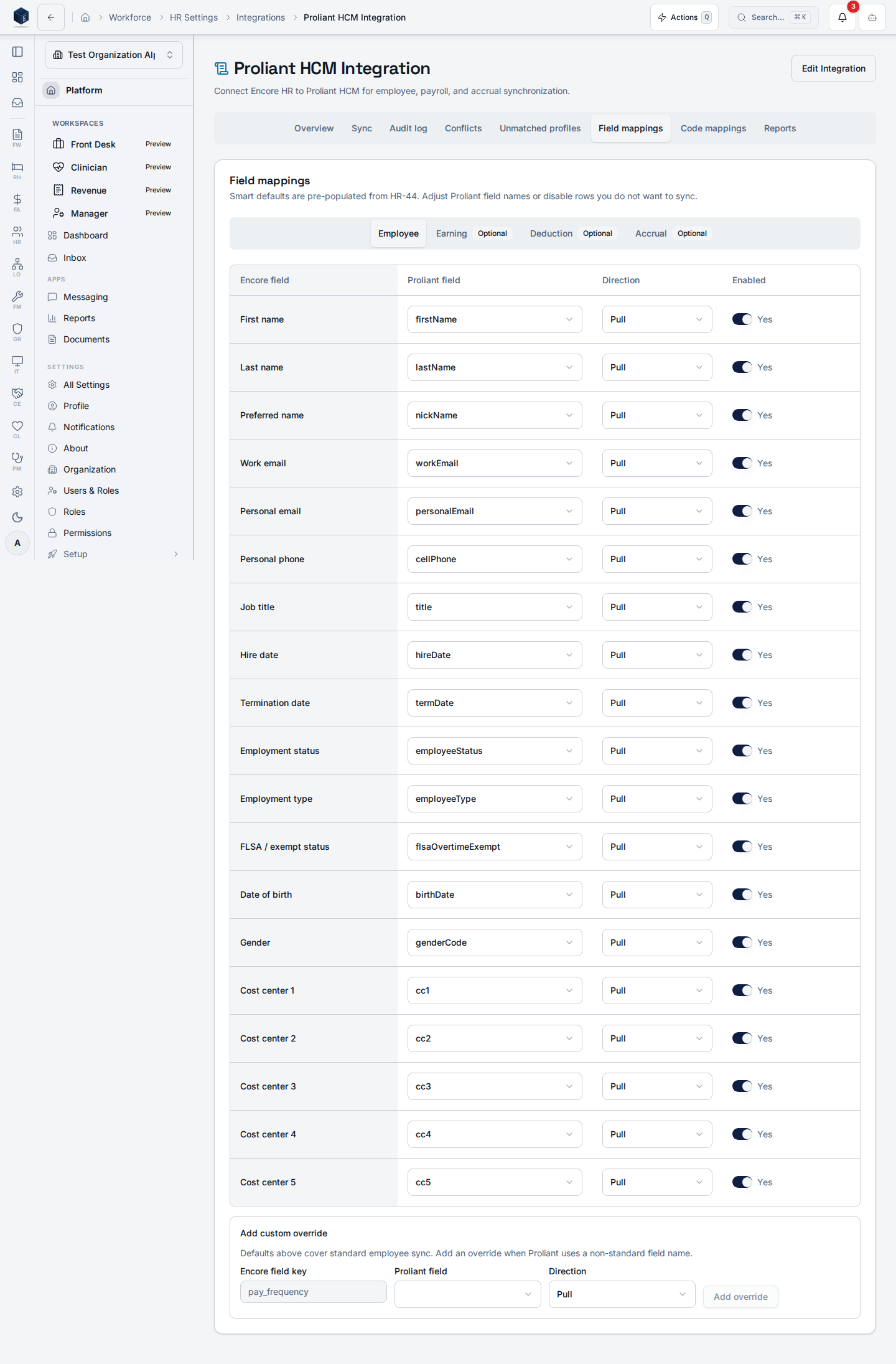
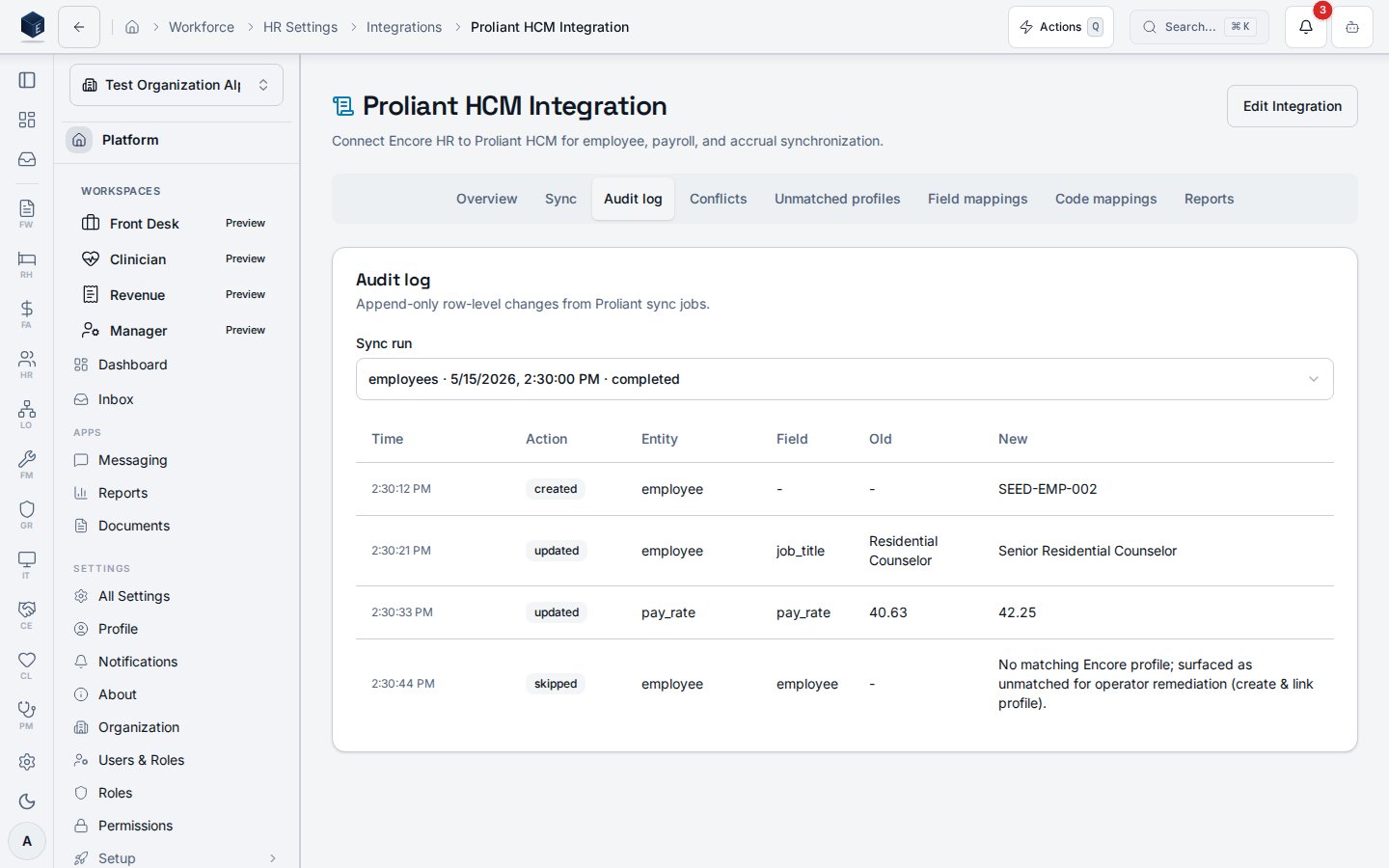
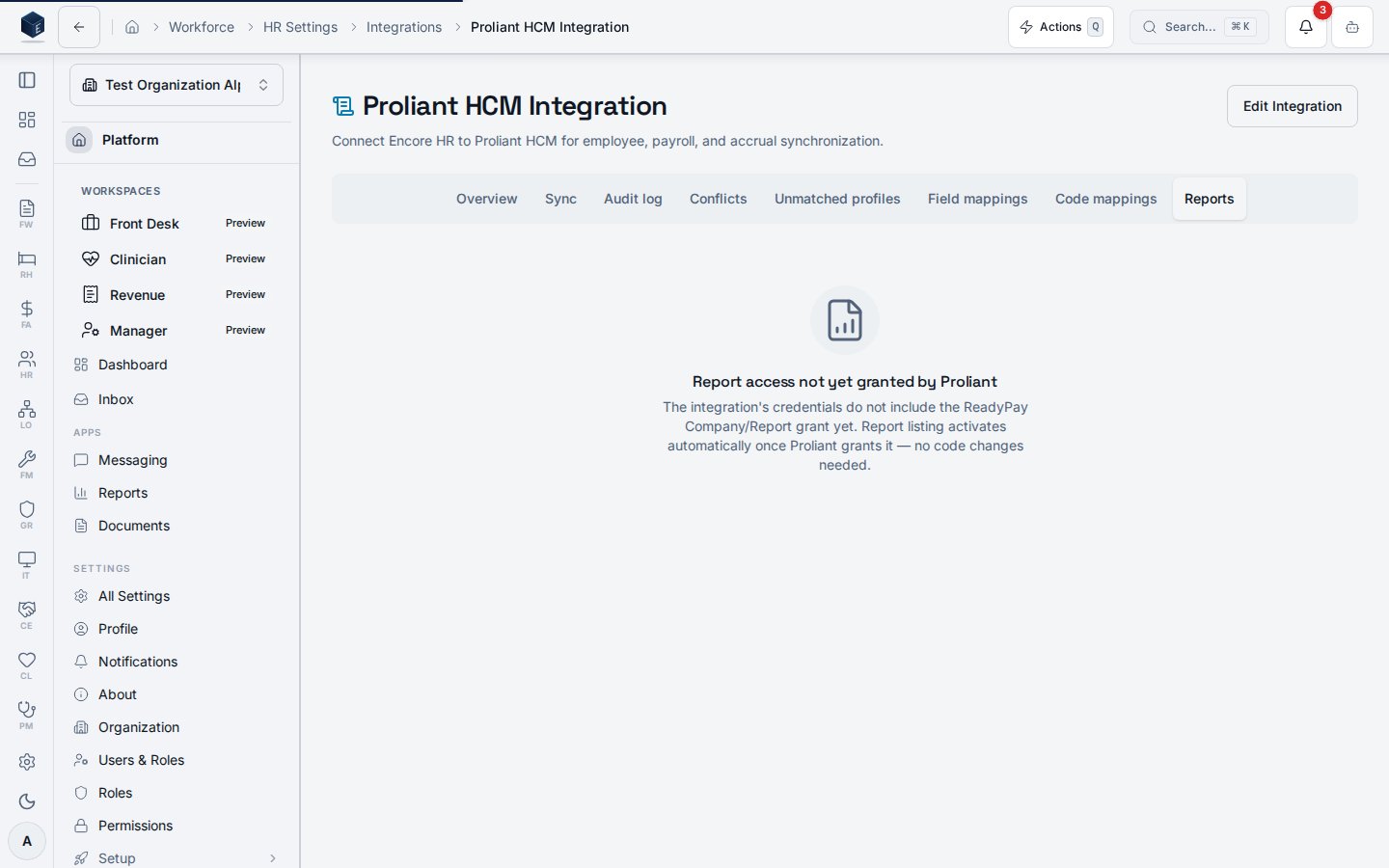
Company/Report grant: until Proliant provisions it for
your credentials, the tab says exactly that, and the listing activates automatically once granted —
no configuration or code change needed.