

Overview
Onboarding and offboarding (HR-03) cover an employee’s first and last miles. An onboarding instance is created with a categorized task checklist when a person is hired; an offboarding instance is created with a checklist plus an exit interview when a separation starts. Open them from HR → Onboarding and HR → Offboarding.Onboarding usually starts automatically: accepting an offer in the ATS
emits
hr_employee_hired, which creates the employee record, kicks off this
onboarding checklist, and drives IT provisioning (IT-08) and PF-10 notifications.
You can also start one manually.Onboarding dashboard
The dashboard lists new hires with Active and Completed tabs and each instance’s checklist progress. Select a row to open its detail.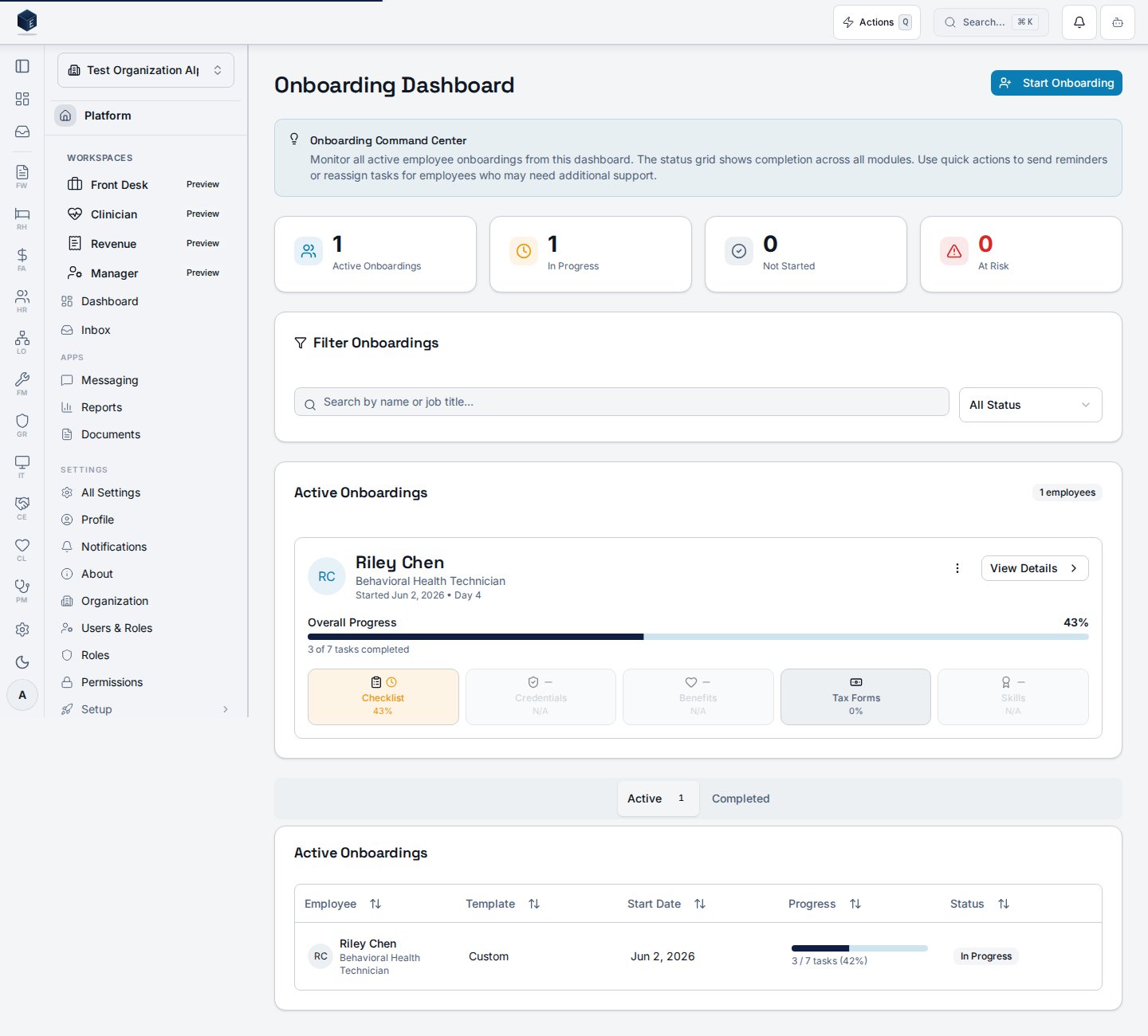
Onboarding tasks
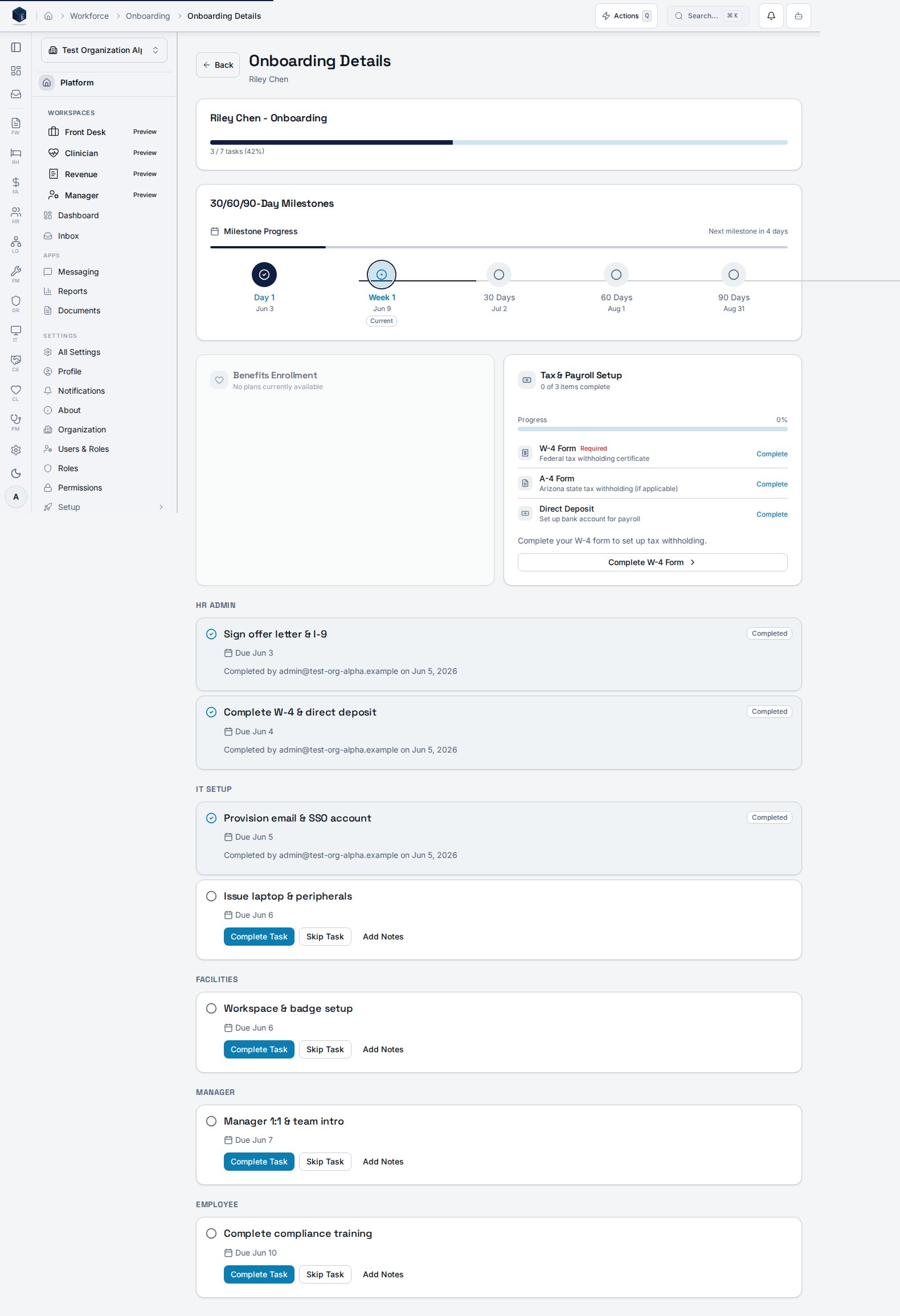
The detail page groups tasks by category (for example, account provisioning, paperwork, training). Each task can be completed — with optional notes — or skipped; completion stampscompleted_at and completed_by. Tasks past their
due date are flagged overdue.
Offboarding dashboard
The offboarding dashboard shows separation stats, filters, and the list of in-progress and completed workflows, each with its last day and checklist progress.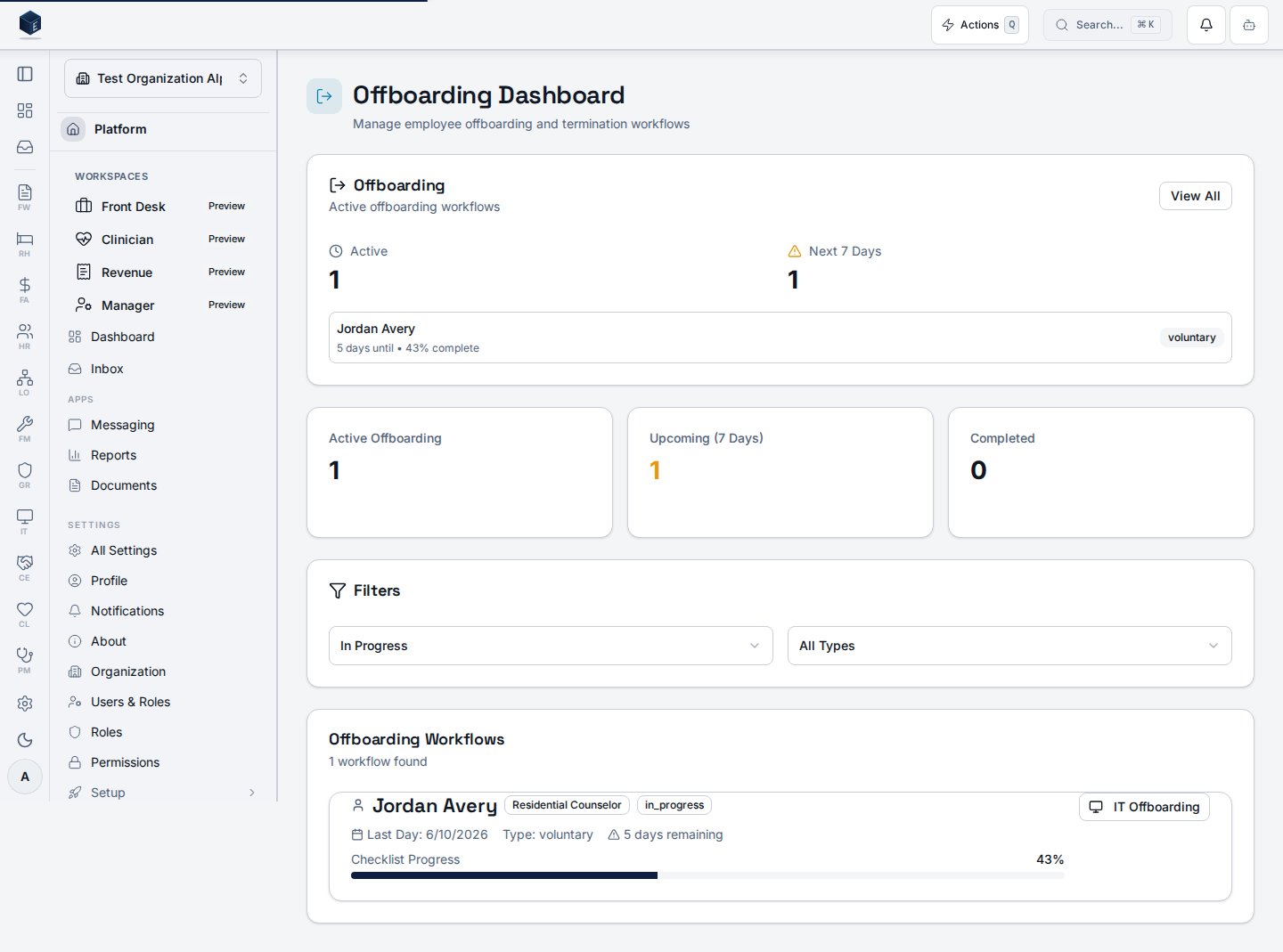
Offboarding checklist & exit interview
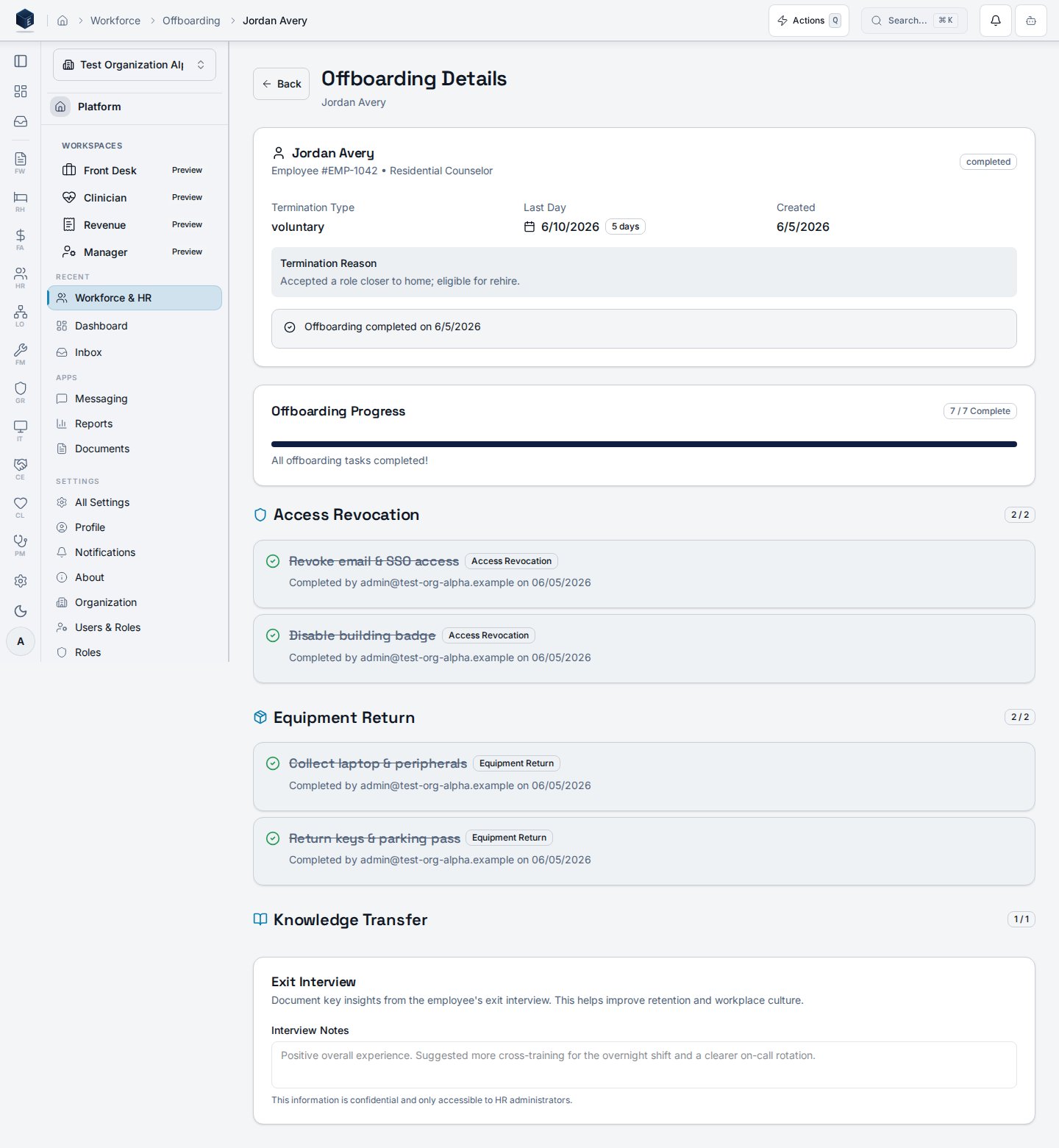
The detail page pairs a categorized checklist (access revocation, equipment return, knowledge transfer) with the exit interview. Completing checklist items updates the progress percentage.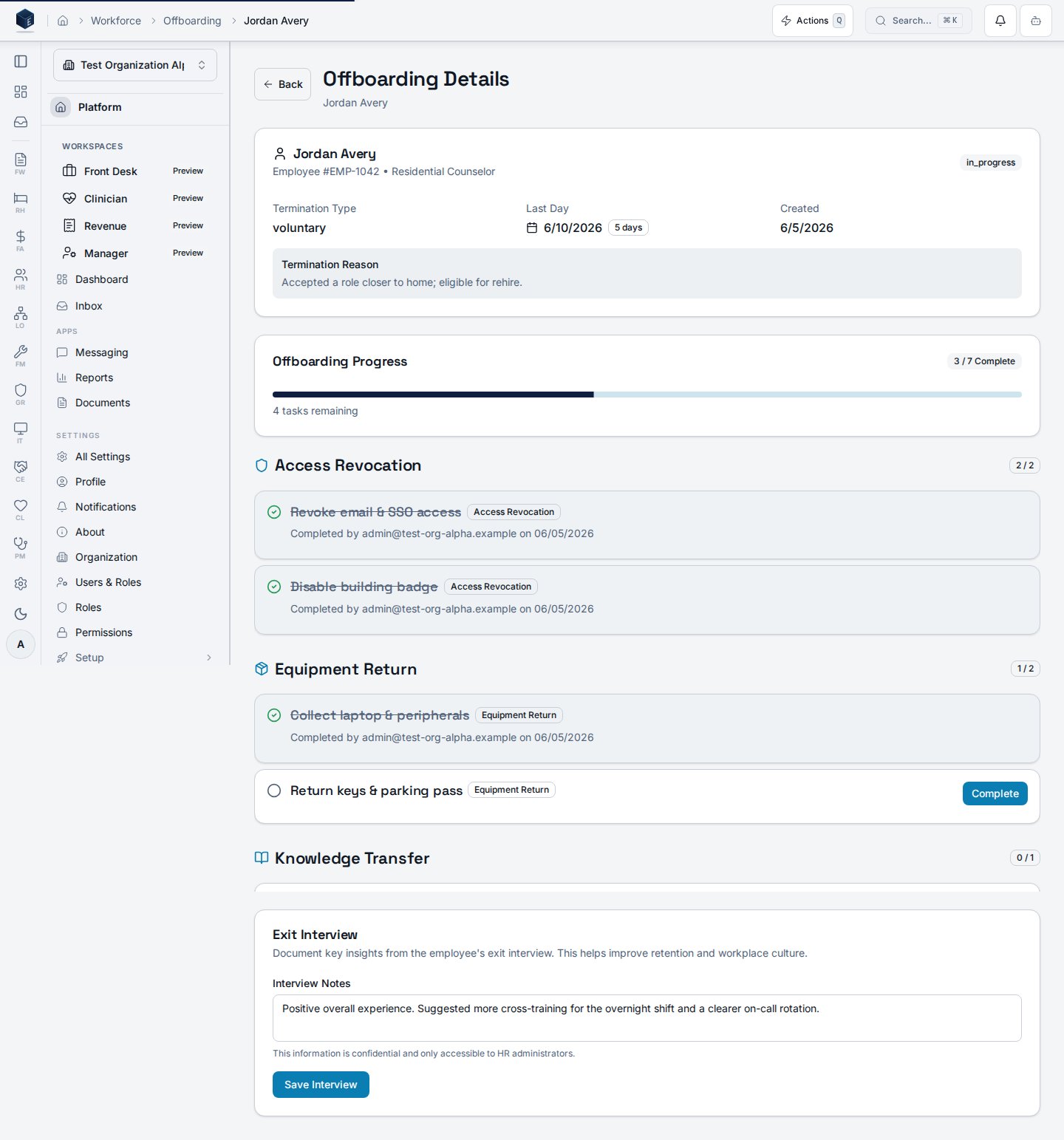
Finalizing a separation
Once every checklist item is complete, the offboarding can be finalized. Finalizing publishes the completion (thepublish_offboarding_completed step) and
locks the record: the checklist and exit interview become read-only and the
banner reads “Offboarding completed on …”.
Permissions
The screenshots above are generated automatically from the local end-to-end test
lane (
tests/e2e/hr/hr-03-*-docs-shots.spec.ts, run via npm run docs:shots), so
they stay in sync with the real UI and are checked by the screenshot drift gate.