

/hr/everify.
Overview
The page fetches all cases (unfiltered) for stats and a filtered set for the list. Five stat counters display: Total, Active, Employment Authorized, TNC (Tentative Non-Confirmation), and Overdue. A tab bar provides quick filters: All, Active, Authorized, TNC, Overdue. Clicking a case row opensEverifyCaseDetailDialog. EverifyComplianceExport provides a compliance export action. Overdue cases are highlighted.
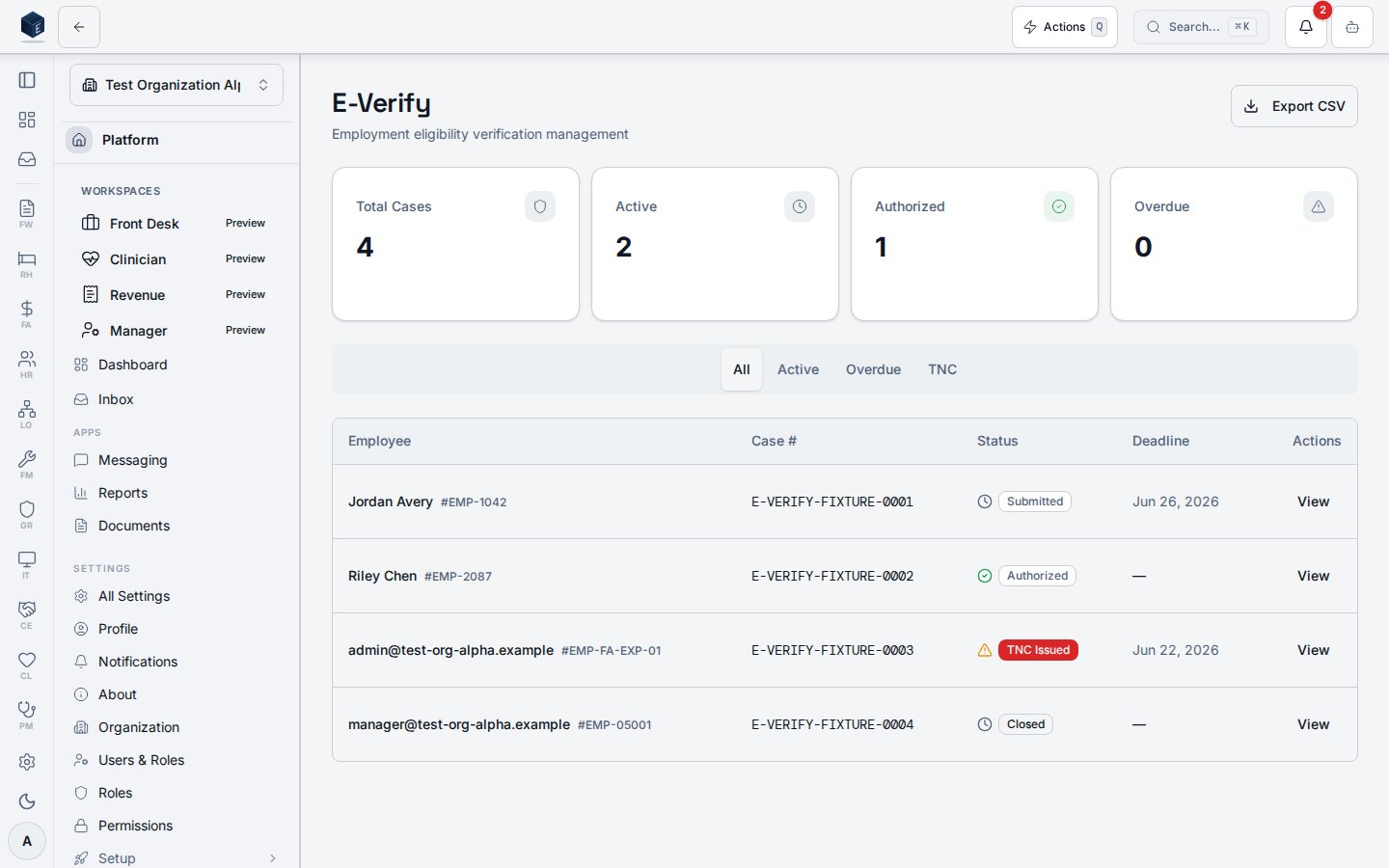
The screenshot is captured against synthetic seed data (
E-VERIFY-FIXTURE-* case numbers); E-Verify handles work-authorization PII and no real case is ever rendered in documentation.RequirePermission wrapper is on the route itself; the component uses PermissionGate internally for any write actions.
Who it’s for
Access follows your organization’s role and module configuration. Internal component gates manage write access. Data is scoped to the current organization.Before you start
- E-Verify settings must be configured at
/hr/everify/settingsbefore cases can be created.
Steps
1
Open E-Verify Dashboard
Navigate to HR → E-Verify or go to
/hr/everify.2
Review stats
The five stat cards show a snapshot of case counts by status.
3
Filter by tab
Use the tab bar to filter the list: All, Active, Authorized, TNC, or Overdue.
4
Open a case
Click a case row to open the case detail dialog.
5
Export compliance data
Use the compliance export control to generate a report.
Key concepts
- TNC (Tentative Non-Confirmation) — A case status indicating a mismatch in the employee’s work authorization data. SME should confirm required follow-up steps.
- Overdue — Cases where
deadline_atis in the past and the status is not terminal.
Permissions
The/hr/everify route has no route-level guard; the dashboard renders for any authenticated member of the organization, and write actions are gated internally via PermissionGate. Data is scoped to the current organization.
Permission keys are assigned to roles in the role editor.
Related
Human Resources
Human Resources core overview.
Governance & parity
This page documents shipped product behavior. It is not medical, legal, or
billing advice. Verify against your organization’s policies and applicable
regulations before using it for clinical, compliance, or billing decisions.
Protected health information (PHI) shown in the product is governed by your
tenant’s access controls and is never exposed in this documentation.
Documentation sources
Documentation sources
- src/routes/hr.tsx
- src/cores/hr/pages/EverifyDashboardPage.tsx
- src/cores/hr/types/everify.ts