

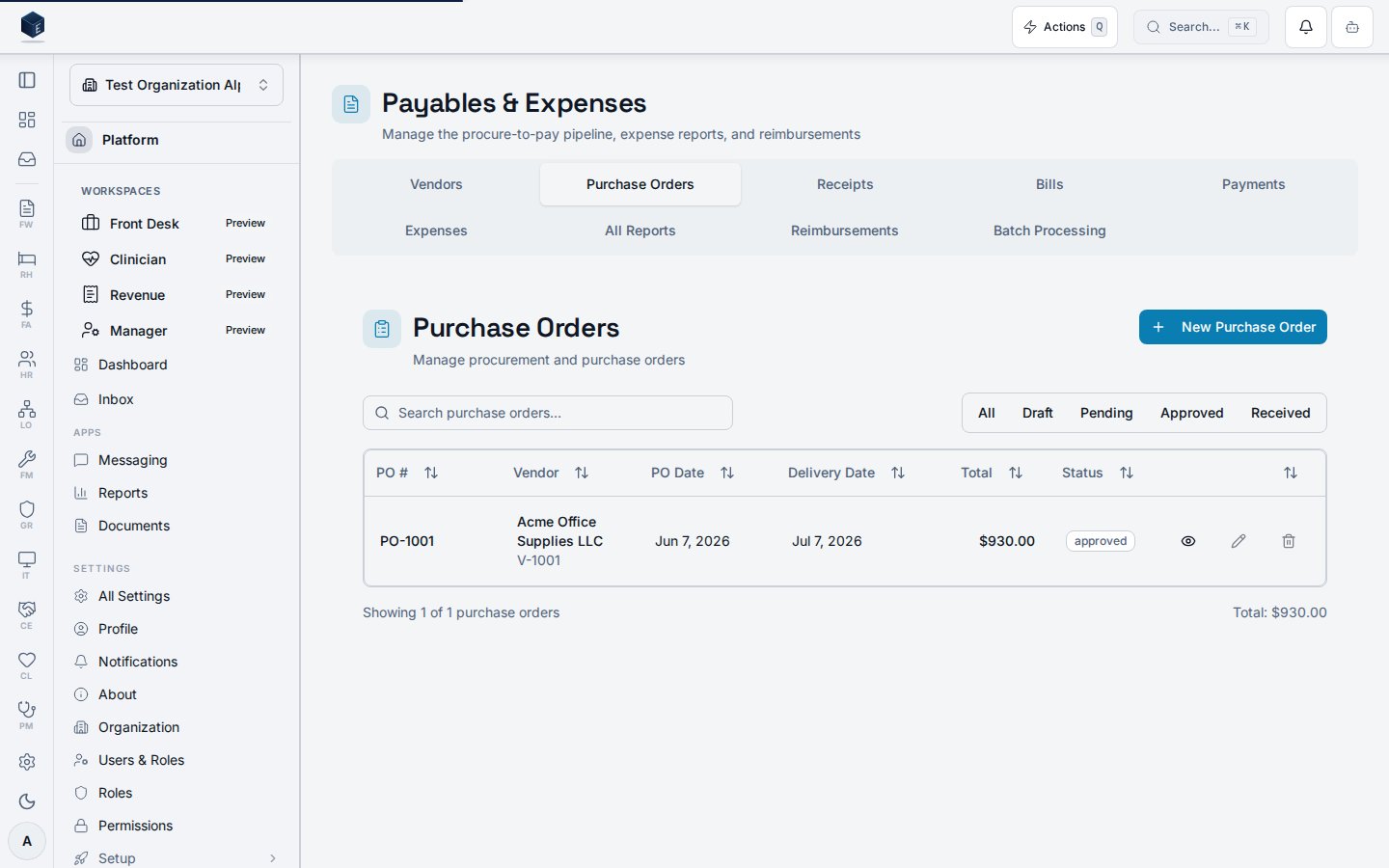
Overview
The Purchase Orders module manages the full procurement lifecycle: creating POs, tracking approvals, receiving goods, performing 3-way matching against invoices, and amending approved orders. Navigation: Finance & Accounting → Purchase Orders (/fa/purchase-orders)
Permissions
Creating a Purchase Order
- Click New Purchase Order from the PO list page
- Select a Vendor from your AP vendor list
- Set the PO Date and optional Expected Delivery Date
- Add Line Items:
- Select a GL account for each line
- Enter description, quantity, and unit price
- Optionally assign fund, department, and program
- Extended amount calculates automatically
- Review the PO Total at the bottom
- Click Save as Draft or Submit for Approval
Line Items
Each PO line includes:- GL Account – Expense account to charge
- Description – What is being purchased
- Quantity and Unit Price – Drives the extended amount
- Fund / Department / Program – Optional dimensional coding
- Received Quantity – Updated when goods are received (read-only on PO)
Approval Workflow
POs follow a status workflow:- Draft: Editable by the creator
- Pending Approval: Locked for editing; awaiting approver action
- Approved: Ready for goods receipt; can be amended
- Rejected: Returned to creator with comments; can be revised
Goods Receipt
Once a PO is approved, record goods as they arrive:- Open the approved PO
- Click Record Receipt
- Enter the received quantity for each line
- Partial receipts are supported — receive what arrived and record the rest later
- The PO status updates to Partially Received or Fully Received based on quantities
3-Way Matching
When a vendor invoice (AP bill) references a PO, the system performs 3-way matching:
Match results display as badges: ✅ Matched, ⚠️ Variance, ❌ Mismatch
PO Amendments
Approved POs can be amended to increase quantities:- Open an approved PO
- Click Amend PO
- Select lines to modify and enter new quantities
- Provide a reason for the amendment
- Submit the amendment
- Only approved POs can be amended
- Lines with receipts cannot be amended
- Only quantity increases are allowed (to decrease, cancel the line)
- If the new total exceeds $10,000 (and the old total was below), re-approval is required
- All amendments are tracked in the Amendment History tab
Tips
- Use the filter bar to find POs by status, vendor, or date range
- PO numbers are auto-generated with a configurable prefix
- Link POs to AP invoices for complete procure-to-pay tracking
- Review the Amendment History before approving re-submitted POs
Viewing a purchase order
The Purchase Order Details page at/fa/purchase-orders/:id shows the full PO record including header fields, line items, receipt history, amendment history, three-way match summary, and approval actions.
PurchaseOrderDetailPage loads the PO via usePurchaseOrder. A PDF can be generated and downloaded via usePurchaseOrderPdf. Components include POAmendmentDialog, POAmendmentHistory, POApprovalActions, POReceiptHistory, POStatusBadge, and ThreeWayMatchSummary. Line items show account, fund, department, quantity, unit price, and extended amount.
Key concepts:
- Three-way match — Links the PO (
fa_purchase_orders), goods receipt (fa_po_receipts), and vendor bill to confirm delivery and invoicing alignment. - Amendment — A tracked change to a posted or approved PO, recorded via
POAmendmentDialog. POStatusBadge— Visual status indicator for the PO lifecycle.
- Navigate to Finance & Revenue → Payables & Expenses → Purchase Orders and select a PO, or go to
/fa/purchase-orders/:id. - Review the PO header: vendor, date, status, and totals.
- Review the line items table.
- Use Download PDF to generate a PO document.
- Review the Three-Way Match Summary to check receipt and billing status.
- Use approval actions or the amendment dialog as appropriate.
Creating a purchase order
The New Purchase Order page at/fa/purchase-orders/new creates a purchase order with header details and line items linked to accounts, funds, departments, programs, and delivery sites.
PurchaseOrderCreatePage fetches active vendors, accounts (fa_accounts), funds (fa_funds), departments (pf_departments), programs (fa_programs), and sites (pf_sites) for the current organization. A po_number is pre-generated via useGeneratePONumber. On submit, useCreatePurchaseOrder saves the PO and lines, then redirects to /fa/purchase-orders/:id.
Key concepts:
- Extended amount — Calculated per line as quantity × unit price; stored in
fa_purchase_order_lines.extended_amount. - Three-way match — POs link to receipts and bills; matching status is visible on the detail page via
ThreeWayMatchSummary.
- Navigate to Finance & Revenue → Payables & Expenses → Purchase Orders and select New Purchase Order, or go to
/fa/purchase-orders/new. - Select the vendor and complete delivery information.
- Add one or more line items with account, quantity, and unit price. Optionally assign fund, department, program, and site.
- Review the pre-generated PO number in the header.
- Select Submit. The PO is saved and you are redirected to the PO detail page.
Related
Finance & Revenue
Finance & Revenue core overview.
Governance & parity
This page documents shipped product behavior. It is not medical, legal, or
billing advice. Verify against your organization’s policies and applicable
regulations before using it for clinical, compliance, or billing decisions.
Protected health information (PHI) shown in the product is governed by your
tenant’s access controls and is never exposed in this documentation.
Documentation sources
Documentation sources
- src/routes/fa.tsx
- src/cores/fa/pages/PurchaseOrderDetailPage.tsx
- src/cores/fa/pages/PurchaseOrderCreatePage.tsx
- src/cores/fa/hooks/usePurchaseOrders.ts
- src/cores/fa/hooks/usePurchaseOrderPdf.ts
- src/cores/fa/components/POForm.tsx