

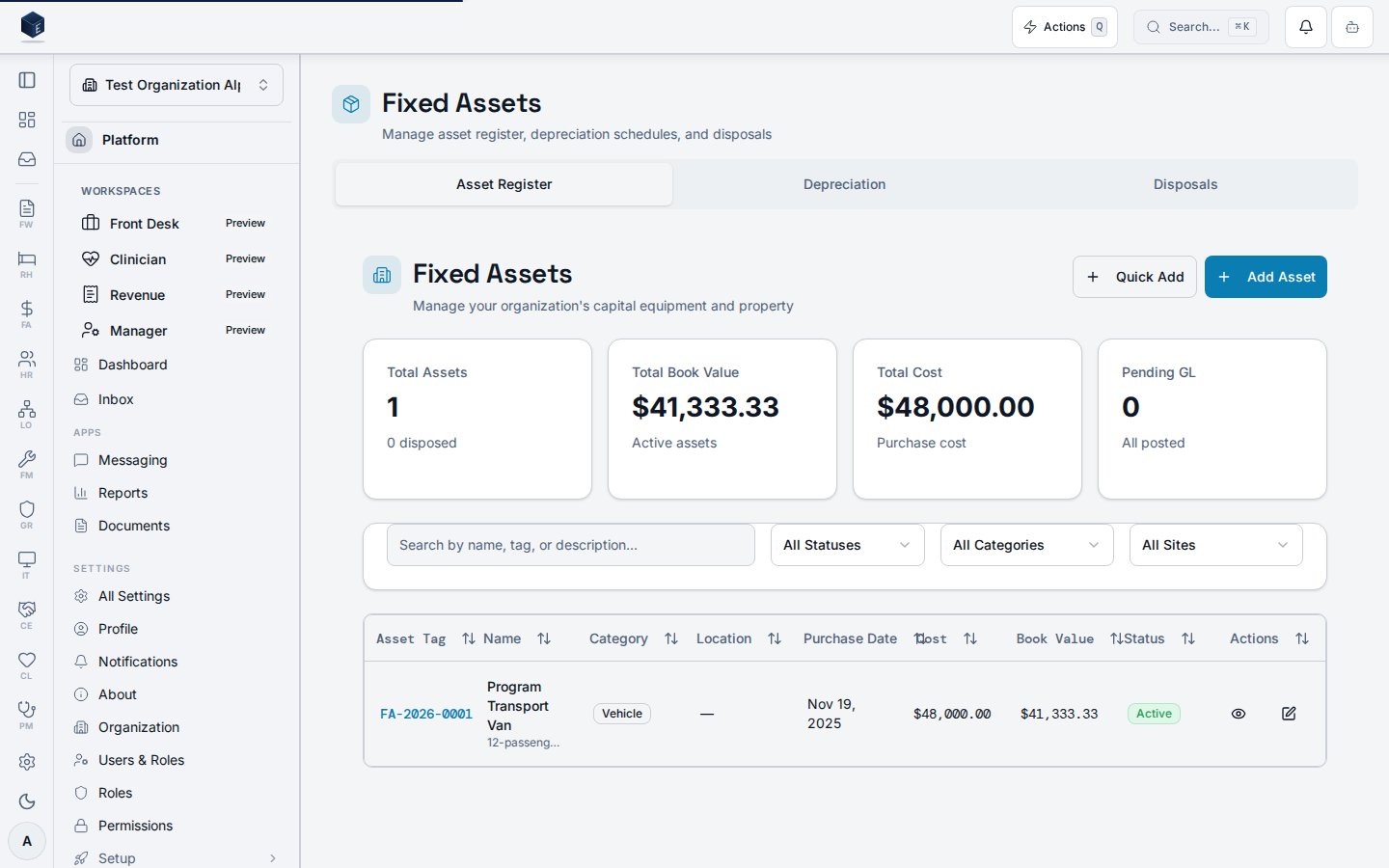
Purpose: This guide helps end users understand how to use Fixed Assets & Depreciation for tracking capital assets, calculating depreciation, and managing asset disposals.
Overview
The Fixed Assets module (FA-11) enables organizations to track capital assets, calculate depreciation, and manage asset disposals. This ensures accurate balance sheet presentation, proper depreciation expense recognition, and compliance with GAAP requirements.Key Capabilities
- Asset Register: Track all capital assets with purchase details, location, and depreciation configuration
- Automated Depreciation: Calculate monthly depreciation using straight-line or declining balance methods
- Disposal Management: Record asset sales, scrapping, or donations with gain/loss calculations
- Location Tracking: Transfer assets between sites and maintain location history
Who Should Use This Guide
Prerequisites
Permissions Required
To use Fixed Assets, you need:Note: Contact your organization administrator if you don’t have the required permissions.
Getting Started
Accessing Fixed Assets
- Navigate to Finance in the main menu
- Click Fixed Assets in the sidebar
- Select Asset Register to view all assets
Understanding the Interface
The Asset Register displays all capital assets with:Common Tasks
Creating a Fixed Asset
When to use: When acquiring new capital equipment above the capitalization threshold ($5,000 default) Steps:- Navigate to Finance → Fixed Assets → Asset Register
- Click Add Asset in the top right
- Fill in the required fields:
- Asset Name: Descriptive name for the asset
- Category: Select from vehicle, equipment, furniture, building_improvement, land, leasehold_improvement, or other
- Purchase Date: Date of acquisition
- Purchase Cost: Original cost
- Depreciation Method: Straight-line, Declining Balance, or None
- Useful Life: Number of years
- Salvage Value: Estimated value at end of useful life
- Click Create Asset
Running Monthly Depreciation
When to use: At the end of each month to calculate depreciation for all active assets Steps:- Navigate to Finance → Fixed Assets → Depreciation
- Click Run Depreciation
- Select the Depreciation Month
- Review the preview of assets to be processed
- Click Run to calculate
- Run depreciation after the fiscal period is open but before closing
- Review any “Pending” GL postings if journal entries weren’t created
Recording an Asset Disposal
When to use: When selling, scrapping, or donating an asset Steps:- Navigate to the asset detail page
- Click Dispose Asset
- Fill in disposal details:
- Disposal Date: When disposal occurred
- Disposal Method: Sale, Scrapped, Donated, or Other
- Disposal Proceeds: Sale amount (if applicable)
- Disposal Reason: Why the asset was disposed
- Review the calculated Gain/Loss
- Click Confirm Disposal
Note: Gain = Proceeds > Book Value; Loss = Proceeds < Book Value
Transferring an Asset Location
When to use: When moving an asset to a different site or building Steps:- Navigate to the asset detail page
- Click Transfer Asset
- Select the new Site, Building, and Room (optional)
- Enter a Transfer Reason
- Click Transfer
Key Concepts
Depreciation Methods
Straight-Line:- Formula: (Cost - Salvage) / Useful Life / 12
- Equal monthly depreciation
- Best for assets with steady utility decline
- Formula: Book Value × (Rate / 12)
- Higher early-year depreciation
- Rate typically 2x straight-line rate
- Asset is not depreciated
- Use for land, art, or non-depreciating assets
Asset Status
GL Posting Status
Tips and Best Practices
Do’s
- ✅ Review asset details before confirming disposal
- ✅ Run depreciation before closing the fiscal period
- ✅ Use consistent naming conventions for assets
- ✅ Keep serial numbers and vendor information up to date
- ✅ Periodically reconcile asset register to physical inventory
Don’ts
- ❌ Don’t dispose assets without proper authorization
- ❌ Don’t skip monthly depreciation runs
- ❌ Don’t create assets below the capitalization threshold
Troubleshooting
Issue: GL Posting Pending
Symptoms: Depreciation records show “Pending” status Cause: General Ledger integration is processing or temporarily unavailable Solution:- Wait for automatic retry (system retries periodically)
- Check GL module status
- Contact administrator if issue persists
Issue: Asset Not Depreciating
Symptoms: No depreciation calculated for an asset Cause: Asset may not be eligible for depreciation Solution:- Verify asset status is “Active”
- Verify depreciation method is not “None”
- Verify book value > salvage value
- Verify purchase date is before depreciation month
Issue: Cannot Dispose Asset
Symptoms: Dispose button disabled or error on disposal Cause: Missing permission or asset already disposed Solution:- Check you have
fa.assets.disposepermission - Verify asset status is “Active” or “Retired”
- Contact administrator for permission issues
Related Documentation
- FA-01: Chart of Accounts - GL accounts for assets
- FA-02: General Ledger - Depreciation journal entries
- FA-04: Purchase Orders - Create assets from POs
- FM-05: Facilities - Operational asset tracking
Glossary
Last Updated: 2026-01-28
Questions? Contact your organization administrator.
Viewing an asset
The Asset Details page at/fa/fixed-assets/:id displays a fixed asset’s full record. Four summary stat cards show Purchase Cost, Accumulated Depreciation (with period count), Book Value (with salvage value), and Monthly Depreciation. Four tabs provide Details (basic info, purchase info, location, depreciation configuration), Depreciation (history table with retry GL posting), Transfers (location transfer history), and GL Accounts (asset, depreciation expense, accumulated depreciation, and gain/loss account assignments). Active assets have Edit, Transfer, and Dispose action buttons.
Permission required: fa.assets.view (enforced at the route via RequirePermission).
Key concepts:
- Open
/fa/fixed-assets(or/fa/assets?tab=register) and click an asset to open its detail page. - Review the four stat cards: purchase cost, accumulated depreciation, book value, and computed monthly depreciation.
- Use the Details tab for basic info, purchase info, location, and depreciation method/useful life.
- Use the Depreciation tab to view depreciation history records. Use Retry to re-post failed GL entries.
- Use the Transfers tab to view location transfer history.
- Use the GL Accounts tab to review asset, depreciation expense, accumulated depreciation, and gain/loss account assignments.
- For active assets: click Edit to go to
/fa/fixed-assets/:id/edit, Transfer to open the transfer dialog, or Dispose to open the disposal dialog.
Creating an asset
The New Asset page at/fa/fixed-assets/new creates a fixed asset record. Permission required: fa.assets.create.
On submit, useCreateFixedAsset is called with the following key mappings:
asset_tag: auto-generated by database triggerbook_value: initialized topurchase_costaccumulated_depreciation: initialized to0status: set to"active"useful_life_months: only set whendepreciation_method !== 'none'
- Navigate to
/fa/fixed-assets/new. - Complete the form — Asset Information (name, description, serial number, category, purchase date, purchase cost), Location (vendor, purchase order, site), Depreciation (method, useful life in months, salvage value), GL Accounts (asset, depreciation expense, accumulated depreciation, gain/loss), and optional Notes.
- Click submit. On success you are redirected to the new asset’s detail page.
none skips the useful_life_months requirement.
Editing an asset
The Edit Asset page at/fa/fixed-assets/:id/edit updates an existing fixed asset record. Permission required: fa.assets.edit.
Fields include: asset_name, description, serial_number, asset_category, purchase_date, purchase_cost, vendor_id, purchase_order_id, current_site_id, depreciation_method, and useful_life_months (conditionally required when depreciation method is not none). On submit, useUpdateFixedAsset persists the changes.
- Navigate to the asset’s detail page and click Edit (active assets only).
- Update the relevant fields in the form.
- If changing the depreciation method, set
useful_life_monthsas required. - Click Save. On success you are redirected to the asset detail view.
Viewing a depreciation schedule
Individual depreciation records are accessed via the Depreciation tab on an asset detail page or the Assets Hub depreciation tab at/fa/assets?tab=depreciation. There is no active standalone route for /fa/depreciation/:id in the current codebase; the list path /fa/depreciation is a legacy redirect to /fa/assets?tab=depreciation. Access to depreciation data is governed by fa.assets.view.
- Navigate to Finance → Assets (
/fa/assets). - Select the Depreciation tab to locate depreciation records.
- Open the related asset to view full depreciation history in its Depreciation tab.
Viewing a disposal record
Individual disposal records are accessed via the Disposals tab on the Assets Hub at/fa/assets?tab=disposals. There is no active standalone route for /fa/disposals/:id in the current codebase; the list path /fa/disposals is a legacy redirect to /fa/assets?tab=disposals. Access to disposal data is governed by fa.assets.view.
- Navigate to Finance → Assets (
/fa/assets). - Select the Disposals tab to locate disposal records.
Related
Finance & Revenue
Finance & Revenue core overview.
Governance & parity
This page documents shipped product behavior. It is not medical, legal, or
billing advice. Verify against your organization’s policies and applicable
regulations before using it for clinical, compliance, or billing decisions.
Protected health information (PHI) shown in the product is governed by your
tenant’s access controls and is never exposed in this documentation.
Documentation sources
Documentation sources
- src/routes/fa.tsx
- src/cores/fa/pages/FixedAssetDetailPage.tsx
- src/cores/fa/pages/FixedAssetCreatePage.tsx
- src/cores/fa/pages/FixedAssetEditPage.tsx
- src/cores/fa/hooks/useFixedAssets.ts
- src/cores/fa/hooks/useAssetDepreciation.ts
- src/cores/fa/hooks/useAssetTransfers.ts
- src/cores/fa/components/FixedAssetForm.tsx
- src/routes/fa/lazy-pages.ts