

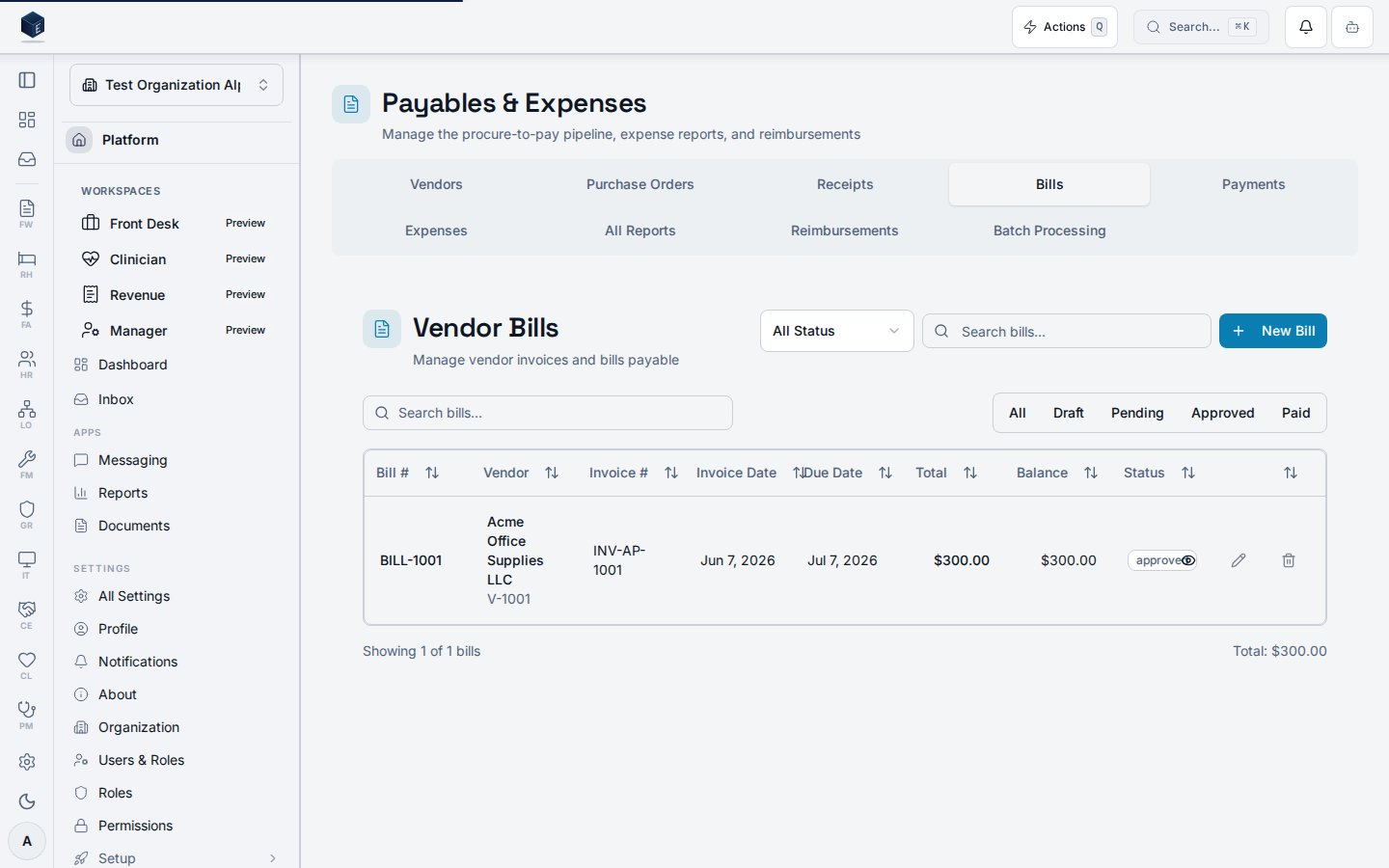
Overview
The Accounts Payable (AP) module manages vendor relationships, bill entry, approval workflows, payment processing, and 1099 reporting for behavioral health organizations. The system integrates with the General Ledger for automatic posting and supports multi-level approval workflows based on configurable amount thresholds.Table of Contents
- Vendor Management
- Bill Entry
- Bill Approval Workflow
- Payment Processing
- 1099 Reporting
- AP Aging Reports
- Approval Thresholds Configuration
Quick Reference
Vendor Management
Creating Vendors
1
- Vendor Number: Unique identifier (auto-generated or manual)
- Vendor Name: Legal business name
- Address: Complete mailing address
- Contact Information: Phone, email, website
- Tax ID (TIN): Encrypted storage of vendor tax identification number
- Requires 1099: Check if vendor requires 1099 reporting
- 1099 Type: Select 1099-MISC or 1099-NEC
- W-9 Document: Upload W-9 form (stored securely)
- Payment Terms: Net 15, Net 30, Net 60, Net 90, or Due on Receipt
- Default GL Account: Default expense account for bill entry
- Bank Account (optional): For ACH payments
- Bank account name
- Routing number (encrypted)
- Account number (encrypted)
Vendor Best Practices
- Unique Vendor Numbers: Use consistent numbering scheme (e.g., V-001, V-002)
- Complete W-9 Data: Collect W-9 forms before first payment to ensure 1099 accuracy
- Payment Terms: Set appropriate terms based on vendor agreements
- Default Accounts: Configure default GL accounts to speed up bill entry
- Vendor Inactivation: Mark vendors as inactive instead of deleting (preserves history)
Searching and Filtering Vendors
- Search: By vendor name, number, or contact information
- Filter: By active/inactive status, 1099 requirement
- Sort: By name, number, or last bill date
Bill Entry
Creating Bills
1
- Vendor: Select from vendor list (required)
- Invoice Number: Vendor’s invoice number (required, must be unique per vendor)
- Invoice Date: Date on vendor invoice
- Due Date: Payment due date (defaults based on vendor payment terms)
- Description: Optional bill description or memo
- GL Account: Select expense or asset account (required)
- Fund: Select fund for fund accounting (if required)
- Department: Select department (optional)
- Program: Select program (optional)
- Description: Line item description
- Amount: Line amount (required)
- Amount Paid: Auto-calculated from payment applications
- Save as Draft: Save for later editing
- Submit for Approval: Submit to approval workflow (if over threshold)
Bill Status Workflow
Draft → Pending Approval → Approved → Paid- Draft: Bill is being entered or edited
- Pending Approval: Submitted and awaiting approver action
- Approved: Approved and posted to GL (journal entry created)
- Paid: Fully paid (all lines paid)
- Cancelled: Bill cancelled (cannot be paid)
Bill Entry Best Practices
- Verify Invoice Numbers: System prevents duplicate invoice numbers per vendor
- Accurate GL Coding: Code each line to appropriate expense/asset account
- Fund Allocation: Assign to correct fund for fund accounting compliance
- Attach Invoices: Upload invoice PDFs for audit trail
- Review Totals: Verify bill total matches vendor invoice before submission
Editing Bills
- Draft Bills: Can be edited freely
- Pending Approval: Cannot be edited (must reject first)
- Approved Bills: Cannot be edited (create credit memo or reversing entry)
- Paid Bills: Cannot be edited (immutable for audit trail)
Bill Approval Workflow
Approval Process
1
- Click Submit for Approval on draft bill
- Bill status changes to “Pending Approval”
- System checks approval thresholds (if configured)
- Bills under threshold: Auto-approved (if configured)
- Bills over threshold: Route to designated approver
- Multiple thresholds: Route to highest required approver
- Approve: Approves bill and posts to GL
- Creates journal entry (DR Expense/Asset, CR Accounts Payable)
- Updates bill status to “Approved”
- Sends notification to bill submitter
- Reject: Returns bill to draft with rejection reason
- Bill status reverts to “Draft”
- Rejection reason appended to bill description
- Sends notification to bill submitter
Approval Indicators
- GL Posting Indicator: Shows on approved bills
- Journal entry number
- Posting date
- Link to journal entry detail
- Approval History: Timeline of approval actions
- Approver name and date
- Rejection reasons (if applicable)
Approval Best Practices
- Review Before Approving: Verify GL coding, amounts, and vendor
- Document Rejections: Provide clear rejection reasons
- Timely Approvals: Approve within 2 business days (SLA target)
- Delegate When Needed: Use approval delegation for absences
Payment Processing
Creating Payment Batches
1
- Payment Date: Date payments will be processed
- Bank Account: Select bank account for payment
- Payment Method: Check, ACH, or Wire
- Description: Optional batch description
- Filter by vendor, due date, amount, or status
- Select bills from list
- System shows total batch amount
- For each bill, specify payment amount:
- Full Payment: Pay entire bill balance
- Partial Payment: Pay specific amount
- System validates payment doesn’t exceed bill balance
- System creates individual payment records
- Assigns check numbers (if check payment)
- Creates payment applications linking payments to bills
- Posts payments to GL (DR Accounts Payable, CR Cash)
- Updates bill status to “Paid” (if fully paid)
- Updates bill balances
- Batch status changes to “Posted”
Payment Methods
Check Payments:- Check numbers auto-generated sequentially
- Check printing integration (deferred)
- Manual check number entry supported
- ACH file generation (NACHA format)
- Bank account information from vendor record
- Batch file export for bank upload
- Manual wire processing
- Wire confirmation tracking
Payment Application
- Automatic Application: Payments automatically applied to bills
- Partial Payments: Support for paying bills in installments
- Line-Level Application: Payments can be applied to specific bill lines
- Balance Tracking: System tracks:
- Bill total
- Amount paid
- Balance due
Payment Best Practices
- Batch Processing: Process payments in batches for efficiency
- Verify Before Posting: Review batch totals before posting
- Timely Payments: Process payments by due date
- Reconcile Regularly: Reconcile payments with bank statements
- Document Wire Payments: Record wire confirmation numbers
1099 Reporting
Generating 1099 Reports
1
- 1099 Type: Filter by 1099-MISC, 1099-NEC, or All
- Vendor: Filter by specific vendor (optional)
- Vendor Information: Name, vendor number, masked TIN
- Total Payments: Sum of all 1099-eligible payments for year
- Payment Count: Number of payments
- 1099 Type: Form type (MISC or NEC)
1099 Eligibility
Vendors Requiring 1099:- Must have
requires_1099 = truein vendor record - Must have 1099 type selected (MISC or NEC)
- Must have valid TIN on file
- Only payments to 1099-eligible vendors included
- Minimum $600 threshold (IRS requirement)
- Excludes reimbursements and non-1099 payments
1099 Best Practices
- Collect W-9s Early: Get W-9 forms before first payment
- Verify TINs: Ensure accurate tax ID numbers
- Annual Review: Generate 1099 report annually (January)
- Export for Filing: Use export function for 1099 filing software
- Retain Records: Keep 1099 records for 7 years (IRS requirement)
AP Aging Reports
Viewing AP Aging
1
- As-of Date: Select date for aging calculation
- Vendor Filter: Filter by specific vendor (optional)
- Status Filter: Show only approved, pending, or all bills
- Current (0-30 days): Bills not yet due
- 31-60 days: Bills 31-60 days past due
- 61-90 days: Bills 61-90 days past due
- 91-120 days: Bills 91-120 days past due
- 120+ days: Bills over 120 days past due
- Vendor name and number
- Bill number and invoice number
- Invoice date and due date
- Bill total and balance due
- Days past due
- Aging bucket
AP Aging Best Practices
- Regular Review: Run aging report weekly or monthly
- Prioritize Old Bills: Focus on 90+ day bills first
- Contact Vendors: Reach out to vendors with overdue bills
- Cash Flow Planning: Use aging report for cash flow forecasting
- Vendor Relations: Maintain good relationships with timely payments
Approval Thresholds Configuration
Setting Approval Thresholds
1
- Module: Select “AP Bills”
- Threshold Amount: Minimum bill amount requiring approval
- Approver Role: Select approver role (e.g., finance_admin, manager)
- Approver User: Select specific user (optional, overrides role)
- Description: Optional threshold description
- Example: 1,000 (auto-approve), 10,000 (manager approval), $10,000+ (CFO approval)
Threshold Logic
- Highest Threshold Wins: Bills route to approver for highest applicable threshold
- Role-Based: Bills route to users with specified role
- User-Specific: User selection overrides role-based routing
- Auto-Approve: Bills under lowest threshold auto-approved (if configured)
Approval Threshold Best Practices
- Start Conservative: Set lower thresholds initially, adjust based on experience
- Document Rationale: Document why thresholds are set at specific amounts
- Review Regularly: Review and adjust thresholds quarterly
- Consider Cash Flow: Factor in cash flow impact of approval delays
- Delegate Authority: Use delegation for approver absences
Common Tasks
Finding a Bill
1
- Search: By bill number, invoice number, or vendor name
- Filter: By status, vendor, date range, or amount
Viewing Bill History
1
Processing a Single Payment
1
- Payment date
- Payment amount (full or partial)
- Payment method
Rejecting a Bill
1
Exporting 1099 Data
1
Troubleshooting
Bill Won’t Submit for Approval
Possible Causes:- Bill is missing required fields (vendor, invoice number, lines)
- Bill total is zero
- Bill has validation errors
- Review bill form for missing required fields
- Add at least one bill line with amount
- Check for validation error messages
Payment Application Fails
Possible Causes:- Payment amount exceeds bill balance
- Bill is not approved
- Payment batch is already posted
- Verify payment amount doesn’t exceed bill balance
- Ensure bill is approved before payment
- Create new payment batch if needed
1099 Report Missing Vendors
Possible Causes:- Vendor doesn’t have
requires_1099checked - Vendor payments are under $600 threshold
- Payments are in different tax year
- Verify vendor 1099 configuration
- Check payment totals meet $600 threshold
- Verify tax year selection matches payment dates
GL Posting Not Appearing
Possible Causes:- Bill not yet approved
- Journal entry creation failed
- GL period is closed
- Verify bill status is “Approved”
- Check GL posting indicator on bill detail
- Verify fiscal period is open for posting
Security & Compliance
Data Protection
- Tax ID Encryption: Vendor TINs encrypted at rest
- Bank Account Encryption: Bank account numbers encrypted
- Access Control: Role-based access (finance_admin, finance_staff)
- Audit Trail: All bill and payment changes logged
Compliance Requirements
- 1099 Reporting: IRS-compliant 1099 generation
- Payment Records: 7-year retention (IRS requirement)
- Audit Trail: Complete audit trail for all transactions
- Multi-Tenancy: Strict organization isolation (RLS)
Best Practices
- Regular Backups: Ensure regular database backups
- Access Reviews: Review user access quarterly
- Document Retention: Follow IRS 7-year retention policy
- Security Updates: Keep system updated with security patches
Related Documentation
- Chart of Accounts Guide v1.0 - GL account setup
- General Ledger Guide v1.0 - Journal entry management
Last Updated: 2026-01-27
Version: 1.0.0