

Overview
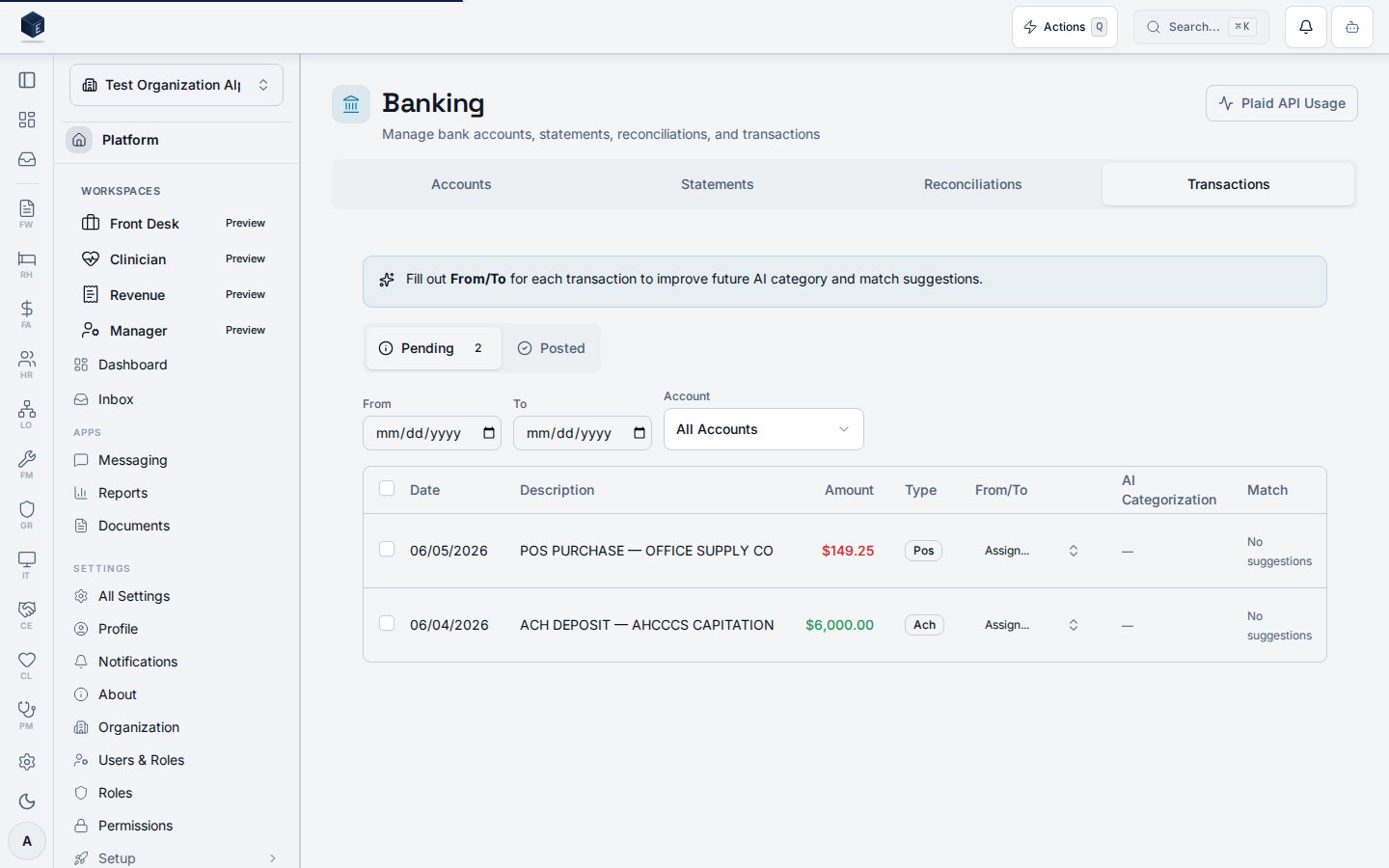
The Transactions tab in the Banking Hub provides a QuickBooks-style view for reviewing, categorizing, and posting bank transaction lines. It surfaces AI-suggested categorizations and match suggestions inline, enabling rapid bookkeeping.Permissions
Users without
fa.bank-transactions.view will not see the Transactions tab.
Navigating to Transactions
- Go to Finance → Banking
- Click the Transactions tab
- You’ll see two sub-tabs: Pending and Posted
Pending Tab
Shows all unmatched bank transaction lines (imported from bank statements).Columns
Filtering
- Date range: Set From and To dates to narrow results
- Account: Filter by specific bank account
- Clear: Reset all filters
From/To Assignment
Click the “Assign…” button in the From/To column to:- Search vendors and customers by name
- Select the appropriate party
- The selection is saved immediately
AI Categorization
When the AI categorization engine has processed a transaction:- A confidence percentage appears (green ≥85%, yellow ≥60%, gray <60%)
- Hover to see the AI’s reasoning
- Use Accept (✓) or Reject (✗) to train the system
Posting Transactions
Single post: Click the “Post” button on any row. Bulk post:- Check the boxes next to transactions you want to post
- Click “Post Selected (N)” in the toolbar
- All selected transactions are marked as matched
AI Match Suggestions
When a reconciliation has been started for the transaction’s account:- Match suggestions appear inline with confidence scores
- Accept or reject suggestions to improve future accuracy
Note: Match suggestions are only available for lines that have been part of a reconciliation. Lines in accounts where no reconciliation has been started will show “No suggestions.” This is a Phase 1 limitation.
Posted Tab
Shows all matched/posted transactions (read-only view).- Same columns as Pending (minus the action column)
- Useful for reviewing what has already been processed
- Filterable by date range and account
Tips
- Fill out From/To for every transaction to improve future AI suggestions
- Review AI categorizations before posting to ensure accuracy
- Use date filters to focus on specific periods during month-end close
- Bulk post saves time when you’ve reviewed multiple transactions at once
Related Features
- Bank Accounts: Manage connected bank accounts
- Bank Statements: Import and view statement files
- Reconciliations: Full bank-to-GL reconciliation workflow
- AI Categorization (FA-28): Automatic transaction categorization