

Overview
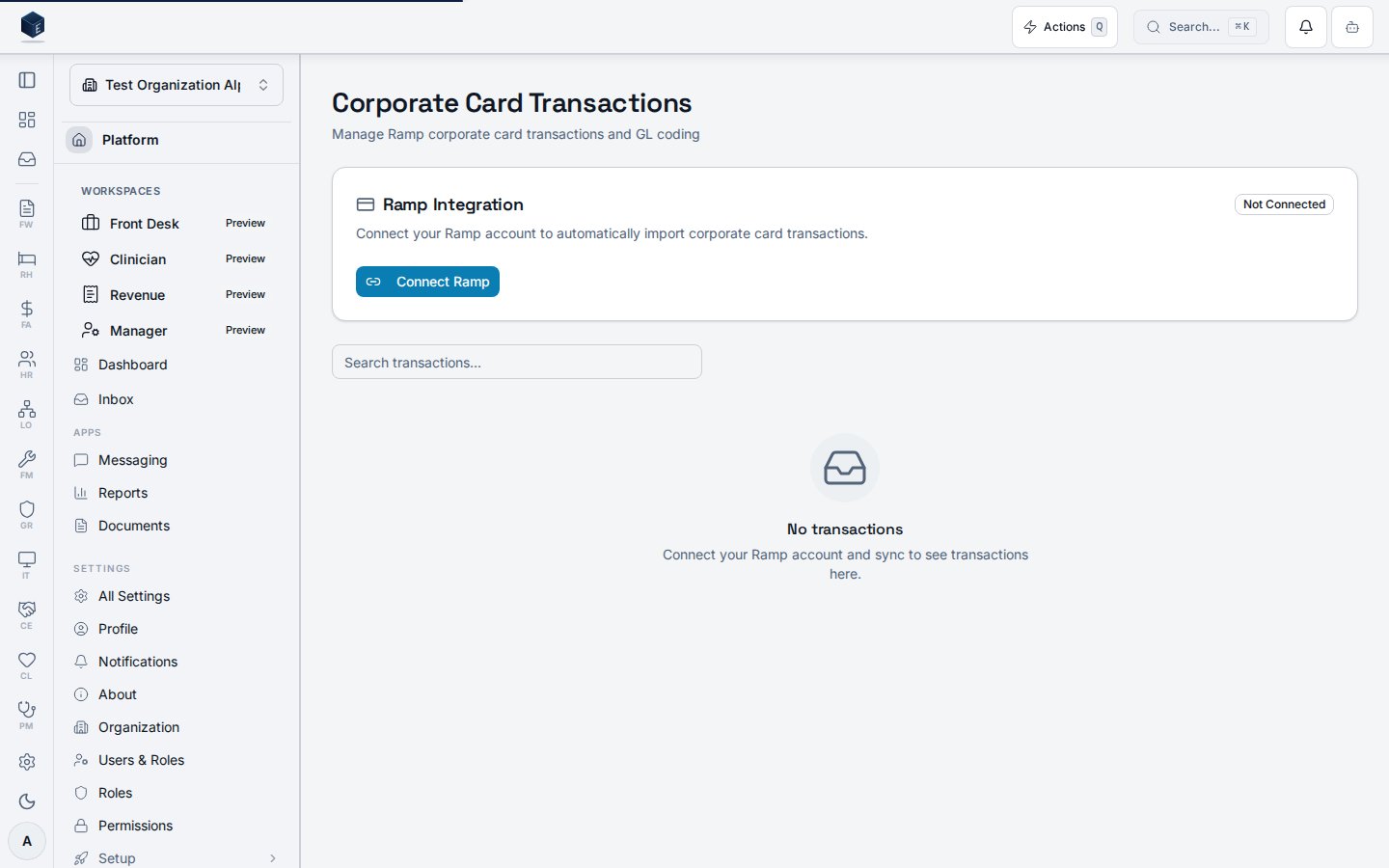
The Ramp integration allows your organization to sync corporate card transactions from Ramp directly into Encore OS. Once connected, transactions appear on the Corporate Card Transactions page where you can assign GL accounts and vendors for accurate financial reporting.Quick Reference
Decision Trees
Missing vs duplicate transactions
- Transactions missing?
- Verify permissions and integration enabled.
- Run Sync Now and confirm last sync timestamp updated.
- Transactions duplicated?
- Refresh view and confirm filter settings.
- Contact admin to verify sync idempotency/connector health.
Pattern Library
- Connection card pattern: integration status + sync action entry point.
- Editable row pattern: in-table GL/vendor assignment with autosave.
- Filter pattern: merchant/status/date filtering before reconciliation.
Common Mistakes
Pre-Flight Checklist
- Integration is enabled for your organization.
- You have required
fa.ramp.view_transactions(andfa.ramp.syncfor manual sync). - Connection status is Connected/healthy.
- Last sync timestamp reviewed before reconciliation.
Getting Started
Prerequisites
- Your organization must have Ramp integration enabled (contact your admin).
- You need the
fa.ramp.view_transactionspermission to view transactions. - You need the
fa.ramp.syncpermission to trigger syncs.
Viewing Transactions
- Navigate to Finance → Corporate Card Transactions.
- The transaction list shows all synced Ramp transactions including:
- Merchant — The vendor/merchant name from Ramp.
- Amount — Transaction amount and currency.
- Date — When the transaction occurred.
- Status — Current transaction status (completed, pending, declined).
- GL Account — Assigned general ledger account (editable).
- Vendor — Linked vendor record (editable).
Filtering Transactions
Use the search bar to filter transactions by merchant name. Additional filters for status and date range are available above the table.Assigning GL Accounts & Vendors
- Click on a transaction row.
- Select the appropriate GL Account from the dropdown.
- Optionally link a Vendor record.
- Changes save automatically.
Syncing Transactions
- Click the Sync Now button on the connection card to pull the latest transactions from Ramp.
- Syncs fetch new transactions since the last sync and update existing ones.
- Automatic syncs can be configured by your administrator.