

Overview
The Chart of Accounts (CoA) module provides comprehensive fund accounting capabilities for behavioral health organizations, including fund tracking, department hierarchies, program management, and fiscal period control.Table of Contents
- Chart of Accounts Setup
- Fund Management
- Department Hierarchy
- Programs Configuration
- Fiscal Period Management
- Starter Chart of Accounts
Chart of Accounts Setup
Creating Accounts
1
- Account Number: Unique identifier (e.g.,
1000) - Account Name: Descriptive name (e.g.,
Cash - Operating) - Account Type: Asset, Liability, Equity, Revenue, or Expense
- Account Subtype: Specific classification within type
- Normal Balance: Debit or Credit
- Parent Account: Create hierarchical structure
- Default Fund: Assign to specific fund
- Requires Fund: Force fund selection on transactions
- Requires Department: Force department selection
- Allows Posting: Enable direct journal entries
Account Hierarchy
Accounts support multi-level hierarchies:- Control Accounts: Summary accounts (e.g.,
1000 - Assets) - Sub-Accounts: Detail accounts (e.g.,
1010 - Cash,1020 - A/R) - Level: Auto-calculated based on parent relationships
Fund Management
Fund Types
Unrestricted Funds- General operating funds
- No donor restrictions
- Maximum flexibility in usage
- Donor-imposed restrictions
- Released when conditions met
- Time or purpose-based
- Endowments
- Principal permanently restricted
- Only earnings may be spent
- Designated for specific programs
- Board-restricted or donor-restricted
- Building and equipment purchases
- Major capital improvements
- Day-to-day operations
- Program-specific operating expenses
Creating Funds
1
- Fund Number: Unique code
- Fund Name: Descriptive name
- Fund Type: Select from types above
- Restrictions (if applicable):
- Donor restrictions
- Purpose restrictions
- Time restrictions
Fund Tracking Best Practices
- Create separate funds for each grant/contract
- Use descriptive names (e.g.,
SAMHSA-BH-2024) - Document all restrictions in the system
- Review fund balances monthly
- Track restriction releases
Department Hierarchy
Creating Departments
1
- Department Code: Short identifier (e.g.,
ADMIN) - Department Name: Full name
- Parent Department: Create hierarchy
- Cost Center: Accounting reference
- Is Clinical: Flag for clinical departments
Hierarchical Organization
Example structure:Department Reporting
- Cost center tracking
- Department-level P&L
- Budget vs. actual by department
- Cross-department allocations
Programs Configuration
Creating Programs
1
- Program Code: Unique identifier
- Program Name: Service line name
- Department: Link to owning department
- Revenue Generating: Yes/No flag
Program Types
Revenue-Generating Programs- Direct client service programs
- Track program-specific revenue
- Allocate costs appropriately
- Administrative functions
- Support services
- Overhead allocation targets
Program Tracking
Use programs to:- Track service line profitability
- Allocate indirect costs
- Report to funders by program
- Analyze program efficiency
Fiscal Period Management
Creating Fiscal Years
1
- Year Code: e.g.,
FY2024 - Start Date: Fiscal year start
- End Date: Fiscal year end
- Is Current: Mark as active year
Period Status
Closed (Default)- No journal entries allowed
- Safe state for future periods
- Posting enabled
- Current working period
- Can close/reopen as needed
- Permanently closed
- Prevents any changes
- Used after audit/finalization
- Requires confirmation to lock
Period Controls
Opening a Period:1
1
1
Best Practices
- Open only current period
- Close previous period before opening next
- Lock periods only after final audit
- Maintain clear period boundaries
- Document period-end procedures
Chart of Accounts Templates
Encore OS ships a Template Library of pre-configured chart-of-accounts templates. Applying a template creates the template’s accounts in your current organization in a single action and is safe to re-run — accounts whose numbers already exist are skipped.Available Templates
All built-in templates use FASB ASU 2016-14 (ASC 958-205) net-asset terminology — Net Assets Without Donor Restrictions and Net Assets With Donor Restrictions — rather than the legacy “Unrestricted / Temporarily Restricted / Permanently Restricted” classes.
Applying a Template
1
Template applied. N accounts created. M already existed.created_by, created_at) on every new account.
Idempotency
- Re-running Apply on the same template is safe — accounts whose
account_numberalready exists are skipped. - This makes templates safe to use both for greenfield setup and for incrementally extending an existing CoA with template-aligned accounts.
Customizing After Applying
After applying a template:1
Saving Your CoA as a Custom Template
Once you’ve configured your chart of accounts the way you want it, you can save the current state as a custom template that other users in your organization can apply to bring up new tenants, sites, or test environments quickly.1
Apply-Template Audit Trail
Every Apply Template action — for both built-in and custom templates — writes one row to thefa_template_applications audit table recording the template id, name, source, who applied it, when, and counts of accounts/funds/programs created and skipped. Built-in template applies use the template’s kebab-case id (e.g., samhsa-behavioral-health); custom-template applies use the db:<uuid> id prefix so reports can cleanly distinguish source.
Quick Reference — Standard Number Ranges
Integration with Other Modules
Forms & Workflow (FW)
- Use forms for budget requests
- Workflow approvals for large expenses
- Automated posting from form submissions
Recovery Housing (RH)
- Bill resident fees by program
- Track revenue by site/facility
- Allocate operating costs
Workforce & HR (HR)
- Payroll expense allocation
- Department-based labor costs
- Employee benefit tracking
Troubleshooting
Common Issues
Can’t Post to Account- Check
allows_postingis enabled - Verify period is open
- Ensure account is active
- Account has
requires_fundenabled - Select fund on transaction
- Or update account settings
- Period has been permanently locked
- Contact admin to review
- Post to current period instead
- Department may be inactive
- Check parent department is active
- Verify organizational hierarchy
Reporting
Standard Reports
- Trial Balance: All account balances
- Fund Balance Report: By fund type
- Department P&L: Revenue and expenses by dept
- Program Analysis: Program-level profitability
- Period Comparison: Month-over-month trends
Custom Reports
Use the Reports module to create custom financial reports with:- Account filters
- Fund groupings
- Department breakdowns
- Program summaries
- Date range comparisons
Security & Permissions
Role-Based Access
Finance Admin (finance_admin)
- Full CoA management
- Create/edit accounts, funds, departments
- Manage fiscal periods
- Lock/unlock periods
finance_staff)
- View all financial data
- Post journal entries
- Run reports
- Cannot modify structure
staff)
- View assigned accounts
- Department-level access
- Limited reporting
org_admin)
- All finance permissions
- System configuration
- User management
Next Steps
1
- Load starter CoA or create custom
- Configure account hierarchy
- Link to funds and departments
- Add grants and contracts
- Document restrictions
- Set up default accounts
- Organize hierarchically
- Assign cost centers
- Link programs
- Create fiscal years
- Open current period
- Establish close procedures
- Begin posting transactions
- Track account balances
- Run financial reports
For Technical Support: Contact your system administrator For Training: See FA module documentation in
docs/fa/
For API Access: See FA module specifications in specs/fa/
Creating a new account (inline dialog)
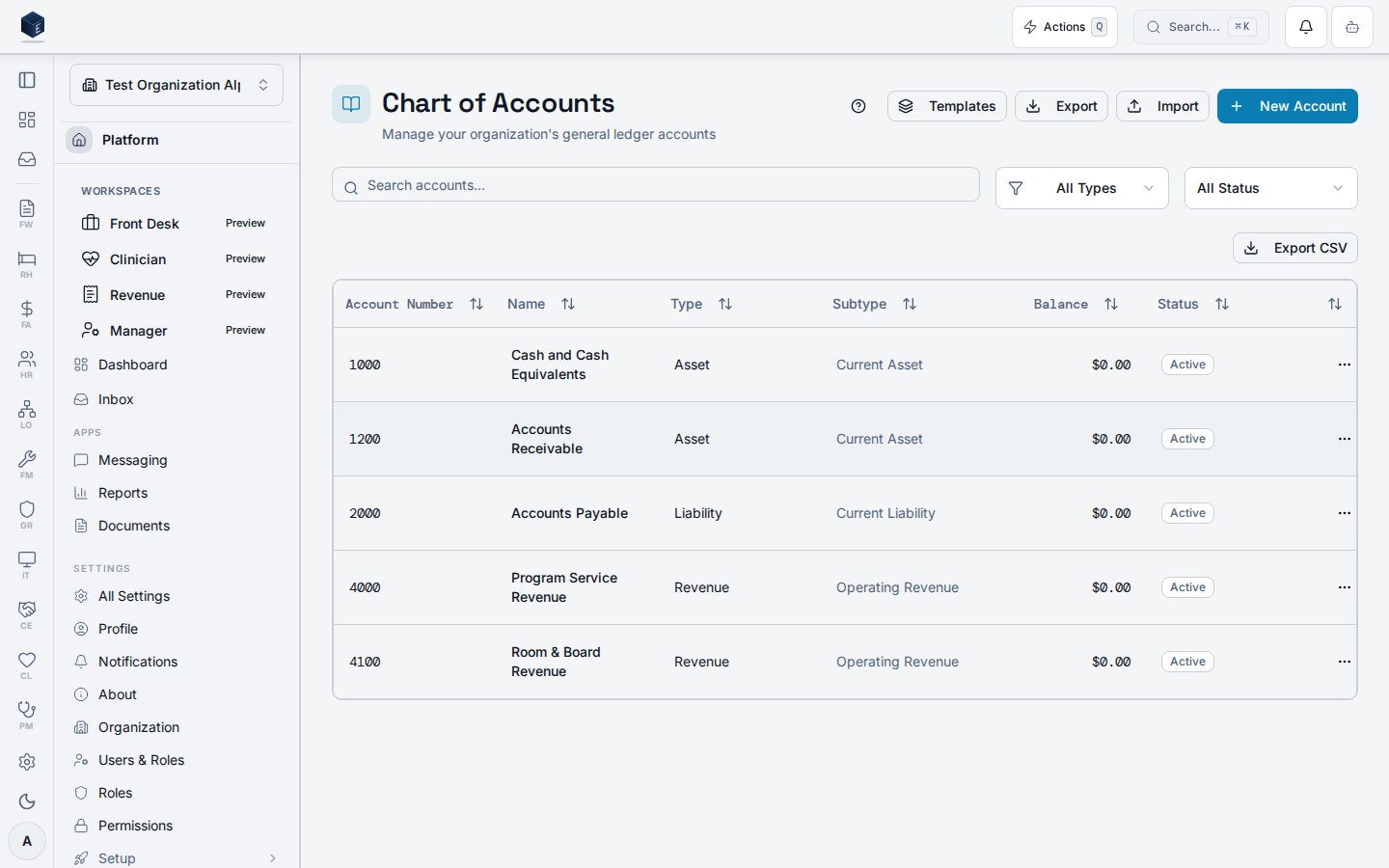
New account creation is handled through an inline dialog on the Accounts (Chart of Accounts) page at/fa/accounts. No separate route exists for account creation.
The New Account button opens AccountDialog in create mode (accountId={undefined}). The same dialog is accessible via row edit actions. Account type options visible in the page filter: asset, liability, equity, revenue, expense. The Import and Export buttons within the page are gated to fa.accounts.admin; the New Account button itself is visible to all users with access to the Accounts page.
Before you start: determine the account type, account number, and name before opening the dialog.
- Navigate to
/fa/accounts. - Click New Account (top right).
- Complete the
AccountDialogform fields. - Save to create the account.
Related
Finance & Revenue
Finance & Revenue core overview.
Governance & parity
This page documents shipped product behavior. It is not medical, legal, or
billing advice. Verify against your organization’s policies and applicable
regulations before using it for clinical, compliance, or billing decisions.
Protected health information (PHI) shown in the product is governed by your
tenant’s access controls and is never exposed in this documentation.
Documentation sources
Documentation sources
- src/routes/fa.tsx
- src/cores/fa/pages/AccountsPage.tsx
- src/cores/fa/components/AccountDialog.tsx