

Overview
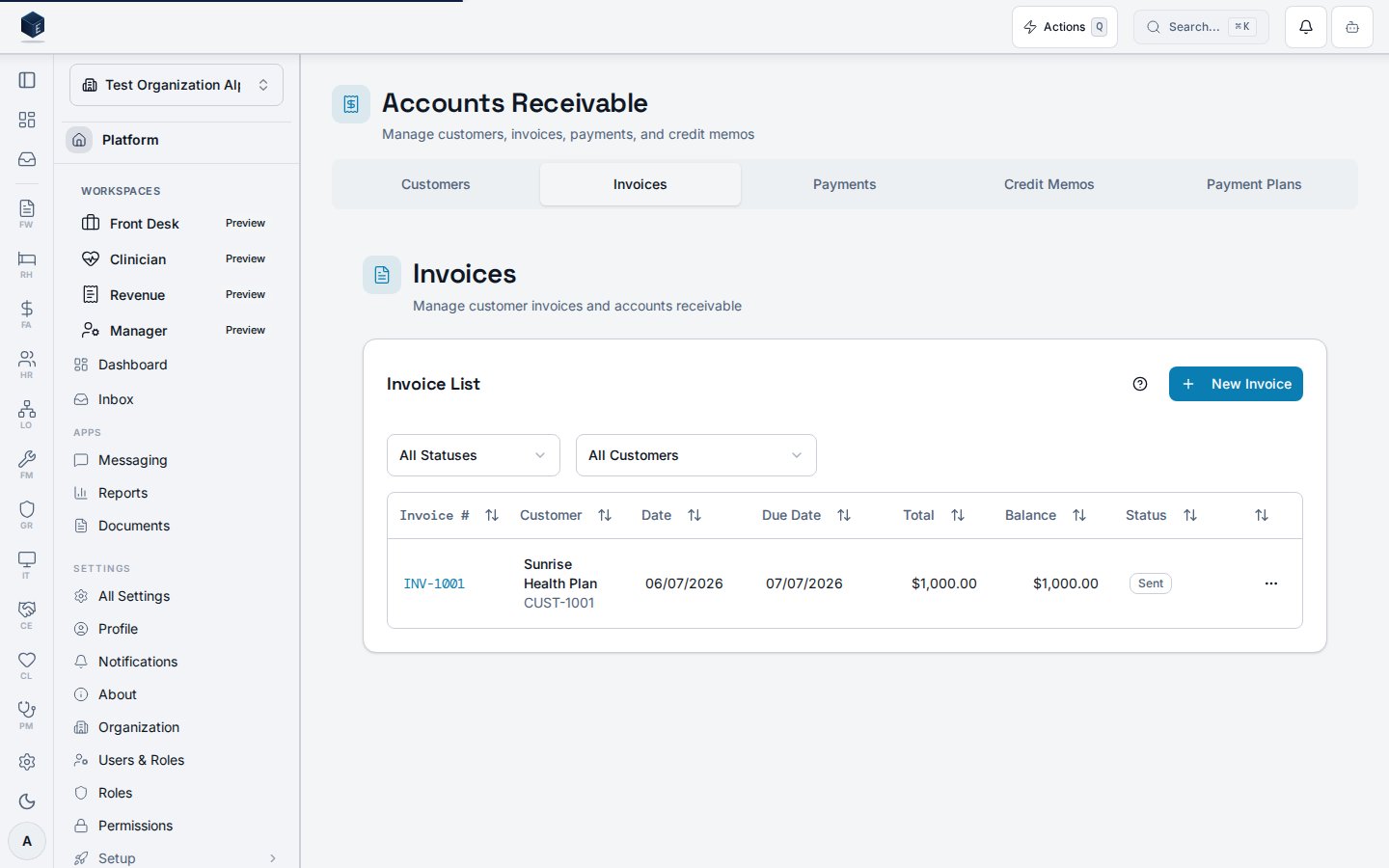
The Accounts Receivable module manages customer invoicing, payment collection, credit memos, and aging analysis. It integrates with the General Ledger for automatic revenue posting. Navigation: Finance & Accounting → Accounts Receivable (/fa/accounts-receivable)
Permissions
Customer Management
Customers are managed within the AR module:- Navigate to Customers tab
- Click New Customer
- Enter customer details: name, contact info, billing address
- Set payment terms (Net 30, Net 60, etc.)
- Optionally assign a default revenue account
Creating an Invoice
- Click New Invoice from the invoices list
- Select a Customer
- Set the Invoice Date and Due Date (auto-calculated from payment terms)
- Add Line Items:
- Description of service or product
- GL revenue account
- Quantity and unit price
- Fund, department, and program coding
- Review the Invoice Total
- Save as Draft or Post the invoice
Invoice Statuses
- Draft: Editable, no GL impact
- Posted: Creates GL journal entry (debit AR, credit Revenue)
- Partially Paid: One or more payments applied, balance remaining
- Paid: Fully settled
- Void: Reversed; creates reversing GL entry
Recording Payments
- Open a posted invoice (or go to Payments tab)
- Click Record Payment
- Enter payment details:
- Amount received
- Payment Date
- Payment Method (check, ACH, wire, credit card, cash)
- Reference Number (check number, transaction ID)
- Apply the payment to one or more open invoices
- The system creates a GL entry: debit Cash, credit AR
Partial Payments
- Apply any amount less than the invoice balance
- Remaining balance stays open on the invoice
- Invoice status changes to Partially Paid
Overpayments
- If payment exceeds invoice balance, the excess creates a credit balance on the customer account
- Credits can be applied to future invoices
Credit Memos
Credit memos reduce a customer’s outstanding balance:- Click New Credit Memo
- Select the Customer and optionally link to the original invoice
- Enter credit line items with amounts
- Post the credit memo
- Apply the credit to open invoices or leave as customer credit
AR Aging
The Aging Report shows outstanding balances by age bucket:- Filter by customer, date range, or aging bucket
- Export to CSV or PDF for collections follow-up
GL Integration
All AR transactions automatically create GL journal entries:Tips
- Set up payment terms on customers to auto-calculate due dates
- Use the aging report weekly to identify overdue accounts
- Apply payments promptly to keep aging accurate
- Credit memos linked to invoices provide better audit trail