

/settings/integrations/entra) consolidates all Microsoft 365 integration configuration in one place. From here you can run a guided setup wizard, verify admin consent, map system roles to license SKUs, and configure directory, calendar, SharePoint, and Teams sync.
Overview
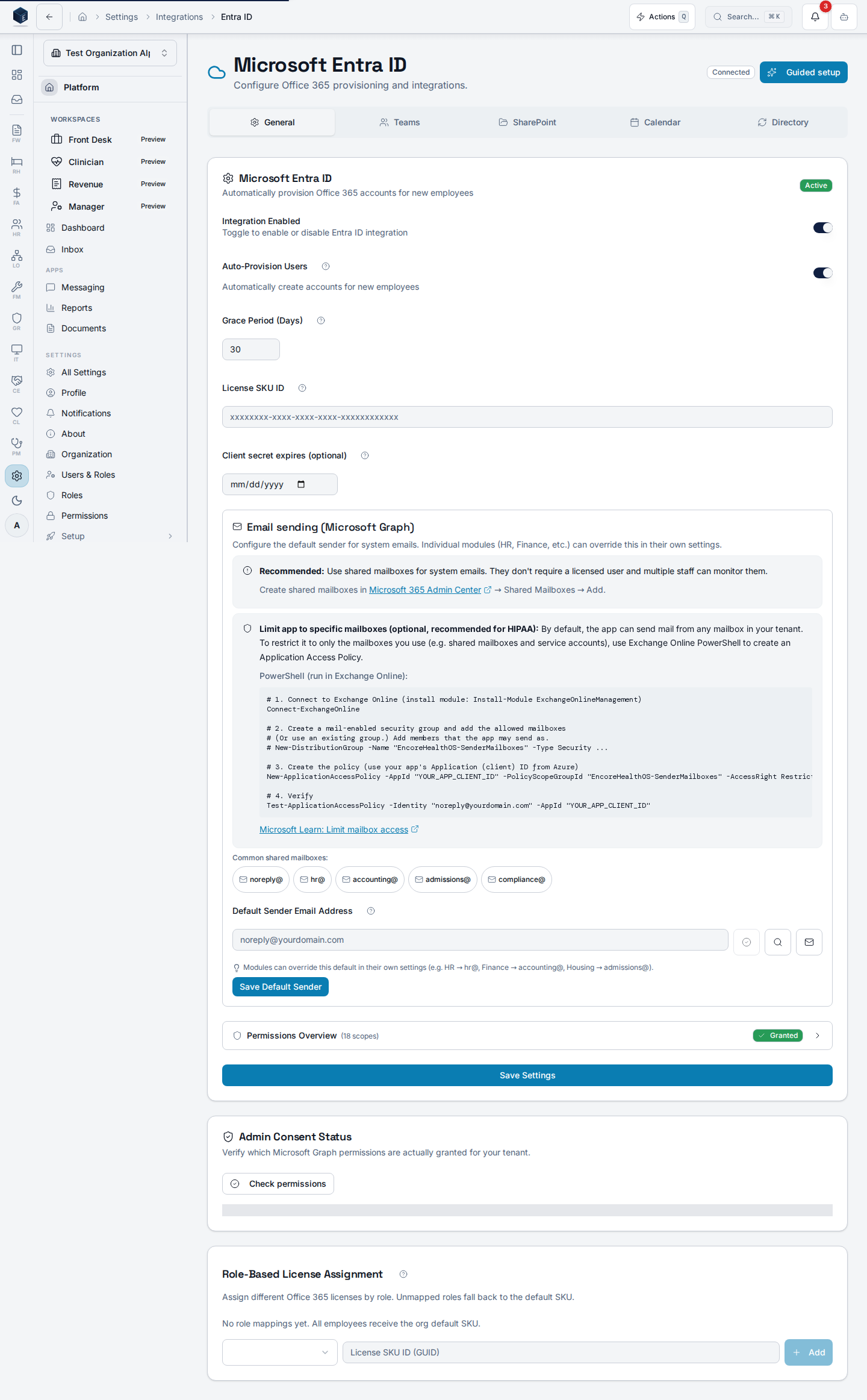
The page usesuseEntraConfig to load the current configuration and useOrganization for the organization context. It renders a tabbed layout with: Directory (DirectorySyncCard), Calendar (CalendarSyncConfigCard), SharePoint (SharePointConfigurationCard), Teams (TeamsConfigurationCard), and Field Mappings (EntraFieldMappingEditor). The General tab also surfaces the Admin Consent Status and Role license mappings cards once the integration is active. An EntraUnmatchedUsersCard surfaces Entra users not yet matched to platform accounts, and EntraPendingChangesReview shows pending directory sync changes awaiting review.
Each organization can connect to Microsoft Entra through one of two paths:
- Encore’s shared app (recommended). No app registration, client secret, or tenant ID to manage. A Microsoft administrator at your tenant grants consent once; Encore auto-detects the tenant ID and verified domains from Microsoft Graph and caches them. Choose this for most setups.
- Bring your own app registration. Use your own Entra app ID and client secret — required when tenant-isolation or security policies prohibit consenting to a multi-tenant app. The client secret is stored in your organization’s encrypted credential vault (PF-76); Encore never holds it in a shared environment variable. Every Entra-touching feature — provisioning, directory sync, calendar, SharePoint, Teams, and email delivery — resolves the secret from your vault on each call.
Who it’s for
The parent navigation requirespf.integrations.view. Editing role license mappings requires org_admin.
Before you start
- An active Microsoft 365 tenant with a Global Administrator (or Application Administrator) who can grant tenant-wide admin consent.
- A primary verified email domain on your tenant (for example,
acme.com). - One or more Microsoft 365 license SKU IDs you want new employees to receive (optional).
- Only when bringing your own app: the Entra Application (client) ID (GUID) and a client secret value for that app registration (Azure Portal → App registrations → your app → Certificates & secrets → Client secrets → New client secret). Copy the Value column immediately — Azure only shows it once.
Guided setup
The Guided setup button in the page header opensEntraSetupWizard, a DialogWizardShell that walks you through connecting Microsoft Entra ID. The wizard branches based on which app registration mode you pick — six steps for the shared app, seven if you bring your own. Use it for first-time setup; the flat EntraIDSettingsCard remains available for power-user reconfiguration.
1
App registration
Choose Use Encore’s shared app (recommended) or Bring your own app registration. The shared app skips the credentials step entirely; BYO requires an Entra app ID and client secret.
2
Primary domain
Enter the primary verified email domain on your tenant (for example,
acme.com). Optionally paste a tenant ID if you already have it — otherwise leave it blank and Encore will auto-detect it after admin consent. Set a default license SKU ID if you want one assigned to new users.3
BYO credentials (BYO mode only)
Paste the Application (client) ID and the client secret value (not the secret ID) from your Entra app registration. Optionally set the secret expiry date so Encore can warn you before it lapses. The secret is encrypted into your organization’s PF-76 vault — the raw value is never written to a plain-text column or logged.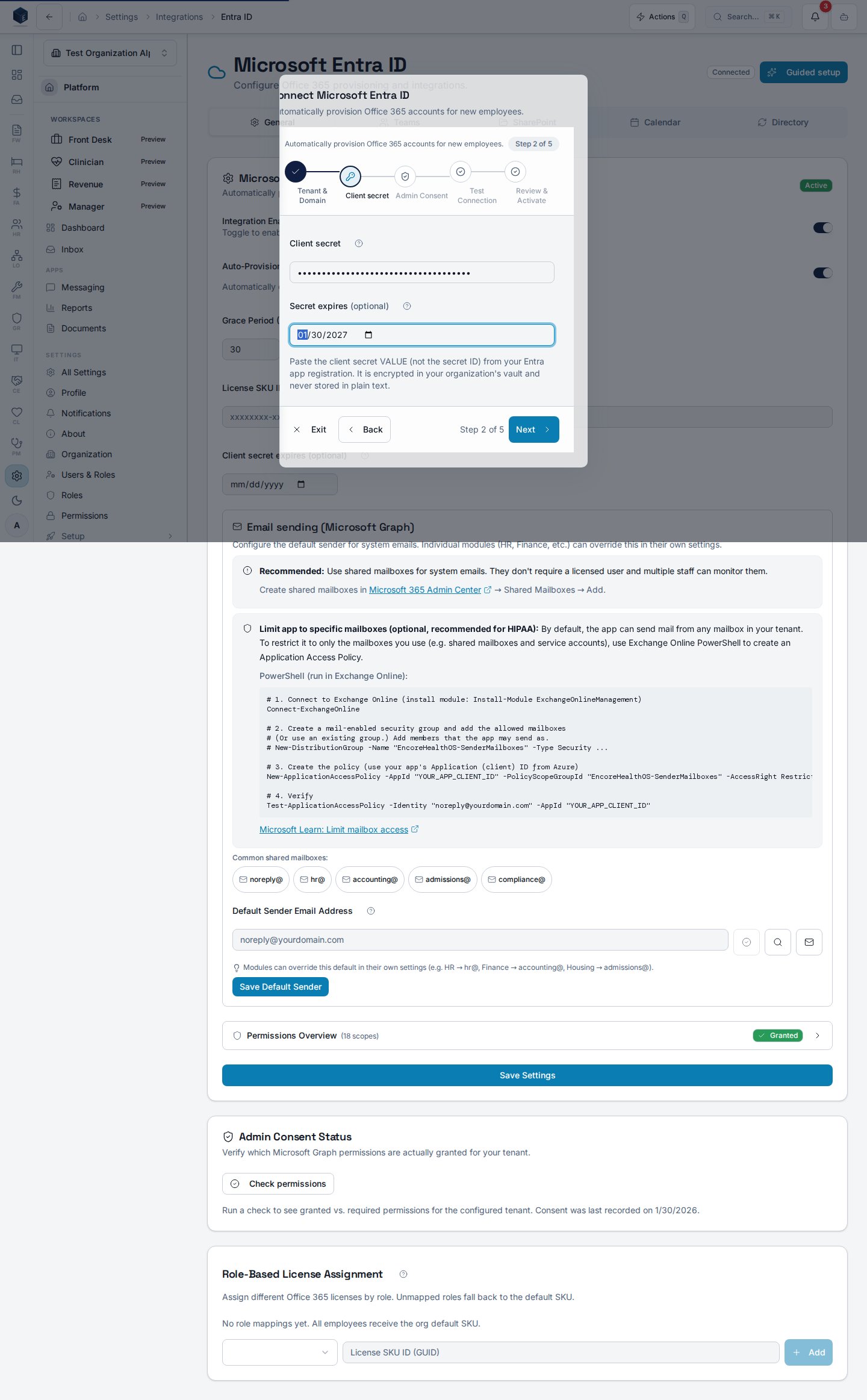
4
Admin consent
Select Consent as Microsoft administrator to open Microsoft’s v2 admin-consent prompt in a new tab. A Microsoft tenant administrator signs in and grants the required Graph permissions. The wizard polls for consent; once Microsoft confirms it, Encore acquires a Graph token, reads the authoritative
tid claim, and auto-fills the tenant ID for you.5
Test connection
The wizard acquires an app token for your tenant and pings Microsoft Graph. The result lists three checks — Secrets configured, Token acquired, and Graph API reachable — plus the Verified domains Microsoft returned, which are cached for SSO routing. You cannot continue until all three checks pass.
6
Microsoft sign-in (optional)
Toggle Enable Microsoft sign-in for staff if you also want users to sign in to Encore with their work account. The wizard shows the Supabase Azure provider checklist that must be in place on the Entra app for sign-in to work. You can skip this and turn it on later from Settings → Single Sign-On.
7
Review & activate
Confirm the app mode, domain, detected tenant, and SSO choice, then select Activate provisioning. The settings page refreshes with the integration enabled and the health badge turns green.
Rotate the client secret (BYO mode)
This applies only if you brought your own app registration. Entra app client secrets typically expire every 6, 12, or 24 months. To rotate:- In Azure Portal, generate a new client secret on the same app registration and copy its Value.
- Open the Guided setup wizard, choose Bring your own app registration, and step through to BYO credentials. Paste the new value and continue.
- Once the Test connection step passes with the new secret, you can revoke the old one in Azure.
Verify admin consent
The Admin Consent Status card on the General tab diffs the Microsoft Graph permissions actually granted on your tenant against the ones Encore requires. The same live probe drives the page-header health badge, so a green Connected badge means every required scope is currently present. Use this card whenever the badge flips to Permissions or Token Error, after a Graph permission catalog change, or as a periodic health check.- Select Check permissions. The card calls the
entra-register-apphealth probe, which reads granted application roles from a freshly acquired app token. - Each scope is listed with a Required or Optional badge and a granted (success) or missing (destructive or muted) indicator.
- If any required scope is missing, select Grant consent to open a fresh tenant-wide consent URL in a new tab.
- Optional scopes are only needed for Teams, SharePoint, Calendar, or email features and will not block provisioning.
Map roles to license SKUs
The Role license mappings card lets org admins map PF-30 system roles (app_role) to Microsoft Graph license SKU IDs. When entra-provision-user provisions a new employee, it resolves the employee’s highest-priority active system role and assigns the mapped SKU. Unmapped roles fall back to the org default SKU configured on the EntraIDSettingsCard. If lookup fails for any reason, provisioning degrades to the default rather than blocking the user.
Use this when different staff need different Microsoft 365 plans — for example, clinicians on Microsoft 365 E5 and house staff on Microsoft 365 F3.
1
Find your SKU IDs
In Microsoft Entra admin center under Billing → Licenses, copy the GUID
skuId for each plan you want to assign.2
Add a mapping
Select Add mapping, choose a system role (for example
staff, org_admin, rh_house_manager), and paste the SKU GUID.3
Repeat for each role
Add one row per role that should receive a non-default SKU. Each role can appear at most once per organization.
4
Remove a mapping
Select the trash icon to remove a row. Newly provisioned users with that role will fall back to the org default.
Configure sync tabs
1
Directory
On the Directory tab, use
DirectorySyncCard to enable user directory synchronization and review match status.2
Calendar
On the Calendar tab, use
CalendarSyncConfigCard to configure Microsoft 365 calendar synchronization.3
SharePoint
On the SharePoint tab, use
SharePointConfigurationCard to set the SharePoint site and library connections.4
Teams
On the Teams tab, use
TeamsConfigurationCard to configure the Microsoft Teams integration.5
Field mappings
On the Field Mappings tab, use
EntraFieldMappingEditor to map Entra directory attributes to platform fields.Key concepts
Per-organization credentials
Per-organization credentials
BYO-mode organizations bring their own Entra app registration and paste their client secret into the guided setup wizard. Secrets are encrypted into a per-org PF-76 vault, referenced by
pf_organizations.entra_app_secret_id; one organization can never read, log, or impersonate another organization’s Entra app. Edge functions resolve the secret at call time through a shared resolver (vault first, with an environment fallback during migration), so it never lives in a plain-text column. Shared-app organizations have no per-org secret to manage — the consent token is bound to your tenant via Microsoft’s authoritative tid claim. If the Email delivery is not working banner appears on email screens, re-run Guided setup for the affected organization to refresh the connection.Unmatched users
Unmatched users
EntraUnmatchedUsersCard lists Entra directory users who exist in Microsoft 365 but have no corresponding platform account. These can be matched or provisioned.Pending changes
Pending changes
EntraPendingChangesReview shows updates from Entra that have not yet been applied to the platform — allowing an admin to review before committing.Role priority for licensing
Role priority for licensing
When an employee has multiple active system roles,
entra-provision-user selects the highest-priority role for license resolution. If that role has no mapping, the org default SKU is used.Related
Single sign-on with Microsoft Entra
Federate sign-in with your Entra tenant.
Platform Foundation
Platform Foundation overview.
This page documents shipped product behavior. It is not medical, legal, or
billing advice. Verify against your organization’s policies and applicable
regulations before using it for clinical, compliance, or billing decisions.
Protected health information (PHI) shown in the product is governed by your
tenant’s access controls and is never exposed in this documentation.
Documentation sources
Documentation sources
- src/routes/platform.tsx
- src/platform/settings/pages/EntraIDSettingsPage.tsx
- src/platform/integrations/hooks/useEntraConfig.ts
- src/platform/integrations/hooks/useEntraSetup.ts
- src/platform/integrations/hooks/useEntraRoleLicenseMap.ts
- src/platform/integrations/components/EntraSetupWizard.tsx
- supabase/functions/_shared/entra-credentials.ts
- src/platform/integrations/components/EntraConsentStatusCard.tsx
- src/platform/integrations/components/EntraRoleLicenseMapCard.tsx
- supabase/functions/entra-register-app
- supabase/functions/entra-provision-user