

Overview
This guide covers administrative functions for Contract Management, including creating contracts, managing approvals, tracking obligations, and configuring alert settings.Creating Contracts
Create a New Contract
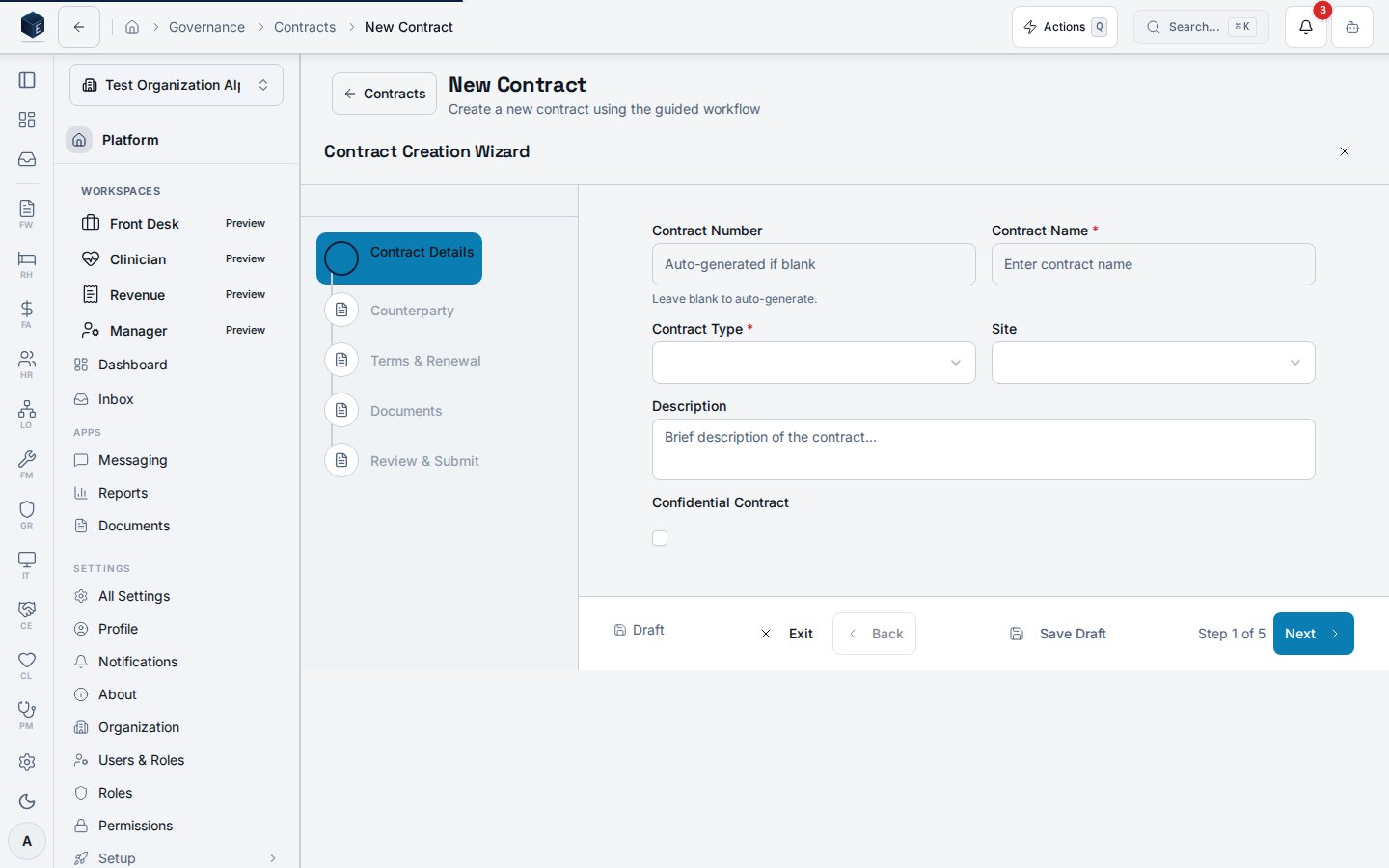
- Navigate to GR → Contracts
- Click New Contract button
- Complete the contract form:
Basic Information
- Contract Number: Unique identifier (auto-generated if enabled)
- Contract Name: Descriptive name
- Contract Type: Vendor, Service, Lease, Employment, Compliance, Other
- Description: Detailed description of contract purpose
Parties
- External Party Name: Vendor, client, or partner name
- External Party Type: Vendor, Client, Partner, Government, Other
- Internal Party: Your organization contact (optional)
Dates
- Effective Date: When contract begins
- Expiration Date: When contract ends
- Renewal Type: Fixed term, Auto-renew, Evergreen
- Auto-Renew Notice Days: Days before expiration to send renewal notice
Financial Terms
- Contract Value: Total contract value
- Currency: USD (default)
- Payment Terms: Net 30, Net 60, etc.
- Payment Frequency: Monthly, Quarterly, Annual, One-time
Settings
- Site: Assign to specific location (optional)
- Alert Days: When to send expiration alerts (e.g., 90, 60, 30)
- Is Confidential: Restrict visibility
- Tags: Add searchable tags
- Click Save as Draft or Submit for Approval
Contract Lifecycle Management
Contract Status Workflow
Approval Process
- Contract creator submits for approval
- Authorized approvers receive notification
- Approver reviews and either:
- Approves: Contract becomes Active on effective date
- Rejects: Returns to Draft with comments
- Creator can revise and resubmit
Renewing Contracts
- Open the contract detail page
- Click Renew button
- Enter new expiration date and any term changes
- A new contract version is created, linked to the original
Terminating Contracts
- Open the contract detail page
- Click Terminate button
- Enter termination date and reason
- Affected obligations are automatically cancelled
Managing Obligations
Add an Obligation
- Open contract detail page
- Select Obligations tab
- Click Add Obligation
- Complete the form:
- Title: Brief description
- Description: Detailed requirements
- Type: Deliverable, Payment, Report, Review, Compliance, Other
- Due Date: When obligation must be fulfilled
- Is Recurring: Enable for repeating obligations
- Responsible Party: Assign to staff member (optional)
- Payment Amount: If applicable
Track Obligation Progress
- Click on obligation row to open detail
- Update status: Pending → In Progress → Completed
- Add completion notes and evidence
- Mark as completed when fulfilled
Recurring Obligations
For recurring obligations:- Set recurrence pattern (daily, weekly, monthly)
- System automatically creates new instances
- Each instance tracks independently
Managing Milestones
Add a Milestone
- Open contract detail page
- Select Milestones tab
- Click Add Milestone
- Complete the form:
- Name: Milestone title
- Description: What this milestone represents
- Target Date: Expected completion date
- Dependencies: Other milestones that must complete first (optional)
Track Milestone Progress
- Update status as work progresses
- Add completion notes when achieved
- System tracks actual vs. target dates
Managing Amendments
Record an Amendment
- Open contract detail page
- Select Amendments tab
- Click Add Amendment
- Complete the form:
- Amendment Number: Sequential number
- Title: Brief description of change
- Description: Full details of amendment
- Effective Date: When amendment takes effect
- Changes Summary: List of specific changes
- Document: Attach amendment document
Module Settings
Configure contract management at GR → Settings → Contract Management:Alert Settings
- Default Expiration Alert Days: 90, 60, 30 (customizable)
- Renewal Notice Days: Days before expiration to notify for renewal
Numbering Settings
- Auto-Generate Contract Numbers: Enable/disable
- Contract Number Prefix: Customize prefix (e.g., “CON-”)
Approval Settings
- Require Contract Approval: Enable/disable approval workflow
- Approval Threshold Amount: Contracts above this value require approval
Obligation Settings
- Obligation Reminder Days: Days before due date to send reminders
- Auto-Mark Obligations Overdue: Automatically flag overdue obligations
AI Settings (Future)
- AI Risk Analysis Enabled: Use AI to assess contract risks
- AI Renewal Recommendations: AI suggestions for renewals
Dashboard Widgets
The GR Overview dashboard includes contract widgets:Contract Summary Widget
- Active contracts count
- Pending approval count
- Expiring soon count
- Recently added contracts
Expiring Contracts Widget
- Contracts expiring within 30/60/90 days
- Renewal status tracking
- Quick actions for renewal
Obligation Tracker Widget
- Pending obligations count
- Overdue obligations (highlighted)
- Completion rate metrics
Reports
Available Reports
- Contract Status Report: All contracts by status
- Expiring Contracts Report: Upcoming expirations
- Obligation Summary Report: Obligation status across contracts
- Contract Value Report: Financial summary
Exporting Reports
- Navigate to the contracts list
- Apply desired filters
- Click Export button
- Select format: PDF, CSV, or Excel
Customizing Dropdown Values
Contract type and related dropdowns are powered by picklists under thegr.contract.* namespace. The platform ships defaults so contract forms work out of the box, but you can tailor the options to match your procurement and vendor categories.
Common contract picklists to customize:
To customize:
1
/settings/picklists).gr.contract.* picklist you want to edit.Best Practices
Contract Creation
- Use consistent naming conventions
- Always attach the signed contract document
- Set appropriate alert thresholds based on contract complexity
Obligation Management
- Assign clear ownership for each obligation
- Set realistic due dates with buffer time
- Track completion evidence for audit purposes
Renewal Management
- Review expiring contracts 90+ days in advance
- Document renewal decisions and negotiations
- Maintain version history with amendments
Troubleshooting
Common Issues
Related Documentation
- Contract User Guide (v1.0.0) - For general staff
- GR Overview (v1.0.0) - All GR module features
- Notifications Guide (v1.0.0) - Alert configuration
Need Help? Contact your system administrator.