

/pm/fee-schedules) lists all payer fee schedules for the organization and provides controls to create, edit, and deactivate them.
Overview
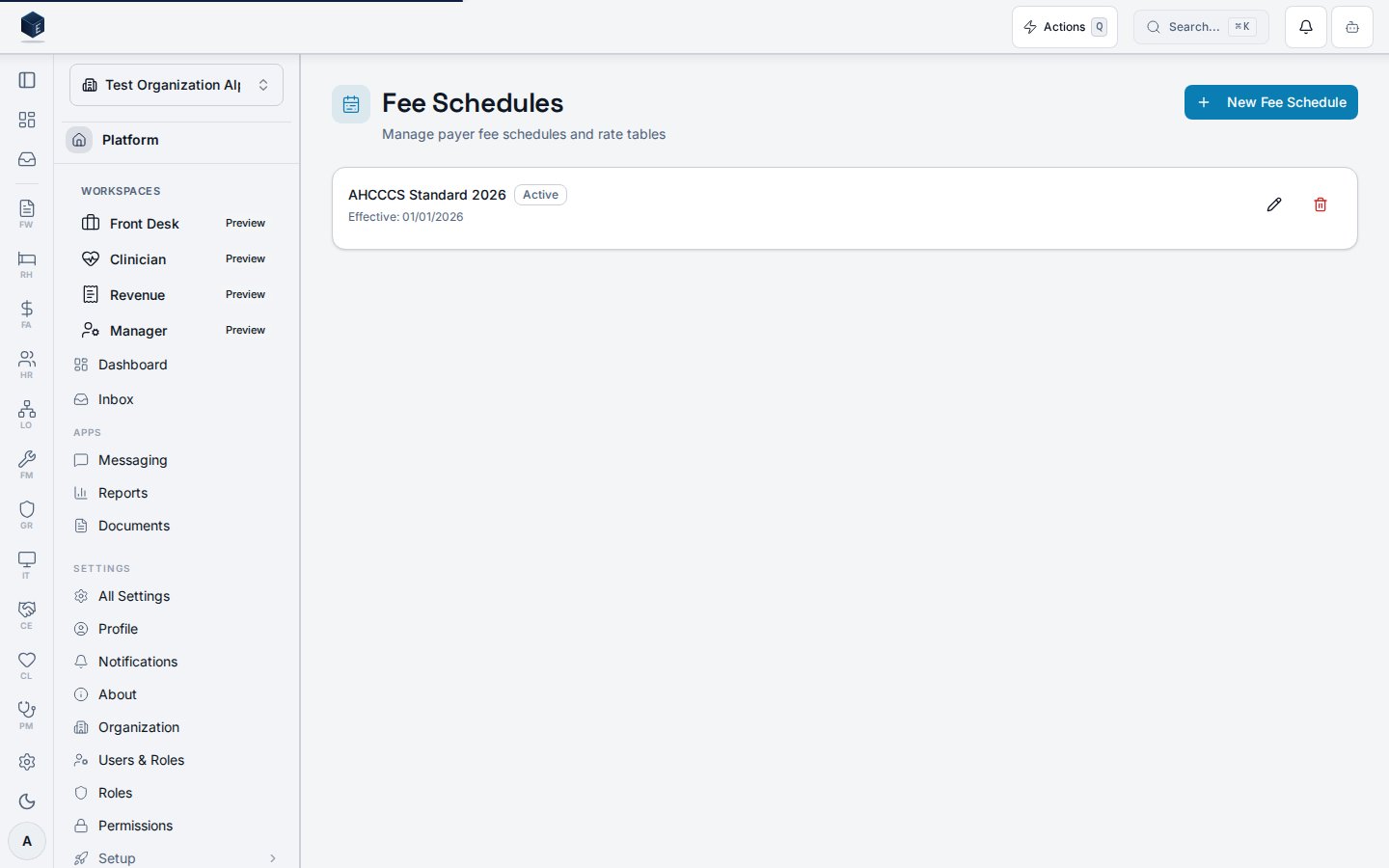
The Fee Schedules page reads records frompm_fee_schedules, scoped to the current organization, excluding soft-deleted records, and ordered by effective date descending. Each schedule is presented as a card showing the schedule name, an Active/Inactive badge, the effective date, and the end date (if set).
Clicking a schedule card navigates to /pm/fee-schedules/:id for the detail and rate-entry view. Edit (pencil icon) and Delete (trash icon) action buttons are displayed per card; clicking either requires the respective pm.fee_schedules.edit or pm.fee_schedules.delete permission. The delete action opens a confirmation dialog labeled “Deactivate Fee Schedule,” which performs a soft-delete (sets deleted_at). The confirmation dialog states: “Existing charges using it will not be affected.”
Creating a new schedule opens the FeeScheduleFormDialog in create mode.
Who it’s for
Requires permission:PM_PERMISSIONS.FEE_SCHEDULES_VIEW (pm.fee_schedules.view).
Creating schedules requires pm.fee_schedules.create. Editing requires pm.fee_schedules.edit. Deactivating requires pm.fee_schedules.delete.
Before you start
- Ensure you have the
pm.fee_schedules.viewpermission. - To create or manage schedules, you additionally need
pm.fee_schedules.createorpm.fee_schedules.edit.
Steps
1
Open Fee Schedules
Navigate to
/pm/fee-schedules. All active fee schedules for the organization are listed as cards, sorted by effective date (most recent first).2
Review a fee schedule
Each card shows the schedule name, Active/Inactive status badge, and effective date range. Click anywhere on a card to navigate to
/pm/fee-schedules/:id for the rate table detail.3
Create a new fee schedule
Click New Fee Schedule (requires
pm.fee_schedules.create) in the page header to open the FeeScheduleFormDialog in create mode. Complete the form and save.4
Edit a fee schedule
Click the pencil icon on a schedule card (requires
pm.fee_schedules.edit) to open the FeeScheduleFormDialog in edit mode, pre-populated with the schedule’s current values.5
Deactivate a fee schedule
Click the trash icon on a schedule card (requires
pm.fee_schedules.delete) to open the deactivation confirmation dialog. Click Deactivate to soft-delete the schedule. Existing charges referencing this schedule are not affected.Key concepts
Active vs. Inactive: A schedule isActive when is_active is true and deleted_at is null. Deactivating sets deleted_at to the current timestamp — the record is excluded from the list view but is not permanently deleted.
Effective date range: Each schedule has an effective_date (required) and an optional end_date. End date is displayed as “Effective: – ” when present.
Rate entries: Individual CPT-code-level rates are stored in pm_fee_schedule_entries and managed from the fee schedule detail page (/pm/fee-schedules/:id), not from this list page.
Empty state
Empty state
When no fee schedules exist: “Create a fee schedule to define payer rates for CPT codes.”
Viewing a fee schedule
The Fee Schedule Details screen displays a single fee schedule with its rate entries and provides tools to manage them at route/pm/fee-schedules/:id (permission: pm.fee_schedules.view). Adding and deleting entries requires pm.fee_schedules.edit.
The page loads the fee schedule from useFeeScheduleList (matching by id param) and its rate entries from useFeeScheduleEntries. The header shows the schedule name, effective date range (effective_date to end_date if set), and an Active/Inactive badge from is_active. Users with pm.fee_schedules.edit see an Add Rate Entry card containing FeeScheduleEntryForm. The entries table lists all rates with CPT code, modifier, rate amount, unit type, and effective date range. Each row has a delete button (requires pm.fee_schedules.edit) that calls deleteEntry.mutate(entry.id).
- From the Fee Schedules list (
/pm/fee-schedules), click a row to open the detail page. - The header shows the schedule name, effective date range, and Active/Inactive status.
- The entries table lists all CPT code rates with modifier, amount, unit type, and date range.
- Use the Add Rate Entry form (requires
pm.fee_schedules.edit) to enter a CPT code, modifier, rate, unit type, and effective date, then submit. - Click the trash icon on a rate row (requires
pm.fee_schedules.edit) to delete it. The deletion is immediate.
Related
Practice Management
Overview of the Practice Management core.
Governance & parity
Documentation coverage and governance.
This page documents shipped product behavior. It is not medical, legal, or
billing advice. Verify against your organization’s policies and applicable
regulations before using it for clinical, compliance, or billing decisions.
Protected health information (PHI) shown in the product is governed by your
tenant’s access controls and is never exposed in this documentation.
Documentation sources
Documentation sources
- src/routes/pm.tsx
- src/cores/pm/pages/FeeScheduleListPage.tsx
- src/cores/pm/hooks/useFeeScheduleList.ts
- src/cores/pm/hooks/useFeeScheduleMutation.ts
- src/cores/pm/types/charges.ts
- src/cores/pm/pages/FeeScheduleDetailPage.tsx
- src/cores/pm/hooks/useFeeScheduleEntries.ts