

/pm/provider-schedule) lets providers define their recurring weekly availability by creating, editing, and deleting time blocks across the seven days of the week.
Overview
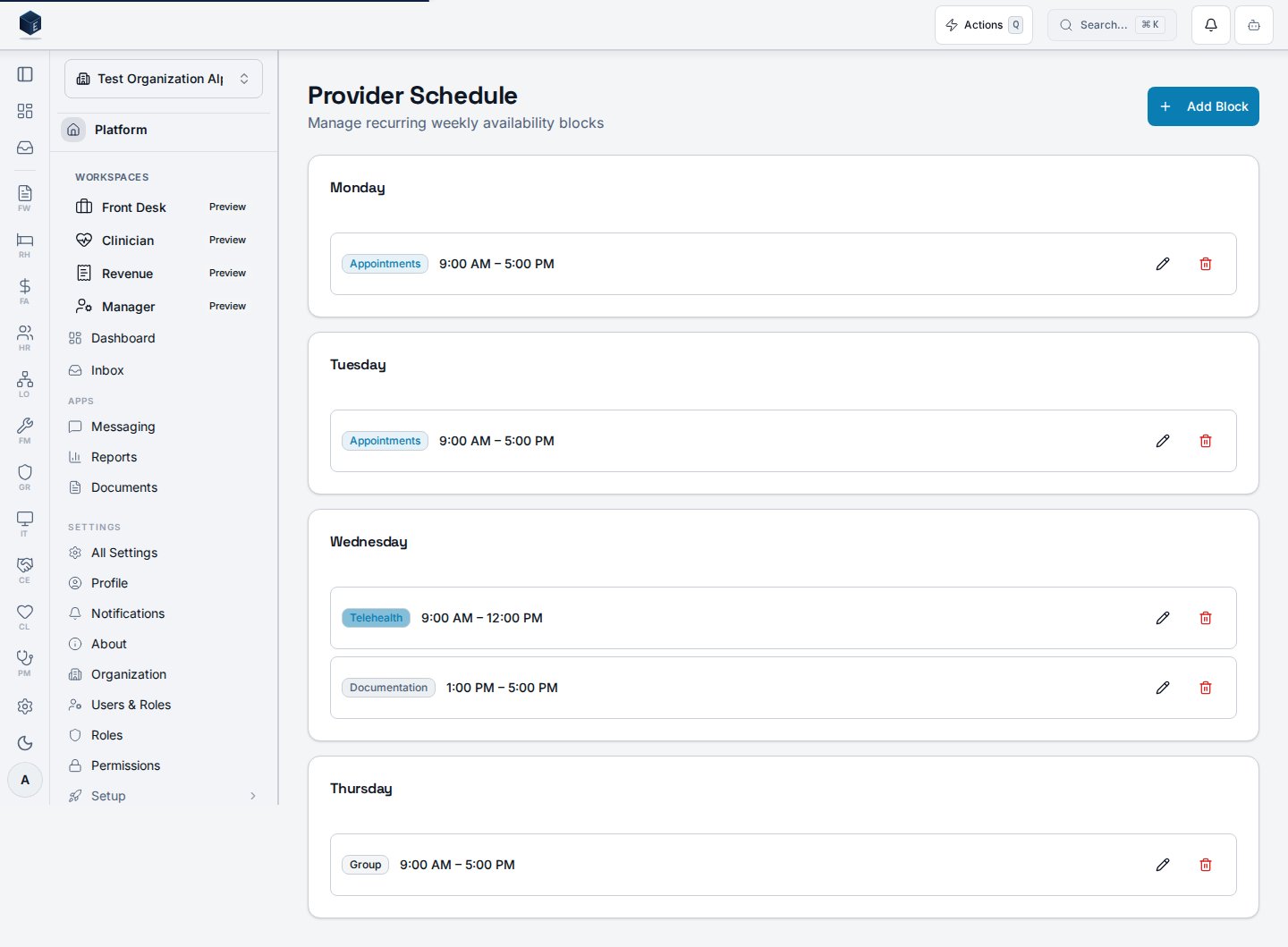
The page groups schedule blocks by day of the week (Sunday through Saturday), showing only days that have at least one block. Each block displays its type badge, formatted start and end time, and optional notes. Users withpm.schedule.edit can edit a block; users with pm.schedule.delete can delete a block via a confirmation dialog. Blocks are stored in pm_provider_schedules and fetched by useProviderScheduleList. Mutations (create, update, delete) are handled by useProviderScheduleMutation. The logged-in user’s ID is used as the provider_id when creating new blocks.
Who it’s for
Requires permission:pm.schedule.view (PM_PERMISSIONS.SCHEDULE_VIEW)
Creating blocks additionally requires: pm.schedule.create (PM_PERMISSIONS.SCHEDULE_CREATE)
Editing blocks additionally requires: pm.schedule.edit (PM_PERMISSIONS.SCHEDULE_EDIT)
Deleting blocks additionally requires: pm.schedule.delete (PM_PERMISSIONS.SCHEDULE_DELETE)
Before you start
- Your account must have the
pm.schedule.viewpermission. - To add blocks, you also need
pm.schedule.create.
Steps
1
Navigate to Provider Schedule
Go to
/pm/provider-schedule. Days with existing blocks are listed in order Sunday through Saturday. Days with no blocks are hidden.2
Add a new block (requires pm.schedule.create)
Click “Add Block” in the page header. In the
ProviderScheduleFormDialog, choose the day of the week, start time, end time, block type, and effective date. Optionally set an end date and notes. Submit to save.3
Edit a block (requires pm.schedule.edit)
Click the pencil icon on any existing block. The form dialog opens pre-populated with the block’s values. Make changes and submit.
4
Delete a block (requires pm.schedule.delete)
Click the trash icon on any existing block. Confirm deletion in the alert dialog. This action permanently removes the block and cannot be undone.
Key concepts
Block types
Block types
The following block types are available: Appointments, Telehealth, Documentation, Supervision, Group, Administrative, On Call. Each type is rendered with a distinct badge color.
Effective date and end date
Effective date and end date
Each block has an
effective_date (required) and an optional end_date. Blocks can be filtered by effective date when querying via useProviderScheduleList.Empty state
Empty state
When no schedule blocks exist, the page shows: “No schedule blocks — Add recurring availability blocks to define your weekly schedule,” with an “Add Block” action button.
Error state
Error state
If the schedule data fails to load, the page shows: “Unable to load schedules — Please try again later.”
Related
Practice Management
Overview of the Practice Management core.
Governance & parity
Documentation coverage and governance.
This page documents shipped product behavior. It is not medical, legal, or
billing advice. Verify against your organization’s policies and applicable
regulations before using it for clinical, compliance, or billing decisions.
Protected health information (PHI) shown in the product is governed by your
tenant’s access controls and is never exposed in this documentation.
Documentation sources
Documentation sources
- src/routes/pm.tsx
- src/cores/pm/pages/ProviderSchedulePage.tsx
- src/cores/pm/hooks/useProviderScheduleList.ts
- src/cores/pm/hooks/useProviderScheduleMutation.ts
- src/platform/permissions/constants.ts