

/pm/charges) is the primary list for viewing and managing billable charges for the organization, including batch operations for approval and claim generation.
Overview
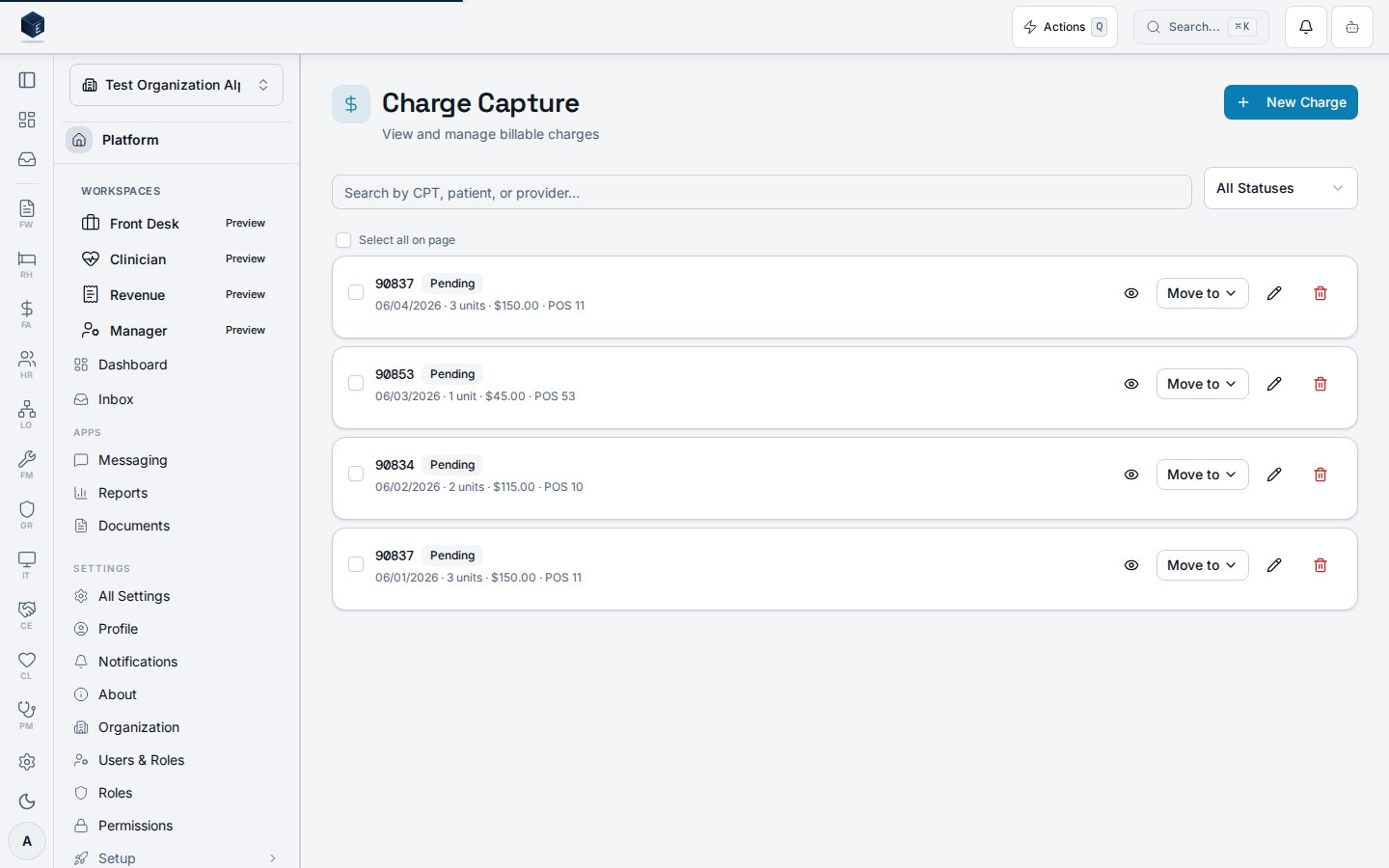
The Charge Capture screen displays a card list of charges filtered by status and/or a free-text search (matching CPT code, patient, or provider). Each charge card shows the CPT code, optional HCPCS code, status badge, modifiers, service date, unit count, charge amount, place-of-service label, and diagnosis codes. Inline actions let users view the charge detail, change status via a status menu, edit (withpm.charges.edit), or void (with pm.charges.delete).
Batch operations are available: users can select individual charges or all charges on the page using checkboxes. The batch toolbar appears when selections are made and offers “Approve charges” (requires pm.batch.charge_approve) and “Generate claims” (requires pm.batch.claim_generate). Batch progress is tracked in a dialog; completed jobs are linked to Batch History. Creating a new charge requires pm.charges.create.
Who it’s for
Requires thepm.charges.view permission to access the route. Additional permissions gate individual actions:
pm.charges.create— New Charge buttonpm.charges.edit— Edit action per chargepm.charges.delete— Void action per chargepm.batch.charge_approve— Batch approve toolbarpm.batch.claim_generate— Batch generate claims toolbar
Before you start
- You must hold
pm.charges.viewto access this screen. - Charges are created from encounters or manually. Fee schedules and payer configuration should be in place before generating claims.
- Only charges in
approvedstatus are eligible for batch claim generation.
Steps
1
Open Charge Capture
Navigate to
/pm/charges. The list loads with all active (non-voided) charges for your organization, ordered by service date descending.2
Filter charges
Use the search field to filter by CPT code, patient, or provider. Use the status dropdown to filter by a specific charge status. Both filters apply simultaneously.
3
View charge detail
Click the eye icon on any charge card to navigate to the charge detail page at
/pm/charges/:chargeId.4
Change charge status
Use the status menu (kebab/context menu) on each charge card to update its status.
5
Edit a charge (if permitted)
Click the pencil icon to open the Charge Form dialog in edit mode. Requires
pm.charges.edit.6
Void a charge (if permitted)
Click the trash icon to open a “Void Charge” confirmation dialog. Confirmed voids soft-delete the charge; it will no longer appear in the active list. Requires
pm.charges.delete.7
Select charges for batch operations
Use the per-row checkboxes or “Select all on page” to select charges. The batch toolbars become active when at least one charge is selected.
8
Batch approve charges (if permitted)
With charges selected, click “Approve charges” in the batch toolbar. Progress is shown in a dialog. Requires
pm.batch.charge_approve.9
Batch generate claims (if permitted)
With approved charges selected, click “Generate claims” in the batch toolbar. Only selected charges in
approved status are included; others are skipped with a toast error if none qualify. Requires pm.batch.claim_generate.10
Create a new charge (if permitted)
Click “New Charge” in the page header to open the Charge Form dialog in create mode. Requires
pm.charges.create.Key concepts
— each charge has a status that controls eligibility for batch operations and claim generation. — the primary procedure identifier shown on each charge card. — optional secondary code, shown when present. — shown as a badge when present on a charge. — creates a claim from one or more approved charges for submission to a payer.Empty state
Empty state
“No charges found” is shown when no charges match the current filters. When no filters are active, the message prompts the user to create their first charge.
Batch progress dialog
Batch progress dialog
During a batch operation a progress dialog tracks total, processed, and error counts in real time. On completion, a “View Batch History” link navigates to
/pm/batch-history.Void vs. delete
Void vs. delete
Voiding soft-deletes a charge (sets
deleted_at). The confirmation dialog labels the action “Void Charge” and warns that the charge will be hidden from the active list. This action is not reversible from this screen.Viewing a charge
The Charge Details screen displays the full details of a single charge record and allows authorized users to update its status or edit its fields at route/pm/charges/:chargeId (permission: pm.charges.view). Edit requires pm.charges.edit.
The page loads a charge via useChargeDetail. The header shows the CPT code and a ChargeStatusBadge, with action buttons for ChargeStatusMenu (status transitions) and Edit. Two detail cards display Service Details (CPT code, HCPCS code if present, amount + units, service date, place of service resolved via picklist, rendering NPI) and Clinical & Billing (modifiers as badges, diagnosis codes, provider name, encounter context from useEncounterContext, claim ID, fee schedule name). An Audit Trail card at the bottom shows created, updated, reviewed, and approved timestamps. If an encounter_id is present, an AiCodingSuggestionSidecar is rendered. The Edit action opens a ChargeFormDialog.
- From the Charges list (
/pm/charges), click a charge row to open the detail page. - The Service Details card shows CPT/HCPCS code, charge amount and units, service date, place of service, and rendering NPI.
- The Clinical & Billing card shows modifiers, diagnosis codes, provider, encounter context, claim linkage, and fee schedule.
- Use the status menu in the header to move the charge through workflow states.
- Click Edit (requires
pm.charges.edit) to open the ChargeFormDialog and modify charge fields.
Related
Practice Management
Overview of the Practice Management core.
Governance & parity
Documentation coverage and governance.
This page documents shipped product behavior. It is not medical, legal, or
billing advice. Verify against your organization’s policies and applicable
regulations before using it for clinical, compliance, or billing decisions.
Protected health information (PHI) shown in the product is governed by your
tenant’s access controls and is never exposed in this documentation.
Documentation sources
Documentation sources
- src/routes/pm.tsx
- src/cores/pm/pages/ChargeListPage.tsx
- src/cores/pm/hooks/useChargeList.ts
- src/cores/pm/types/batch.ts
- src/platform/permissions/constants.ts
- src/cores/pm/pages/ChargeDetailPage.tsx
- src/cores/pm/hooks/useChargeDetail.ts