

/rh/bed-board, refreshing automatically every 30 seconds.
Overview
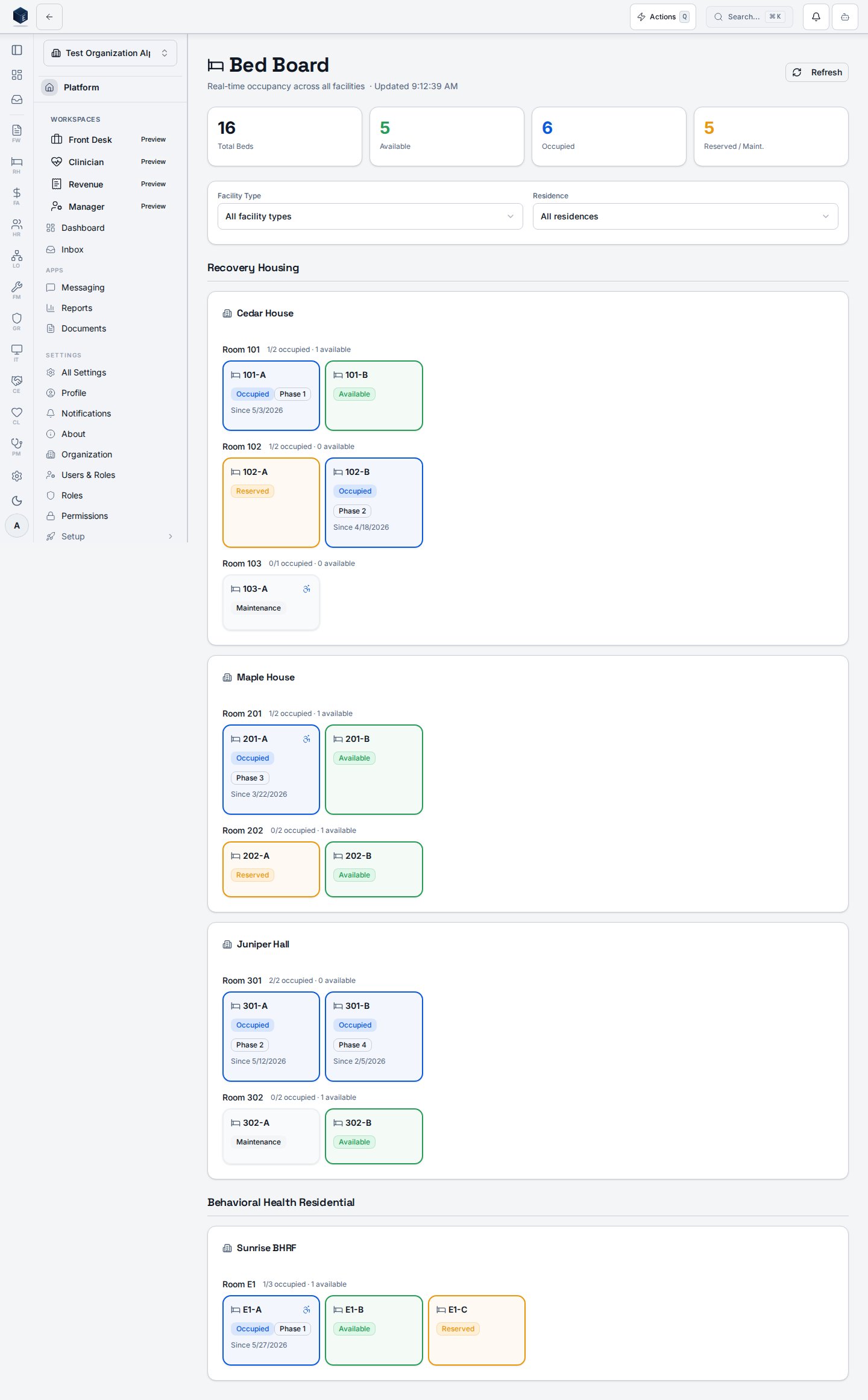
The Bed Board displays summary statistics (Total Beds, Available, Occupied, Reserved/Maintenance) and a grid of bed cards grouped by facility type, then residence, then room or unit. Each bed card is color-coded by status: available (green), occupied (blue), reserved (yellow), and maintenance (muted). Occupied bed cards show the resident’s full name, phase, and admission date, and are clickable to navigate to the resident’s episode at/rh/episodes/:id. The board supports filtering by facility type (Recovery Housing, Behavioral Health Residential, Inpatient Unit) and by individual residence.
Who it’s for
Protected byPermissionGate with permission rh.beds.view inside the component, in addition to the outer RH_PERMISSIONS.DASHBOARD_VIEW guard on all RH routes. Users without rh.beds.view see an “Access restricted” message.
Before you start
- Your account must have
rh.beds.viewandrh.dashboard.viewpermissions. - At least one active residence with configured beds must exist for the board to populate.
Steps
1
Navigate to Bed Board
Open Recovery Housing and select Bed Board, or go to
/rh/bed-board directly.2
Review summary statistics
The four summary cards at the top show totals for all beds, available beds, occupied beds, and reserved or maintenance beds.
3
Filter the board
Use the Facility Type and Residence selectors to focus the board on a specific subset of beds. Select “All facility types” or “All residences” to remove a filter.
4
Read a bed card
Each card shows the bed label, status badge, and — for occupied beds — the resident’s name, phase, and admission date.
5
Navigate to a resident episode
Click an occupied bed card (it shows a pointer cursor) to navigate to the resident’s active episode detail page.
6
Refresh manually
Click “Refresh” in the header if you need an immediate update outside the 30-second automatic interval.
Key concepts
Bed statuses
Bed statuses
Four status values appear on the board:
available, occupied, reserved, and maintenance. Each has a distinct border and background color.ADA accessible indicator
ADA accessible indicator
Beds with
is_ada_accessible: true display a wheelchair icon on the card.Auto-refresh
Auto-refresh
The board queries the database every 30 seconds via
refetchInterval. The header subtitle shows the last-updated time.Empty state
Empty state
If no beds are found after filtering, the board shows “No beds found. Add residences and beds to see the board.” with a link to Manage Residences.
Related
Recovery Housing
Recovery Housing references and overview.
Governance & parity
Documentation coverage and governance.
This page documents shipped product behavior. It is not medical, legal, or
billing advice. Verify against your organization’s policies and applicable
regulations before using it for clinical, compliance, or billing decisions.
Protected health information (PHI) shown in the product is governed by your
tenant’s access controls and is never exposed in this documentation.
Documentation sources
Documentation sources
- src/routes/rh.tsx
- src/cores/rh/pages/BedBoardPage.tsx
- src/cores/rh/hooks/useBedBoard.ts
- src/platform/permissions/constants.ts