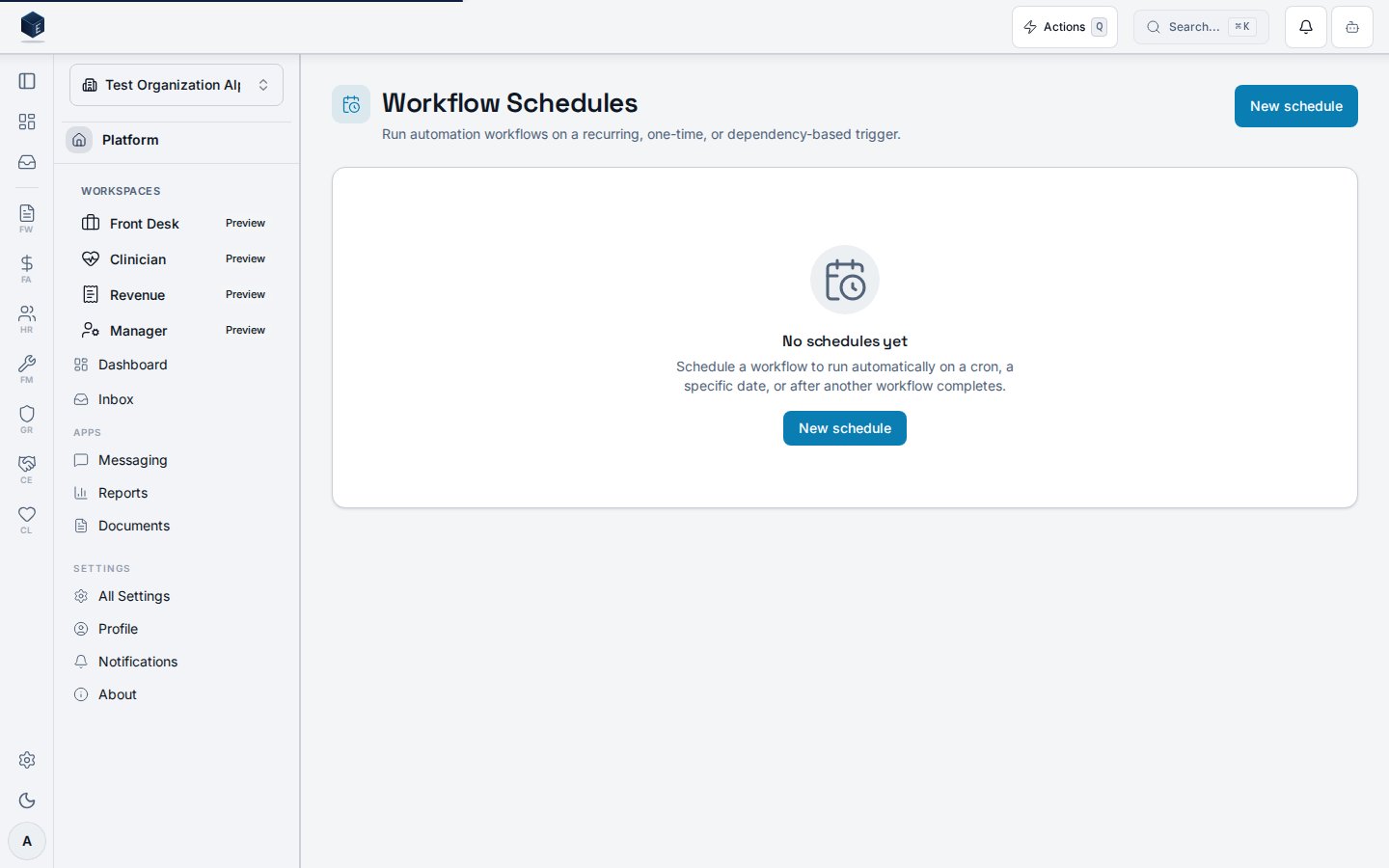
Overview
Workflow schedules let you run an automation workflow automatically — on a repeating
cron schedule, once at a specific date and time, or after another workflow finishes.
Every schedule belongs to exactly one workflow, shows its next runs before you save,
and is checked for conflicts with your other schedules.
Open Forms & Workflow → Schedules (/fw/schedules). You need the
fw.schedules.view permission to see the page and fw.schedules.create /
fw.schedules.edit / fw.schedules.delete to manage schedules.
Creating a schedule
Click New schedule and pick the workflow to run, then choose a trigger type.
Recurring (cron)
The guided builder turns a frequency, time, and day selection into a cron
expression — no cron syntax required. As you adjust it, the next 5 runs preview
updates in your chosen timezone so you can confirm the timing before saving.
Choose Weekly to pick specific days of the week:
Need an expression the builder doesn’t cover (step values, specific months)? Toggle
Advanced to edit the raw 5-field cron directly — the live preview still validates it.
One-time
Pick One-time to run the workflow once at a specific date and time. Past
date/times are rejected — a schedule can only point at the future.
After another workflow
Pick After another workflow to run when a prerequisite workflow completes,
succeeds, or fails. The platform detects circular dependencies so a chain can never
deadlock.
Conflicts
If a new run would start within a minute of an existing schedule, a non-blocking
warning appears in the form and a Conflict badge shows in the list. You stay in
control: pick how conflicts resolve — Skip the run, Delay and retry, or
Error and alert — and save anyway, or adjust the timing.
Pausing and deleting
Toggle a schedule’s Active switch to pause or resume it without losing its
configuration. Deleting a schedule removes its trigger; the workflow itself is
unaffected and can be rescheduled later.