> ## Documentation Index
> Fetch the complete documentation index at: https://docs.encoreos.io/llms.txt
> Use this file to discover all available pages before exploring further.
# Patient Registration
> List and register patients; tabbed records for demographics, contacts, guarantors, insurance, financials, transfers, and leads.
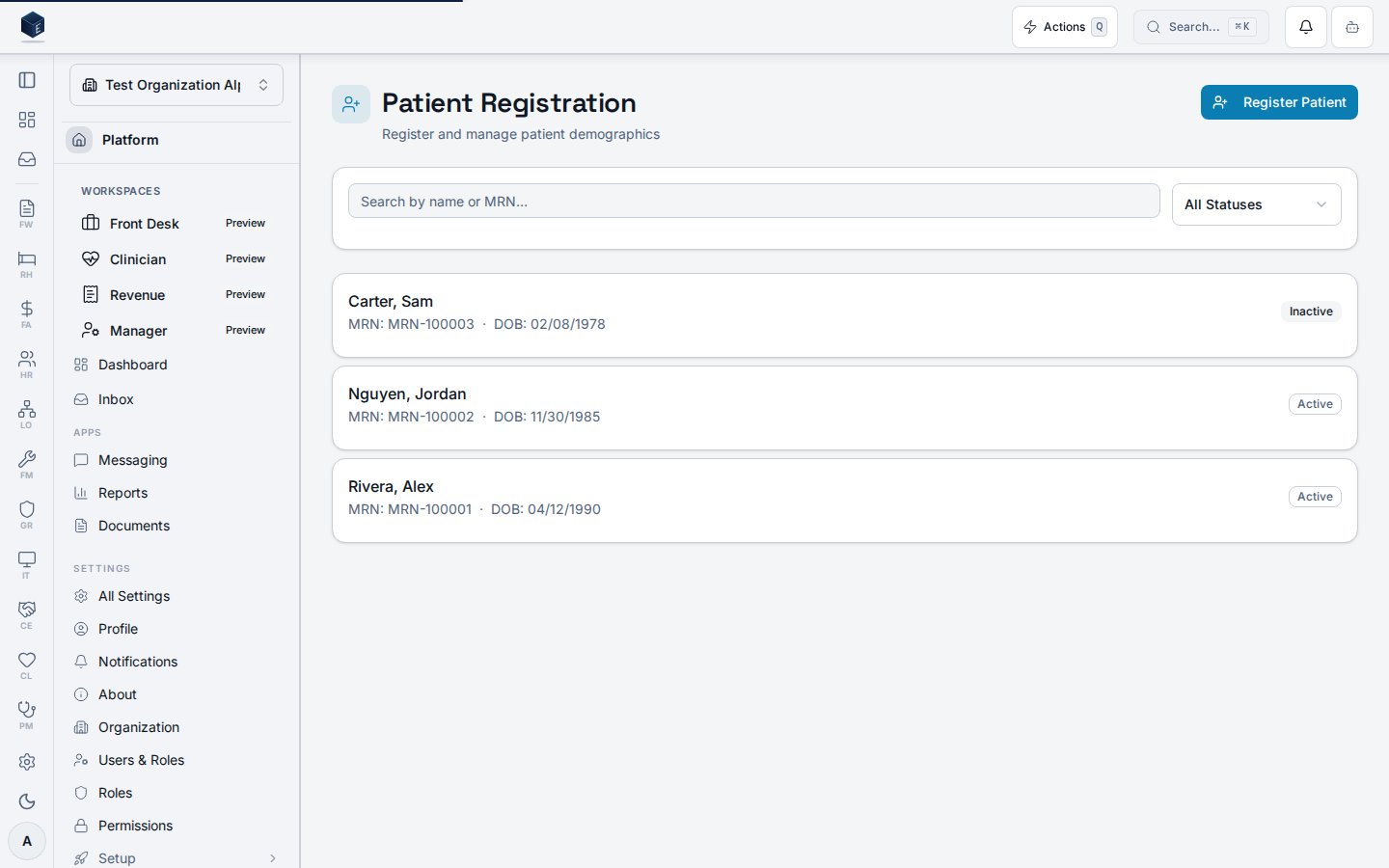
The Patient Registration screen (`/pm/patients`) displays the organization's patient roster and provides a registration form for adding new patients.
 ## Overview
The screen renders a searchable, filterable card list of patients drawn from `pm_patients`, always scoped to the current organization and excluding soft-deleted records. Each patient card displays last name, first name, preferred name (if present), MRN, date of birth, and optionally a jurisdiction member ID. A status badge on each card reflects the patient's current status: **Active**, **Inactive**, **Discharged**, or **Deceased**. Clicking a card navigates to the patient detail page at `/pm/patients/:patientId`. Users with the `pm.patients.create` permission see a **Register Patient** button that opens `PatientRegistrationForm`. The search input is debounced (300 ms) and matches against last name, first name, and MRN.
## Who it's for
Requires the `pm.patients.view` permission. Registering new patients additionally requires `pm.patients.create`.
## Before you start
Requires the `pm.patients.view` permission. Patient data will not load if no organization is currently selected. The URL query parameter `?action=new` automatically opens the registration dialog if the user also has `pm.patients.create`.
## Steps
Type a name or MRN in the search field. Results update after a short delay (300 ms debounce). The list filters across last name, first name, and MRN simultaneously.
Use the status dropdown to limit the list to patients with a specific status: **Active**, **Inactive**, **Discharged**, or **Deceased**. Select **All Statuses** to clear the filter.
Click any patient card to navigate to the patient's detail page at `/pm/patients/:patientId`.
Click **Register Patient** (visible only with the `pm.patients.create` permission) to open the registration form dialog. Complete the required fields and save to add the patient to the roster.
## Key concepts
When the list returns no results with active search or filter criteria, the screen shows "No patients match your search criteria. Try adjusting your filters." When there are no patients at all (no filters applied), it shows "Register your first patient to get started." with a Register Patient action button.
If the data fetch fails, a card is displayed with a sanitized error message in place of the patient list.
## Viewing a patient
The Patient Details page is the central record for an individual patient, providing tabbed access to demographics, contact information, insurance, and financial data. Route: `/pm/patients/:patientId` (permission: `pm.patients.view`). Merge-related actions additionally require `pm.patients.merge`.
`PatientDetailPage` reads `patientId` from the route and loads data via `usePatientDetail`, `useChartByPatientIdentity`, and `usePatientIdentifierConfig`. The dynamic breadcrumb is set to the patient's full name once loaded. Eight tabs are available, controlled by URL state (`tab` param):
* **demographics** — core patient fields, edit via `EditPatientDemographicsDialog`
* **addresses** — physical and mailing addresses via `PatientAddressFormDialog`
* **contacts** — emergency contacts via `EmergencyContactFormDialog`
* **guarantors** — financial guarantors via `GuarantorFormDialog`
* **insurance** — insurance coverages via `PatientInsuranceList`
* **financial** — financial assessments via `PatientFinancialAssessmentList`
* **transfers** — site billing transfers via `PatientSiteTransferSection`
* **lead-history** — intake/lead history via `PatientLeadHistory`
Editing and deleting contact records requires appropriate edit/delete permissions gated by `PermissionGate`.
Navigate to **Practice Management → Patients**, search for the patient, and click their name. Alternatively, go to `/pm/patients/:patientId` directly.
The **Demographics** tab (default) shows core patient identifiers, status badge, and identifier fields. Click **Edit** to open the demographics dialog (requires edit permission).
Switch to the **Addresses** tab to view, add, or remove physical and mailing addresses.
Use the **Contacts** and **Guarantors** tabs to add, edit, or remove records via their respective dialogs.
The **Insurance** and **Financial** tabs display coverage and financial assessment records for this patient.
Use **Transfers** and **Lead History** tabs for operational and intake tracking information.
**Patient status** — displayed as a badge; values: `active`, `inactive`, `discharged`, `deceased`.
**Chart linkage** — `useChartByPatientIdentity` links the patient record to a clinical chart via `patient_identity_id`.
**Tab URL state** — the active tab is persisted in the URL `tab` query parameter for shareable deep links.
## Related
Overview of the Practice Management core.
Documentation coverage and governance.
This page documents shipped product behavior. It is not medical, legal, or
billing advice. Verify against your organization's policies and applicable
regulations before using it for clinical, compliance, or billing decisions.
Protected health information (PHI) shown in the product is governed by your
tenant's access controls and is never exposed in this documentation.
* src/routes/pm.tsx
* src/cores/pm/pages/PatientListPage.tsx
* src/cores/pm/hooks/usePatientList.ts
* src/cores/pm/pages/PatientDetailPage.tsx
* src/cores/pm/hooks/usePatientDetail.ts
* src/cores/pm/hooks/usePatientIdentifierConfig.ts
* src/platform/permissions/constants.ts
## Overview
The screen renders a searchable, filterable card list of patients drawn from `pm_patients`, always scoped to the current organization and excluding soft-deleted records. Each patient card displays last name, first name, preferred name (if present), MRN, date of birth, and optionally a jurisdiction member ID. A status badge on each card reflects the patient's current status: **Active**, **Inactive**, **Discharged**, or **Deceased**. Clicking a card navigates to the patient detail page at `/pm/patients/:patientId`. Users with the `pm.patients.create` permission see a **Register Patient** button that opens `PatientRegistrationForm`. The search input is debounced (300 ms) and matches against last name, first name, and MRN.
## Who it's for
Requires the `pm.patients.view` permission. Registering new patients additionally requires `pm.patients.create`.
## Before you start
Requires the `pm.patients.view` permission. Patient data will not load if no organization is currently selected. The URL query parameter `?action=new` automatically opens the registration dialog if the user also has `pm.patients.create`.
## Steps
Type a name or MRN in the search field. Results update after a short delay (300 ms debounce). The list filters across last name, first name, and MRN simultaneously.
Use the status dropdown to limit the list to patients with a specific status: **Active**, **Inactive**, **Discharged**, or **Deceased**. Select **All Statuses** to clear the filter.
Click any patient card to navigate to the patient's detail page at `/pm/patients/:patientId`.
Click **Register Patient** (visible only with the `pm.patients.create` permission) to open the registration form dialog. Complete the required fields and save to add the patient to the roster.
## Key concepts
When the list returns no results with active search or filter criteria, the screen shows "No patients match your search criteria. Try adjusting your filters." When there are no patients at all (no filters applied), it shows "Register your first patient to get started." with a Register Patient action button.
If the data fetch fails, a card is displayed with a sanitized error message in place of the patient list.
## Viewing a patient
The Patient Details page is the central record for an individual patient, providing tabbed access to demographics, contact information, insurance, and financial data. Route: `/pm/patients/:patientId` (permission: `pm.patients.view`). Merge-related actions additionally require `pm.patients.merge`.
`PatientDetailPage` reads `patientId` from the route and loads data via `usePatientDetail`, `useChartByPatientIdentity`, and `usePatientIdentifierConfig`. The dynamic breadcrumb is set to the patient's full name once loaded. Eight tabs are available, controlled by URL state (`tab` param):
* **demographics** — core patient fields, edit via `EditPatientDemographicsDialog`
* **addresses** — physical and mailing addresses via `PatientAddressFormDialog`
* **contacts** — emergency contacts via `EmergencyContactFormDialog`
* **guarantors** — financial guarantors via `GuarantorFormDialog`
* **insurance** — insurance coverages via `PatientInsuranceList`
* **financial** — financial assessments via `PatientFinancialAssessmentList`
* **transfers** — site billing transfers via `PatientSiteTransferSection`
* **lead-history** — intake/lead history via `PatientLeadHistory`
Editing and deleting contact records requires appropriate edit/delete permissions gated by `PermissionGate`.
Navigate to **Practice Management → Patients**, search for the patient, and click their name. Alternatively, go to `/pm/patients/:patientId` directly.
The **Demographics** tab (default) shows core patient identifiers, status badge, and identifier fields. Click **Edit** to open the demographics dialog (requires edit permission).
Switch to the **Addresses** tab to view, add, or remove physical and mailing addresses.
Use the **Contacts** and **Guarantors** tabs to add, edit, or remove records via their respective dialogs.
The **Insurance** and **Financial** tabs display coverage and financial assessment records for this patient.
Use **Transfers** and **Lead History** tabs for operational and intake tracking information.
**Patient status** — displayed as a badge; values: `active`, `inactive`, `discharged`, `deceased`.
**Chart linkage** — `useChartByPatientIdentity` links the patient record to a clinical chart via `patient_identity_id`.
**Tab URL state** — the active tab is persisted in the URL `tab` query parameter for shareable deep links.
## Related
Overview of the Practice Management core.
Documentation coverage and governance.
This page documents shipped product behavior. It is not medical, legal, or
billing advice. Verify against your organization's policies and applicable
regulations before using it for clinical, compliance, or billing decisions.
Protected health information (PHI) shown in the product is governed by your
tenant's access controls and is never exposed in this documentation.
* src/routes/pm.tsx
* src/cores/pm/pages/PatientListPage.tsx
* src/cores/pm/hooks/usePatientList.ts
* src/cores/pm/pages/PatientDetailPage.tsx
* src/cores/pm/hooks/usePatientDetail.ts
* src/cores/pm/hooks/usePatientIdentifierConfig.ts
* src/platform/permissions/constants.ts