> ## Documentation Index
> Fetch the complete documentation index at: https://docs.encoreos.io/llms.txt
> Use this file to discover all available pages before exploring further.
# AI Onboarding & Profiling — Admin Guide
> Tune the in-product AI assistant: capture your organization's brand voice, Medicaid program, service lines, terminology, and an About-us narrative.
# AI Onboarding & Profiling — Admin Guide
> Audience: organization administrators tuning the in-product AI assistant.
> Spec: `specs/pf/ux/PF-UX-22-organization-ai-onboarding-and-profiling-wizard.md`.
The **Organization AI Onboarding & Profiling Wizard** captures the durable facts about
your organization — brand voice, the state Medicaid program you operate under, your
service lines and populations, your preferred terminology, and an "About us" narrative —
and uses them to tune the in-product AI assistant for your organization.
## Prerequisites
* **Permission:** you must hold `pf.ai_skills.manage`. A granted non-admin can complete
onboarding; an org administrator *without* the grant cannot (the write path is gated on
the permission at both the UI and the database).
* **Feature flag:** `pf.wizards.ai_onboarding_enabled` must be on for your organization.
It is opt-in (off by default); a platform administrator enables it in
`pf_module_settings.custom_fields` (key `wizard_ai_onboarding_enabled`).
* **Entry point:** Settings → AI Skills → **Tune your AI assistant**, or the route
`/settings/ai-skills/onboarding`. A launch card on the AI settings page shows a "Needs
onboarding" nudge until you complete it.
## The seven steps
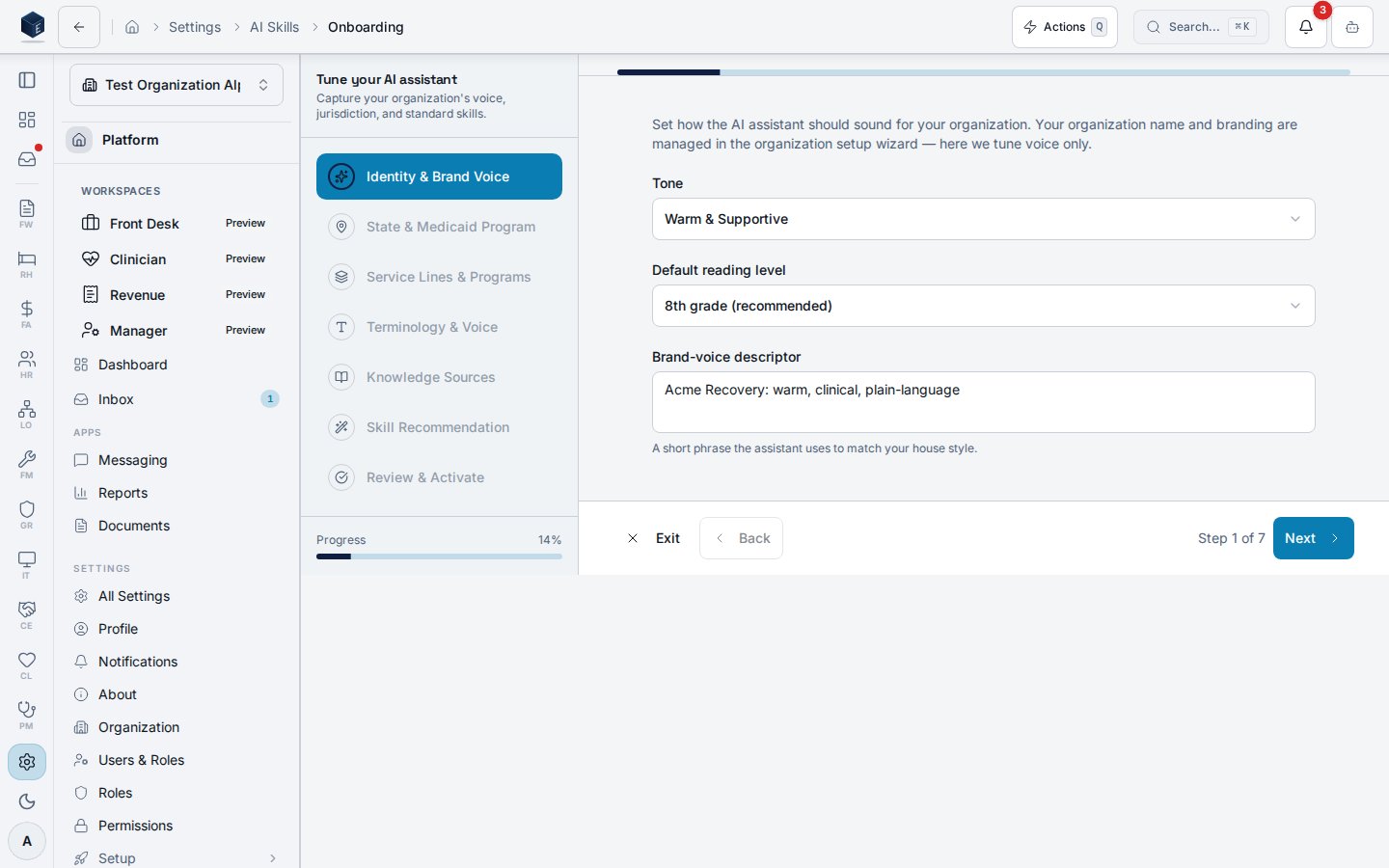
1. **Identity & Brand Voice** — pick a tone and default reading level and write a short
brand-voice descriptor. (Your organization name and branding come from the
organization setup wizard — this step tunes *voice* only.)
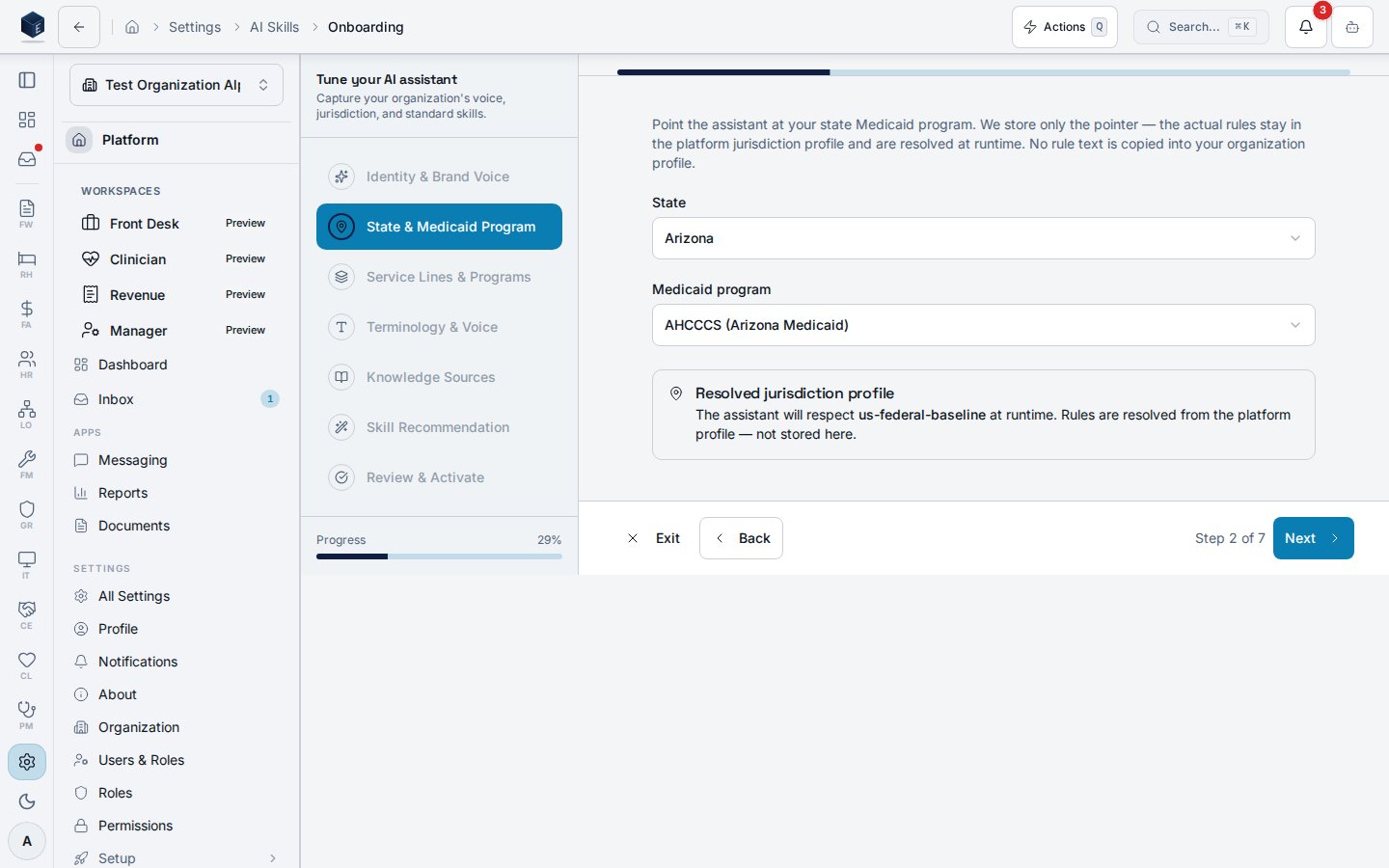
 2. **State & Medicaid Program** — select your state and Medicaid program. **Only a
pointer** (`state_code` + `program_code`) is stored; the actual rules stay in the
platform jurisdiction profile and are resolved at runtime. No rule text is ever copied
into your organization profile. Arizona / AHCCCS is the default profile (per the
platform jurisdiction system), not a hardcoded global.
2. **State & Medicaid Program** — select your state and Medicaid program. **Only a
pointer** (`state_code` + `program_code`) is stored; the actual rules stay in the
platform jurisdiction profile and are resolved at runtime. No rule text is ever copied
into your organization profile. Arizona / AHCCCS is the default profile (per the
platform jurisdiction system), not a hardcoded global.
 3. **Service Lines & Programs** — choose your service lines (at least one), the
populations you serve, and your payer-mix expectations. Payer-mix is a **soft check**:
if the percentages don't add up to \~100% you'll see a non-blocking warning, but you can
continue — rough estimates are fine.
4. **Terminology & Voice** *(optional)* — map words your staff and clients expect (e.g.
prefer "resident" over "client") and list voice do's and don'ts. You can skip this step.
5. **Knowledge Sources** — author an "About our organization" narrative (and/or link
existing documents). On **Publish**, the narrative is published as a single knowledge
article that is automatically embedded for AI retrieval. **Organizational facts only** —
the narrative is scanned for personal identifiers before publishing and the publish is
blocked if any are detected. Re-publishing updates the same article (no duplicates).
6. **Skill Recommendation & Enablement** — the wizard recommends standard AI skills for
your service lines. This is **recommend-and-confirm**: every skill starts unchecked and
**nothing is enabled until you confirm a selection**. Check the skills you want, then
**Confirm selection**. You may confirm zero skills — your explicit choice is recorded.
7. **Review & Activate** — review every section (with Edit links) and click **Activate**.
Activation stamps the completion timestamp and writes an audit entry
(`pf.ai_onboarding.completed`).
## Re-running (edit-profile mode)
After you complete onboarding, opening the wizard again enters **edit-profile mode**: your
saved answers are pre-loaded, and on the Skills step the currently-enabled skills are
pre-checked with a "Will change" hint so you confirm *changes* rather than starting blind.
## How org context reaches the assistant
Org context flows to enabled skills through the AI runtime injection channel — it is
**not** duplicated into each skill. The `ai_org_context_token_budget` setting (default
**1500**) bounds how many tokens the runtime injection may spend on the org-context block
when assembling a skill prompt.
## Privacy
The wizard is PHI-safe by construction: it stores **organizational** facts only (brand
voice, service lines, populations, payer-mix, a jurisdiction pointer, and an org-profile
narrative). No patient, clinical, or SUD data is collected, stored, injected, or embedded.
3. **Service Lines & Programs** — choose your service lines (at least one), the
populations you serve, and your payer-mix expectations. Payer-mix is a **soft check**:
if the percentages don't add up to \~100% you'll see a non-blocking warning, but you can
continue — rough estimates are fine.
4. **Terminology & Voice** *(optional)* — map words your staff and clients expect (e.g.
prefer "resident" over "client") and list voice do's and don'ts. You can skip this step.
5. **Knowledge Sources** — author an "About our organization" narrative (and/or link
existing documents). On **Publish**, the narrative is published as a single knowledge
article that is automatically embedded for AI retrieval. **Organizational facts only** —
the narrative is scanned for personal identifiers before publishing and the publish is
blocked if any are detected. Re-publishing updates the same article (no duplicates).
6. **Skill Recommendation & Enablement** — the wizard recommends standard AI skills for
your service lines. This is **recommend-and-confirm**: every skill starts unchecked and
**nothing is enabled until you confirm a selection**. Check the skills you want, then
**Confirm selection**. You may confirm zero skills — your explicit choice is recorded.
7. **Review & Activate** — review every section (with Edit links) and click **Activate**.
Activation stamps the completion timestamp and writes an audit entry
(`pf.ai_onboarding.completed`).
## Re-running (edit-profile mode)
After you complete onboarding, opening the wizard again enters **edit-profile mode**: your
saved answers are pre-loaded, and on the Skills step the currently-enabled skills are
pre-checked with a "Will change" hint so you confirm *changes* rather than starting blind.
## How org context reaches the assistant
Org context flows to enabled skills through the AI runtime injection channel — it is
**not** duplicated into each skill. The `ai_org_context_token_budget` setting (default
**1500**) bounds how many tokens the runtime injection may spend on the org-context block
when assembling a skill prompt.
## Privacy
The wizard is PHI-safe by construction: it stores **organizational** facts only (brand
voice, service lines, populations, payer-mix, a jurisdiction pointer, and an org-profile
narrative). No patient, clinical, or SUD data is collected, stored, injected, or embedded.