> ## Documentation Index
> Fetch the complete documentation index at: https://docs.encoreos.io/llms.txt
> Use this file to discover all available pages before exploring further.
# Organization Setup
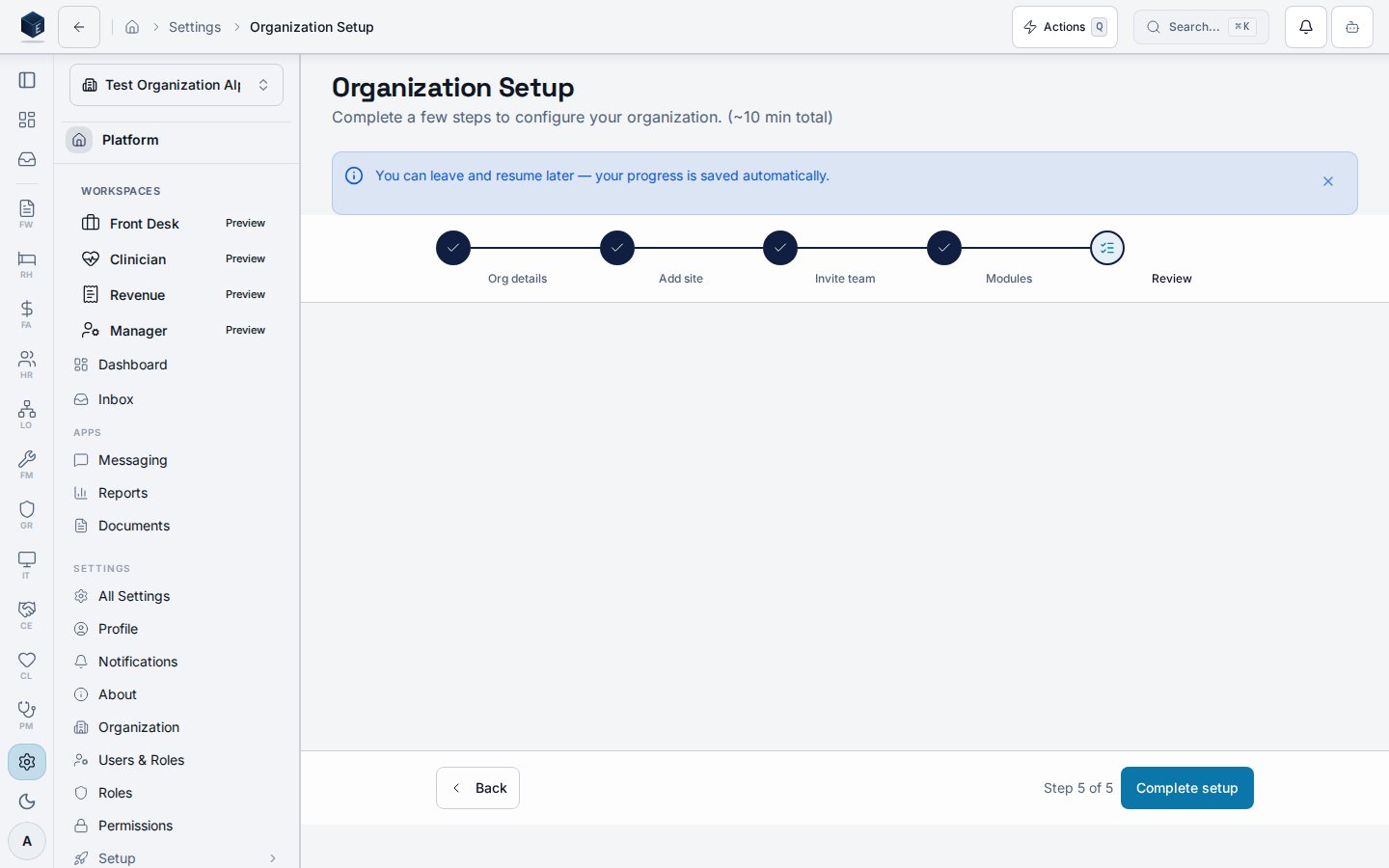
> Complete the guided 5-step setup wizard to configure your organization, first site, team invitations, modules, and review.
The Organization Setup wizard is available at `/settings/setup` and renders `OrganizationSetupWizardPage` from `src/platform/setup/components/OrganizationSetupWizardPage.tsx`. The route has no `RequirePermission` wrapper; internal steps use `RequirePermission` for certain actions.
## Overview
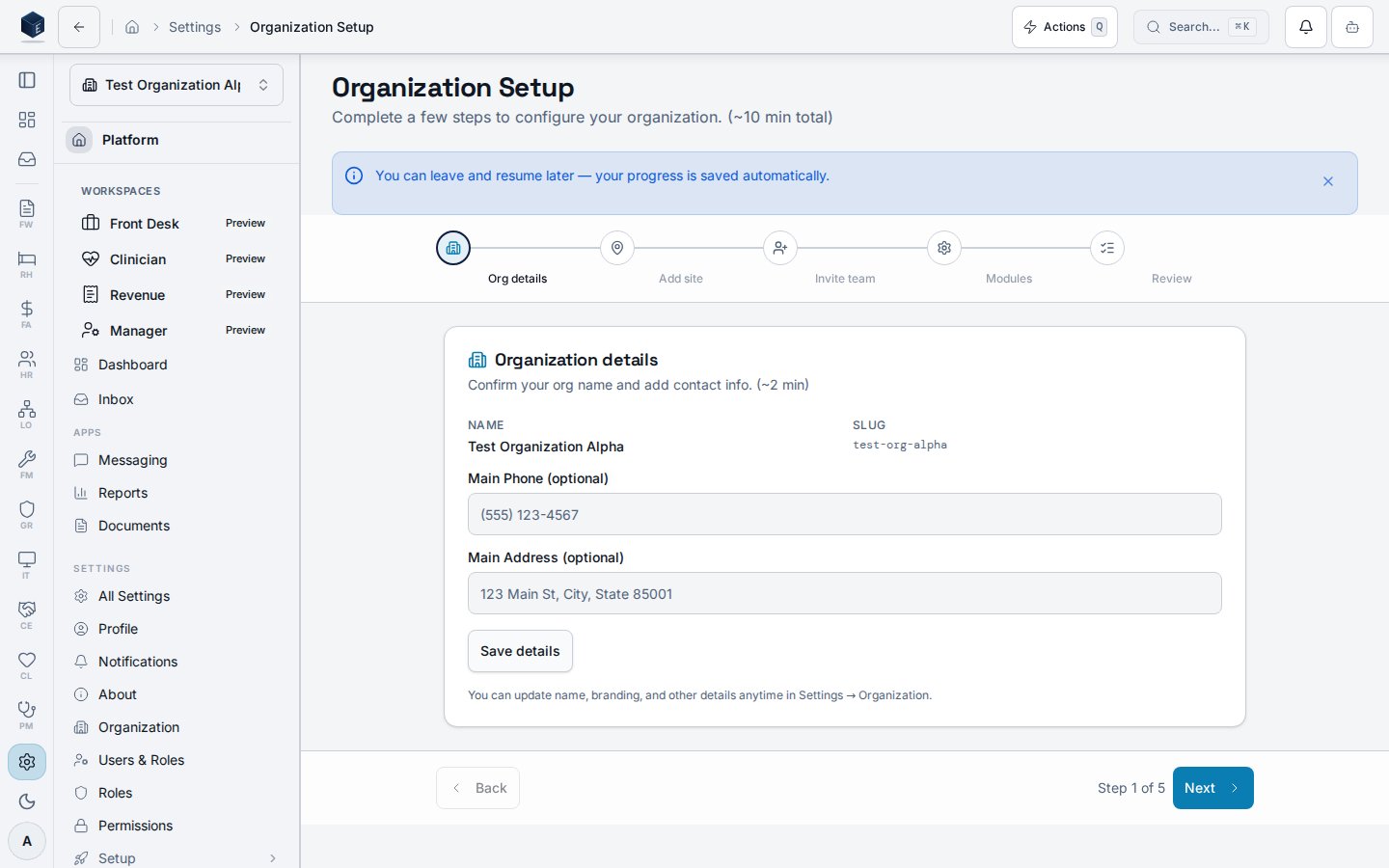
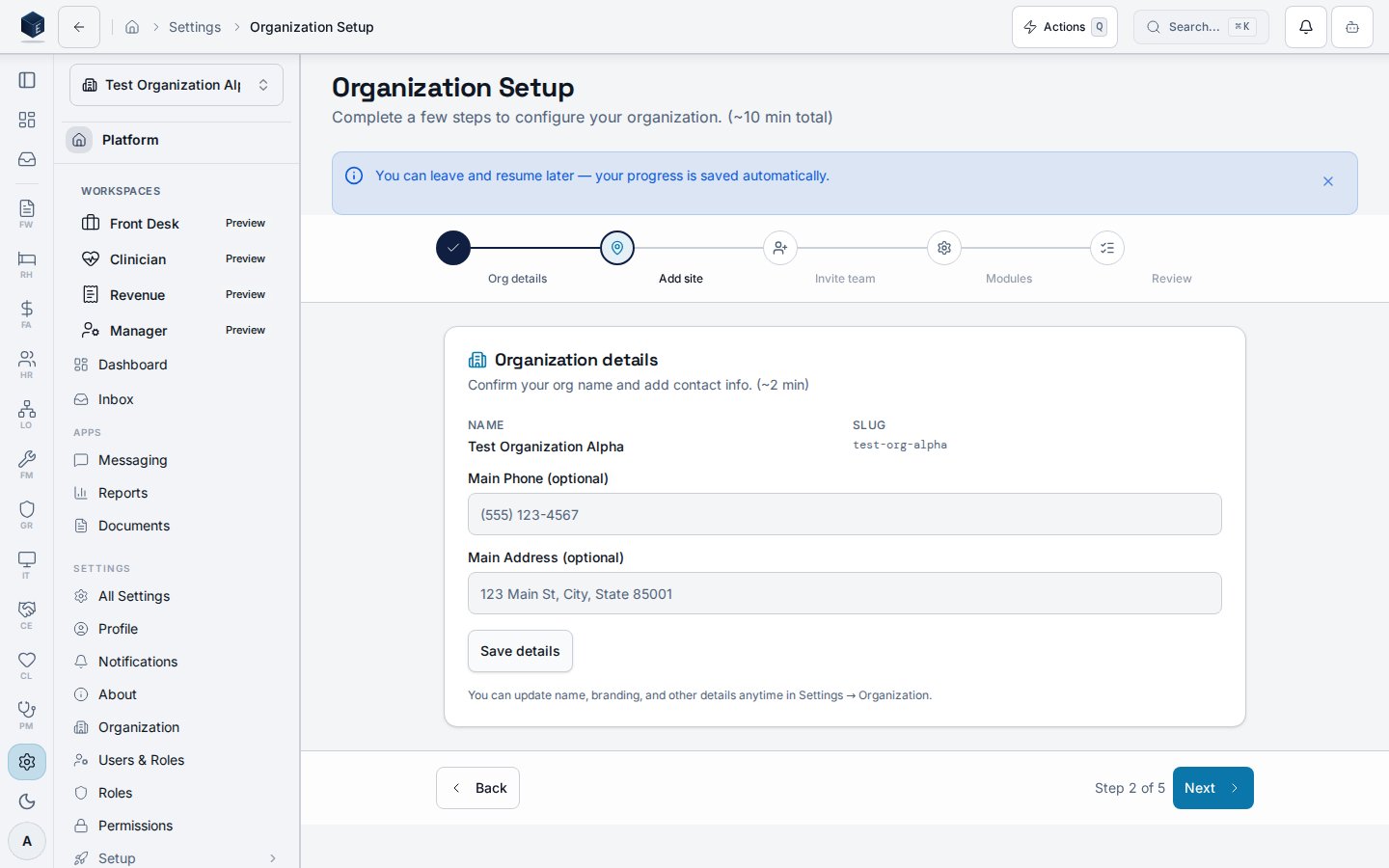
The Organization Setup Wizard guides new administrators through 5 steps using `WizardShell`. Draft progress is persisted in localStorage (org-scoped) via `saveOrganizationSetupDraft()` / `loadOrganizationSetupDraft()`. Completion is stored server-side in `pf_module_settings`. Steps:
1. **Org Details** — Update the organization name and add address/phone.
2. **First Site** — Create the primary physical site/location.
3. **Invite Team** — Send up to 3 email invitations to team members.
4. **Module Selection** — Enable or disable platform modules from `MODULE_REGISTRY` (excludes meta-modules: reports, documents, settings). Default enabled modules come from `DEFAULT_ENABLED_MODULES`.
5. **Review & Done** — Summary view with a link to the dashboard.
 ## Who it's for
Access follows your organization's role and module configuration. Internal steps may check `RequirePermission` for specific actions.
## Before you start
* You must be signed in as an organization administrator.
## Steps
1. Navigate to `/settings/setup` or follow the first-run prompt.
2. Complete **Org Details**: enter your organization name, address, and phone.
3. Complete **First Site**: enter the name and address of your primary location.
4. Complete **Invite Team**: enter up to 3 email addresses for teammates.
5. Complete **Module Selection**: enable the modules your organization needs.
6. Review the summary and select **Go to Dashboard** to finish.
## Key concepts
**Draft persistence** — Progress is saved to localStorage on each step so you can close and resume without losing entries.
**Module registry** — Available modules are drawn from `MODULE_REGISTRY`. Display names and metadata come from `MODULE_DISPLAY_INFO`.
## Related
Platform Foundation overview.
This page documents shipped product behavior. It is not medical, legal, or
billing advice. Verify against your organization's policies and applicable
regulations before using it for clinical, compliance, or billing decisions.
Protected health information (PHI) shown in the product is governed by your
tenant's access controls and is never exposed in this documentation.
* src/routes/platform.tsx
* src/platform/setup/components/OrganizationSetupWizardPage.tsx
* src/platform/setup/hooks/organizationSetupUtils.ts
## Who it's for
Access follows your organization's role and module configuration. Internal steps may check `RequirePermission` for specific actions.
## Before you start
* You must be signed in as an organization administrator.
## Steps
1. Navigate to `/settings/setup` or follow the first-run prompt.
2. Complete **Org Details**: enter your organization name, address, and phone.
3. Complete **First Site**: enter the name and address of your primary location.
4. Complete **Invite Team**: enter up to 3 email addresses for teammates.
5. Complete **Module Selection**: enable the modules your organization needs.
6. Review the summary and select **Go to Dashboard** to finish.
## Key concepts
**Draft persistence** — Progress is saved to localStorage on each step so you can close and resume without losing entries.
**Module registry** — Available modules are drawn from `MODULE_REGISTRY`. Display names and metadata come from `MODULE_DISPLAY_INFO`.
## Related
Platform Foundation overview.
This page documents shipped product behavior. It is not medical, legal, or
billing advice. Verify against your organization's policies and applicable
regulations before using it for clinical, compliance, or billing decisions.
Protected health information (PHI) shown in the product is governed by your
tenant's access controls and is never exposed in this documentation.
* src/routes/platform.tsx
* src/platform/setup/components/OrganizationSetupWizardPage.tsx
* src/platform/setup/hooks/organizationSetupUtils.ts