> ## Documentation Index
> Fetch the complete documentation index at: https://docs.encoreos.io/llms.txt
> Use this file to discover all available pages before exploring further.
# Entra ID
> Connect Microsoft Entra ID for Office 365 provisioning, directory sync, calendar, SharePoint, Teams, role-based licensing, and consent checks.
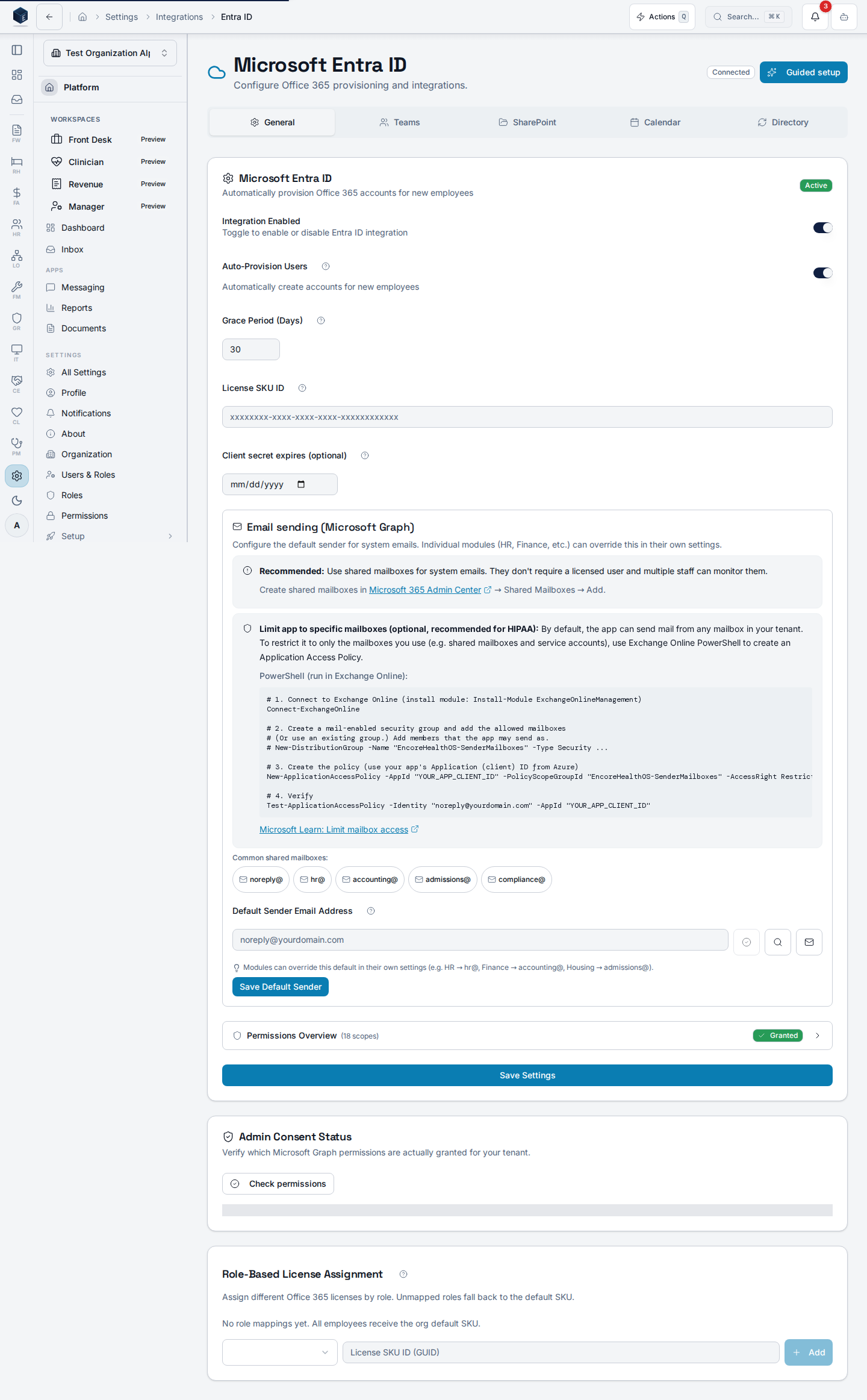
The Entra ID settings page (`/settings/integrations/entra`) consolidates all Microsoft 365 integration configuration in one place. From here you can run a guided setup wizard, verify admin consent, map system roles to license SKUs, and configure directory, calendar, SharePoint, and Teams sync.
 ## Overview
The page uses `useEntraConfig` to load the current configuration and `useOrganization` for the organization context. It renders a tabbed layout with: **Directory** (`DirectorySyncCard`), **Calendar** (`CalendarSyncConfigCard`), **SharePoint** (`SharePointConfigurationCard`), **Teams** (`TeamsConfigurationCard`), and **Field Mappings** (`EntraFieldMappingEditor`). The **General** tab also surfaces the **Admin Consent Status** and **Role license mappings** cards once the integration is active. An `EntraUnmatchedUsersCard` surfaces Entra users not yet matched to platform accounts, and `EntraPendingChangesReview` shows pending directory sync changes awaiting review.
Each organization can connect to Microsoft Entra through one of two paths:
* **Encore's shared app (recommended).** No app registration, client secret, or tenant ID to manage. A Microsoft administrator at your tenant grants consent once; Encore auto-detects the tenant ID and verified domains from Microsoft Graph and caches them. Choose this for most setups.
* **Bring your own app registration.** Use your own Entra app ID and client secret — required when tenant-isolation or security policies prohibit consenting to a multi-tenant app. The client secret is stored in your organization's encrypted credential vault (PF-76); Encore never holds it in a shared environment variable. Every Entra-touching feature — provisioning, directory sync, calendar, SharePoint, Teams, and email delivery — resolves the secret from your vault on each call.
A live health badge in the page header reflects what Microsoft Graph actually reports right now, not just the last consent timestamp:
| Badge | Meaning |
| ------------------ | ------------------------------------------------------------------------------------------------- |
| **Connected** | Token acquired, Graph reachable, all required permissions granted. |
| **Pending** | Tenant configured but admin consent has not been completed. |
| **Token Error** | Secrets missing or Graph token request failed — re-run admin consent or rotate the client secret. |
| **Permissions** | One or more required Graph scopes are not granted on the tenant. |
| **Not Configured** | No tenant linked yet. |
## Who it's for
The parent navigation requires `pf.integrations.view`. Editing role license mappings requires `org_admin`.
## Before you start
* An active Microsoft 365 tenant with a Global Administrator (or Application Administrator) who can grant tenant-wide admin consent.
* A primary verified email domain on your tenant (for example, `acme.com`).
* One or more Microsoft 365 license SKU IDs you want new employees to receive (optional).
* **Only when bringing your own app:** the Entra **Application (client) ID** (GUID) and a **client secret value** for that app registration (Azure Portal → **App registrations** → your app → **Certificates & secrets** → **Client secrets** → **New client secret**). Copy the **Value** column immediately — Azure only shows it once.
The tenant ID is **auto-detected** from the Graph token after a Microsoft administrator grants consent, so you don't need to look it up ahead of time.
## Guided setup
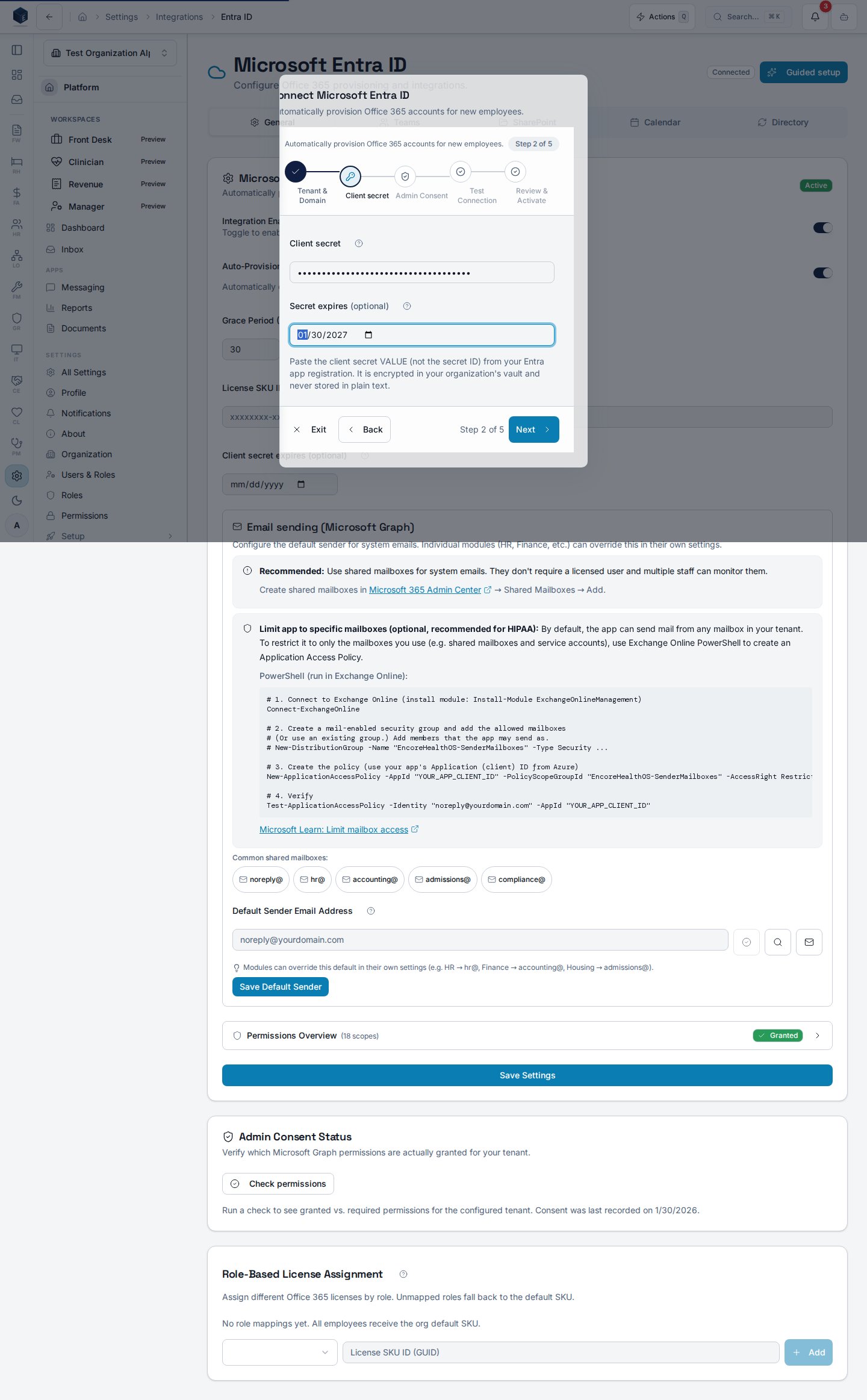
The **Guided setup** button in the page header opens `EntraSetupWizard`, a `DialogWizardShell` that walks you through connecting Microsoft Entra ID. The wizard branches based on which app registration mode you pick — six steps for the shared app, seven if you bring your own. Use it for first-time setup; the flat `EntraIDSettingsCard` remains available for power-user reconfiguration.
Choose **Use Encore's shared app (recommended)** or **Bring your own app registration**. The shared app skips the credentials step entirely; BYO requires an Entra app ID and client secret.
Enter the primary verified email domain on your tenant (for example, `acme.com`). Optionally paste a tenant ID if you already have it — otherwise leave it blank and Encore will auto-detect it after admin consent. Set a default license SKU ID if you want one assigned to new users.
Paste the **Application (client) ID** and the **client secret value** (not the secret ID) from your Entra app registration. Optionally set the secret expiry date so Encore can warn you before it lapses. The secret is encrypted into your organization's PF-76 vault — the raw value is never written to a plain-text column or logged.
## Overview
The page uses `useEntraConfig` to load the current configuration and `useOrganization` for the organization context. It renders a tabbed layout with: **Directory** (`DirectorySyncCard`), **Calendar** (`CalendarSyncConfigCard`), **SharePoint** (`SharePointConfigurationCard`), **Teams** (`TeamsConfigurationCard`), and **Field Mappings** (`EntraFieldMappingEditor`). The **General** tab also surfaces the **Admin Consent Status** and **Role license mappings** cards once the integration is active. An `EntraUnmatchedUsersCard` surfaces Entra users not yet matched to platform accounts, and `EntraPendingChangesReview` shows pending directory sync changes awaiting review.
Each organization can connect to Microsoft Entra through one of two paths:
* **Encore's shared app (recommended).** No app registration, client secret, or tenant ID to manage. A Microsoft administrator at your tenant grants consent once; Encore auto-detects the tenant ID and verified domains from Microsoft Graph and caches them. Choose this for most setups.
* **Bring your own app registration.** Use your own Entra app ID and client secret — required when tenant-isolation or security policies prohibit consenting to a multi-tenant app. The client secret is stored in your organization's encrypted credential vault (PF-76); Encore never holds it in a shared environment variable. Every Entra-touching feature — provisioning, directory sync, calendar, SharePoint, Teams, and email delivery — resolves the secret from your vault on each call.
A live health badge in the page header reflects what Microsoft Graph actually reports right now, not just the last consent timestamp:
| Badge | Meaning |
| ------------------ | ------------------------------------------------------------------------------------------------- |
| **Connected** | Token acquired, Graph reachable, all required permissions granted. |
| **Pending** | Tenant configured but admin consent has not been completed. |
| **Token Error** | Secrets missing or Graph token request failed — re-run admin consent or rotate the client secret. |
| **Permissions** | One or more required Graph scopes are not granted on the tenant. |
| **Not Configured** | No tenant linked yet. |
## Who it's for
The parent navigation requires `pf.integrations.view`. Editing role license mappings requires `org_admin`.
## Before you start
* An active Microsoft 365 tenant with a Global Administrator (or Application Administrator) who can grant tenant-wide admin consent.
* A primary verified email domain on your tenant (for example, `acme.com`).
* One or more Microsoft 365 license SKU IDs you want new employees to receive (optional).
* **Only when bringing your own app:** the Entra **Application (client) ID** (GUID) and a **client secret value** for that app registration (Azure Portal → **App registrations** → your app → **Certificates & secrets** → **Client secrets** → **New client secret**). Copy the **Value** column immediately — Azure only shows it once.
The tenant ID is **auto-detected** from the Graph token after a Microsoft administrator grants consent, so you don't need to look it up ahead of time.
## Guided setup
The **Guided setup** button in the page header opens `EntraSetupWizard`, a `DialogWizardShell` that walks you through connecting Microsoft Entra ID. The wizard branches based on which app registration mode you pick — six steps for the shared app, seven if you bring your own. Use it for first-time setup; the flat `EntraIDSettingsCard` remains available for power-user reconfiguration.
Choose **Use Encore's shared app (recommended)** or **Bring your own app registration**. The shared app skips the credentials step entirely; BYO requires an Entra app ID and client secret.
Enter the primary verified email domain on your tenant (for example, `acme.com`). Optionally paste a tenant ID if you already have it — otherwise leave it blank and Encore will auto-detect it after admin consent. Set a default license SKU ID if you want one assigned to new users.
Paste the **Application (client) ID** and the **client secret value** (not the secret ID) from your Entra app registration. Optionally set the secret expiry date so Encore can warn you before it lapses. The secret is encrypted into your organization's PF-76 vault — the raw value is never written to a plain-text column or logged.
 Select **Consent as Microsoft administrator** to open Microsoft's v2 admin-consent prompt in a new tab. A Microsoft tenant administrator signs in and grants the required Graph permissions. The wizard polls for consent; once Microsoft confirms it, Encore acquires a Graph token, reads the authoritative `tid` claim, and auto-fills the tenant ID for you.
The wizard acquires an app token for your tenant and pings Microsoft Graph. The result lists three checks — **Secrets configured**, **Token acquired**, and **Graph API reachable** — plus the **Verified domains** Microsoft returned, which are cached for SSO routing. You cannot continue until all three checks pass.
Toggle **Enable Microsoft sign-in for staff** if you also want users to sign in to Encore with their work account. The wizard shows the [Supabase Azure provider checklist](/pf/sso#supabase-azure-provider-checklist) that must be in place on the Entra app for sign-in to work. You can skip this and turn it on later from **Settings → Single Sign-On**.
Confirm the app mode, domain, detected tenant, and SSO choice, then select **Activate provisioning**. The settings page refreshes with the integration enabled and the health badge turns green.
### Rotate the client secret (BYO mode)
This applies only if you brought your own app registration. Entra app client secrets typically expire every 6, 12, or 24 months. To rotate:
1. In Azure Portal, generate a new client secret on the same app registration and copy its **Value**.
2. Open the **Guided setup** wizard, choose **Bring your own app registration**, and step through to **BYO credentials**. Paste the new value and continue.
3. Once the **Test connection** step passes with the new secret, you can revoke the old one in Azure.
The new vault entry replaces the old one for that organization; every subsequent Graph call resolves the rotated secret automatically.
## Verify admin consent
The **Admin Consent Status** card on the **General** tab diffs the Microsoft Graph permissions actually granted on your tenant against the ones Encore requires. The same live probe drives the page-header health badge, so a green **Connected** badge means every required scope is currently present. Use this card whenever the badge flips to **Permissions** or **Token Error**, after a Graph permission catalog change, or as a periodic health check.
1. Select **Check permissions**. The card calls the `entra-register-app` health probe, which reads granted application roles from a freshly acquired app token.
2. Each scope is listed with a **Required** or **Optional** badge and a granted (success) or missing (destructive or muted) indicator.
3. If any required scope is missing, select **Grant consent** to open a fresh tenant-wide consent URL in a new tab.
4. Optional scopes are only needed for Teams, SharePoint, Calendar, or email features and will not block provisioning.
If the probe cannot acquire an app token at all, the card surfaces a toast — usually because admin consent has not been granted or the client secret has expired (BYO mode).
## Map roles to license SKUs
The **Role license mappings** card lets org admins map PF-30 system roles (`app_role`) to Microsoft Graph license SKU IDs. When `entra-provision-user` provisions a new employee, it resolves the employee's highest-priority active system role and assigns the mapped SKU. Unmapped roles fall back to the org default SKU configured on the `EntraIDSettingsCard`. If lookup fails for any reason, provisioning degrades to the default rather than blocking the user.
Use this when different staff need different Microsoft 365 plans — for example, clinicians on **Microsoft 365 E5** and house staff on **Microsoft 365 F3**.
In Microsoft Entra admin center under **Billing → Licenses**, copy the GUID `skuId` for each plan you want to assign.
Select **Add mapping**, choose a system role (for example `staff`, `org_admin`, `rh_house_manager`), and paste the SKU GUID.
Add one row per role that should receive a non-default SKU. Each role can appear at most once per organization.
Select the trash icon to remove a row. Newly provisioned users with that role will fall back to the org default.
Example mapping table:
```text theme={null}
system_role license_sku_id
───────────────── ────────────────────────────────────────
org_admin 06ebc4ee-1bb5-47dd-8120-11324bc54e06 # Microsoft 365 E5
staff 05e9a617-0261-4cee-bb44-138d3ef5d965 # Microsoft 365 E3
rh_house_manager 66b55226-6b4f-492c-910c-a3b7a3c9d993 # Microsoft 365 F3
```
Changes apply to future provisioning runs only — existing Entra users are not relicensed automatically.
## Configure sync tabs
On the **Directory** tab, use `DirectorySyncCard` to enable user directory synchronization and review match status.
On the **Calendar** tab, use `CalendarSyncConfigCard` to configure Microsoft 365 calendar synchronization.
On the **SharePoint** tab, use `SharePointConfigurationCard` to set the SharePoint site and library connections.
On the **Teams** tab, use `TeamsConfigurationCard` to configure the Microsoft Teams integration.
On the **Field Mappings** tab, use `EntraFieldMappingEditor` to map Entra directory attributes to platform fields.
## Key concepts
BYO-mode organizations bring their own Entra app registration and paste their client secret into the guided setup wizard. Secrets are encrypted into a per-org PF-76 vault, referenced by `pf_organizations.entra_app_secret_id`; one organization can never read, log, or impersonate another organization's Entra app. Edge functions resolve the secret at call time through a shared resolver (vault first, with an environment fallback during migration), so it never lives in a plain-text column. Shared-app organizations have no per-org secret to manage — the consent token is bound to your tenant via Microsoft's authoritative `tid` claim. If the **Email delivery is not working** banner appears on email screens, re-run **Guided setup** for the affected organization to refresh the connection.
`EntraUnmatchedUsersCard` lists Entra directory users who exist in Microsoft 365 but have no corresponding platform account. These can be matched or provisioned.
`EntraPendingChangesReview` shows updates from Entra that have not yet been applied to the platform — allowing an admin to review before committing.
When an employee has multiple active system roles, `entra-provision-user` selects the highest-priority role for license resolution. If that role has no mapping, the org default SKU is used.
## Related
Federate sign-in with your Entra tenant.
Platform Foundation overview.
This page documents shipped product behavior. It is not medical, legal, or
billing advice. Verify against your organization's policies and applicable
regulations before using it for clinical, compliance, or billing decisions.
Protected health information (PHI) shown in the product is governed by your
tenant's access controls and is never exposed in this documentation.
* src/routes/platform.tsx
* src/platform/settings/pages/EntraIDSettingsPage.tsx
* src/platform/integrations/hooks/useEntraConfig.ts
* src/platform/integrations/hooks/useEntraSetup.ts
* src/platform/integrations/hooks/useEntraRoleLicenseMap.ts
* src/platform/integrations/components/EntraSetupWizard.tsx
* supabase/functions/\_shared/entra-credentials.ts
* src/platform/integrations/components/EntraConsentStatusCard.tsx
* src/platform/integrations/components/EntraRoleLicenseMapCard.tsx
* supabase/functions/entra-register-app
* supabase/functions/entra-provision-user
Select **Consent as Microsoft administrator** to open Microsoft's v2 admin-consent prompt in a new tab. A Microsoft tenant administrator signs in and grants the required Graph permissions. The wizard polls for consent; once Microsoft confirms it, Encore acquires a Graph token, reads the authoritative `tid` claim, and auto-fills the tenant ID for you.
The wizard acquires an app token for your tenant and pings Microsoft Graph. The result lists three checks — **Secrets configured**, **Token acquired**, and **Graph API reachable** — plus the **Verified domains** Microsoft returned, which are cached for SSO routing. You cannot continue until all three checks pass.
Toggle **Enable Microsoft sign-in for staff** if you also want users to sign in to Encore with their work account. The wizard shows the [Supabase Azure provider checklist](/pf/sso#supabase-azure-provider-checklist) that must be in place on the Entra app for sign-in to work. You can skip this and turn it on later from **Settings → Single Sign-On**.
Confirm the app mode, domain, detected tenant, and SSO choice, then select **Activate provisioning**. The settings page refreshes with the integration enabled and the health badge turns green.
### Rotate the client secret (BYO mode)
This applies only if you brought your own app registration. Entra app client secrets typically expire every 6, 12, or 24 months. To rotate:
1. In Azure Portal, generate a new client secret on the same app registration and copy its **Value**.
2. Open the **Guided setup** wizard, choose **Bring your own app registration**, and step through to **BYO credentials**. Paste the new value and continue.
3. Once the **Test connection** step passes with the new secret, you can revoke the old one in Azure.
The new vault entry replaces the old one for that organization; every subsequent Graph call resolves the rotated secret automatically.
## Verify admin consent
The **Admin Consent Status** card on the **General** tab diffs the Microsoft Graph permissions actually granted on your tenant against the ones Encore requires. The same live probe drives the page-header health badge, so a green **Connected** badge means every required scope is currently present. Use this card whenever the badge flips to **Permissions** or **Token Error**, after a Graph permission catalog change, or as a periodic health check.
1. Select **Check permissions**. The card calls the `entra-register-app` health probe, which reads granted application roles from a freshly acquired app token.
2. Each scope is listed with a **Required** or **Optional** badge and a granted (success) or missing (destructive or muted) indicator.
3. If any required scope is missing, select **Grant consent** to open a fresh tenant-wide consent URL in a new tab.
4. Optional scopes are only needed for Teams, SharePoint, Calendar, or email features and will not block provisioning.
If the probe cannot acquire an app token at all, the card surfaces a toast — usually because admin consent has not been granted or the client secret has expired (BYO mode).
## Map roles to license SKUs
The **Role license mappings** card lets org admins map PF-30 system roles (`app_role`) to Microsoft Graph license SKU IDs. When `entra-provision-user` provisions a new employee, it resolves the employee's highest-priority active system role and assigns the mapped SKU. Unmapped roles fall back to the org default SKU configured on the `EntraIDSettingsCard`. If lookup fails for any reason, provisioning degrades to the default rather than blocking the user.
Use this when different staff need different Microsoft 365 plans — for example, clinicians on **Microsoft 365 E5** and house staff on **Microsoft 365 F3**.
In Microsoft Entra admin center under **Billing → Licenses**, copy the GUID `skuId` for each plan you want to assign.
Select **Add mapping**, choose a system role (for example `staff`, `org_admin`, `rh_house_manager`), and paste the SKU GUID.
Add one row per role that should receive a non-default SKU. Each role can appear at most once per organization.
Select the trash icon to remove a row. Newly provisioned users with that role will fall back to the org default.
Example mapping table:
```text theme={null}
system_role license_sku_id
───────────────── ────────────────────────────────────────
org_admin 06ebc4ee-1bb5-47dd-8120-11324bc54e06 # Microsoft 365 E5
staff 05e9a617-0261-4cee-bb44-138d3ef5d965 # Microsoft 365 E3
rh_house_manager 66b55226-6b4f-492c-910c-a3b7a3c9d993 # Microsoft 365 F3
```
Changes apply to future provisioning runs only — existing Entra users are not relicensed automatically.
## Configure sync tabs
On the **Directory** tab, use `DirectorySyncCard` to enable user directory synchronization and review match status.
On the **Calendar** tab, use `CalendarSyncConfigCard` to configure Microsoft 365 calendar synchronization.
On the **SharePoint** tab, use `SharePointConfigurationCard` to set the SharePoint site and library connections.
On the **Teams** tab, use `TeamsConfigurationCard` to configure the Microsoft Teams integration.
On the **Field Mappings** tab, use `EntraFieldMappingEditor` to map Entra directory attributes to platform fields.
## Key concepts
BYO-mode organizations bring their own Entra app registration and paste their client secret into the guided setup wizard. Secrets are encrypted into a per-org PF-76 vault, referenced by `pf_organizations.entra_app_secret_id`; one organization can never read, log, or impersonate another organization's Entra app. Edge functions resolve the secret at call time through a shared resolver (vault first, with an environment fallback during migration), so it never lives in a plain-text column. Shared-app organizations have no per-org secret to manage — the consent token is bound to your tenant via Microsoft's authoritative `tid` claim. If the **Email delivery is not working** banner appears on email screens, re-run **Guided setup** for the affected organization to refresh the connection.
`EntraUnmatchedUsersCard` lists Entra directory users who exist in Microsoft 365 but have no corresponding platform account. These can be matched or provisioned.
`EntraPendingChangesReview` shows updates from Entra that have not yet been applied to the platform — allowing an admin to review before committing.
When an employee has multiple active system roles, `entra-provision-user` selects the highest-priority role for license resolution. If that role has no mapping, the org default SKU is used.
## Related
Federate sign-in with your Entra tenant.
Platform Foundation overview.
This page documents shipped product behavior. It is not medical, legal, or
billing advice. Verify against your organization's policies and applicable
regulations before using it for clinical, compliance, or billing decisions.
Protected health information (PHI) shown in the product is governed by your
tenant's access controls and is never exposed in this documentation.
* src/routes/platform.tsx
* src/platform/settings/pages/EntraIDSettingsPage.tsx
* src/platform/integrations/hooks/useEntraConfig.ts
* src/platform/integrations/hooks/useEntraSetup.ts
* src/platform/integrations/hooks/useEntraRoleLicenseMap.ts
* src/platform/integrations/components/EntraSetupWizard.tsx
* supabase/functions/\_shared/entra-credentials.ts
* src/platform/integrations/components/EntraConsentStatusCard.tsx
* src/platform/integrations/components/EntraRoleLicenseMapCard.tsx
* supabase/functions/entra-register-app
* supabase/functions/entra-provision-user