> ## Documentation Index
> Fetch the complete documentation index at: https://docs.encoreos.io/llms.txt
> Use this file to discover all available pages before exploring further.
# Team Timesheets
> Manager view of team timesheets with approval actions, punch corrections, and audit trail on the detail page.
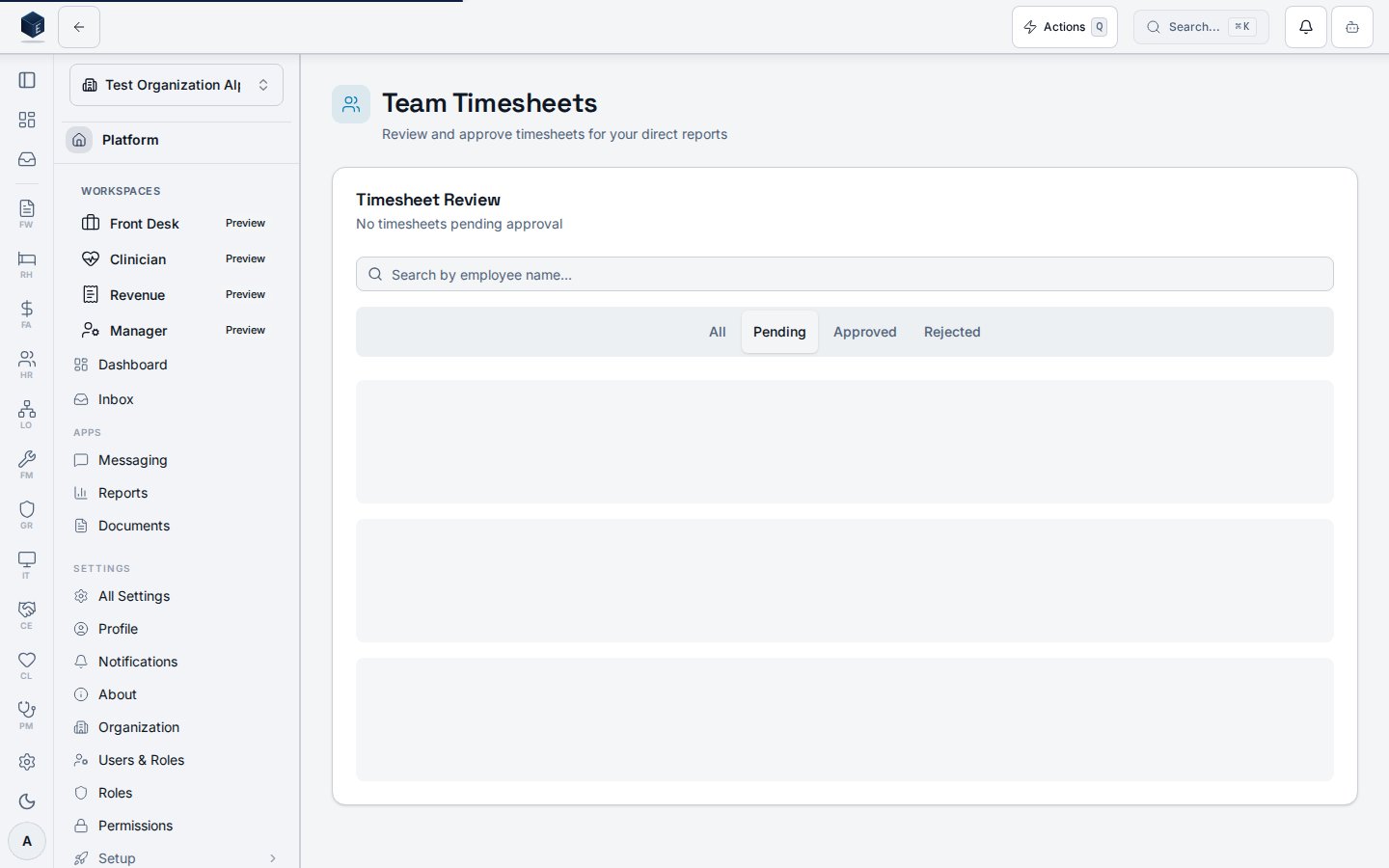
The Team Timesheets page enables managers to review and bulk-approve or individually review timesheets submitted by their direct reports. It is served at route `/hr/team-timesheets`.
## Overview
The page uses `useTeamTimesheets` with a `statusFilter` (defaulting to `submitted`). Results are locally filtered by employee name search. Status tabs (submitted, approved, rejected, all) each display a count badge. `TeamTimesheetCard` components render individual timesheets. `BulkApprovalActions` handles multi-select approvals. A `TimesheetApprovalDialog` opens for individual inline review.
 Managers with punch-correction permission can edit or add punches from the team timesheet detail page when the timesheet is not locked.
## Who it's for
* **List and review:** `hr.timesheets.team.view` — required by `RequirePermission` guard in `hr.tsx`.
* **Punch corrections:** `hr.timesheets.team.edit` — required to show **Add Missed Punch** and row-level edit actions on the detail page.
## Before you start
* Employees must have submitted timesheets for them to appear in the default **Submitted** tab.
* Punch correction requires `hr.timesheets.team.edit` and a timesheet in `draft`, `submitted`, or `rejected` status. Approved and paid timesheets are locked for managers; the detail page shows a message to contact HR.
## Steps
**Review individual timesheets**
1. Navigate to **HR > Team Timesheets** or go to `/hr/team-timesheets`.
2. The **Submitted** tab opens by default showing timesheets awaiting approval.
3. Use the search input to filter by employee name.
4. Click a timesheet card to open the detail page at `/hr/team-timesheets/:id`.
**Bulk approve**
1. Select multiple timesheet cards using their checkboxes.
2. Use **Bulk Approval Actions** to approve all selected timesheets at once.
## Key concepts
| Term | Meaning |
| ---------------- | ----------------------------------------------------------------------- |
| Status filter | Tab-based filter: submitted (default), approved, rejected, all. |
| Pending count | Count of `submitted` timesheets shown in the page header. |
| Bulk approval | Multi-select approval via `BulkApprovalActions`. |
| Locked timesheet | Timesheets in `approved` or `paid` status cannot be edited by managers. |
## Viewing a team timesheet
The Team Timesheet Details page allows a manager to review a specific employee's timesheet, correct punches when permitted, and approve or reject a submitted timesheet. It is served at route `/hr/team-timesheets/:id`.
The page loads timesheet data via `useTimesheetDetail(id)`. Time entries render in `TimesheetEntriesTable` with optional audit subtext (`PunchAuditMeta`). Approval and rejection use `useTimesheetApproval`. Punch corrections use `useTimesheetCorrections` in `team` mode.
**Review and approve**
1. From `/hr/team-timesheets`, click a timesheet card to open the detail page.
2. Review the summary (total, regular, and overtime hours) and the daily breakdown table.
3. **Approve:** When status is `submitted`, click **Approve** to approve the timesheet.
4. **Reject:** Click **Reject**, enter a rejection reason (minimum 10 characters), and confirm.
**Edit an existing punch**
Requires `hr.timesheets.team.edit` and an editable timesheet status (`draft`, `submitted`, or `rejected`).
1. In the daily breakdown, click the pencil icon on a clock-in or clock-out row.
2. In **Edit Punch Time**, review the read-only original time, enter a **New Time**, and provide a **Reason for Edit** (minimum 10 characters).
3. Click **Save Edit**. The dialog warns that the edit is logged for audit purposes.
4. After save, hours recalculate and the punch shows an edited indicator (warning icon). Hover the **Edited by** line to see the reason when audit display is enabled.
**Add a missed punch**
Requires `hr.timesheets.team.edit` and an editable timesheet status.
1. Click **Add Missed Punch** in the page header.
2. Select **Punch Type** (Clock In, Clock Out, Break Start, or Break End), **Date**, and **Time**.
3. Enter a **Reason** (minimum 10 characters) and click **Add Punch**.
4. The new punch appears in the daily breakdown and timesheet totals refresh.
**When correction is blocked**
If the timesheet is `approved` or `paid`, correction buttons are hidden and the page may show: *This timesheet is locked. Contact HR to request a correction.*
| Term | Meaning |
| --------------------- | --------------------------------------------------------------------------------------- |
| TimesheetEntriesTable | Table of daily entries with clock-in/out, hours, and optional audit subtext. |
| PunchAuditMeta | Subtext showing who logged a punch and, if edited, who corrected it and when. |
| Edit reason | Required text (minimum 10 characters) stored on the punch and written to the audit log. |
| Rejection reason | Text entered by the manager when rejecting; minimum 10 characters. |
## Related
Human Resources core overview.
This page documents shipped product behavior. It is not medical, legal, or
billing advice. Verify against your organization's policies and applicable
regulations before using it for clinical, compliance, or billing decisions.
Protected health information (PHI) shown in the product is governed by your
tenant's access controls and is never exposed in this documentation.
* src/routes/hr.tsx
* src/cores/hr/pages/TeamTimesheets.tsx
* src/cores/hr/pages/TeamTimesheetDetail.tsx
* src/cores/hr/hooks/time/useTeamTimesheets.ts
* src/cores/hr/hooks/time/useTimesheetDetail.ts
* src/cores/hr/hooks/time/useTimesheetApproval.ts
* src/cores/hr/hooks/time/useTimesheetCorrections.ts
* src/cores/hr/hooks/time/useTimesheetMutation.ts
* src/cores/hr/lib/time/canEditTimesheet.ts
* src/cores/hr/components/time/TimesheetCorrectionDialogs.tsx
* src/cores/hr/components/time/EditPunchDialog.tsx
* src/cores/hr/components/time/AddMissedPunchDialog.tsx
* src/cores/hr/components/time/PunchAuditMeta.tsx
* src/cores/hr/components/time/TimesheetEntriesTable.tsx
Managers with punch-correction permission can edit or add punches from the team timesheet detail page when the timesheet is not locked.
## Who it's for
* **List and review:** `hr.timesheets.team.view` — required by `RequirePermission` guard in `hr.tsx`.
* **Punch corrections:** `hr.timesheets.team.edit` — required to show **Add Missed Punch** and row-level edit actions on the detail page.
## Before you start
* Employees must have submitted timesheets for them to appear in the default **Submitted** tab.
* Punch correction requires `hr.timesheets.team.edit` and a timesheet in `draft`, `submitted`, or `rejected` status. Approved and paid timesheets are locked for managers; the detail page shows a message to contact HR.
## Steps
**Review individual timesheets**
1. Navigate to **HR > Team Timesheets** or go to `/hr/team-timesheets`.
2. The **Submitted** tab opens by default showing timesheets awaiting approval.
3. Use the search input to filter by employee name.
4. Click a timesheet card to open the detail page at `/hr/team-timesheets/:id`.
**Bulk approve**
1. Select multiple timesheet cards using their checkboxes.
2. Use **Bulk Approval Actions** to approve all selected timesheets at once.
## Key concepts
| Term | Meaning |
| ---------------- | ----------------------------------------------------------------------- |
| Status filter | Tab-based filter: submitted (default), approved, rejected, all. |
| Pending count | Count of `submitted` timesheets shown in the page header. |
| Bulk approval | Multi-select approval via `BulkApprovalActions`. |
| Locked timesheet | Timesheets in `approved` or `paid` status cannot be edited by managers. |
## Viewing a team timesheet
The Team Timesheet Details page allows a manager to review a specific employee's timesheet, correct punches when permitted, and approve or reject a submitted timesheet. It is served at route `/hr/team-timesheets/:id`.
The page loads timesheet data via `useTimesheetDetail(id)`. Time entries render in `TimesheetEntriesTable` with optional audit subtext (`PunchAuditMeta`). Approval and rejection use `useTimesheetApproval`. Punch corrections use `useTimesheetCorrections` in `team` mode.
**Review and approve**
1. From `/hr/team-timesheets`, click a timesheet card to open the detail page.
2. Review the summary (total, regular, and overtime hours) and the daily breakdown table.
3. **Approve:** When status is `submitted`, click **Approve** to approve the timesheet.
4. **Reject:** Click **Reject**, enter a rejection reason (minimum 10 characters), and confirm.
**Edit an existing punch**
Requires `hr.timesheets.team.edit` and an editable timesheet status (`draft`, `submitted`, or `rejected`).
1. In the daily breakdown, click the pencil icon on a clock-in or clock-out row.
2. In **Edit Punch Time**, review the read-only original time, enter a **New Time**, and provide a **Reason for Edit** (minimum 10 characters).
3. Click **Save Edit**. The dialog warns that the edit is logged for audit purposes.
4. After save, hours recalculate and the punch shows an edited indicator (warning icon). Hover the **Edited by** line to see the reason when audit display is enabled.
**Add a missed punch**
Requires `hr.timesheets.team.edit` and an editable timesheet status.
1. Click **Add Missed Punch** in the page header.
2. Select **Punch Type** (Clock In, Clock Out, Break Start, or Break End), **Date**, and **Time**.
3. Enter a **Reason** (minimum 10 characters) and click **Add Punch**.
4. The new punch appears in the daily breakdown and timesheet totals refresh.
**When correction is blocked**
If the timesheet is `approved` or `paid`, correction buttons are hidden and the page may show: *This timesheet is locked. Contact HR to request a correction.*
| Term | Meaning |
| --------------------- | --------------------------------------------------------------------------------------- |
| TimesheetEntriesTable | Table of daily entries with clock-in/out, hours, and optional audit subtext. |
| PunchAuditMeta | Subtext showing who logged a punch and, if edited, who corrected it and when. |
| Edit reason | Required text (minimum 10 characters) stored on the punch and written to the audit log. |
| Rejection reason | Text entered by the manager when rejecting; minimum 10 characters. |
## Related
Human Resources core overview.
This page documents shipped product behavior. It is not medical, legal, or
billing advice. Verify against your organization's policies and applicable
regulations before using it for clinical, compliance, or billing decisions.
Protected health information (PHI) shown in the product is governed by your
tenant's access controls and is never exposed in this documentation.
* src/routes/hr.tsx
* src/cores/hr/pages/TeamTimesheets.tsx
* src/cores/hr/pages/TeamTimesheetDetail.tsx
* src/cores/hr/hooks/time/useTeamTimesheets.ts
* src/cores/hr/hooks/time/useTimesheetDetail.ts
* src/cores/hr/hooks/time/useTimesheetApproval.ts
* src/cores/hr/hooks/time/useTimesheetCorrections.ts
* src/cores/hr/hooks/time/useTimesheetMutation.ts
* src/cores/hr/lib/time/canEditTimesheet.ts
* src/cores/hr/components/time/TimesheetCorrectionDialogs.tsx
* src/cores/hr/components/time/EditPunchDialog.tsx
* src/cores/hr/components/time/AddMissedPunchDialog.tsx
* src/cores/hr/components/time/PunchAuditMeta.tsx
* src/cores/hr/components/time/TimesheetEntriesTable.tsx