> ## Documentation Index
> Fetch the complete documentation index at: https://docs.encoreos.io/llms.txt
> Use this file to discover all available pages before exploring further.
# HR Scheduling
> View and manage staff shifts in table or calendar format — create shifts, use the schedule generator, and track shift status.
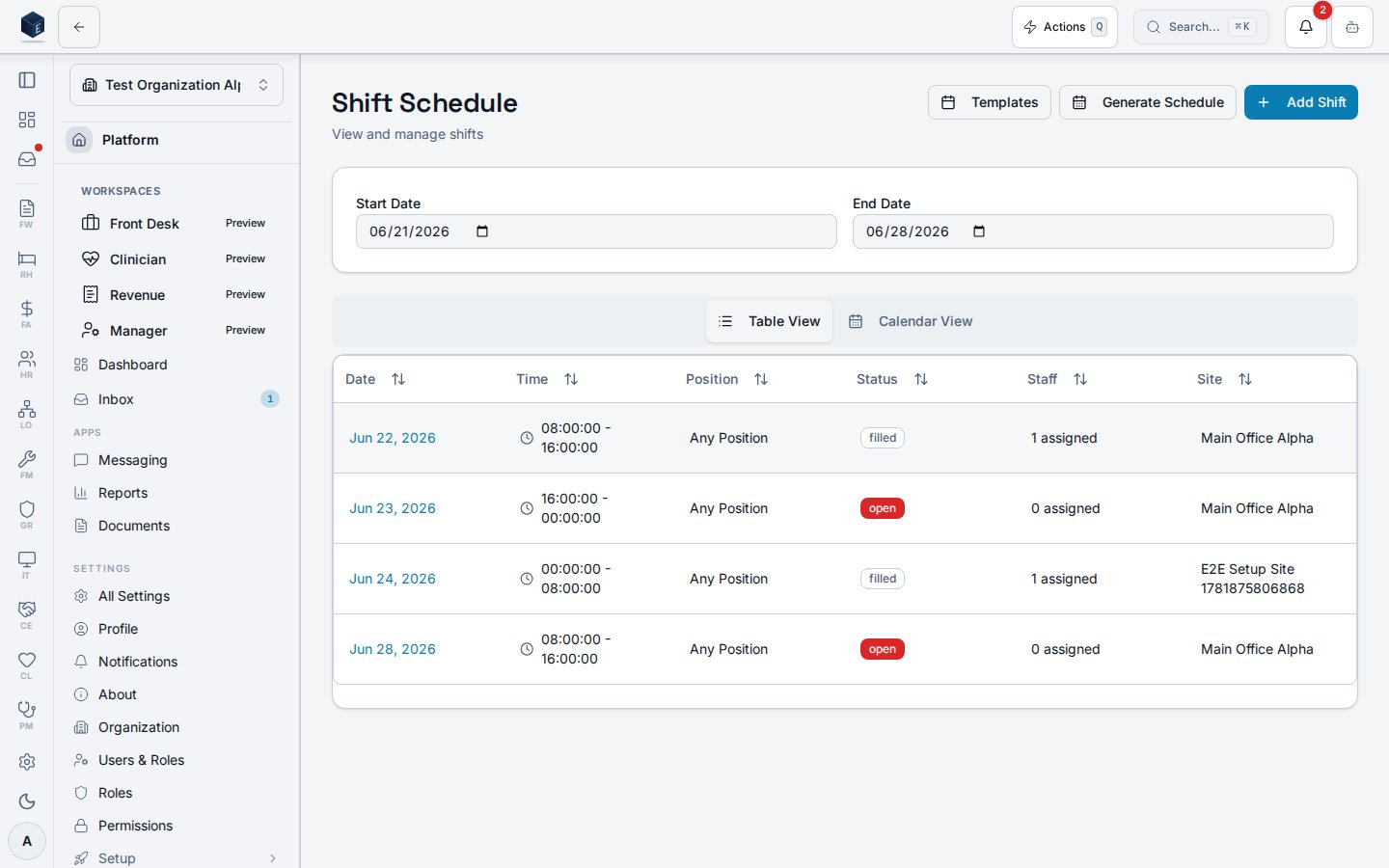
The Scheduling page at `/hr/scheduling` is the primary shift management view, rendered by the `Shifts` component. It displays shifts in either a table or calendar layout and supports shift creation and management.
## Overview
The page defaults to a **Table** view showing shifts in a date range (default: today + 7 days). A **Calendar** tab provides a weekly calendar view (`ShiftCalendarView`). Controls include date range selectors, a "New Shift" button, and a "Schedule Generator" button. Clicking a shift row opens the `ShiftDetailDialog`. Shift status is displayed as a badge: open (destructive), filled (default), in\_progress (secondary), completed (outline), cancelled (outline).
 ## Who it's for
Requires `HR_PERMISSIONS.SCHEDULING_VIEW` permission.
## Before you start
* Shift templates should be configured at `/hr/shift-templates` before generating schedules.
* The date range defaults to today through 7 days out; adjust as needed.
## Steps
**View shifts**
1. Navigate to **HR → Scheduling** (`/hr/scheduling`).
2. Use the date-range inputs to set the period.
3. Switch between Table and Calendar views using the view toggle.
**Create a shift**
1. Click **New Shift** to open the shift creation form.
2. Complete shift details (type, date, time, staffing requirements).
**Generate a schedule**
1. Click **Schedule Generator** to open the generator dialog.
2. Configure generation parameters and confirm.
**View shift details**
1. Click any shift row to open the `ShiftDetailDialog`.
## Key concepts
| Term | Meaning |
| ------------------ | ---------------------------------------------------------------------------------- |
| Open Shift | A shift with no assigned staff. |
| Filled Shift | A shift with all required staff assigned. |
| Schedule Generator | A tool to auto-generate shifts for a period based on templates and staffing rules. |
## Permissions
Viewing the schedule requires `hr.scheduling.view`; shift creation and editing require the additional keys below.
| Permission key | Grants |
| ---------------------- | -------------------------------------------------------- |
| `hr.scheduling.view` | View the schedule (table / calendar) and shift details |
| `hr.scheduling.create` | Create new shifts and run the schedule generator |
| `hr.scheduling.edit` | Edit existing shifts and assignments |
| `hr.scheduling.delete` | Delete shifts |
| `hr.scheduling.admin` | Full scheduling administration (templates, bulk actions) |
Permission keys are assigned to roles in the role editor.
## Related
Human Resources core overview.
This page documents shipped product behavior. It is not medical, legal, or
billing advice. Verify against your organization's policies and applicable
regulations before using it for clinical, compliance, or billing decisions.
Protected health information (PHI) shown in the product is governed by your
tenant's access controls and is never exposed in this documentation.
* src/routes/hr.tsx
* src/cores/hr/pages/Shifts.tsx
* src/cores/hr/hooks/scheduling/useShiftList.ts
## Who it's for
Requires `HR_PERMISSIONS.SCHEDULING_VIEW` permission.
## Before you start
* Shift templates should be configured at `/hr/shift-templates` before generating schedules.
* The date range defaults to today through 7 days out; adjust as needed.
## Steps
**View shifts**
1. Navigate to **HR → Scheduling** (`/hr/scheduling`).
2. Use the date-range inputs to set the period.
3. Switch between Table and Calendar views using the view toggle.
**Create a shift**
1. Click **New Shift** to open the shift creation form.
2. Complete shift details (type, date, time, staffing requirements).
**Generate a schedule**
1. Click **Schedule Generator** to open the generator dialog.
2. Configure generation parameters and confirm.
**View shift details**
1. Click any shift row to open the `ShiftDetailDialog`.
## Key concepts
| Term | Meaning |
| ------------------ | ---------------------------------------------------------------------------------- |
| Open Shift | A shift with no assigned staff. |
| Filled Shift | A shift with all required staff assigned. |
| Schedule Generator | A tool to auto-generate shifts for a period based on templates and staffing rules. |
## Permissions
Viewing the schedule requires `hr.scheduling.view`; shift creation and editing require the additional keys below.
| Permission key | Grants |
| ---------------------- | -------------------------------------------------------- |
| `hr.scheduling.view` | View the schedule (table / calendar) and shift details |
| `hr.scheduling.create` | Create new shifts and run the schedule generator |
| `hr.scheduling.edit` | Edit existing shifts and assignments |
| `hr.scheduling.delete` | Delete shifts |
| `hr.scheduling.admin` | Full scheduling administration (templates, bulk actions) |
Permission keys are assigned to roles in the role editor.
## Related
Human Resources core overview.
This page documents shipped product behavior. It is not medical, legal, or
billing advice. Verify against your organization's policies and applicable
regulations before using it for clinical, compliance, or billing decisions.
Protected health information (PHI) shown in the product is governed by your
tenant's access controls and is never exposed in this documentation.
* src/routes/hr.tsx
* src/cores/hr/pages/Shifts.tsx
* src/cores/hr/hooks/scheduling/useShiftList.ts