> ## Documentation Index
> Fetch the complete documentation index at: https://docs.encoreos.io/llms.txt
> Use this file to discover all available pages before exploring further.
# Onboarding dashboard
> Monitor active and completed employee onboarding instances, start new onboardings, and view individual onboarding task checklists and milestone progress.
The Onboarding Dashboard displays all employee onboarding instances and is available at `/hr/onboarding`.
## Overview
The Onboarding Dashboard (`OnboardingDashboard`) provides a tabbed view of onboarding instances — **Active** (status `in_progress`) and **Completed** — alongside the Onboarding Command Center. Select an instance to open its detail page at `/hr/onboarding/:id`.
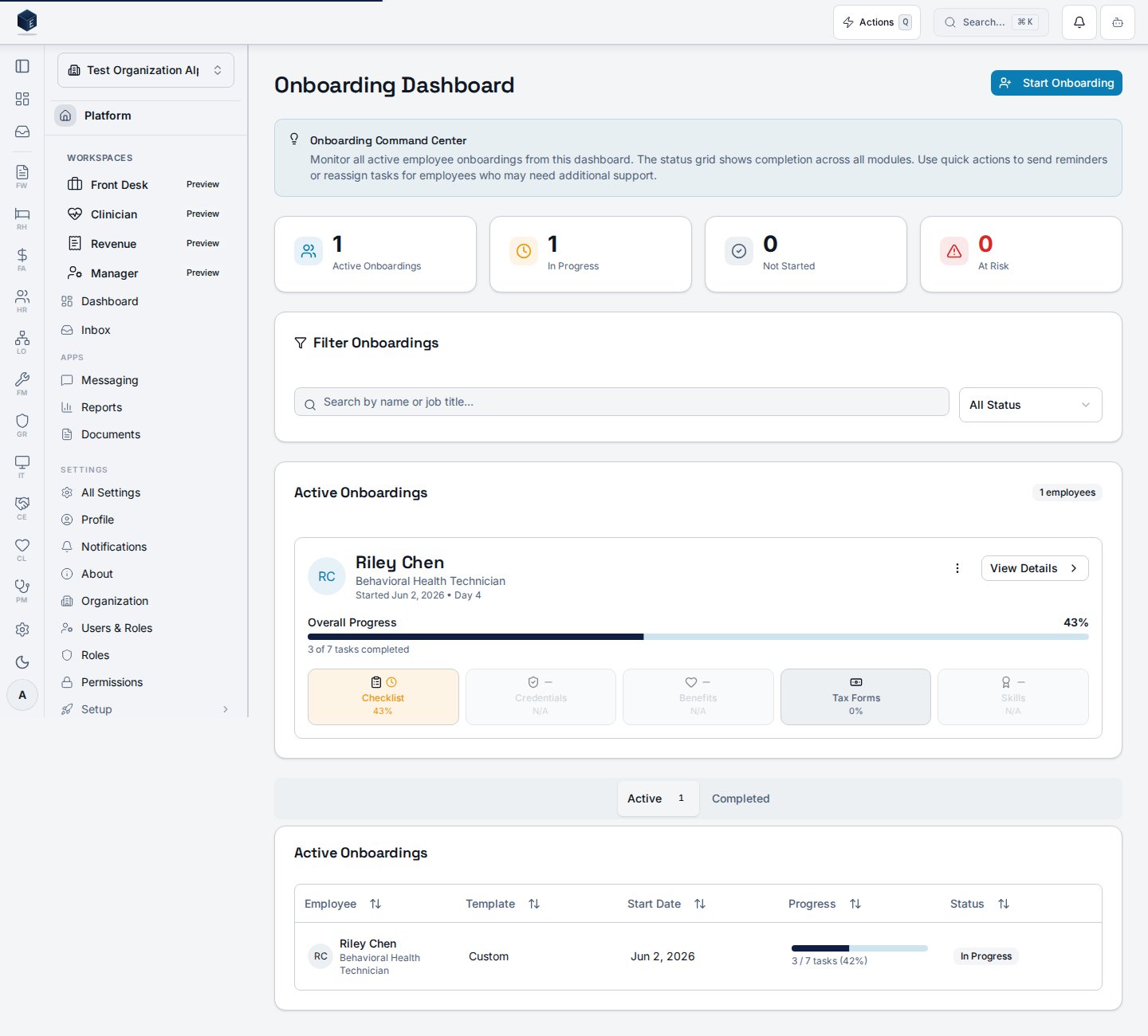 From the dashboard, you can:
* **Start Onboarding** — open a dialog that creates a new onboarding instance for an existing employee from an onboarding template (no full wizard required).
* Open the **Onboarding Wizard** at `/hr/onboarding/wizard` when you need to create the employee record itself.
This page requires the `hr.onboarding.view` permission.
## Who it's for
Requires permission `hr.onboarding.view` (`HR_PERMISSIONS.ONBOARDING_VIEW`).
## Before you start
* The employee record must already exist. Use the Onboarding Wizard (`/hr/onboarding/wizard`) to create new employees.
* At least one active onboarding template must exist. See [Onboarding Templates](/hr/onboarding-templates).
* Employees who already have an active (`in_progress`) or pending (`not_started`) onboarding instance are filtered out of the picker.
## Steps
### View onboarding instances
1. Navigate to `/hr/onboarding`.
2. Use the **Active** tab to see in-progress onboardings; use **Completed** to see finished ones.
3. Select an instance to open its detail view.
### Start onboarding for an existing employee
1. From `/hr/onboarding`, select **Start Onboarding** in the page header.
2. Search for the employee by name and select them from the results.
3. Select an active **Onboarding Template** — the dropdown shows each template's task count.
4. Set the **Start Date** (defaults to today).
5. Select **Start Onboarding** to create the instance.
The new instance appears on the **Active** tab and is also visible to the employee in [My Onboarding](/hr/my-onboarding).
You can deep-link directly to the dialog by appending `?action=new` to the dashboard URL — for example, `/hr/onboarding?action=new`. The query parameter is consumed and removed after the dialog opens.
## Key concepts
* **Onboarding Instance** — A single employee's onboarding record, tracking all assigned tasks and their completion status.
* **Onboarding Template** — A reusable set of tasks applied when creating an instance. Only `is_active = true` templates appear in the picker.
* **Eligible employee** — An employee without an active or pending onboarding instance. The Start Onboarding picker hides ineligible employees so you cannot create duplicates.
## Viewing an onboarding instance
The Onboarding Details page (`OnboardingDetail`) is available at `/hr/onboarding/:id`, gated behind the `hr.onboarding.view` permission. It displays the full task list and status for a specific onboarding instance identified by its `:id` URL parameter.
From the dashboard, you can:
* **Start Onboarding** — open a dialog that creates a new onboarding instance for an existing employee from an onboarding template (no full wizard required).
* Open the **Onboarding Wizard** at `/hr/onboarding/wizard` when you need to create the employee record itself.
This page requires the `hr.onboarding.view` permission.
## Who it's for
Requires permission `hr.onboarding.view` (`HR_PERMISSIONS.ONBOARDING_VIEW`).
## Before you start
* The employee record must already exist. Use the Onboarding Wizard (`/hr/onboarding/wizard`) to create new employees.
* At least one active onboarding template must exist. See [Onboarding Templates](/hr/onboarding-templates).
* Employees who already have an active (`in_progress`) or pending (`not_started`) onboarding instance are filtered out of the picker.
## Steps
### View onboarding instances
1. Navigate to `/hr/onboarding`.
2. Use the **Active** tab to see in-progress onboardings; use **Completed** to see finished ones.
3. Select an instance to open its detail view.
### Start onboarding for an existing employee
1. From `/hr/onboarding`, select **Start Onboarding** in the page header.
2. Search for the employee by name and select them from the results.
3. Select an active **Onboarding Template** — the dropdown shows each template's task count.
4. Set the **Start Date** (defaults to today).
5. Select **Start Onboarding** to create the instance.
The new instance appears on the **Active** tab and is also visible to the employee in [My Onboarding](/hr/my-onboarding).
You can deep-link directly to the dialog by appending `?action=new` to the dashboard URL — for example, `/hr/onboarding?action=new`. The query parameter is consumed and removed after the dialog opens.
## Key concepts
* **Onboarding Instance** — A single employee's onboarding record, tracking all assigned tasks and their completion status.
* **Onboarding Template** — A reusable set of tasks applied when creating an instance. Only `is_active = true` templates appear in the picker.
* **Eligible employee** — An employee without an active or pending onboarding instance. The Start Onboarding picker hides ineligible employees so you cannot create duplicates.
## Viewing an onboarding instance
The Onboarding Details page (`OnboardingDetail`) is available at `/hr/onboarding/:id`, gated behind the `hr.onboarding.view` permission. It displays the full task list and status for a specific onboarding instance identified by its `:id` URL parameter.
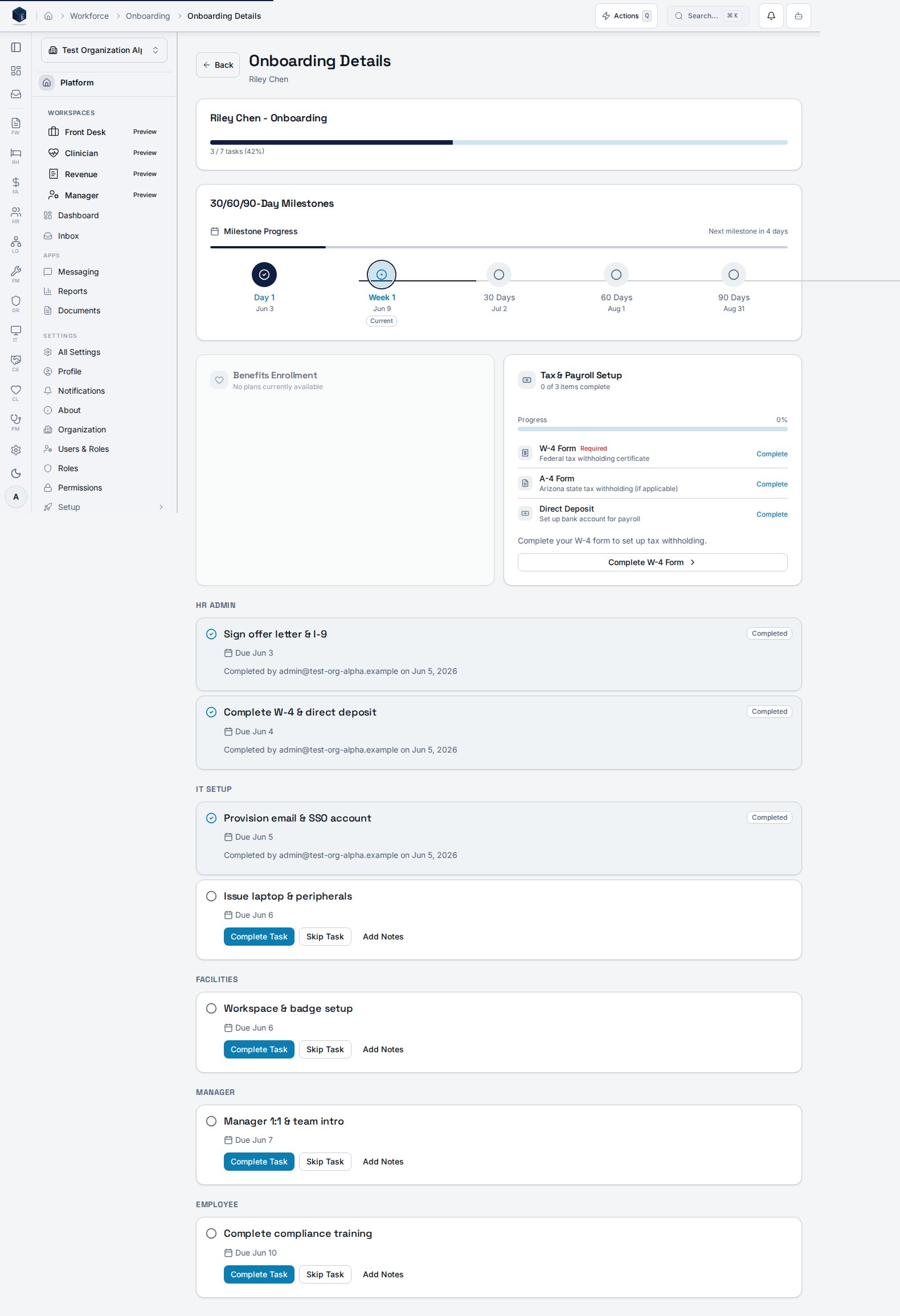 Before you start: navigate to the Onboarding Dashboard at `/hr/onboarding` to find the onboarding instance. Clicking an instance on the dashboard navigates to this detail page.
1. Navigate to `/hr/onboarding` to view the active and completed onboarding list.
2. Click an onboarding instance to open its detail view at `/hr/onboarding/:id`.
3. Review tasks and progress; take available actions as appropriate.
## Related
Manage the templates used when starting a new onboarding.
Create a new employee record and begin onboarding from scratch.
Employee-facing view of assigned onboarding tasks.
Human Resources core overview.
This page documents shipped product behavior. It is not medical, legal, or
billing advice. Verify against your organization's policies and applicable
regulations before using it for clinical, compliance, or billing decisions.
Protected health information (PHI) shown in the product is governed by your
tenant's access controls and is never exposed in this documentation.
* src/routes/hr.tsx
* src/cores/hr/pages/OnboardingDashboard.tsx
* src/cores/hr/pages/OnboardingDetail.tsx
* src/cores/hr/components/onboarding/StartOnboardingFromDashboardDialog.tsx
* src/cores/hr/hooks/onboarding/useOnboardingInstances.ts
* src/cores/hr/hooks/onboarding/useOnboardingInstanceMutation.ts
* src/cores/hr/hooks/onboarding/useOnboardingTemplates.ts
Before you start: navigate to the Onboarding Dashboard at `/hr/onboarding` to find the onboarding instance. Clicking an instance on the dashboard navigates to this detail page.
1. Navigate to `/hr/onboarding` to view the active and completed onboarding list.
2. Click an onboarding instance to open its detail view at `/hr/onboarding/:id`.
3. Review tasks and progress; take available actions as appropriate.
## Related
Manage the templates used when starting a new onboarding.
Create a new employee record and begin onboarding from scratch.
Employee-facing view of assigned onboarding tasks.
Human Resources core overview.
This page documents shipped product behavior. It is not medical, legal, or
billing advice. Verify against your organization's policies and applicable
regulations before using it for clinical, compliance, or billing decisions.
Protected health information (PHI) shown in the product is governed by your
tenant's access controls and is never exposed in this documentation.
* src/routes/hr.tsx
* src/cores/hr/pages/OnboardingDashboard.tsx
* src/cores/hr/pages/OnboardingDetail.tsx
* src/cores/hr/components/onboarding/StartOnboardingFromDashboardDialog.tsx
* src/cores/hr/hooks/onboarding/useOnboardingInstances.ts
* src/cores/hr/hooks/onboarding/useOnboardingInstanceMutation.ts
* src/cores/hr/hooks/onboarding/useOnboardingTemplates.ts