> ## Documentation Index
> Fetch the complete documentation index at: https://docs.encoreos.io/llms.txt
> Use this file to discover all available pages before exploring further.
# Offboarding
> Manage employee offboarding workflows, termination timelines, IT offboarding integration, and per-employee task checklists.
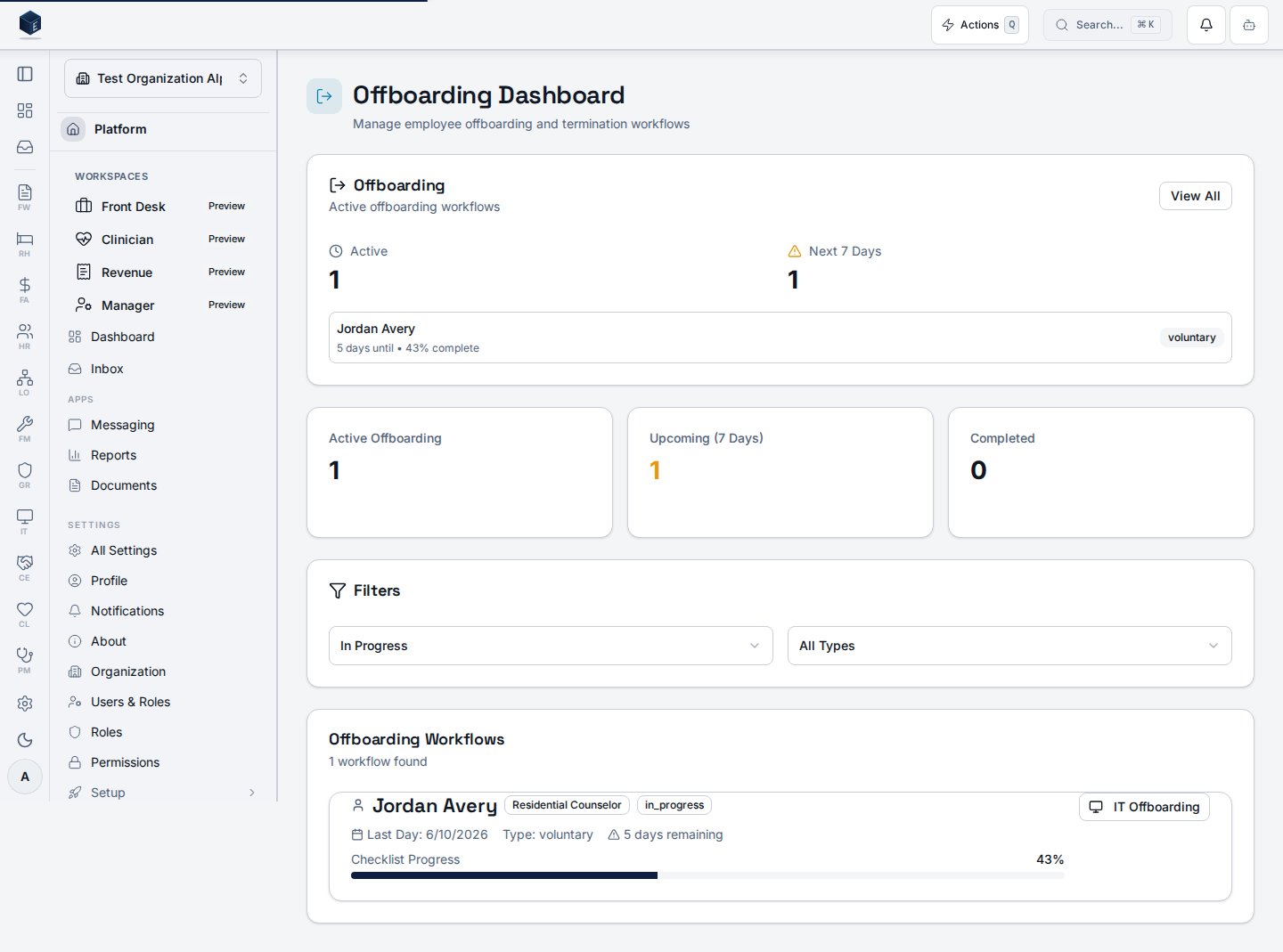
The Offboarding Dashboard lists all employee offboarding instances and provides status statistics; it is available at `/hr/offboarding`.
## Overview
The Offboarding Dashboard (`OffboardingDashboard`) shows a summary widget and a filterable list of offboarding instances. Statistics cards display counts of active offboardings, completed offboardings, and upcoming terminations (within 7 days). Users can filter by status (in progress, completed, etc.) and termination type. Clicking a row opens the Offboarding Details page at `/hr/offboarding/:id`. This page integrates with IT offboarding workflows via `useITOffboardingIntegration`.
 ## Who it's for
Requires permission `hr.offboarding.view` (`HR_PERMISSIONS.OFFBOARDING_VIEW`).
## Before you start
* Offboarding instances are initiated when a termination is recorded in the system.
## Steps
1. Navigate to `/hr/offboarding`.
2. Use the status and termination type filters to find the instances you need.
3. Click an instance card or row to open the detail view.
4. Monitor upcoming terminations in the stats cards.
## Key concepts
* **Offboarding Instance** — A record representing a single employee's departure process, including all associated tasks and their completion status.
* **Termination Date** — The employee's last day; drives the "upcoming" metric on the dashboard (within 7 days).
## Viewing an offboarding instance
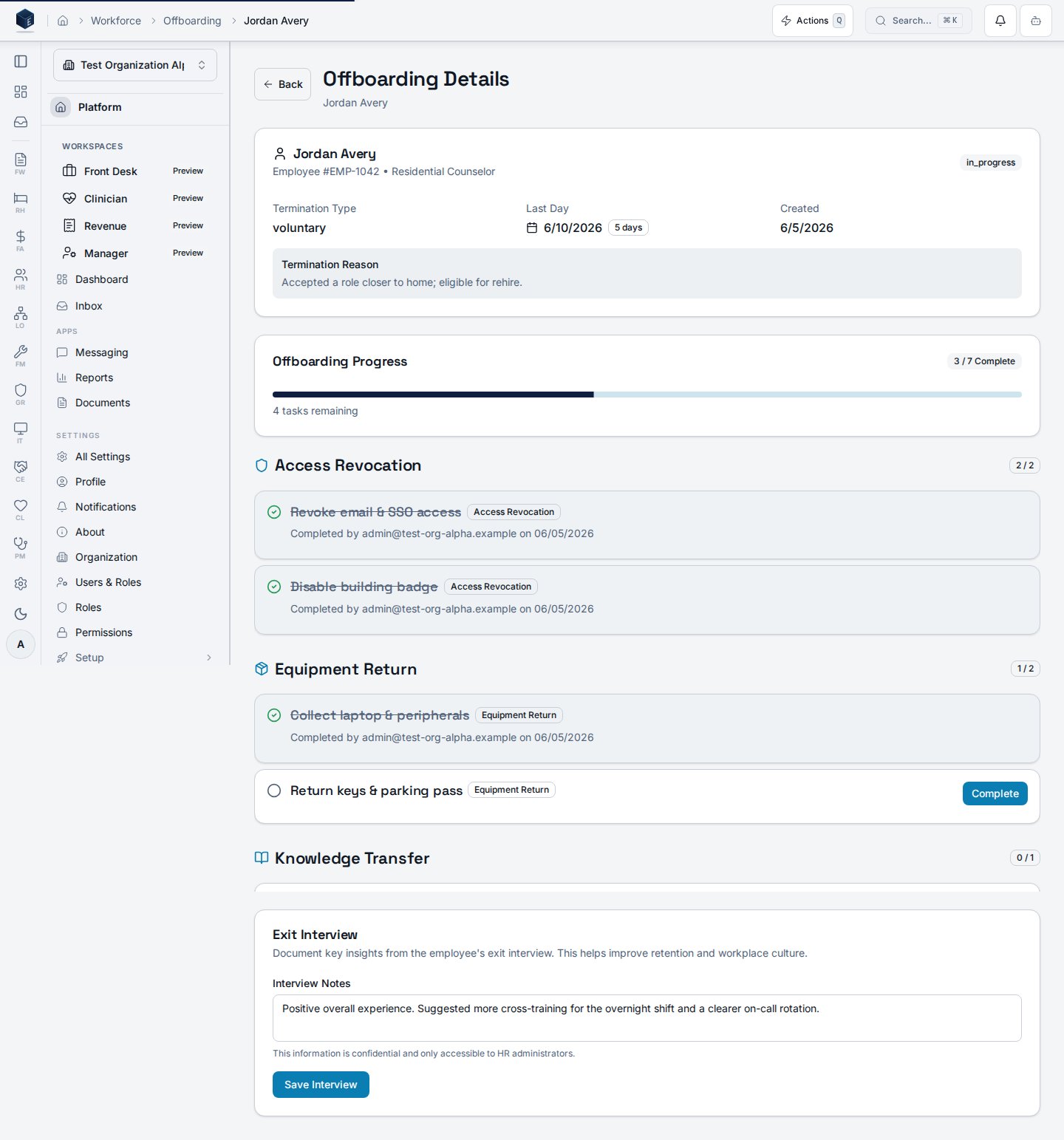
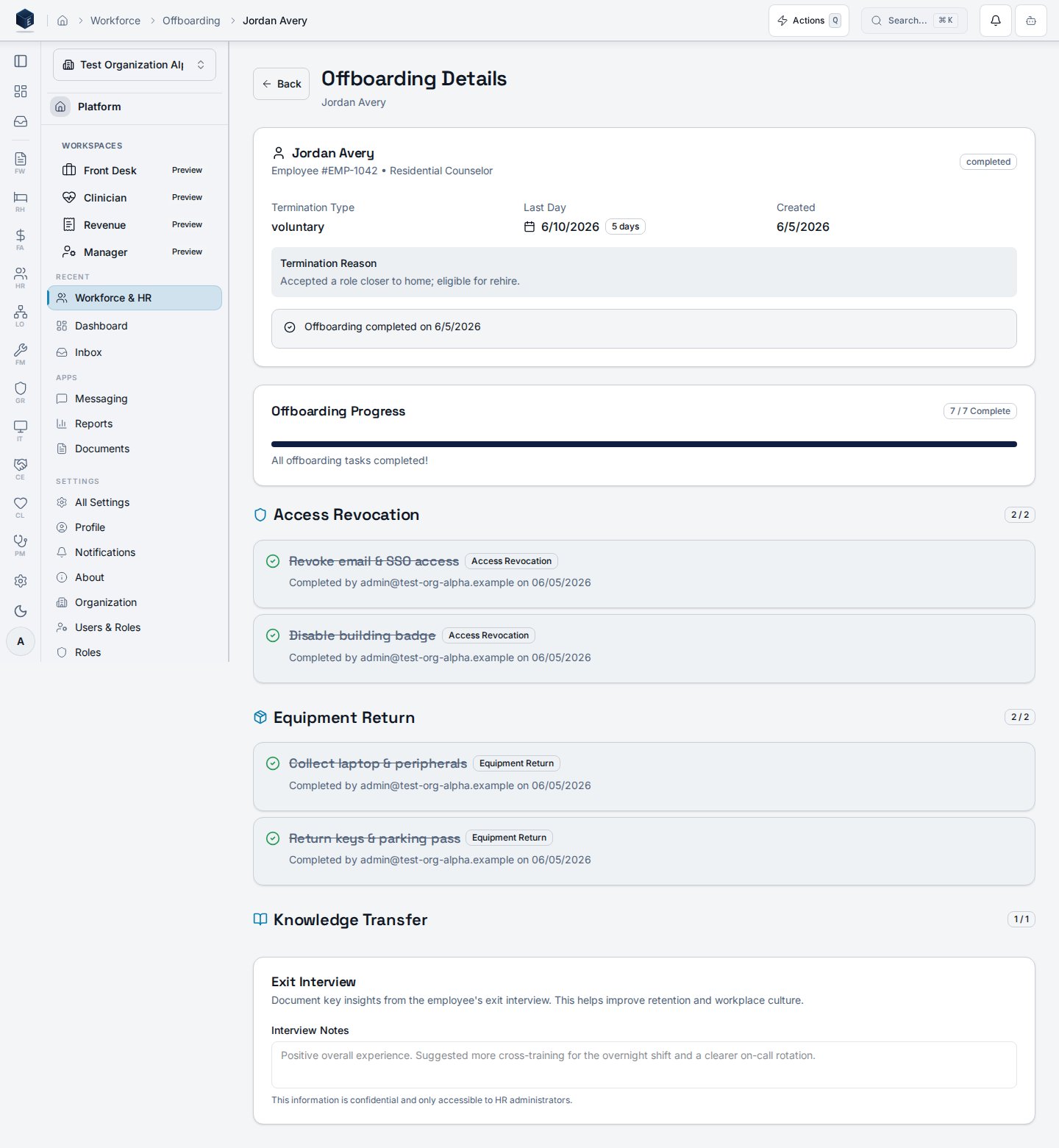
The Offboarding Details page (`OffboardingDetail`) is available at `/hr/offboarding/:id`, gated behind the `hr.offboarding.view` permission. It shows the employee summary (termination type, last day, and the confidential termination reason), an overall progress bar, and the deprovisioning checklist grouped by category — access revocation, equipment return, knowledge transfer, final pay, and admin — with per-category completion counts. The Exit Interview form captures departure feedback. Once every checklist item is complete, a "Complete Offboarding" action finalizes the workflow.
## Who it's for
Requires permission `hr.offboarding.view` (`HR_PERMISSIONS.OFFBOARDING_VIEW`).
## Before you start
* Offboarding instances are initiated when a termination is recorded in the system.
## Steps
1. Navigate to `/hr/offboarding`.
2. Use the status and termination type filters to find the instances you need.
3. Click an instance card or row to open the detail view.
4. Monitor upcoming terminations in the stats cards.
## Key concepts
* **Offboarding Instance** — A record representing a single employee's departure process, including all associated tasks and their completion status.
* **Termination Date** — The employee's last day; drives the "upcoming" metric on the dashboard (within 7 days).
## Viewing an offboarding instance
The Offboarding Details page (`OffboardingDetail`) is available at `/hr/offboarding/:id`, gated behind the `hr.offboarding.view` permission. It shows the employee summary (termination type, last day, and the confidential termination reason), an overall progress bar, and the deprovisioning checklist grouped by category — access revocation, equipment return, knowledge transfer, final pay, and admin — with per-category completion counts. The Exit Interview form captures departure feedback. Once every checklist item is complete, a "Complete Offboarding" action finalizes the workflow.
 Once every checklist item is complete (progress reaches 100%), the **Complete Offboarding** action finalizes the workflow: its status becomes *completed* and a completion banner records the date.
 Before you start: navigate to the Offboarding Dashboard at `/hr/offboarding` to find the instance you need. Clicking an offboarding record on the dashboard opens this detail page.
1. Navigate to `/hr/offboarding` to see the list of offboarding instances.
2. Click an instance to open its detail view at `/hr/offboarding/:id`.
3. Review tasks, timeline, and status information.
4. Take available actions as appropriate (complete tasks, update status).
## Related
Human Resources core overview.
This page documents shipped product behavior. It is not medical, legal, or
billing advice. Verify against your organization's policies and applicable
regulations before using it for clinical, compliance, or billing decisions.
Protected health information (PHI) shown in the product is governed by your
tenant's access controls and is never exposed in this documentation.
* src/routes/hr.tsx
* src/cores/hr/pages/OffboardingDashboard.tsx
* src/cores/hr/pages/OffboardingDetail.tsx
* src/cores/hr/hooks/onboarding/useOffboardingInstances.ts
* src/cores/hr/hooks/onboarding/useITOffboardingIntegration.ts
Before you start: navigate to the Offboarding Dashboard at `/hr/offboarding` to find the instance you need. Clicking an offboarding record on the dashboard opens this detail page.
1. Navigate to `/hr/offboarding` to see the list of offboarding instances.
2. Click an instance to open its detail view at `/hr/offboarding/:id`.
3. Review tasks, timeline, and status information.
4. Take available actions as appropriate (complete tasks, update status).
## Related
Human Resources core overview.
This page documents shipped product behavior. It is not medical, legal, or
billing advice. Verify against your organization's policies and applicable
regulations before using it for clinical, compliance, or billing decisions.
Protected health information (PHI) shown in the product is governed by your
tenant's access controls and is never exposed in this documentation.
* src/routes/hr.tsx
* src/cores/hr/pages/OffboardingDashboard.tsx
* src/cores/hr/pages/OffboardingDetail.tsx
* src/cores/hr/hooks/onboarding/useOffboardingInstances.ts
* src/cores/hr/hooks/onboarding/useITOffboardingIntegration.ts