> ## Documentation Index
> Fetch the complete documentation index at: https://docs.encoreos.io/llms.txt
> Use this file to discover all available pages before exploring further.
# My Timesheets
> View and manage your personal time records, filter by status, and navigate to individual timesheet details.
The My Timesheets page lists all timesheets belonging to the currently signed-in employee and is available at `/hr/my-timesheets`.
## Overview
My Timesheets shows the signed-in employee's time records grouped by status. Tabs across the top let the employee filter between All, Draft, Submitted, Approved, and Paid timesheets. Clicking a timesheet card navigates to the detail view at `/hr/my-timesheets/:id`. A Date Range button is available in the header for date-based filtering.
 ## Who it's for
Requires permission `hr.timesheets.view` (`HR_PERMISSIONS.TIMESHEETS_VIEW`).
## Before you start
* You must have at least one timesheet record associated with your employee profile.
* Timesheets are scoped to the current organization; records from other tenants are never visible.
## Steps
1. Navigate to **HR → My Timesheets** or go directly to `/hr/my-timesheets`.
2. Use the status tabs to filter: **All**, **Draft**, **Submitted**, **Approved**, or **Paid**.
3. Use the **Date Range** button to narrow results to a specific period.
4. Click any timesheet card to open the detail view.
## Key concepts
* **Draft** — A timesheet that has been started but not yet submitted for approval.
* **Submitted** — Sent to a manager or payroll processor for review.
* **Approved** — Reviewed and accepted; eligible for payroll processing.
* **Paid** — Processed through payroll.
## Viewing a timesheet
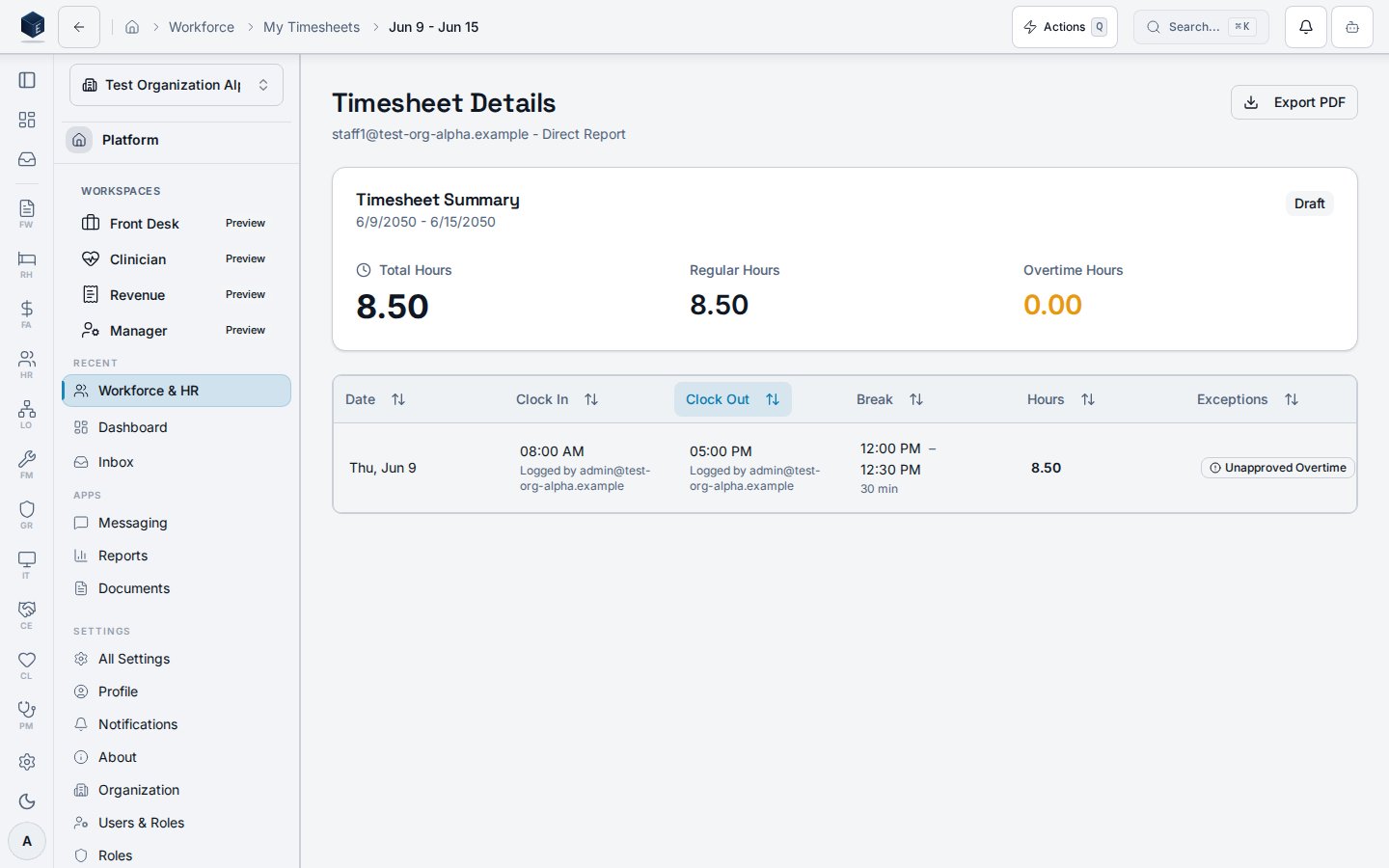
The Timesheet Details page at `/hr/my-timesheets/:id` shows an employee's individual timesheet with a data table of time entries, exception indicators, and an export option. Permission required: `hr.timesheets.view` (enforced by `RequirePermission` guard in `hr.tsx`).
The page uses `useTimesheetDetail(id)`. A `DataTable` renders `TimesheetEntry` rows with columns for date, clock-in, clock-out, break duration, hours worked, location indicator, and exception badge. An edit icon and location pin icon appear on entries where applicable. A download button exports timesheet data.
Exception types displayed:
* `missed_punch` — Missing clock in or clock out
* `late` — Clocked in more than 15 minutes after shift start
* `early` — Clocked out more than 15 minutes before shift end
* `unapproved_ot` — Worked hours exceed approved limit
| Term | Meaning |
| -------------- | ------------------------------------------------------------------------------------- |
| TimesheetEntry | A single work-day record linking clock-in and clock-out punches with computed hours. |
| was\_edited | Flag on a punch record indicating it was manually corrected after the original punch. |
| Exception | A time compliance flag (missed\_punch, late, early, unapproved\_ot). |
1. Navigate to **HR > My Timesheets** and click a timesheet card, or go directly to `/hr/my-timesheets/:id`.
2. Review the time entries table: date, clock-in/out, break duration, total hours.
3. Check the exception badge column for any flagged entries.
4. Click the location icon on an entry to view associated geolocation data.
5. Use the **Download** button to export the timesheet.
## Related
Human Resources core overview.
This page documents shipped product behavior. It is not medical, legal, or
billing advice. Verify against your organization's policies and applicable
regulations before using it for clinical, compliance, or billing decisions.
Protected health information (PHI) shown in the product is governed by your
tenant's access controls and is never exposed in this documentation.
* src/routes/hr.tsx
* src/cores/hr/pages/MyTimesheets.tsx
* src/cores/hr/pages/TimesheetDetail.tsx
* src/cores/hr/hooks/time/useMyTimesheets.ts
* src/cores/hr/hooks/time/useTimesheetDetail.ts
## Who it's for
Requires permission `hr.timesheets.view` (`HR_PERMISSIONS.TIMESHEETS_VIEW`).
## Before you start
* You must have at least one timesheet record associated with your employee profile.
* Timesheets are scoped to the current organization; records from other tenants are never visible.
## Steps
1. Navigate to **HR → My Timesheets** or go directly to `/hr/my-timesheets`.
2. Use the status tabs to filter: **All**, **Draft**, **Submitted**, **Approved**, or **Paid**.
3. Use the **Date Range** button to narrow results to a specific period.
4. Click any timesheet card to open the detail view.
## Key concepts
* **Draft** — A timesheet that has been started but not yet submitted for approval.
* **Submitted** — Sent to a manager or payroll processor for review.
* **Approved** — Reviewed and accepted; eligible for payroll processing.
* **Paid** — Processed through payroll.
## Viewing a timesheet
The Timesheet Details page at `/hr/my-timesheets/:id` shows an employee's individual timesheet with a data table of time entries, exception indicators, and an export option. Permission required: `hr.timesheets.view` (enforced by `RequirePermission` guard in `hr.tsx`).
The page uses `useTimesheetDetail(id)`. A `DataTable` renders `TimesheetEntry` rows with columns for date, clock-in, clock-out, break duration, hours worked, location indicator, and exception badge. An edit icon and location pin icon appear on entries where applicable. A download button exports timesheet data.
Exception types displayed:
* `missed_punch` — Missing clock in or clock out
* `late` — Clocked in more than 15 minutes after shift start
* `early` — Clocked out more than 15 minutes before shift end
* `unapproved_ot` — Worked hours exceed approved limit
| Term | Meaning |
| -------------- | ------------------------------------------------------------------------------------- |
| TimesheetEntry | A single work-day record linking clock-in and clock-out punches with computed hours. |
| was\_edited | Flag on a punch record indicating it was manually corrected after the original punch. |
| Exception | A time compliance flag (missed\_punch, late, early, unapproved\_ot). |
1. Navigate to **HR > My Timesheets** and click a timesheet card, or go directly to `/hr/my-timesheets/:id`.
2. Review the time entries table: date, clock-in/out, break duration, total hours.
3. Check the exception badge column for any flagged entries.
4. Click the location icon on an entry to view associated geolocation data.
5. Use the **Download** button to export the timesheet.
## Related
Human Resources core overview.
This page documents shipped product behavior. It is not medical, legal, or
billing advice. Verify against your organization's policies and applicable
regulations before using it for clinical, compliance, or billing decisions.
Protected health information (PHI) shown in the product is governed by your
tenant's access controls and is never exposed in this documentation.
* src/routes/hr.tsx
* src/cores/hr/pages/MyTimesheets.tsx
* src/cores/hr/pages/TimesheetDetail.tsx
* src/cores/hr/hooks/time/useMyTimesheets.ts
* src/cores/hr/hooks/time/useTimesheetDetail.ts