> ## Documentation Index
> Fetch the complete documentation index at: https://docs.encoreos.io/llms.txt
> Use this file to discover all available pages before exploring further.
# Contractors
> Directory of all contractors with status and classification filters and links to activate new contractors.
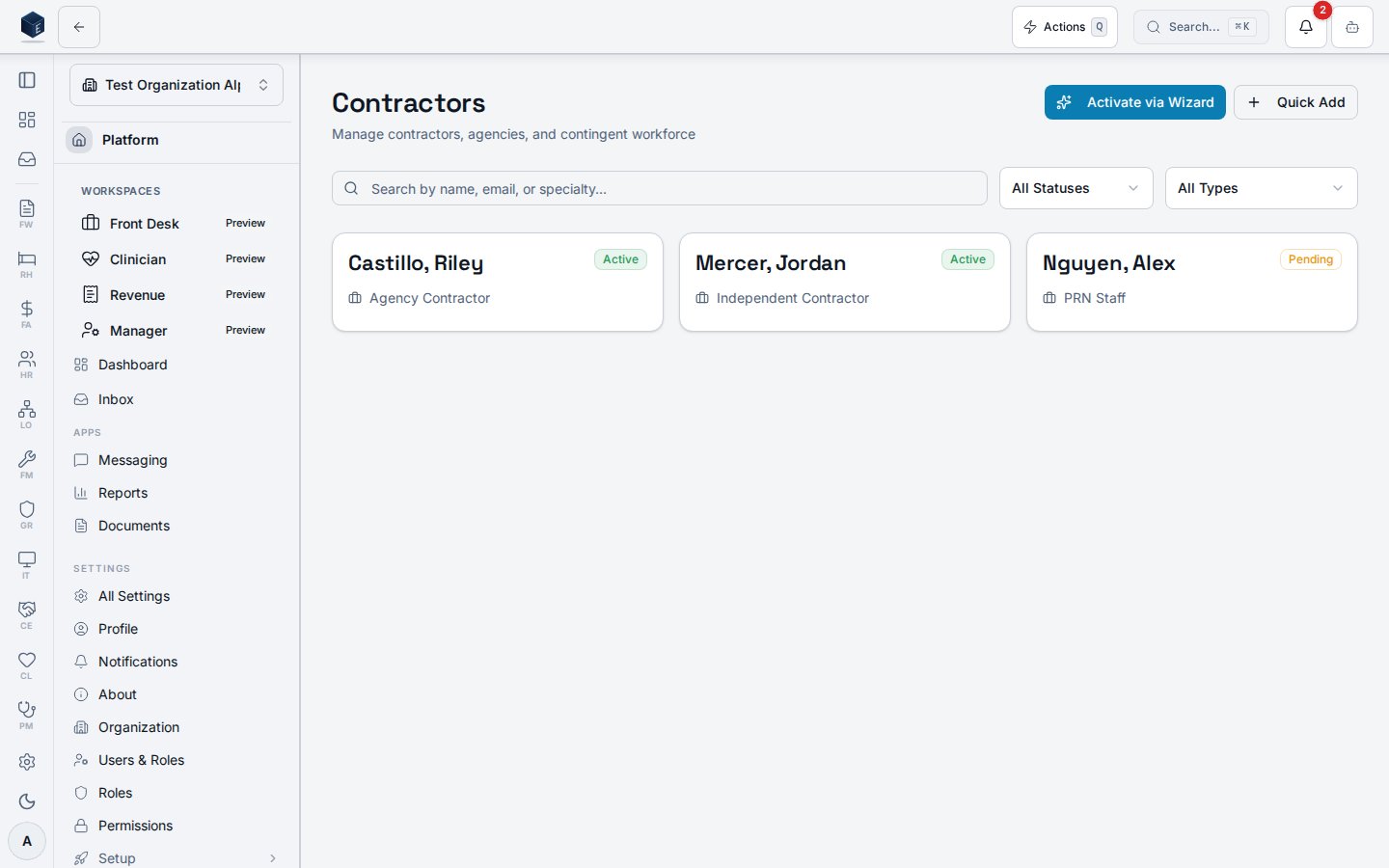
The Contractors page is a searchable, filterable directory of all contractor records in the organization. It is available at route `/hr/contractors`.
## Overview
The page fetches contractors from `useContractorsList` with optional `status` and `classification` filters. Results are further filtered client-side by a search term matching name, email, or specialty. Each contractor renders as a card showing last name, first name, email, status badge, classification, specialty, and hourly rate. Users with `hr.contractor.manage` see two action buttons: **Activate via Wizard** (navigates to `/hr/contractors/new/wizard`) and **Quick Add** (opens a dialog for a faster, single-step create without the full wizard flow).
 ## Who it's for
Requires permission `hr.contractor.read`.
## Before you start
* No prerequisites for viewing. The list may be empty if no contractors have been added.
* To activate a new contractor, you need `hr.contractor.manage`.
## Steps
Navigate to **HR → Contractors** or go directly to `/hr/contractors`.
Use the search box to find contractors by name, email, or specialty. Use the Status and Classification dropdowns to narrow results.
Click any contractor card to open the detail page at `/hr/contractors/:id`.
Click **Activate via Wizard** to start the five-step onboarding wizard, or **Quick Add** for a faster single-step form.
## Key concepts
* **Status values** — `active`, `inactive`, `pending_onboarding`, `terminated`. The status filter is applied server-side; the search filter is applied client-side.
* **Quick Add vs. Wizard** — Quick Add creates only the contractor profile row. The wizard additionally creates a contract row and a classification attestation row.
## Detail view
The Contractor detail page shows a full profile and tabbed sections for a single contractor. It is available at route `/hr/contractors/:id`.
### Overview
The page reads the contractor record by `:id` via `useContractorDetail`. The header card shows name, status badge, classification label, specialty, email, phone, start/end dates, and W-9 on-file status. Users with `hr.contractor.tax_id.read` also see the Tax ID Type. Four tabs provide:
* **Contracts** — SOW and contract records linked to this contractor (`ContractorContractsTab`).
* **Classification** — Classification history and attestations; visible only to users with `hr.contractor.classification.manage`.
* **Time Entries** — Logged hours; users with `hr.contractor.time.approve` can approve entries.
* **Credentials** — Credential records linked to this contractor (`ContractorCredentialsTab`).
Status values: `active`, `inactive`, `pending_onboarding`, `terminated`.
### Who it's for
Requires permission `hr.contractor.read`.
### Before you start
* The contractor record must already exist (created via the wizard or Quick Add dialog on the Contractors list).
* To manage classification or approve time, you need the corresponding additional permissions.
### Steps
Go to **HR → Contractors** (`/hr/contractors`), then click a contractor card. Alternatively navigate directly to `/hr/contractors/:id`.
The header card shows identifying information. Tax ID Type is only visible if you hold `hr.contractor.tax_id.read`.
The **Contracts** tab lists all SOW/contract records. Each contract shows title, type, dates, and status.
Users with `hr.contractor.classification.manage` see the **Classification** tab with attestation history.
The **Time Entries** tab shows logged hours. Users with `hr.contractor.time.approve` have approval controls.
The **Credentials** tab lists linked credential records for this contractor.
### Key concepts
* **Tab state** — Active tab is tracked in the URL via the `tab` query parameter (`contracts`, `classification`, `time`, `credentials`).
* **Classification visibility** — The Classification tab only renders for users with `hr.contractor.classification.manage`.
## Permissions
Viewing the directory requires `hr.contractor.read`; additional capabilities are gated by the keys below. Tax identifiers are stored encrypted and only their *type* is exposed in the UI, behind a dedicated permission.
| Permission key | Grants |
| ------------------------------------- | ------------------------------------------------------- |
| `hr.contractor.read` | View the contractor directory and detail pages |
| `hr.contractor.manage` | Activate / create contractors (wizard + Quick Add) |
| `hr.contractor.classification.manage` | View and manage the Classification tab and attestations |
| `hr.contractor.tax_id.read` | View the (masked) Tax ID Type on a contractor record |
| `hr.contractor.time.approve` | Approve contractor time entries |
| `hr.staffing_agency.manage` | Manage staffing agencies |
Permission keys are assigned to roles in the role editor.
## Related
Human Resources core overview.
This page documents shipped product behavior. It is not medical, legal, or
billing advice. Verify against your organization's policies and applicable
regulations before using it for clinical, compliance, or billing decisions.
Protected health information (PHI) shown in the product is governed by your
tenant's access controls and is never exposed in this documentation.
* src/routes/hr.tsx
* src/cores/hr/pages/ContractorsListPage.tsx
* src/cores/hr/hooks/contractors/useContractorsList.ts
* src/cores/hr/pages/ContractorDetailPage.tsx
* src/cores/hr/hooks/contractors/useContractorDetail.ts
## Who it's for
Requires permission `hr.contractor.read`.
## Before you start
* No prerequisites for viewing. The list may be empty if no contractors have been added.
* To activate a new contractor, you need `hr.contractor.manage`.
## Steps
Navigate to **HR → Contractors** or go directly to `/hr/contractors`.
Use the search box to find contractors by name, email, or specialty. Use the Status and Classification dropdowns to narrow results.
Click any contractor card to open the detail page at `/hr/contractors/:id`.
Click **Activate via Wizard** to start the five-step onboarding wizard, or **Quick Add** for a faster single-step form.
## Key concepts
* **Status values** — `active`, `inactive`, `pending_onboarding`, `terminated`. The status filter is applied server-side; the search filter is applied client-side.
* **Quick Add vs. Wizard** — Quick Add creates only the contractor profile row. The wizard additionally creates a contract row and a classification attestation row.
## Detail view
The Contractor detail page shows a full profile and tabbed sections for a single contractor. It is available at route `/hr/contractors/:id`.
### Overview
The page reads the contractor record by `:id` via `useContractorDetail`. The header card shows name, status badge, classification label, specialty, email, phone, start/end dates, and W-9 on-file status. Users with `hr.contractor.tax_id.read` also see the Tax ID Type. Four tabs provide:
* **Contracts** — SOW and contract records linked to this contractor (`ContractorContractsTab`).
* **Classification** — Classification history and attestations; visible only to users with `hr.contractor.classification.manage`.
* **Time Entries** — Logged hours; users with `hr.contractor.time.approve` can approve entries.
* **Credentials** — Credential records linked to this contractor (`ContractorCredentialsTab`).
Status values: `active`, `inactive`, `pending_onboarding`, `terminated`.
### Who it's for
Requires permission `hr.contractor.read`.
### Before you start
* The contractor record must already exist (created via the wizard or Quick Add dialog on the Contractors list).
* To manage classification or approve time, you need the corresponding additional permissions.
### Steps
Go to **HR → Contractors** (`/hr/contractors`), then click a contractor card. Alternatively navigate directly to `/hr/contractors/:id`.
The header card shows identifying information. Tax ID Type is only visible if you hold `hr.contractor.tax_id.read`.
The **Contracts** tab lists all SOW/contract records. Each contract shows title, type, dates, and status.
Users with `hr.contractor.classification.manage` see the **Classification** tab with attestation history.
The **Time Entries** tab shows logged hours. Users with `hr.contractor.time.approve` have approval controls.
The **Credentials** tab lists linked credential records for this contractor.
### Key concepts
* **Tab state** — Active tab is tracked in the URL via the `tab` query parameter (`contracts`, `classification`, `time`, `credentials`).
* **Classification visibility** — The Classification tab only renders for users with `hr.contractor.classification.manage`.
## Permissions
Viewing the directory requires `hr.contractor.read`; additional capabilities are gated by the keys below. Tax identifiers are stored encrypted and only their *type* is exposed in the UI, behind a dedicated permission.
| Permission key | Grants |
| ------------------------------------- | ------------------------------------------------------- |
| `hr.contractor.read` | View the contractor directory and detail pages |
| `hr.contractor.manage` | Activate / create contractors (wizard + Quick Add) |
| `hr.contractor.classification.manage` | View and manage the Classification tab and attestations |
| `hr.contractor.tax_id.read` | View the (masked) Tax ID Type on a contractor record |
| `hr.contractor.time.approve` | Approve contractor time entries |
| `hr.staffing_agency.manage` | Manage staffing agencies |
Permission keys are assigned to roles in the role editor.
## Related
Human Resources core overview.
This page documents shipped product behavior. It is not medical, legal, or
billing advice. Verify against your organization's policies and applicable
regulations before using it for clinical, compliance, or billing decisions.
Protected health information (PHI) shown in the product is governed by your
tenant's access controls and is never exposed in this documentation.
* src/routes/hr.tsx
* src/cores/hr/pages/ContractorsListPage.tsx
* src/cores/hr/hooks/contractors/useContractorsList.ts
* src/cores/hr/pages/ContractorDetailPage.tsx
* src/cores/hr/hooks/contractors/useContractorDetail.ts