> ## Documentation Index
> Fetch the complete documentation index at: https://docs.encoreos.io/llms.txt
> Use this file to discover all available pages before exploring further.
# All Timesheets
> HR admin view of organization timesheets with status filtering, punch correction, locked-timesheet override, and ensure-from-punches.
All Timesheets is the organization-wide HR admin hub for reviewing every employee timesheet. It is available at route `/hr/timesheets-admin`.
## Overview
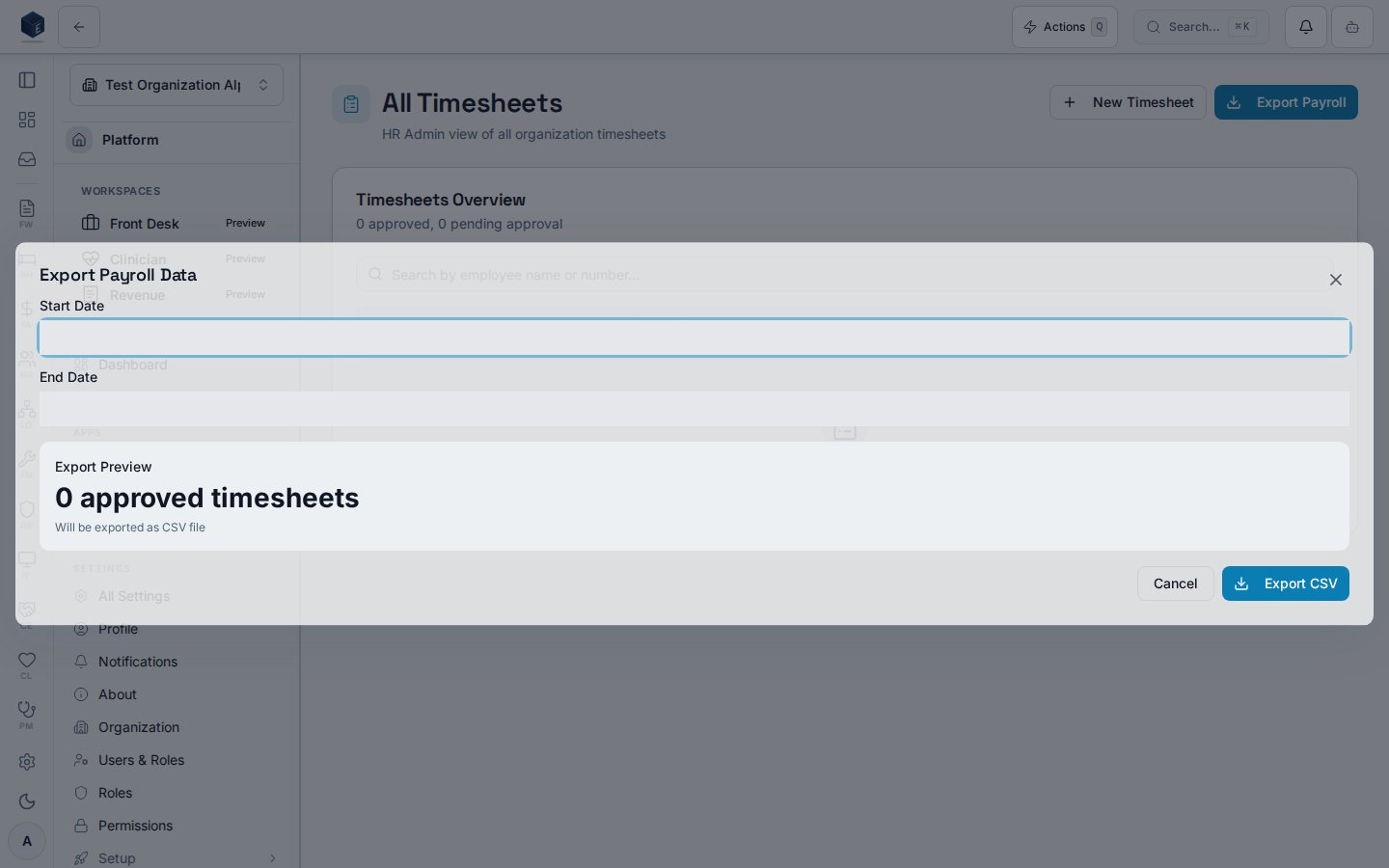
The All Timesheets page provides an organization-wide HR admin view of every employee timesheet. A header shows approved and pending counts. A search input filters by employee name or number. Tabbed status filters include All, Draft, Pending (submitted), Approved, Rejected, and Paid. Each timesheet is rendered as a `TeamTimesheetCard`. Clicking a card opens the admin detail page at `/hr/timesheets-admin/:id`. An **Export Payroll** button opens the `PayrollExportDialog` for data export.
HR admins with `hr.timesheets.admin` can correct punches on any employee timesheet, including approved and paid timesheets after a documented override. Admins can also materialize a missing timesheet from existing punch data via **Ensure Timesheet from Punches**.
 ## Who it's for
Requires permission `hr.timesheets.admin` (`HR_PERMISSIONS.TIMESHEETS_ADMIN`) — enforced by `RequirePermission` on `/hr/timesheets-admin`, `/hr/timesheets-admin/:id`, and `/hr/timesheets-admin/ensure`.
## Before you start
* You need `hr.timesheets.admin` for this area; managers use **Team Timesheets** instead.
* Punch corrections require a documented reason of at least 10 characters.
* Corrections on `approved` or `paid` timesheets require an additional override confirmation before the edit or add dialog opens.
## Steps
Navigate to `/hr/timesheets-admin`.
Click the desired status tab (All, Draft, Pending, Approved, Rejected, Paid).
Enter an employee name or number in the search field to narrow results.
Click a timesheet card to open `/hr/timesheets-admin/:id`.
Click **New Timesheet**, select an employee and pay period, then click **Create Timesheet**.
Click **Export Payroll** to open the export dialog.
## Key concepts
| Term | Meaning in code |
| --------------------- | ----------------------------------------------------------------------------------- |
| `TimesheetStatus` | Status values: `draft`, `submitted`, `approved`, `rejected`, `paid` |
| `TeamTimesheetCard` | Shared card component rendering a single timesheet summary |
| `PayrollExportDialog` | Dialog for exporting timesheet data for payroll processing |
| Admin override | Extra confirmation step when correcting an `approved` or `paid` timesheet |
| Ensure timesheet | Creates a timesheet row from existing punches when none exists for the pay period |
| New Timesheet | Header action on All Timesheets — employee search + pay period picker for HR admins |
## Create a new timesheet
When an employee has not submitted a timesheet for a pay period, HR admins can create one from **All Timesheets**:
1. Click **New Timesheet** in the page header.
2. Search and select the employee.
3. Choose a pay period from the dropdown (from the org pay schedule when configured) or enter custom start/end dates.
4. Click **Create Timesheet**.
The app creates or opens the draft timesheet for that employee and period, pulls in any existing punch data, and navigates to `/hr/timesheets-admin/:id` where you can **Add Missed Punch** or edit entries.
## Admin timesheet detail
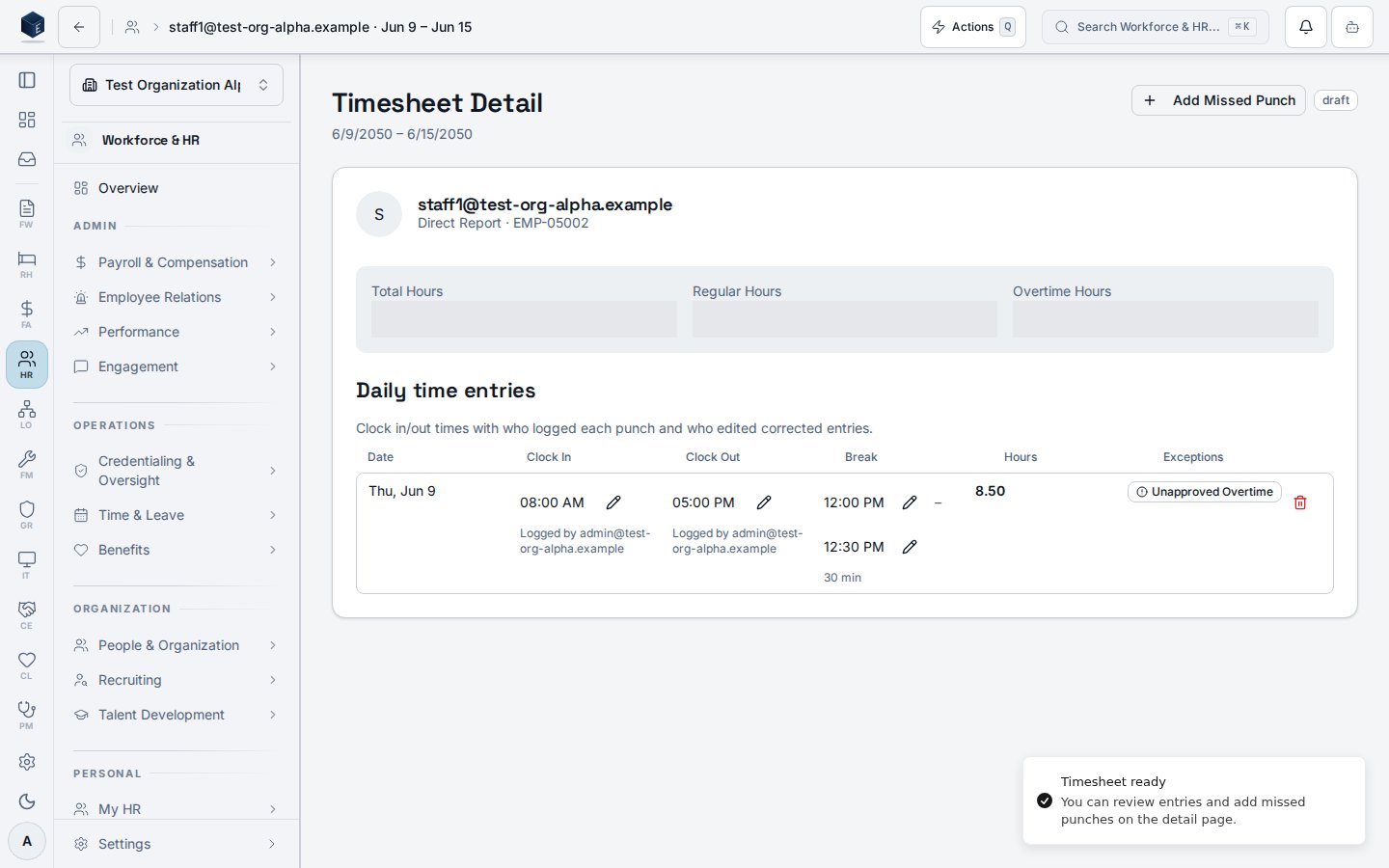
The admin detail page at `/hr/timesheets-admin/:id` shows employee identity, pay-period summary, approval metadata when present, and a daily time-entries table with audit subtext. Correction actions use `useTimesheetCorrections` in `admin` mode.
**Edit an existing punch**
1. Open a timesheet from the All Timesheets list.
2. Click the pencil icon on a clock-in or clock-out row.
3. If the timesheet is `approved` or `paid`, confirm **Override locked timesheet?** with a reason (minimum 10 characters), then complete **Edit Punch Time** (new time + reason, minimum 10 characters).
4. Click **Save Edit**. Hours recalculate; edited punches show a warning icon and **Edited by** audit subtext.
**Add a missed punch**
1. Click **Add Missed Punch** in the page header.
2. If the timesheet is locked (`approved` or `paid`), complete the override confirmation first.
3. Select punch type, date, time, and reason (minimum 10 characters), then click **Add Punch**.
**Audit trail**
Corrections are logged through the platform audit system (`punch_correction`, `punch_insert`, and `timesheet_admin_override` actions). The detail table shows who logged each punch and, when applicable, who edited it and the stored edit reason (visible on hover).
## Ensure timesheet from punches
Use this when punch data exists for a pay period but no `hr_timesheets` row has been generated yet.
Entry route: `/hr/timesheets-admin/ensure?employeeId=&periodStart=&periodEnd=`
1. Open the ensure URL with all three query parameters (for example from the time exception queue when no timesheet exists).
2. Review the pay period shown in the page description.
3. Click **Ensure Timesheet from Punches**.
4. On success, the app navigates to the new admin detail page for that timesheet so you can review and correct entries.
If query parameters are missing, the page shows an empty state: *Missing pay period context*.
## Related
Human Resources core overview.
Manager review and approval for direct reports.
Documentation coverage and governance.
This page documents shipped product behavior. It is not medical, legal, or
billing advice. Verify against your organization's policies and applicable
regulations before using it for clinical, compliance, or billing decisions.
Protected health information (PHI) shown in the product is governed by your
tenant's access controls and is never exposed in this documentation.
* src/routes/hr.tsx
* src/cores/hr/pages/TimesheetsAdmin.tsx
* src/cores/hr/components/time/NewTimesheetDialog.tsx
* src/cores/hr/pages/TimesheetsAdminDetail.tsx
* src/cores/hr/pages/TimesheetsAdminEnsure.tsx
* src/cores/hr/hooks/time/useAllTimesheets.ts
* src/cores/hr/hooks/time/useTimesheetDetail.ts
* src/cores/hr/hooks/time/useTimesheetCorrections.ts
* src/cores/hr/hooks/time/useTimesheetMutation.ts
* src/cores/hr/hooks/time/useEnsureTimesheet.ts
* src/cores/hr/lib/time/canEditTimesheet.ts
* src/cores/hr/lib/time/timesheetRpc.ts
* src/cores/hr/components/time/TimesheetCorrectionDialogs.tsx
* src/cores/hr/components/time/AdminOverrideConfirmDialog.tsx
* src/cores/hr/components/time/EditPunchDialog.tsx
* src/cores/hr/components/time/AddMissedPunchDialog.tsx
* src/cores/hr/components/time/PunchAuditMeta.tsx
## Who it's for
Requires permission `hr.timesheets.admin` (`HR_PERMISSIONS.TIMESHEETS_ADMIN`) — enforced by `RequirePermission` on `/hr/timesheets-admin`, `/hr/timesheets-admin/:id`, and `/hr/timesheets-admin/ensure`.
## Before you start
* You need `hr.timesheets.admin` for this area; managers use **Team Timesheets** instead.
* Punch corrections require a documented reason of at least 10 characters.
* Corrections on `approved` or `paid` timesheets require an additional override confirmation before the edit or add dialog opens.
## Steps
Navigate to `/hr/timesheets-admin`.
Click the desired status tab (All, Draft, Pending, Approved, Rejected, Paid).
Enter an employee name or number in the search field to narrow results.
Click a timesheet card to open `/hr/timesheets-admin/:id`.
Click **New Timesheet**, select an employee and pay period, then click **Create Timesheet**.
Click **Export Payroll** to open the export dialog.
## Key concepts
| Term | Meaning in code |
| --------------------- | ----------------------------------------------------------------------------------- |
| `TimesheetStatus` | Status values: `draft`, `submitted`, `approved`, `rejected`, `paid` |
| `TeamTimesheetCard` | Shared card component rendering a single timesheet summary |
| `PayrollExportDialog` | Dialog for exporting timesheet data for payroll processing |
| Admin override | Extra confirmation step when correcting an `approved` or `paid` timesheet |
| Ensure timesheet | Creates a timesheet row from existing punches when none exists for the pay period |
| New Timesheet | Header action on All Timesheets — employee search + pay period picker for HR admins |
## Create a new timesheet
When an employee has not submitted a timesheet for a pay period, HR admins can create one from **All Timesheets**:
1. Click **New Timesheet** in the page header.
2. Search and select the employee.
3. Choose a pay period from the dropdown (from the org pay schedule when configured) or enter custom start/end dates.
4. Click **Create Timesheet**.
The app creates or opens the draft timesheet for that employee and period, pulls in any existing punch data, and navigates to `/hr/timesheets-admin/:id` where you can **Add Missed Punch** or edit entries.
## Admin timesheet detail
The admin detail page at `/hr/timesheets-admin/:id` shows employee identity, pay-period summary, approval metadata when present, and a daily time-entries table with audit subtext. Correction actions use `useTimesheetCorrections` in `admin` mode.
**Edit an existing punch**
1. Open a timesheet from the All Timesheets list.
2. Click the pencil icon on a clock-in or clock-out row.
3. If the timesheet is `approved` or `paid`, confirm **Override locked timesheet?** with a reason (minimum 10 characters), then complete **Edit Punch Time** (new time + reason, minimum 10 characters).
4. Click **Save Edit**. Hours recalculate; edited punches show a warning icon and **Edited by** audit subtext.
**Add a missed punch**
1. Click **Add Missed Punch** in the page header.
2. If the timesheet is locked (`approved` or `paid`), complete the override confirmation first.
3. Select punch type, date, time, and reason (minimum 10 characters), then click **Add Punch**.
**Audit trail**
Corrections are logged through the platform audit system (`punch_correction`, `punch_insert`, and `timesheet_admin_override` actions). The detail table shows who logged each punch and, when applicable, who edited it and the stored edit reason (visible on hover).
## Ensure timesheet from punches
Use this when punch data exists for a pay period but no `hr_timesheets` row has been generated yet.
Entry route: `/hr/timesheets-admin/ensure?employeeId=&periodStart=&periodEnd=`
1. Open the ensure URL with all three query parameters (for example from the time exception queue when no timesheet exists).
2. Review the pay period shown in the page description.
3. Click **Ensure Timesheet from Punches**.
4. On success, the app navigates to the new admin detail page for that timesheet so you can review and correct entries.
If query parameters are missing, the page shows an empty state: *Missing pay period context*.
## Related
Human Resources core overview.
Manager review and approval for direct reports.
Documentation coverage and governance.
This page documents shipped product behavior. It is not medical, legal, or
billing advice. Verify against your organization's policies and applicable
regulations before using it for clinical, compliance, or billing decisions.
Protected health information (PHI) shown in the product is governed by your
tenant's access controls and is never exposed in this documentation.
* src/routes/hr.tsx
* src/cores/hr/pages/TimesheetsAdmin.tsx
* src/cores/hr/components/time/NewTimesheetDialog.tsx
* src/cores/hr/pages/TimesheetsAdminDetail.tsx
* src/cores/hr/pages/TimesheetsAdminEnsure.tsx
* src/cores/hr/hooks/time/useAllTimesheets.ts
* src/cores/hr/hooks/time/useTimesheetDetail.ts
* src/cores/hr/hooks/time/useTimesheetCorrections.ts
* src/cores/hr/hooks/time/useTimesheetMutation.ts
* src/cores/hr/hooks/time/useEnsureTimesheet.ts
* src/cores/hr/lib/time/canEditTimesheet.ts
* src/cores/hr/lib/time/timesheetRpc.ts
* src/cores/hr/components/time/TimesheetCorrectionDialogs.tsx
* src/cores/hr/components/time/AdminOverrideConfirmDialog.tsx
* src/cores/hr/components/time/EditPunchDialog.tsx
* src/cores/hr/components/time/AddMissedPunchDialog.tsx
* src/cores/hr/components/time/PunchAuditMeta.tsx