> ## Documentation Index
> Fetch the complete documentation index at: https://docs.encoreos.io/llms.txt
> Use this file to discover all available pages before exploring further.
# Revenue Schedules
> Manage period-by-period revenue recognition plans linked to contracts or invoices in the Finance & Revenue core.
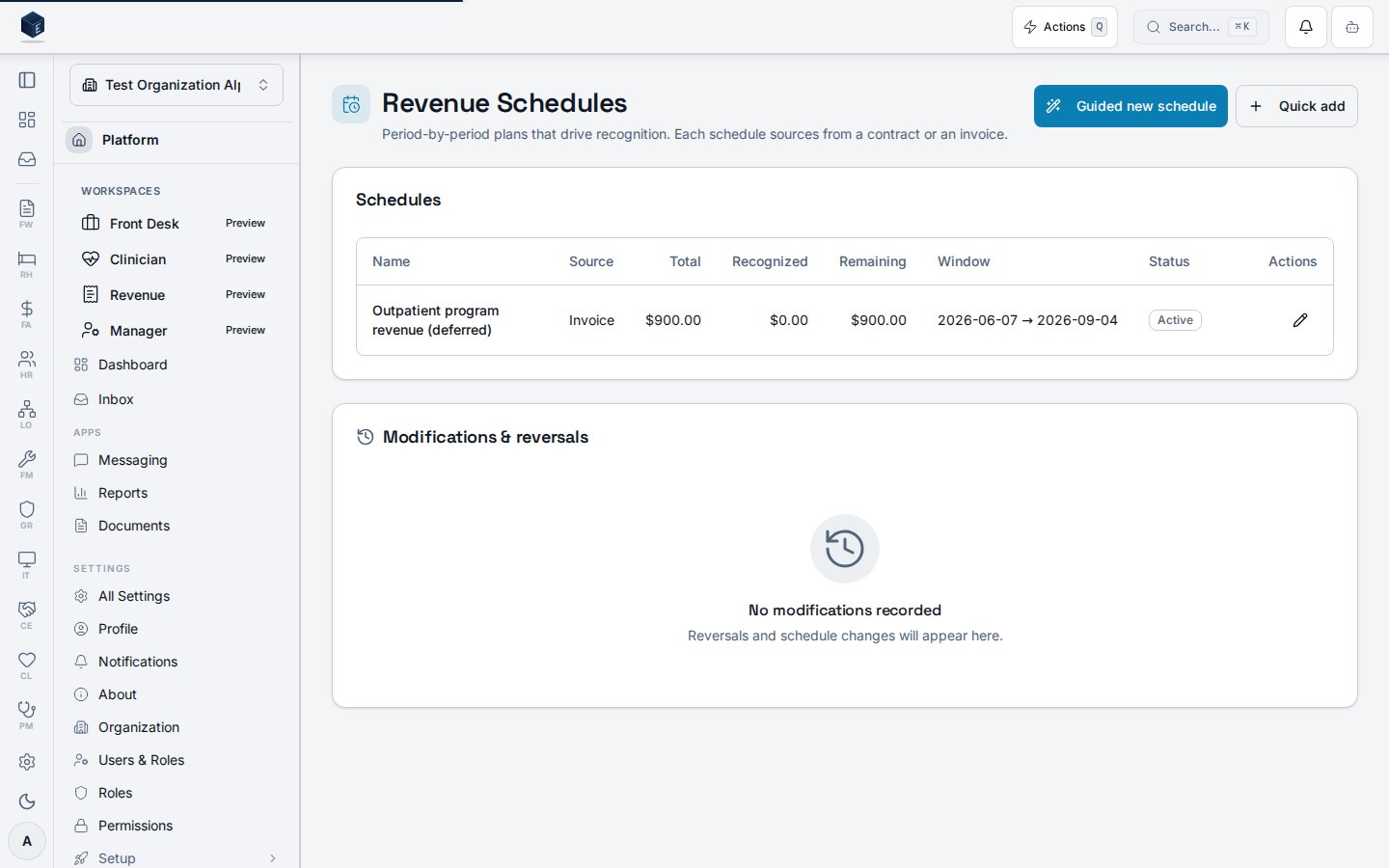
The Revenue Schedules page (`/fa/revenue-schedules`) lists and manages revenue schedules that define the period-by-period plan for recognizing revenue from contracts or invoices.
 ## Overview
The Revenue Schedules page shows all schedules for the current organization. Schedules can be created via a guided wizard (`RevenueScheduleWizardDialog`) or a quick-add dialog (`RevenueScheduleDialog`). Existing schedules can be edited, modified (with a `ModifyRevenueScheduleDialog`), or have milestones managed (`RevenueMilestonesDialog`).
The page uses `useRevenueScheduleList` and `useRevenueScheduleModificationList` hooks backed by `fa_revenue_schedules` and related tables.
Manage actions require `FA_PERMISSIONS.REVENUE_SCHEDULES_MANAGE`.
## Who it's for
Requires permission: `fa.revenue_schedules.view`.
To create or modify schedules: the permission referenced by `FA_PERMISSIONS.REVENUE_SCHEDULES_MANAGE`.
## Before you start
* At least one revenue contract or invoice must exist to source a schedule.
* You need `fa.revenue_schedules.view` to access the page.
## Steps
**Create a revenue schedule (guided)**
1. Navigate to `/fa/revenue-schedules`.
2. Click **Guided new schedule** to open the wizard.
3. Follow the wizard steps and save.
**Create a revenue schedule (quick add)**
1. Click **Quick add**.
2. Complete the dialog form and save.
**Edit an existing schedule**
1. Locate the schedule in the table.
2. Click the edit action and update fields in the dialog.
**Modify or add milestones**
1. Locate the schedule.
2. Use the modify or milestones action to open the respective dialog.
## Key concepts
* **Revenue schedule**: A `fa_revenue_schedules` row that drives period-by-period recognition.
* **Modification**: A logged change to an existing schedule tracked in `fa_revenue_schedule_modifications`.
## Related
Finance & Revenue core overview.
This page documents shipped product behavior. It is not medical, legal, or
billing advice. Verify against your organization's policies and applicable
regulations before using it for clinical, compliance, or billing decisions.
Protected health information (PHI) shown in the product is governed by your
tenant's access controls and is never exposed in this documentation.
* src/routes/fa.tsx
* src/cores/fa/pages/RevenueSchedulesPage.tsx
* src/cores/fa/hooks/useRevenueSchedules.ts
* src/cores/fa/wizards/revenue-schedule-creation/RevenueScheduleWizardDialog.tsx
* src/cores/fa/components/RevenueScheduleDialog.tsx
## Overview
The Revenue Schedules page shows all schedules for the current organization. Schedules can be created via a guided wizard (`RevenueScheduleWizardDialog`) or a quick-add dialog (`RevenueScheduleDialog`). Existing schedules can be edited, modified (with a `ModifyRevenueScheduleDialog`), or have milestones managed (`RevenueMilestonesDialog`).
The page uses `useRevenueScheduleList` and `useRevenueScheduleModificationList` hooks backed by `fa_revenue_schedules` and related tables.
Manage actions require `FA_PERMISSIONS.REVENUE_SCHEDULES_MANAGE`.
## Who it's for
Requires permission: `fa.revenue_schedules.view`.
To create or modify schedules: the permission referenced by `FA_PERMISSIONS.REVENUE_SCHEDULES_MANAGE`.
## Before you start
* At least one revenue contract or invoice must exist to source a schedule.
* You need `fa.revenue_schedules.view` to access the page.
## Steps
**Create a revenue schedule (guided)**
1. Navigate to `/fa/revenue-schedules`.
2. Click **Guided new schedule** to open the wizard.
3. Follow the wizard steps and save.
**Create a revenue schedule (quick add)**
1. Click **Quick add**.
2. Complete the dialog form and save.
**Edit an existing schedule**
1. Locate the schedule in the table.
2. Click the edit action and update fields in the dialog.
**Modify or add milestones**
1. Locate the schedule.
2. Use the modify or milestones action to open the respective dialog.
## Key concepts
* **Revenue schedule**: A `fa_revenue_schedules` row that drives period-by-period recognition.
* **Modification**: A logged change to an existing schedule tracked in `fa_revenue_schedule_modifications`.
## Related
Finance & Revenue core overview.
This page documents shipped product behavior. It is not medical, legal, or
billing advice. Verify against your organization's policies and applicable
regulations before using it for clinical, compliance, or billing decisions.
Protected health information (PHI) shown in the product is governed by your
tenant's access controls and is never exposed in this documentation.
* src/routes/fa.tsx
* src/cores/fa/pages/RevenueSchedulesPage.tsx
* src/cores/fa/hooks/useRevenueSchedules.ts
* src/cores/fa/wizards/revenue-schedule-creation/RevenueScheduleWizardDialog.tsx
* src/cores/fa/components/RevenueScheduleDialog.tsx