> ## Documentation Index
> Fetch the complete documentation index at: https://docs.encoreos.io/llms.txt
> Use this file to discover all available pages before exploring further.
# Ramp Corporate Card Integration — User Guide
> The Ramp integration allows your organization to sync corporate card transactions from Ramp directly into Encore OS. Once connected, transactions appear on the…
 ## Overview
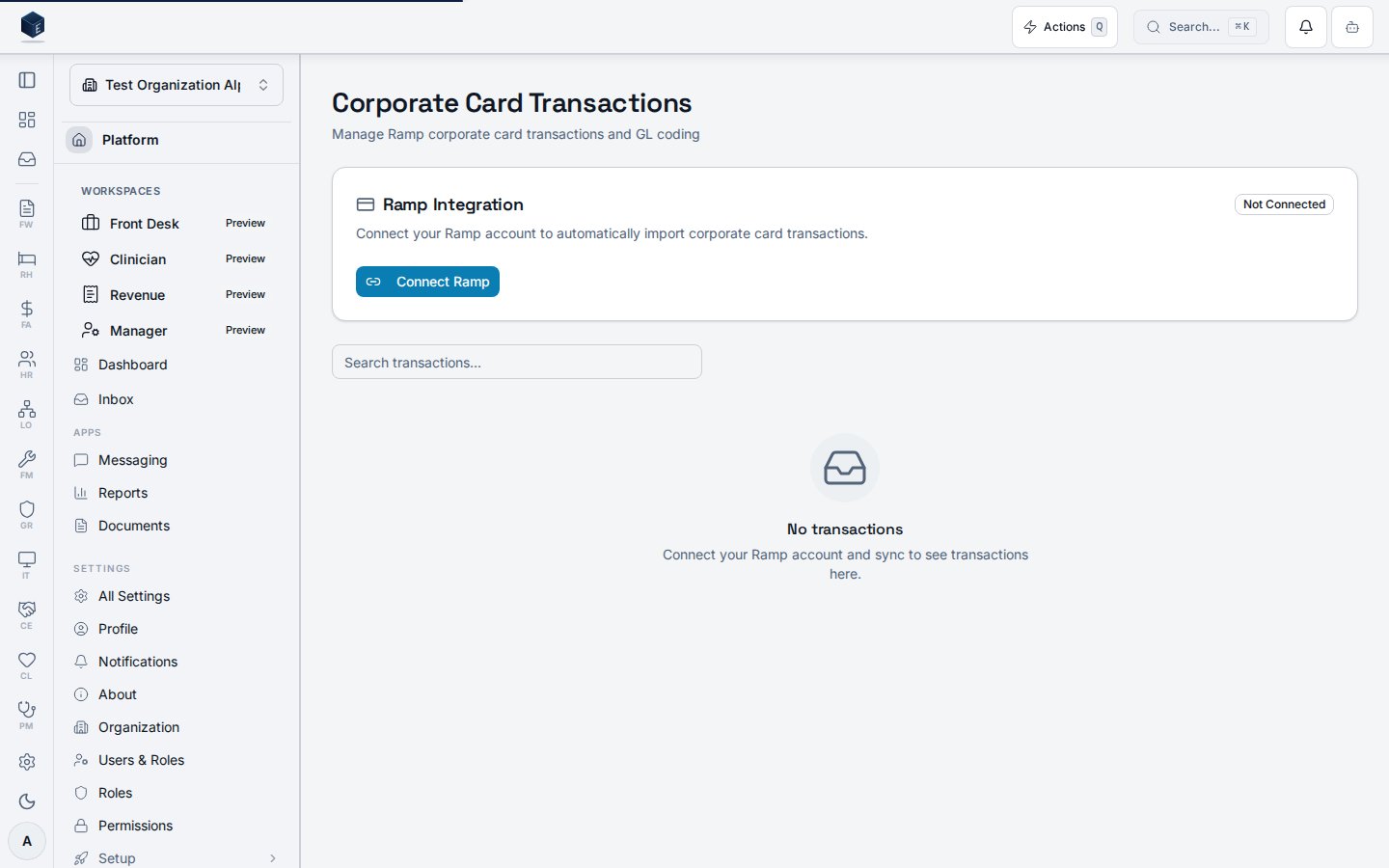
The Ramp integration allows your organization to sync corporate card transactions from Ramp directly into Encore OS. Once connected, transactions appear on the **Corporate Card Transactions** page where you can assign GL accounts and vendors for accurate financial reporting.
## Quick Reference
| I need to… | Pattern | Location |
| ----------------------- | ----------------------------------------------- | ------------------------------------------------------------------ |
| View Ramp transactions | Corporate Card Transactions list page | [Viewing Transactions](#viewing-transactions) |
| Trigger manual sync | **Sync Now** action on connection card | [Syncing Transactions](#syncing-transactions) |
| Fix missing data | Validate permissions + retry sync + review logs | [Troubleshooting](#troubleshooting) |
| Categorize transactions | Row-level GL/vendor assignment | [Assigning GL Accounts & Vendors](#assigning-gl-accounts--vendors) |
## Decision Trees
### Missing vs duplicate transactions
1. Transactions missing?
* Verify permissions and integration enabled.
* Run **Sync Now** and confirm last sync timestamp updated.
2. Transactions duplicated?
* Refresh view and confirm filter settings.
* Contact admin to verify sync idempotency/connector health.
## Pattern Library
* **Connection card pattern:** integration status + sync action entry point.
* **Editable row pattern:** in-table GL/vendor assignment with autosave.
* **Filter pattern:** merchant/status/date filtering before reconciliation.
## Common Mistakes
| Mistake | Impact | Fix |
| -------------------------------------------- | ------------------------ | --------------------------------------------------------- |
| Expecting transaction amounts to be editable | Reconciliation confusion | Amounts are source-of-truth from Ramp; only map GL/vendor |
| Running sync without required permission | Sync action unavailable | Request `fa.ramp.sync` permission |
| Assuming auto-sync is immediate | Perceived missing data | Confirm last sync time and run manual sync if needed |
## Pre-Flight Checklist
* [ ] Integration is enabled for your organization.
* [ ] You have required `fa.ramp.view_transactions` (and `fa.ramp.sync` for manual sync).
* [ ] Connection status is Connected/healthy.
* [ ] Last sync timestamp reviewed before reconciliation.
***
## Getting Started
### Prerequisites
* Your organization must have Ramp integration enabled (contact your admin).
* You need the `fa.ramp.view_transactions` permission to view transactions.
* You need the `fa.ramp.sync` permission to trigger syncs.
### Viewing Transactions
1. Navigate to **Finance → Corporate Card Transactions**.
2. The transaction list shows all synced Ramp transactions including:
* **Merchant** — The vendor/merchant name from Ramp.
* **Amount** — Transaction amount and currency.
* **Date** — When the transaction occurred.
* **Status** — Current transaction status (completed, pending, declined).
* **GL Account** — Assigned general ledger account (editable).
* **Vendor** — Linked vendor record (editable).
### Filtering Transactions
Use the search bar to filter transactions by merchant name. Additional filters for status and date range are available above the table.
### Assigning GL Accounts & Vendors
1. Click on a transaction row.
2. Select the appropriate **GL Account** from the dropdown.
3. Optionally link a **Vendor** record.
4. Changes save automatically.
### Syncing Transactions
* Click the **Sync Now** button on the connection card to pull the latest transactions from Ramp.
* Syncs fetch new transactions since the last sync and update existing ones.
* Automatic syncs can be configured by your administrator.
***
## FAQ
**Q: How often are transactions synced?**
A: Manual sync is available anytime. Automatic sync frequency is configured by your admin.
**Q: Why don't I see the Corporate Card Transactions page?**
A: Your admin needs to enable Ramp integration in Finance Settings and grant you the appropriate permissions.
**Q: Can I edit transaction amounts?**
A: No. Transaction amounts come directly from Ramp and cannot be modified. You can only assign GL accounts and vendors.
## Troubleshooting
| Issue | What to check |
| --------------------------------------------- | ----------------------------------------------------------------------------- |
| Cannot see transactions page | Verify integration is enabled and you have `fa.ramp.view_transactions` |
| Sync button missing/disabled | Verify `fa.ramp.sync` permission and connection health |
| Sync completed but transactions still missing | Retry **Sync Now**, review sync timestamp and filters, then escalate to admin |
| Duplicate-looking rows | Clear filters/sorts and ask admin to review sync logs/idempotency behavior |
***
## Support
Contact your system administrator for access issues or reach out to the Encore OS support team.
## Overview
The Ramp integration allows your organization to sync corporate card transactions from Ramp directly into Encore OS. Once connected, transactions appear on the **Corporate Card Transactions** page where you can assign GL accounts and vendors for accurate financial reporting.
## Quick Reference
| I need to… | Pattern | Location |
| ----------------------- | ----------------------------------------------- | ------------------------------------------------------------------ |
| View Ramp transactions | Corporate Card Transactions list page | [Viewing Transactions](#viewing-transactions) |
| Trigger manual sync | **Sync Now** action on connection card | [Syncing Transactions](#syncing-transactions) |
| Fix missing data | Validate permissions + retry sync + review logs | [Troubleshooting](#troubleshooting) |
| Categorize transactions | Row-level GL/vendor assignment | [Assigning GL Accounts & Vendors](#assigning-gl-accounts--vendors) |
## Decision Trees
### Missing vs duplicate transactions
1. Transactions missing?
* Verify permissions and integration enabled.
* Run **Sync Now** and confirm last sync timestamp updated.
2. Transactions duplicated?
* Refresh view and confirm filter settings.
* Contact admin to verify sync idempotency/connector health.
## Pattern Library
* **Connection card pattern:** integration status + sync action entry point.
* **Editable row pattern:** in-table GL/vendor assignment with autosave.
* **Filter pattern:** merchant/status/date filtering before reconciliation.
## Common Mistakes
| Mistake | Impact | Fix |
| -------------------------------------------- | ------------------------ | --------------------------------------------------------- |
| Expecting transaction amounts to be editable | Reconciliation confusion | Amounts are source-of-truth from Ramp; only map GL/vendor |
| Running sync without required permission | Sync action unavailable | Request `fa.ramp.sync` permission |
| Assuming auto-sync is immediate | Perceived missing data | Confirm last sync time and run manual sync if needed |
## Pre-Flight Checklist
* [ ] Integration is enabled for your organization.
* [ ] You have required `fa.ramp.view_transactions` (and `fa.ramp.sync` for manual sync).
* [ ] Connection status is Connected/healthy.
* [ ] Last sync timestamp reviewed before reconciliation.
***
## Getting Started
### Prerequisites
* Your organization must have Ramp integration enabled (contact your admin).
* You need the `fa.ramp.view_transactions` permission to view transactions.
* You need the `fa.ramp.sync` permission to trigger syncs.
### Viewing Transactions
1. Navigate to **Finance → Corporate Card Transactions**.
2. The transaction list shows all synced Ramp transactions including:
* **Merchant** — The vendor/merchant name from Ramp.
* **Amount** — Transaction amount and currency.
* **Date** — When the transaction occurred.
* **Status** — Current transaction status (completed, pending, declined).
* **GL Account** — Assigned general ledger account (editable).
* **Vendor** — Linked vendor record (editable).
### Filtering Transactions
Use the search bar to filter transactions by merchant name. Additional filters for status and date range are available above the table.
### Assigning GL Accounts & Vendors
1. Click on a transaction row.
2. Select the appropriate **GL Account** from the dropdown.
3. Optionally link a **Vendor** record.
4. Changes save automatically.
### Syncing Transactions
* Click the **Sync Now** button on the connection card to pull the latest transactions from Ramp.
* Syncs fetch new transactions since the last sync and update existing ones.
* Automatic syncs can be configured by your administrator.
***
## FAQ
**Q: How often are transactions synced?**
A: Manual sync is available anytime. Automatic sync frequency is configured by your admin.
**Q: Why don't I see the Corporate Card Transactions page?**
A: Your admin needs to enable Ramp integration in Finance Settings and grant you the appropriate permissions.
**Q: Can I edit transaction amounts?**
A: No. Transaction amounts come directly from Ramp and cannot be modified. You can only assign GL accounts and vendors.
## Troubleshooting
| Issue | What to check |
| --------------------------------------------- | ----------------------------------------------------------------------------- |
| Cannot see transactions page | Verify integration is enabled and you have `fa.ramp.view_transactions` |
| Sync button missing/disabled | Verify `fa.ramp.sync` permission and connection health |
| Sync completed but transactions still missing | Retry **Sync Now**, review sync timestamp and filters, then escalate to admin |
| Duplicate-looking rows | Clear filters/sorts and ask admin to review sync logs/idempotency behavior |
***
## Support
Contact your system administrator for access issues or reach out to the Encore OS support team.