> ## Documentation Index
> Fetch the complete documentation index at: https://docs.encoreos.io/llms.txt
> Use this file to discover all available pages before exploring further.
# Purchase Orders User Guide
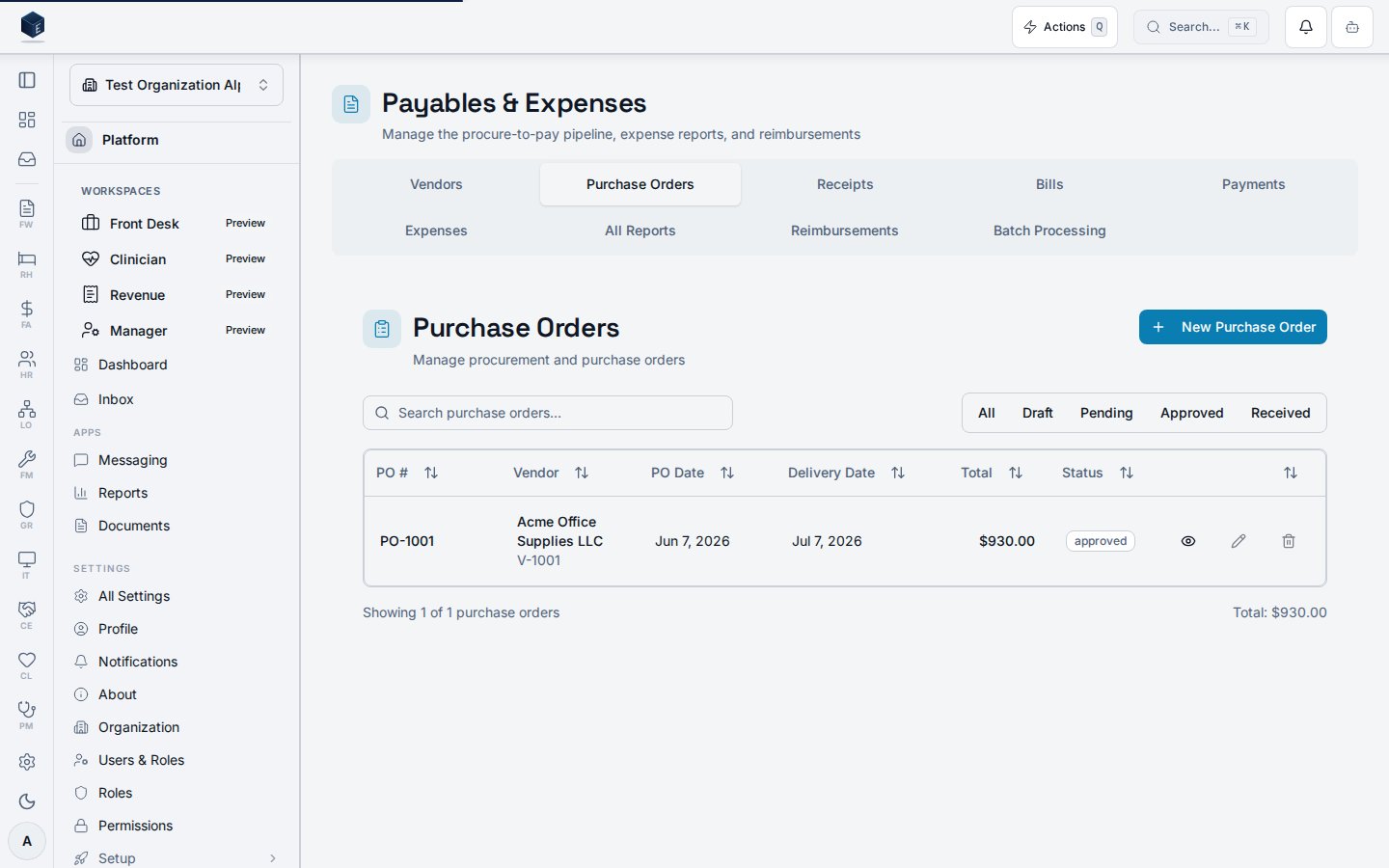
> The Purchase Orders module manages the full procurement lifecycle: creating POs, tracking approvals, receiving goods, performing 3-way matching against invoice…
 ## Overview
The Purchase Orders module manages the full procurement lifecycle: creating POs, tracking approvals, receiving goods, performing 3-way matching against invoices, and amending approved orders.
**Navigation:** Finance & Accounting → Purchase Orders (`/fa/purchase-orders`)
## Permissions
| Permission | Description |
| ---------------------------- | -------------------------- |
| `fa.purchase_orders.view` | View PO list and details |
| `fa.purchase_orders.create` | Create new purchase orders |
| `fa.purchase_orders.edit` | Edit draft POs |
| `fa.purchase_orders.approve` | Approve/reject POs |
| `fa.purchase_orders.receive` | Record goods receipts |
## Creating a Purchase Order
1. Click **New Purchase Order** from the PO list page
2. Select a **Vendor** from your AP vendor list
3. Set the **PO Date** and optional **Expected Delivery Date**
4. Add **Line Items**:
* Select a GL account for each line
* Enter description, quantity, and unit price
* Optionally assign fund, department, and program
* Extended amount calculates automatically
5. Review the **PO Total** at the bottom
6. Click **Save as Draft** or **Submit for Approval**
## Line Items
Each PO line includes:
* **GL Account** – Expense account to charge
* **Description** – What is being purchased
* **Quantity** and **Unit Price** – Drives the extended amount
* **Fund / Department / Program** – Optional dimensional coding
* **Received Quantity** – Updated when goods are received (read-only on PO)
## Approval Workflow
POs follow a status workflow:
```
Draft → Pending Approval → Approved → Partially Received → Fully Received → Closed
↘ Rejected (can be revised and resubmitted)
```
* **Draft**: Editable by the creator
* **Pending Approval**: Locked for editing; awaiting approver action
* **Approved**: Ready for goods receipt; can be amended
* **Rejected**: Returned to creator with comments; can be revised
## Goods Receipt
Once a PO is approved, record goods as they arrive:
1. Open the approved PO
2. Click **Record Receipt**
3. Enter the **received quantity** for each line
4. Partial receipts are supported — receive what arrived and record the rest later
5. The PO status updates to **Partially Received** or **Fully Received** based on quantities
## 3-Way Matching
When a vendor invoice (AP bill) references a PO, the system performs 3-way matching:
| Match Point | Comparison |
| ------------------ | ---------------------------------------------------- |
| **PO vs Invoice** | Quantities and prices match the original PO |
| **PO vs Receipt** | Invoiced quantities don't exceed received quantities |
| **Price Variance** | Flags differences between PO price and invoice price |
Match results display as badges: ✅ **Matched**, ⚠️ **Variance**, ❌ **Mismatch**
## PO Amendments
Approved POs can be amended to increase quantities:
1. Open an approved PO
2. Click **Amend PO**
3. Select lines to modify and enter new quantities
4. Provide a **reason** for the amendment
5. Submit the amendment
**Rules:**
* Only **approved** POs can be amended
* Lines with **receipts** cannot be amended
* Only **quantity increases** are allowed (to decrease, cancel the line)
* If the new total exceeds \$10,000 (and the old total was below), **re-approval** is required
* All amendments are tracked in the **Amendment History** tab
## Tips
* Use the **filter bar** to find POs by status, vendor, or date range
* PO numbers are auto-generated with a configurable prefix
* Link POs to AP invoices for complete procure-to-pay tracking
* Review the **Amendment History** before approving re-submitted POs
## Viewing a purchase order
The Purchase Order Details page at `/fa/purchase-orders/:id` shows the full PO record including header fields, line items, receipt history, amendment history, three-way match summary, and approval actions.
`PurchaseOrderDetailPage` loads the PO via `usePurchaseOrder`. A PDF can be generated and downloaded via `usePurchaseOrderPdf`. Components include `POAmendmentDialog`, `POAmendmentHistory`, `POApprovalActions`, `POReceiptHistory`, `POStatusBadge`, and `ThreeWayMatchSummary`. Line items show account, fund, department, quantity, unit price, and extended amount.
**Key concepts:**
* **Three-way match** — Links the PO (`fa_purchase_orders`), goods receipt (`fa_po_receipts`), and vendor bill to confirm delivery and invoicing alignment.
* **Amendment** — A tracked change to a posted or approved PO, recorded via `POAmendmentDialog`.
* **`POStatusBadge`** — Visual status indicator for the PO lifecycle.
1. Navigate to **Finance & Revenue → Payables & Expenses → Purchase Orders** and select a PO, or go to `/fa/purchase-orders/:id`.
2. Review the PO header: vendor, date, status, and totals.
3. Review the line items table.
4. Use **Download PDF** to generate a PO document.
5. Review the **Three-Way Match Summary** to check receipt and billing status.
6. Use approval actions or the amendment dialog as appropriate.
## Creating a purchase order
The New Purchase Order page at `/fa/purchase-orders/new` creates a purchase order with header details and line items linked to accounts, funds, departments, programs, and delivery sites.
`PurchaseOrderCreatePage` fetches active vendors, accounts (`fa_accounts`), funds (`fa_funds`), departments (`pf_departments`), programs (`fa_programs`), and sites (`pf_sites`) for the current organization. A `po_number` is pre-generated via `useGeneratePONumber`. On submit, `useCreatePurchaseOrder` saves the PO and lines, then redirects to `/fa/purchase-orders/:id`.
**Key concepts:**
* **Extended amount** — Calculated per line as quantity × unit price; stored in `fa_purchase_order_lines.extended_amount`.
* **Three-way match** — POs link to receipts and bills; matching status is visible on the detail page via `ThreeWayMatchSummary`.
Before you start: identify the vendor (must be active in the system); know the line items (account, quantity, unit price, and any fund/department/program allocations); the system generates the PO number automatically.
1. Navigate to **Finance & Revenue → Payables & Expenses → Purchase Orders** and select **New Purchase Order**, or go to `/fa/purchase-orders/new`.
2. Select the vendor and complete delivery information.
3. Add one or more line items with account, quantity, and unit price. Optionally assign fund, department, program, and site.
4. Review the pre-generated PO number in the header.
5. Select **Submit**. The PO is saved and you are redirected to the PO detail page.
## Related
Finance & Revenue core overview.
This page documents shipped product behavior. It is not medical, legal, or
billing advice. Verify against your organization's policies and applicable
regulations before using it for clinical, compliance, or billing decisions.
Protected health information (PHI) shown in the product is governed by your
tenant's access controls and is never exposed in this documentation.
* src/routes/fa.tsx
* src/cores/fa/pages/PurchaseOrderDetailPage.tsx
* src/cores/fa/pages/PurchaseOrderCreatePage.tsx
* src/cores/fa/hooks/usePurchaseOrders.ts
* src/cores/fa/hooks/usePurchaseOrderPdf.ts
* src/cores/fa/components/POForm.tsx
## Overview
The Purchase Orders module manages the full procurement lifecycle: creating POs, tracking approvals, receiving goods, performing 3-way matching against invoices, and amending approved orders.
**Navigation:** Finance & Accounting → Purchase Orders (`/fa/purchase-orders`)
## Permissions
| Permission | Description |
| ---------------------------- | -------------------------- |
| `fa.purchase_orders.view` | View PO list and details |
| `fa.purchase_orders.create` | Create new purchase orders |
| `fa.purchase_orders.edit` | Edit draft POs |
| `fa.purchase_orders.approve` | Approve/reject POs |
| `fa.purchase_orders.receive` | Record goods receipts |
## Creating a Purchase Order
1. Click **New Purchase Order** from the PO list page
2. Select a **Vendor** from your AP vendor list
3. Set the **PO Date** and optional **Expected Delivery Date**
4. Add **Line Items**:
* Select a GL account for each line
* Enter description, quantity, and unit price
* Optionally assign fund, department, and program
* Extended amount calculates automatically
5. Review the **PO Total** at the bottom
6. Click **Save as Draft** or **Submit for Approval**
## Line Items
Each PO line includes:
* **GL Account** – Expense account to charge
* **Description** – What is being purchased
* **Quantity** and **Unit Price** – Drives the extended amount
* **Fund / Department / Program** – Optional dimensional coding
* **Received Quantity** – Updated when goods are received (read-only on PO)
## Approval Workflow
POs follow a status workflow:
```
Draft → Pending Approval → Approved → Partially Received → Fully Received → Closed
↘ Rejected (can be revised and resubmitted)
```
* **Draft**: Editable by the creator
* **Pending Approval**: Locked for editing; awaiting approver action
* **Approved**: Ready for goods receipt; can be amended
* **Rejected**: Returned to creator with comments; can be revised
## Goods Receipt
Once a PO is approved, record goods as they arrive:
1. Open the approved PO
2. Click **Record Receipt**
3. Enter the **received quantity** for each line
4. Partial receipts are supported — receive what arrived and record the rest later
5. The PO status updates to **Partially Received** or **Fully Received** based on quantities
## 3-Way Matching
When a vendor invoice (AP bill) references a PO, the system performs 3-way matching:
| Match Point | Comparison |
| ------------------ | ---------------------------------------------------- |
| **PO vs Invoice** | Quantities and prices match the original PO |
| **PO vs Receipt** | Invoiced quantities don't exceed received quantities |
| **Price Variance** | Flags differences between PO price and invoice price |
Match results display as badges: ✅ **Matched**, ⚠️ **Variance**, ❌ **Mismatch**
## PO Amendments
Approved POs can be amended to increase quantities:
1. Open an approved PO
2. Click **Amend PO**
3. Select lines to modify and enter new quantities
4. Provide a **reason** for the amendment
5. Submit the amendment
**Rules:**
* Only **approved** POs can be amended
* Lines with **receipts** cannot be amended
* Only **quantity increases** are allowed (to decrease, cancel the line)
* If the new total exceeds \$10,000 (and the old total was below), **re-approval** is required
* All amendments are tracked in the **Amendment History** tab
## Tips
* Use the **filter bar** to find POs by status, vendor, or date range
* PO numbers are auto-generated with a configurable prefix
* Link POs to AP invoices for complete procure-to-pay tracking
* Review the **Amendment History** before approving re-submitted POs
## Viewing a purchase order
The Purchase Order Details page at `/fa/purchase-orders/:id` shows the full PO record including header fields, line items, receipt history, amendment history, three-way match summary, and approval actions.
`PurchaseOrderDetailPage` loads the PO via `usePurchaseOrder`. A PDF can be generated and downloaded via `usePurchaseOrderPdf`. Components include `POAmendmentDialog`, `POAmendmentHistory`, `POApprovalActions`, `POReceiptHistory`, `POStatusBadge`, and `ThreeWayMatchSummary`. Line items show account, fund, department, quantity, unit price, and extended amount.
**Key concepts:**
* **Three-way match** — Links the PO (`fa_purchase_orders`), goods receipt (`fa_po_receipts`), and vendor bill to confirm delivery and invoicing alignment.
* **Amendment** — A tracked change to a posted or approved PO, recorded via `POAmendmentDialog`.
* **`POStatusBadge`** — Visual status indicator for the PO lifecycle.
1. Navigate to **Finance & Revenue → Payables & Expenses → Purchase Orders** and select a PO, or go to `/fa/purchase-orders/:id`.
2. Review the PO header: vendor, date, status, and totals.
3. Review the line items table.
4. Use **Download PDF** to generate a PO document.
5. Review the **Three-Way Match Summary** to check receipt and billing status.
6. Use approval actions or the amendment dialog as appropriate.
## Creating a purchase order
The New Purchase Order page at `/fa/purchase-orders/new` creates a purchase order with header details and line items linked to accounts, funds, departments, programs, and delivery sites.
`PurchaseOrderCreatePage` fetches active vendors, accounts (`fa_accounts`), funds (`fa_funds`), departments (`pf_departments`), programs (`fa_programs`), and sites (`pf_sites`) for the current organization. A `po_number` is pre-generated via `useGeneratePONumber`. On submit, `useCreatePurchaseOrder` saves the PO and lines, then redirects to `/fa/purchase-orders/:id`.
**Key concepts:**
* **Extended amount** — Calculated per line as quantity × unit price; stored in `fa_purchase_order_lines.extended_amount`.
* **Three-way match** — POs link to receipts and bills; matching status is visible on the detail page via `ThreeWayMatchSummary`.
Before you start: identify the vendor (must be active in the system); know the line items (account, quantity, unit price, and any fund/department/program allocations); the system generates the PO number automatically.
1. Navigate to **Finance & Revenue → Payables & Expenses → Purchase Orders** and select **New Purchase Order**, or go to `/fa/purchase-orders/new`.
2. Select the vendor and complete delivery information.
3. Add one or more line items with account, quantity, and unit price. Optionally assign fund, department, program, and site.
4. Review the pre-generated PO number in the header.
5. Select **Submit**. The PO is saved and you are redirected to the PO detail page.
## Related
Finance & Revenue core overview.
This page documents shipped product behavior. It is not medical, legal, or
billing advice. Verify against your organization's policies and applicable
regulations before using it for clinical, compliance, or billing decisions.
Protected health information (PHI) shown in the product is governed by your
tenant's access controls and is never exposed in this documentation.
* src/routes/fa.tsx
* src/cores/fa/pages/PurchaseOrderDetailPage.tsx
* src/cores/fa/pages/PurchaseOrderCreatePage.tsx
* src/cores/fa/hooks/usePurchaseOrders.ts
* src/cores/fa/hooks/usePurchaseOrderPdf.ts
* src/cores/fa/components/POForm.tsx