> ## Documentation Index
> Fetch the complete documentation index at: https://docs.encoreos.io/llms.txt
> Use this file to discover all available pages before exploring further.
# Projects
> List, create, view, and edit project accounting records for grants and cost tracking with tabbed budget, expenses, revenue, and drawdown views.
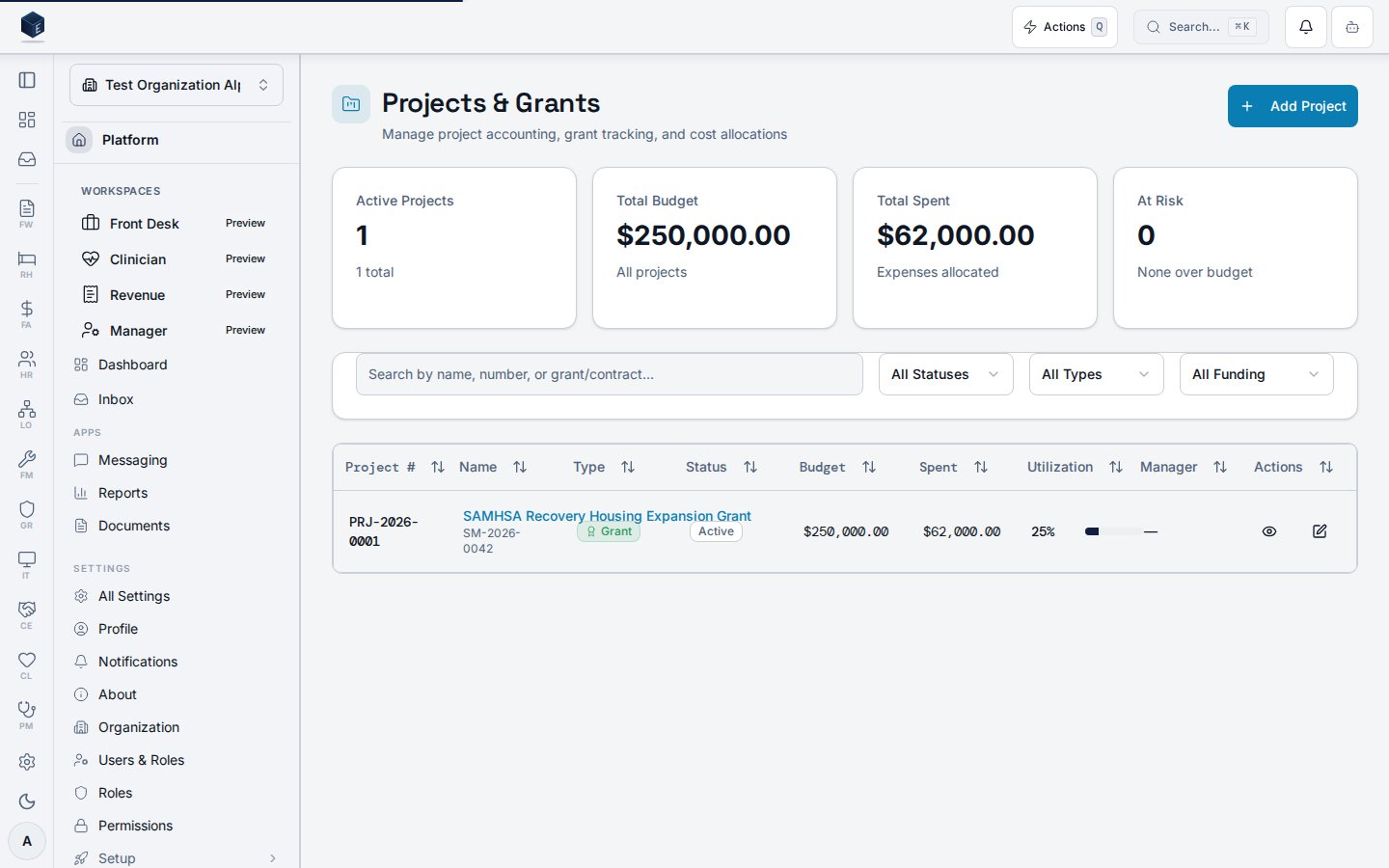
The Projects page at `/fa/projects` lists all project records for the organization with status, type, and funding-source filters, plus summary statistics.
 ## Overview
The route `/fa/projects` loads `ProjectsPage` (permission: `fa.projects.view`). The page fetches the project list via `useProjectList` with filters for status, type, funding source, and a text search query. Four summary `StatCard` components are shown at the top. A **New Project** button navigates to `/fa/projects/new`. Each row links to `/fa/projects/:id`.
## Who it's for
Requires permission `fa.projects.view`. Creating projects requires `fa.projects.create`. Editing requires `fa.projects.edit`.
## Before you start
No setup required. Filters are optional. When creating, know the project name, type, and funding source.
## Steps
1. Navigate to **Finance & Revenue → Projects**, or go to `/fa/projects`.
2. Optionally filter by status, type, or funding source, or use the search input.
3. Review the summary stat cards.
4. Select a project row to open its detail page.
5. Select **New Project** to create a new project.
## Key concepts
**Filters** — Status, project type, funding source type, and free-text search. All are optional.
**`StatCard`** — Summary statistics displayed at the top of the list; exact labels should be confirmed with an SME.
## Viewing a project
The Project Details page at `/fa/projects/:id` provides a tabbed view of a project record, covering overview, budget, expenses, revenue, and drawdowns.
The route `/fa/projects/:id` loads `ProjectDetailPage` (permission: `fa.projects.view`). The page has five tabs: `overview`, `budget`, `expenses`, `revenue`, and `drawdowns`. Tab state is URL-synced via `useTabUrlState`. Summary cards display key project metrics. `DrawdownAlertBanner` appears when `useDrawdownAlert` returns an alert for the project. An **Edit** button navigates to `/fa/projects/:id/edit`.
Key concepts:
* **Project tabs** — `overview`, `budget`, `expenses`, `revenue`, `drawdowns`. Each is lazily loaded and URL-synced.
* **Drawdown alert** — `DrawdownAlertBanner` is conditionally rendered based on `useDrawdownAlert` output for the project.
* **`ProjectStatusBadge` / `ProjectTypeBadge`** — Visual indicators for project status and type, derived from `toProjectStatus` and `toProjectType` utilities.
1. Navigate to **Finance & Revenue → Projects** and select a project, or go to `/fa/projects/:id`.
2. Review the overview summary cards: project status, type, and key figures.
3. Navigate to the **Budget**, **Expenses**, **Revenue**, or **Drawdowns** tabs as needed.
4. If a drawdown alert banner is visible, review and address the flagged condition.
5. Use **Edit** to modify project details.
## Creating a project
The New Project page at `/fa/projects/new` provides a form for creating a project record used in project accounting, grant tracking, or other cost-allocation workflows. Requires permission `fa.projects.create`.
`ProjectCreatePage` wraps `ProjectForm`. On submit, `useCreateProject` is called with the form data plus `organization_id`. On success the user is redirected to `/fa/projects/:id`.
Key concepts:
* **Project** — A cost-accounting container that can track budgets, expenses, revenue, and grant drawdowns. The `project_number` is assigned by the system.
1. Navigate to **Finance & Revenue → Projects** and select **New Project**, or go to `/fa/projects/new`.
2. Complete the project form fields as required.
3. Select **Create** (or the form submit action).
4. On success you are taken to the new project's detail page.
## Editing a project
The Edit Project page at `/fa/projects/:id/edit` provides a form for updating an existing project record's details. Requires permission `fa.projects.edit`.
`ProjectEditPage` fetches the project via `useProject(id, organizationId)` and renders `ProjectForm` pre-populated with current values. On submit, `useUpdateProject` is called with the updated data. On success, the page navigates to `/fa/projects/:id`. The breadcrumb displays `Edit `.
Key concepts:
| Concept | Description |
| ------------------ | -------------------------------------------------------------- |
| `ProjectForm` | Shared form component for project create and edit |
| `useProject` | Hook fetching the existing project, scoped to `organizationId` |
| `useUpdateProject` | Mutation hook persisting project edits |
| `ProjectInsert` | TypeScript type defining the project data shape |
1. Navigate to **Finance → Projects** (`/fa/projects`) and open the project record.
2. Click **Edit** to go to `/fa/projects/:id/edit`.
3. Update the relevant project fields in `ProjectForm`.
4. Click **Save** to submit via `useUpdateProject`.
5. Click **Cancel** to return to the project detail without saving.
6. On success, the page navigates to the project detail.
## Related
Finance & Revenue core overview.
This page documents shipped product behavior. It is not medical, legal, or
billing advice. Verify against your organization's policies and applicable
regulations before using it for clinical, compliance, or billing decisions.
Protected health information (PHI) shown in the product is governed by your
tenant's access controls and is never exposed in this documentation.
* src/routes/fa.tsx
* src/cores/fa/pages/ProjectsPage.tsx
* src/cores/fa/pages/ProjectDetailPage.tsx
* src/cores/fa/pages/ProjectCreatePage.tsx
* src/cores/fa/pages/ProjectEditPage.tsx
* src/cores/fa/hooks/useProjects.ts
* src/cores/fa/hooks/useGrantDrawdowns.ts
* src/cores/fa/types/projects.ts
* src/cores/fa/components/projects/ProjectForm.tsx
## Overview
The route `/fa/projects` loads `ProjectsPage` (permission: `fa.projects.view`). The page fetches the project list via `useProjectList` with filters for status, type, funding source, and a text search query. Four summary `StatCard` components are shown at the top. A **New Project** button navigates to `/fa/projects/new`. Each row links to `/fa/projects/:id`.
## Who it's for
Requires permission `fa.projects.view`. Creating projects requires `fa.projects.create`. Editing requires `fa.projects.edit`.
## Before you start
No setup required. Filters are optional. When creating, know the project name, type, and funding source.
## Steps
1. Navigate to **Finance & Revenue → Projects**, or go to `/fa/projects`.
2. Optionally filter by status, type, or funding source, or use the search input.
3. Review the summary stat cards.
4. Select a project row to open its detail page.
5. Select **New Project** to create a new project.
## Key concepts
**Filters** — Status, project type, funding source type, and free-text search. All are optional.
**`StatCard`** — Summary statistics displayed at the top of the list; exact labels should be confirmed with an SME.
## Viewing a project
The Project Details page at `/fa/projects/:id` provides a tabbed view of a project record, covering overview, budget, expenses, revenue, and drawdowns.
The route `/fa/projects/:id` loads `ProjectDetailPage` (permission: `fa.projects.view`). The page has five tabs: `overview`, `budget`, `expenses`, `revenue`, and `drawdowns`. Tab state is URL-synced via `useTabUrlState`. Summary cards display key project metrics. `DrawdownAlertBanner` appears when `useDrawdownAlert` returns an alert for the project. An **Edit** button navigates to `/fa/projects/:id/edit`.
Key concepts:
* **Project tabs** — `overview`, `budget`, `expenses`, `revenue`, `drawdowns`. Each is lazily loaded and URL-synced.
* **Drawdown alert** — `DrawdownAlertBanner` is conditionally rendered based on `useDrawdownAlert` output for the project.
* **`ProjectStatusBadge` / `ProjectTypeBadge`** — Visual indicators for project status and type, derived from `toProjectStatus` and `toProjectType` utilities.
1. Navigate to **Finance & Revenue → Projects** and select a project, or go to `/fa/projects/:id`.
2. Review the overview summary cards: project status, type, and key figures.
3. Navigate to the **Budget**, **Expenses**, **Revenue**, or **Drawdowns** tabs as needed.
4. If a drawdown alert banner is visible, review and address the flagged condition.
5. Use **Edit** to modify project details.
## Creating a project
The New Project page at `/fa/projects/new` provides a form for creating a project record used in project accounting, grant tracking, or other cost-allocation workflows. Requires permission `fa.projects.create`.
`ProjectCreatePage` wraps `ProjectForm`. On submit, `useCreateProject` is called with the form data plus `organization_id`. On success the user is redirected to `/fa/projects/:id`.
Key concepts:
* **Project** — A cost-accounting container that can track budgets, expenses, revenue, and grant drawdowns. The `project_number` is assigned by the system.
1. Navigate to **Finance & Revenue → Projects** and select **New Project**, or go to `/fa/projects/new`.
2. Complete the project form fields as required.
3. Select **Create** (or the form submit action).
4. On success you are taken to the new project's detail page.
## Editing a project
The Edit Project page at `/fa/projects/:id/edit` provides a form for updating an existing project record's details. Requires permission `fa.projects.edit`.
`ProjectEditPage` fetches the project via `useProject(id, organizationId)` and renders `ProjectForm` pre-populated with current values. On submit, `useUpdateProject` is called with the updated data. On success, the page navigates to `/fa/projects/:id`. The breadcrumb displays `Edit `.
Key concepts:
| Concept | Description |
| ------------------ | -------------------------------------------------------------- |
| `ProjectForm` | Shared form component for project create and edit |
| `useProject` | Hook fetching the existing project, scoped to `organizationId` |
| `useUpdateProject` | Mutation hook persisting project edits |
| `ProjectInsert` | TypeScript type defining the project data shape |
1. Navigate to **Finance → Projects** (`/fa/projects`) and open the project record.
2. Click **Edit** to go to `/fa/projects/:id/edit`.
3. Update the relevant project fields in `ProjectForm`.
4. Click **Save** to submit via `useUpdateProject`.
5. Click **Cancel** to return to the project detail without saving.
6. On success, the page navigates to the project detail.
## Related
Finance & Revenue core overview.
This page documents shipped product behavior. It is not medical, legal, or
billing advice. Verify against your organization's policies and applicable
regulations before using it for clinical, compliance, or billing decisions.
Protected health information (PHI) shown in the product is governed by your
tenant's access controls and is never exposed in this documentation.
* src/routes/fa.tsx
* src/cores/fa/pages/ProjectsPage.tsx
* src/cores/fa/pages/ProjectDetailPage.tsx
* src/cores/fa/pages/ProjectCreatePage.tsx
* src/cores/fa/pages/ProjectEditPage.tsx
* src/cores/fa/hooks/useProjects.ts
* src/cores/fa/hooks/useGrantDrawdowns.ts
* src/cores/fa/types/projects.ts
* src/cores/fa/components/projects/ProjectForm.tsx