> ## Documentation Index
> Fetch the complete documentation index at: https://docs.encoreos.io/llms.txt
> Use this file to discover all available pages before exploring further.
# Journal Entries
> List, search, filter, batch-post, and view/edit/post/reverse individual general ledger journal entries.
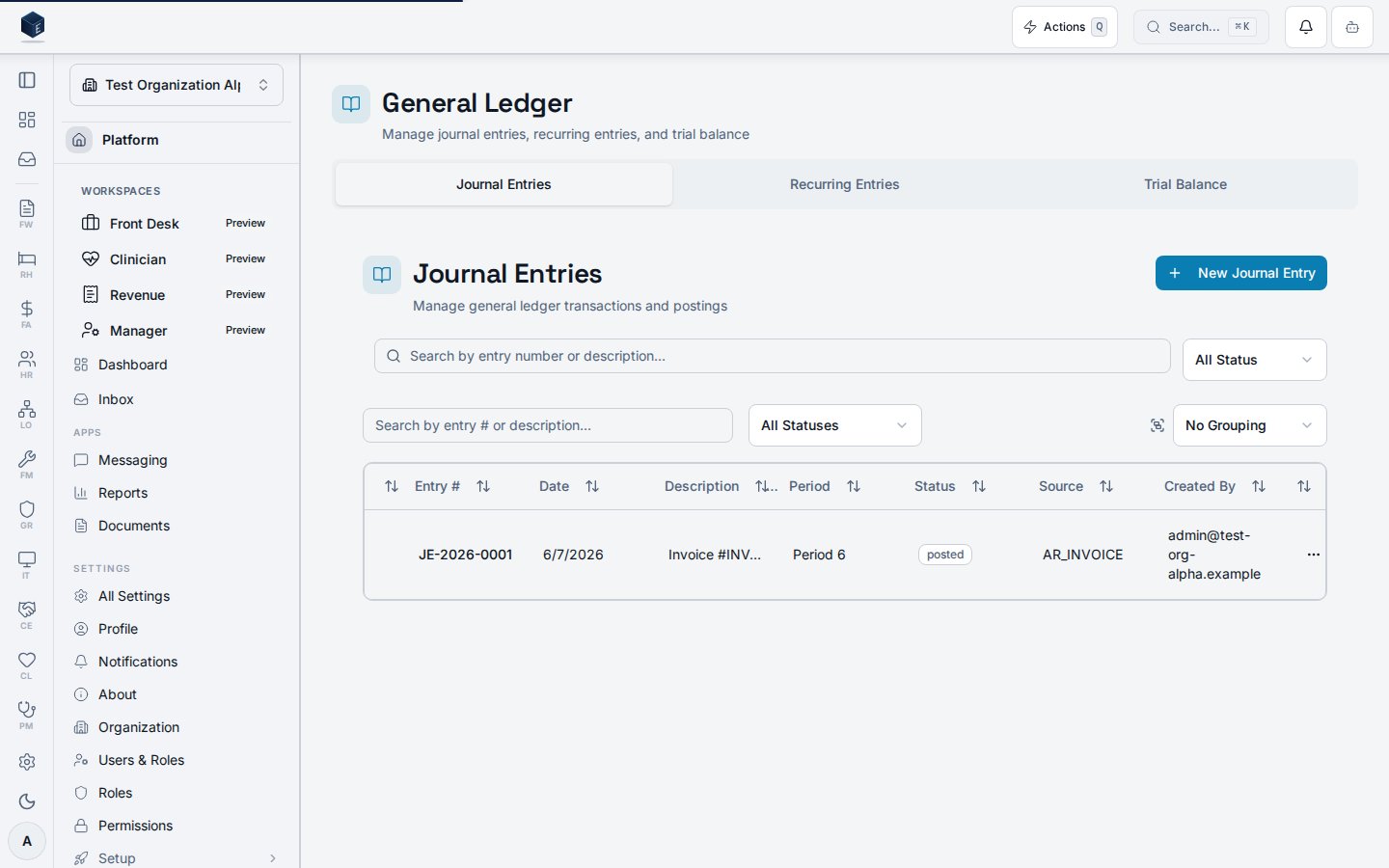
The Journal Entries page lists all journal entries for the current organization. It is accessible at route `/fa/journal-entries`.
 ## Overview
The page provides:
* **Search:** Free-text search by entry number or description
* **Status filter:** `all`, `draft`, `posted`, `reversed`
* **Select-all checkbox:** Selects all draft entries for batch actions
* **Batch Action Bar:** Batch Post and Batch Delete for selected draft entries
* **JournalEntriesTable:** Row-level post, reverse, and delete actions
* **Keyboard shortcuts:** Via `useFAKeyboardShortcuts` — `N` for new, `S` for search focus, `?` for help
Batch post calls `usePostJournalEntry` for each selected draft. Batch delete calls `useDeleteJournalEntry`.
**Primary hooks:** `useJournalEntries`, `usePostJournalEntry`, `useReverseJournalEntry`, `useDeleteJournalEntry`
## Who it's for
Access follows your organization's role and module configuration. Individual entry actions (post, reverse, delete) may be subject to journal entry-level permissions.
## Before you start
* Entries must be in `draft` status to be posted or deleted via batch.
* Only `posted` entries can be reversed.
## Steps
1. Navigate to `/fa/ledger?tab=journal-entries` (canonical).
2. Use search and status filters to find entries.
3. Click **New Journal Entry** (or press `N`) to create a new entry at `/fa/journal-entries/new`.
4. Check individual rows or use the select-all checkbox to select draft entries.
5. Use the **Batch Action Bar** to post or delete multiple drafts at once.
6. Click an entry row to open its detail page at `/fa/journal-entries/:id`.
## Key concepts
* **Draft → Posted:** Posting finalizes the journal entry in the ledger.
* **Posted → Reversed:** Creates an offsetting reversal entry.
* **Batch actions:** Apply only to `draft` entries. Posted entries must be reversed individually.
## Creating a journal entry
The New Entry page at `/fa/journal-entries/new` creates a general ledger journal entry. Permission required: `fa.journal_entries.create` (enforced via inner `PermissionGate`).
The page wraps `JournalEntryForm` (header fields) and `JournalLineEditor` (debit/credit lines).
**Header fields:** `transaction_date` (required), `posting_date` (required), `period_id` (required), `description` (required), `notes` (optional), `source_type` (one of `MANUAL`, `PAYROLL`, `AP_BILL`, `AR_INVOICE`, `RECURRING`, `BANK_REC`, `SYSTEM`, `RULE_ENGINE`, `IMPORT`, `INTER_FUND_TRANSFER`), `source_reference` (optional).
**Line balance check:** `Math.abs(totalDebits - totalCredits) < 0.01` — entry is balanced when true.
**Save as Draft:** Creates the entry with `status: "draft"` and optionally saves lines. Navigates to `/fa/journal-entries/:id`.
**Save and Post:** Validates balance and at least one line, creates as draft, saves lines, then posts. Shows validation errors via toast if unbalanced or no lines.
**Primary mutations:** `useCreateJournalEntry`, `useBulkUpdateLines`, `usePostJournalEntry`
Before you start: know the fiscal period, transaction date, and description; have debit and credit accounts, amounts, and optional fund/department/program assignments ready.
**Save as Draft:**
1. Navigate to `/fa/journal-entries/new`.
2. Complete the **Entry Information** section.
3. Add journal lines in the **Entry Lines** section.
4. Click **Save as Draft**.
**Save and Post:**
1. Complete the entry header and add balanced lines (debits = credits).
2. Click **Save and Post** (disabled if unbalanced or no lines).
3. On success, you are redirected to the journal entries list.
**Key concepts:** A balanced entry has total debits equal to total credits (within \$0.01 tolerance). `source_type: MANUAL` is a standard user-initiated entry. Draft entries can be edited; posted entries require reversal to correct.
## Viewing a journal entry
The Journal Entry Details page at `/fa/journal-entries/:id` shows the full detail of a single journal entry and allows lifecycle management.
The page loads a journal entry via `useJournalEntry(id, organizationId)` and renders:
* **Header:** Entry number (or "Draft Entry"), with action buttons based on status:
* `draft`: **Edit**, **Save Changes** / **Cancel** (when editing), **Post Entry**, **Delete**
* `posted`: **Reverse Entry**
* **Entry Information card:** `JournalEntryForm` in read-only or edit mode (transaction date, posting date, period, description, notes, source type, source reference)
* **Entry Lines card:** `JournalLineEditor` — editable when in edit mode, read-only otherwise
* **Audit Information card:** Shown only when `posted_by_profile` is present. Displays created-by name, posted-by name, and posted timestamp.
**Mutations:** `useUpdateJournalEntry`, `useBulkUpdateLines`, `usePostJournalEntry`, `useReverseJournalEntry`, `useDeleteJournalEntry`
After posting, reversing, or deleting, you are redirected to `/fa/journal-entries` (list).
Key concepts:
* **Balanced entry:** Total debits must equal total credits before an entry can be posted.
* **Reversal:** Creates an offsetting journal entry dated to the current date.
**Post a draft entry:** Navigate to `/fa/journal-entries/:id`, review the entry and its lines, and click **Post Entry**.
**Edit a draft entry:** Click **Edit**, modify `JournalEntryForm` header fields or line items in `JournalLineEditor`, then click **Save Changes** or **Cancel**.
**Reverse a posted entry:** Click **Reverse Entry**. The reversal date is today's date.
**Delete a draft entry:** Click **Delete** — confirm in the dialog. You are redirected to the journal entries list.
## Related
Finance & Revenue core overview.
This page documents shipped product behavior. It is not medical, legal, or
billing advice. Verify against your organization's policies and applicable
regulations before using it for clinical, compliance, or billing decisions.
Protected health information (PHI) shown in the product is governed by your
tenant's access controls and is never exposed in this documentation.
* src/routes/fa.tsx
* src/cores/fa/pages/JournalEntriesPage.tsx
* src/cores/fa/pages/JournalEntryDetailPage.tsx
* src/cores/fa/pages/JournalEntryCreatePage.tsx
* src/cores/fa/hooks/useJournalEntries.ts
* src/cores/fa/hooks/useJournalEntryLines.ts
* src/cores/fa/components/JournalEntriesTable.tsx
* src/cores/fa/components/JournalEntryForm.tsx
* src/cores/fa/components/JournalLineEditor.tsx
## Overview
The page provides:
* **Search:** Free-text search by entry number or description
* **Status filter:** `all`, `draft`, `posted`, `reversed`
* **Select-all checkbox:** Selects all draft entries for batch actions
* **Batch Action Bar:** Batch Post and Batch Delete for selected draft entries
* **JournalEntriesTable:** Row-level post, reverse, and delete actions
* **Keyboard shortcuts:** Via `useFAKeyboardShortcuts` — `N` for new, `S` for search focus, `?` for help
Batch post calls `usePostJournalEntry` for each selected draft. Batch delete calls `useDeleteJournalEntry`.
**Primary hooks:** `useJournalEntries`, `usePostJournalEntry`, `useReverseJournalEntry`, `useDeleteJournalEntry`
## Who it's for
Access follows your organization's role and module configuration. Individual entry actions (post, reverse, delete) may be subject to journal entry-level permissions.
## Before you start
* Entries must be in `draft` status to be posted or deleted via batch.
* Only `posted` entries can be reversed.
## Steps
1. Navigate to `/fa/ledger?tab=journal-entries` (canonical).
2. Use search and status filters to find entries.
3. Click **New Journal Entry** (or press `N`) to create a new entry at `/fa/journal-entries/new`.
4. Check individual rows or use the select-all checkbox to select draft entries.
5. Use the **Batch Action Bar** to post or delete multiple drafts at once.
6. Click an entry row to open its detail page at `/fa/journal-entries/:id`.
## Key concepts
* **Draft → Posted:** Posting finalizes the journal entry in the ledger.
* **Posted → Reversed:** Creates an offsetting reversal entry.
* **Batch actions:** Apply only to `draft` entries. Posted entries must be reversed individually.
## Creating a journal entry
The New Entry page at `/fa/journal-entries/new` creates a general ledger journal entry. Permission required: `fa.journal_entries.create` (enforced via inner `PermissionGate`).
The page wraps `JournalEntryForm` (header fields) and `JournalLineEditor` (debit/credit lines).
**Header fields:** `transaction_date` (required), `posting_date` (required), `period_id` (required), `description` (required), `notes` (optional), `source_type` (one of `MANUAL`, `PAYROLL`, `AP_BILL`, `AR_INVOICE`, `RECURRING`, `BANK_REC`, `SYSTEM`, `RULE_ENGINE`, `IMPORT`, `INTER_FUND_TRANSFER`), `source_reference` (optional).
**Line balance check:** `Math.abs(totalDebits - totalCredits) < 0.01` — entry is balanced when true.
**Save as Draft:** Creates the entry with `status: "draft"` and optionally saves lines. Navigates to `/fa/journal-entries/:id`.
**Save and Post:** Validates balance and at least one line, creates as draft, saves lines, then posts. Shows validation errors via toast if unbalanced or no lines.
**Primary mutations:** `useCreateJournalEntry`, `useBulkUpdateLines`, `usePostJournalEntry`
Before you start: know the fiscal period, transaction date, and description; have debit and credit accounts, amounts, and optional fund/department/program assignments ready.
**Save as Draft:**
1. Navigate to `/fa/journal-entries/new`.
2. Complete the **Entry Information** section.
3. Add journal lines in the **Entry Lines** section.
4. Click **Save as Draft**.
**Save and Post:**
1. Complete the entry header and add balanced lines (debits = credits).
2. Click **Save and Post** (disabled if unbalanced or no lines).
3. On success, you are redirected to the journal entries list.
**Key concepts:** A balanced entry has total debits equal to total credits (within \$0.01 tolerance). `source_type: MANUAL` is a standard user-initiated entry. Draft entries can be edited; posted entries require reversal to correct.
## Viewing a journal entry
The Journal Entry Details page at `/fa/journal-entries/:id` shows the full detail of a single journal entry and allows lifecycle management.
The page loads a journal entry via `useJournalEntry(id, organizationId)` and renders:
* **Header:** Entry number (or "Draft Entry"), with action buttons based on status:
* `draft`: **Edit**, **Save Changes** / **Cancel** (when editing), **Post Entry**, **Delete**
* `posted`: **Reverse Entry**
* **Entry Information card:** `JournalEntryForm` in read-only or edit mode (transaction date, posting date, period, description, notes, source type, source reference)
* **Entry Lines card:** `JournalLineEditor` — editable when in edit mode, read-only otherwise
* **Audit Information card:** Shown only when `posted_by_profile` is present. Displays created-by name, posted-by name, and posted timestamp.
**Mutations:** `useUpdateJournalEntry`, `useBulkUpdateLines`, `usePostJournalEntry`, `useReverseJournalEntry`, `useDeleteJournalEntry`
After posting, reversing, or deleting, you are redirected to `/fa/journal-entries` (list).
Key concepts:
* **Balanced entry:** Total debits must equal total credits before an entry can be posted.
* **Reversal:** Creates an offsetting journal entry dated to the current date.
**Post a draft entry:** Navigate to `/fa/journal-entries/:id`, review the entry and its lines, and click **Post Entry**.
**Edit a draft entry:** Click **Edit**, modify `JournalEntryForm` header fields or line items in `JournalLineEditor`, then click **Save Changes** or **Cancel**.
**Reverse a posted entry:** Click **Reverse Entry**. The reversal date is today's date.
**Delete a draft entry:** Click **Delete** — confirm in the dialog. You are redirected to the journal entries list.
## Related
Finance & Revenue core overview.
This page documents shipped product behavior. It is not medical, legal, or
billing advice. Verify against your organization's policies and applicable
regulations before using it for clinical, compliance, or billing decisions.
Protected health information (PHI) shown in the product is governed by your
tenant's access controls and is never exposed in this documentation.
* src/routes/fa.tsx
* src/cores/fa/pages/JournalEntriesPage.tsx
* src/cores/fa/pages/JournalEntryDetailPage.tsx
* src/cores/fa/pages/JournalEntryCreatePage.tsx
* src/cores/fa/hooks/useJournalEntries.ts
* src/cores/fa/hooks/useJournalEntryLines.ts
* src/cores/fa/components/JournalEntriesTable.tsx
* src/cores/fa/components/JournalEntryForm.tsx
* src/cores/fa/components/JournalLineEditor.tsx