> ## Documentation Index
> Fetch the complete documentation index at: https://docs.encoreos.io/llms.txt
> Use this file to discover all available pages before exploring further.
# Fixed Assets & Depreciation User Guide
> Track capital assets, view depreciation history and disposal records, create and edit asset records, and manage disposals and transfers in Finance & Revenue.
 > **Purpose:** This guide helps end users understand how to use Fixed Assets & Depreciation for tracking capital assets, calculating depreciation, and managing asset disposals.
***
## Overview
The Fixed Assets module (FA-11) enables organizations to track capital assets, calculate depreciation, and manage asset disposals. This ensures accurate balance sheet presentation, proper depreciation expense recognition, and compliance with GAAP requirements.
### Key Capabilities
* **Asset Register:** Track all capital assets with purchase details, location, and depreciation configuration
* **Automated Depreciation:** Calculate monthly depreciation using straight-line or declining balance methods
* **Disposal Management:** Record asset sales, scrapping, or donations with gain/loss calculations
* **Location Tracking:** Transfer assets between sites and maintain location history
### Who Should Use This Guide
| Role | Use Case |
| ------------- | ------------------------------------------------- |
| Finance Staff | Create assets, run depreciation, record disposals |
| Org Admin | Configure settings, manage all assets |
| Site Admin | View and transfer assets at their site |
***
## Prerequisites
### Permissions Required
To use Fixed Assets, you need:
| Permission | Description |
| ---------------------- | ------------------------------- |
| `fa.assets.view` | View asset register and details |
| `fa.assets.create` | Create new assets |
| `fa.assets.edit` | Edit asset information |
| `fa.assets.dispose` | Record asset disposals |
| `fa.assets.transfer` | Transfer asset locations |
| `fa.depreciation.view` | View depreciation schedules |
| `fa.depreciation.run` | Run monthly depreciation |
> **Note:** Contact your organization administrator if you don't have the required permissions.
***
## Getting Started
### Accessing Fixed Assets
1. Navigate to **Finance** in the main menu
2. Click **Fixed Assets** in the sidebar
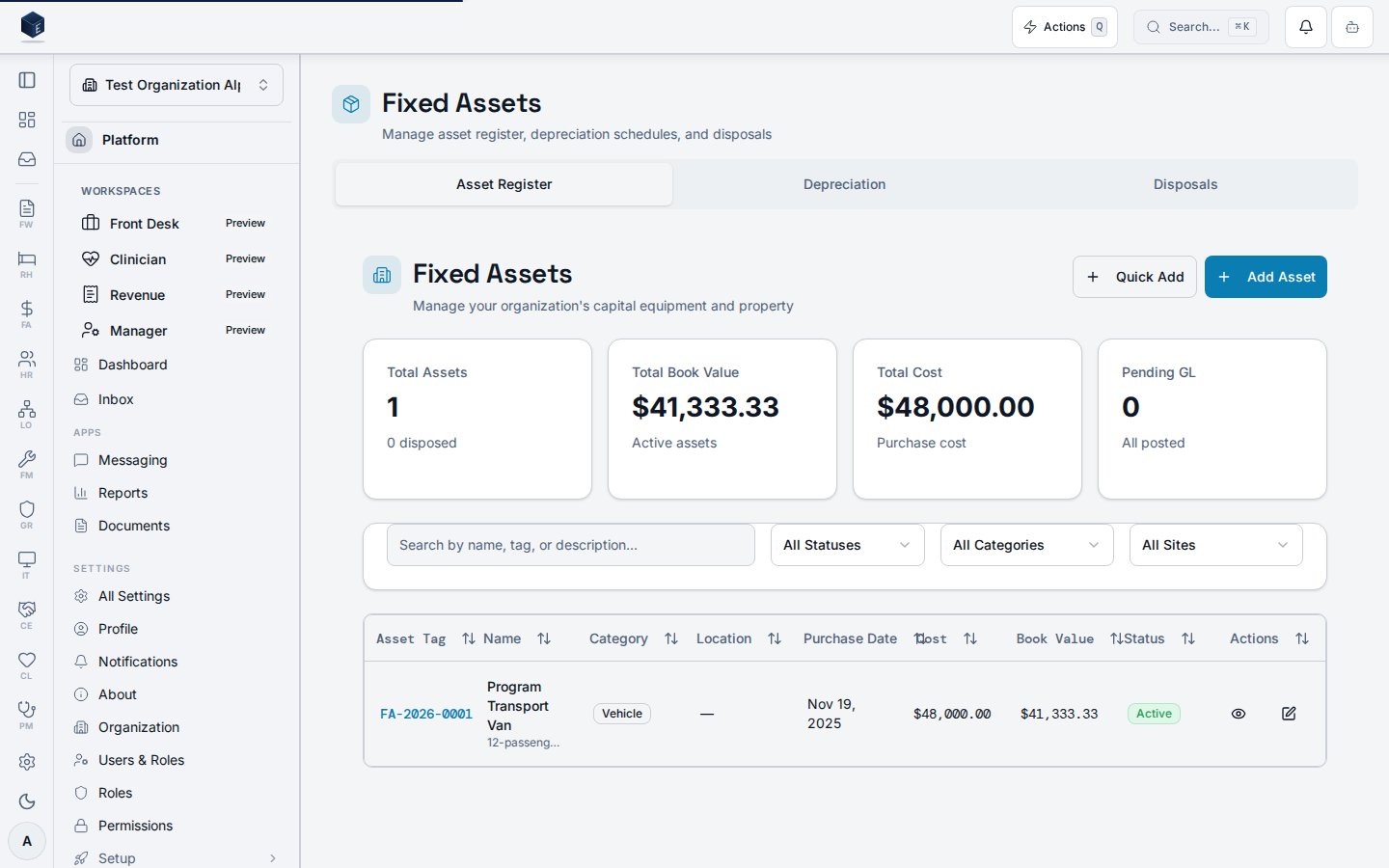
3. Select **Asset Register** to view all assets
### Understanding the Interface
The Asset Register displays all capital assets with:
| Column | Description |
| ------------- | ----------------------------------------------- |
| Asset Tag | Auto-generated identifier (e.g., AST-2026-0001) |
| Asset Name | Descriptive name |
| Category | Vehicle, Equipment, Furniture, etc. |
| Purchase Cost | Original acquisition cost |
| Book Value | Current value after depreciation |
| Status | Active, Disposed, or Retired |
***
## Common Tasks
### Creating a Fixed Asset
**When to use:** When acquiring new capital equipment above the capitalization threshold (\$5,000 default)
**Steps:**
1. Navigate to **Finance → Fixed Assets → Asset Register**
2. Click **Add Asset** in the top right
3. Fill in the required fields:
* **Asset Name:** Descriptive name for the asset
* **Category:** Select from vehicle, equipment, furniture, building\_improvement, land, leasehold\_improvement, or other
* **Purchase Date:** Date of acquisition
* **Purchase Cost:** Original cost
* **Depreciation Method:** Straight-line, Declining Balance, or None
* **Useful Life:** Number of years
* **Salvage Value:** Estimated value at end of useful life
4. Click **Create Asset**
**Result:** Asset is created with an auto-generated tag and appears in the Asset Register.
***
### Running Monthly Depreciation
**When to use:** At the end of each month to calculate depreciation for all active assets
**Steps:**
1. Navigate to **Finance → Fixed Assets → Depreciation**
2. Click **Run Depreciation**
3. Select the **Depreciation Month**
4. Review the preview of assets to be processed
5. Click **Run** to calculate
**Result:** Depreciation records are created for each active asset with amounts calculated based on their depreciation method.
**Tips:**
* Run depreciation after the fiscal period is open but before closing
* Review any "Pending" GL postings if journal entries weren't created
***
### Recording an Asset Disposal
**When to use:** When selling, scrapping, or donating an asset
**Steps:**
1. Navigate to the asset detail page
2. Click **Dispose Asset**
3. Fill in disposal details:
* **Disposal Date:** When disposal occurred
* **Disposal Method:** Sale, Scrapped, Donated, or Other
* **Disposal Proceeds:** Sale amount (if applicable)
* **Disposal Reason:** Why the asset was disposed
4. Review the calculated **Gain/Loss**
5. Click **Confirm Disposal**
**Result:** Asset status changes to "Disposed" and a disposal record is created.
> **Note:** Gain = Proceeds > Book Value; Loss = Proceeds \< Book Value
***
### Transferring an Asset Location
**When to use:** When moving an asset to a different site or building
**Steps:**
1. Navigate to the asset detail page
2. Click **Transfer Asset**
3. Select the new **Site**, **Building**, and **Room** (optional)
4. Enter a **Transfer Reason**
5. Click **Transfer**
**Result:** Asset location is updated and transfer history is recorded.
***
## Key Concepts
### Depreciation Methods
**Straight-Line:**
* Formula: (Cost - Salvage) / Useful Life / 12
* Equal monthly depreciation
* Best for assets with steady utility decline
**Declining Balance:**
* Formula: Book Value × (Rate / 12)
* Higher early-year depreciation
* Rate typically 2x straight-line rate
**None:**
* Asset is not depreciated
* Use for land, art, or non-depreciating assets
### Asset Status
| Status | Description |
| -------- | ------------------------------------------ |
| Active | In use, actively depreciating |
| Disposed | Sold, scrapped, or donated |
| Retired | No longer in use but not formally disposed |
### GL Posting Status
| Status | Description |
| --------- | -------------------------------------------------- |
| Completed | Journal entry created successfully |
| Pending | Waiting for GL integration (retried automatically) |
| Failed | GL posting failed after max retries |
***
## Tips and Best Practices
### Do's
* ✅ Review asset details before confirming disposal
* ✅ Run depreciation before closing the fiscal period
* ✅ Use consistent naming conventions for assets
* ✅ Keep serial numbers and vendor information up to date
* ✅ Periodically reconcile asset register to physical inventory
### Don'ts
* ❌ Don't dispose assets without proper authorization
* ❌ Don't skip monthly depreciation runs
* ❌ Don't create assets below the capitalization threshold
***
## Troubleshooting
### Issue: GL Posting Pending
**Symptoms:** Depreciation records show "Pending" status
**Cause:** General Ledger integration is processing or temporarily unavailable
**Solution:**
1. Wait for automatic retry (system retries periodically)
2. Check GL module status
3. Contact administrator if issue persists
***
### Issue: Asset Not Depreciating
**Symptoms:** No depreciation calculated for an asset
**Cause:** Asset may not be eligible for depreciation
**Solution:**
1. Verify asset status is "Active"
2. Verify depreciation method is not "None"
3. Verify book value > salvage value
4. Verify purchase date is before depreciation month
***
### Issue: Cannot Dispose Asset
**Symptoms:** Dispose button disabled or error on disposal
**Cause:** Missing permission or asset already disposed
**Solution:**
1. Check you have `fa.assets.dispose` permission
2. Verify asset status is "Active" or "Retired"
3. Contact administrator for permission issues
***
## Related Documentation
* **FA-01:** Chart of Accounts - GL accounts for assets
* **FA-02:** General Ledger - Depreciation journal entries
* **FA-04:** Purchase Orders - Create assets from POs
* **FM-05:** Facilities - Operational asset tracking
***
## Glossary
| Term | Definition |
| ------------------------ | --------------------------------------------------------- |
| Book Value | Purchase cost minus accumulated depreciation |
| Capitalization Threshold | Minimum cost for creating a fixed asset (\$5,000 default) |
| Depreciation | Systematic allocation of asset cost over useful life |
| Gain/Loss | Difference between disposal proceeds and book value |
| Salvage Value | Estimated value at end of useful life |
| Useful Life | Expected period the asset will be used |
***
**Last Updated:** 2026-01-28\
**Questions?** Contact your organization administrator.
## Viewing an asset
The Asset Details page at `/fa/fixed-assets/:id` displays a fixed asset's full record. Four summary stat cards show Purchase Cost, Accumulated Depreciation (with period count), Book Value (with salvage value), and Monthly Depreciation. Four tabs provide Details (basic info, purchase info, location, depreciation configuration), Depreciation (history table with retry GL posting), Transfers (location transfer history), and GL Accounts (asset, depreciation expense, accumulated depreciation, and gain/loss account assignments). Active assets have Edit, Transfer, and Dispose action buttons.
Permission required: `fa.assets.view` (enforced at the route via `RequirePermission`).
**Key concepts:**
| Concept | Description |
| -------------------------- | ------------------------------------------------ |
| `asset_tag` | Primary display identifier for a fixed asset |
| `depreciation_method` | Method stored on the asset record (e.g., `none`) |
| `book_value` | Current book value field from the asset record |
| `accumulated_depreciation` | Total depreciation recorded to date |
| `useful_life_months` | Expected useful life in months |
1. Open `/fa/fixed-assets` (or `/fa/assets?tab=register`) and click an asset to open its detail page.
2. Review the four stat cards: purchase cost, accumulated depreciation, book value, and computed monthly depreciation.
3. Use the **Details** tab for basic info, purchase info, location, and depreciation method/useful life.
4. Use the **Depreciation** tab to view depreciation history records. Use Retry to re-post failed GL entries.
5. Use the **Transfers** tab to view location transfer history.
6. Use the **GL Accounts** tab to review asset, depreciation expense, accumulated depreciation, and gain/loss account assignments.
7. For active assets: click **Edit** to go to `/fa/fixed-assets/:id/edit`, **Transfer** to open the transfer dialog, or **Dispose** to open the disposal dialog.
## Creating an asset
The New Asset page at `/fa/fixed-assets/new` creates a fixed asset record. Permission required: `fa.assets.create`.
On submit, `useCreateFixedAsset` is called with the following key mappings:
* `asset_tag`: auto-generated by database trigger
* `book_value`: initialized to `purchase_cost`
* `accumulated_depreciation`: initialized to `0`
* `status`: set to `"active"`
* `useful_life_months`: only set when `depreciation_method !== 'none'`
Before you start: have vendor and site information ready if applicable. Identify the GL accounts (asset, depreciation expense, accumulated depreciation, gain/loss). Know the purchase date, cost, depreciation method, and useful life.
1. Navigate to `/fa/fixed-assets/new`.
2. Complete the form — **Asset Information** (name, description, serial number, category, purchase date, purchase cost), **Location** (vendor, purchase order, site), **Depreciation** (method, useful life in months, salvage value), **GL Accounts** (asset, depreciation expense, accumulated depreciation, gain/loss), and optional **Notes**.
3. Click submit. On success you are redirected to the new asset's detail page.
**Note:** Depreciation method `none` skips the `useful_life_months` requirement.
## Editing an asset
The Edit Asset page at `/fa/fixed-assets/:id/edit` updates an existing fixed asset record. Permission required: `fa.assets.edit`.
Fields include: `asset_name`, `description`, `serial_number`, `asset_category`, `purchase_date`, `purchase_cost`, `vendor_id`, `purchase_order_id`, `current_site_id`, `depreciation_method`, and `useful_life_months` (conditionally required when depreciation method is not `none`). On submit, `useUpdateFixedAsset` persists the changes.
| Concept | Description |
| --------------------- | ---------------------------------------------------------------- |
| `FixedAssetForm` | Shared form component for create and edit asset workflows |
| `useFixedAsset` | Hook that fetches the existing asset, scoped to `organizationId` |
| `useUpdateFixedAsset` | Mutation hook for persisting asset edits |
| `useful_life_months` | Required only when `depreciation_method` is not `none` |
1. Navigate to the asset's detail page and click **Edit** (active assets only).
2. Update the relevant fields in the form.
3. If changing the depreciation method, set `useful_life_months` as required.
4. Click **Save**. On success you are redirected to the asset detail view.
## Viewing a depreciation schedule
Individual depreciation records are accessed via the **Depreciation** tab on an asset detail page or the Assets Hub depreciation tab at `/fa/assets?tab=depreciation`. There is no active standalone route for `/fa/depreciation/:id` in the current codebase; the list path `/fa/depreciation` is a legacy redirect to `/fa/assets?tab=depreciation`. Access to depreciation data is governed by `fa.assets.view`.
SME: A standalone depreciation detail view is not yet resolvable via a direct route. Steps will be updated once a component is confirmed.
1. Navigate to **Finance → Assets** (`/fa/assets`).
2. Select the **Depreciation** tab to locate depreciation records.
3. Open the related asset to view full depreciation history in its Depreciation tab.
## Viewing a disposal record
Individual disposal records are accessed via the **Disposals** tab on the Assets Hub at `/fa/assets?tab=disposals`. There is no active standalone route for `/fa/disposals/:id` in the current codebase; the list path `/fa/disposals` is a legacy redirect to `/fa/assets?tab=disposals`. Access to disposal data is governed by `fa.assets.view`.
SME: A standalone disposal detail view is not yet resolvable via a direct route. Steps will be updated once a component is confirmed.
1. Navigate to **Finance → Assets** (`/fa/assets`).
2. Select the **Disposals** tab to locate disposal records.
## Related
Finance & Revenue core overview.
This page documents shipped product behavior. It is not medical, legal, or
billing advice. Verify against your organization's policies and applicable
regulations before using it for clinical, compliance, or billing decisions.
Protected health information (PHI) shown in the product is governed by your
tenant's access controls and is never exposed in this documentation.
* src/routes/fa.tsx
* src/cores/fa/pages/FixedAssetDetailPage.tsx
* src/cores/fa/pages/FixedAssetCreatePage.tsx
* src/cores/fa/pages/FixedAssetEditPage.tsx
* src/cores/fa/hooks/useFixedAssets.ts
* src/cores/fa/hooks/useAssetDepreciation.ts
* src/cores/fa/hooks/useAssetTransfers.ts
* src/cores/fa/components/FixedAssetForm.tsx
* src/routes/fa/lazy-pages.ts
> **Purpose:** This guide helps end users understand how to use Fixed Assets & Depreciation for tracking capital assets, calculating depreciation, and managing asset disposals.
***
## Overview
The Fixed Assets module (FA-11) enables organizations to track capital assets, calculate depreciation, and manage asset disposals. This ensures accurate balance sheet presentation, proper depreciation expense recognition, and compliance with GAAP requirements.
### Key Capabilities
* **Asset Register:** Track all capital assets with purchase details, location, and depreciation configuration
* **Automated Depreciation:** Calculate monthly depreciation using straight-line or declining balance methods
* **Disposal Management:** Record asset sales, scrapping, or donations with gain/loss calculations
* **Location Tracking:** Transfer assets between sites and maintain location history
### Who Should Use This Guide
| Role | Use Case |
| ------------- | ------------------------------------------------- |
| Finance Staff | Create assets, run depreciation, record disposals |
| Org Admin | Configure settings, manage all assets |
| Site Admin | View and transfer assets at their site |
***
## Prerequisites
### Permissions Required
To use Fixed Assets, you need:
| Permission | Description |
| ---------------------- | ------------------------------- |
| `fa.assets.view` | View asset register and details |
| `fa.assets.create` | Create new assets |
| `fa.assets.edit` | Edit asset information |
| `fa.assets.dispose` | Record asset disposals |
| `fa.assets.transfer` | Transfer asset locations |
| `fa.depreciation.view` | View depreciation schedules |
| `fa.depreciation.run` | Run monthly depreciation |
> **Note:** Contact your organization administrator if you don't have the required permissions.
***
## Getting Started
### Accessing Fixed Assets
1. Navigate to **Finance** in the main menu
2. Click **Fixed Assets** in the sidebar
3. Select **Asset Register** to view all assets
### Understanding the Interface
The Asset Register displays all capital assets with:
| Column | Description |
| ------------- | ----------------------------------------------- |
| Asset Tag | Auto-generated identifier (e.g., AST-2026-0001) |
| Asset Name | Descriptive name |
| Category | Vehicle, Equipment, Furniture, etc. |
| Purchase Cost | Original acquisition cost |
| Book Value | Current value after depreciation |
| Status | Active, Disposed, or Retired |
***
## Common Tasks
### Creating a Fixed Asset
**When to use:** When acquiring new capital equipment above the capitalization threshold (\$5,000 default)
**Steps:**
1. Navigate to **Finance → Fixed Assets → Asset Register**
2. Click **Add Asset** in the top right
3. Fill in the required fields:
* **Asset Name:** Descriptive name for the asset
* **Category:** Select from vehicle, equipment, furniture, building\_improvement, land, leasehold\_improvement, or other
* **Purchase Date:** Date of acquisition
* **Purchase Cost:** Original cost
* **Depreciation Method:** Straight-line, Declining Balance, or None
* **Useful Life:** Number of years
* **Salvage Value:** Estimated value at end of useful life
4. Click **Create Asset**
**Result:** Asset is created with an auto-generated tag and appears in the Asset Register.
***
### Running Monthly Depreciation
**When to use:** At the end of each month to calculate depreciation for all active assets
**Steps:**
1. Navigate to **Finance → Fixed Assets → Depreciation**
2. Click **Run Depreciation**
3. Select the **Depreciation Month**
4. Review the preview of assets to be processed
5. Click **Run** to calculate
**Result:** Depreciation records are created for each active asset with amounts calculated based on their depreciation method.
**Tips:**
* Run depreciation after the fiscal period is open but before closing
* Review any "Pending" GL postings if journal entries weren't created
***
### Recording an Asset Disposal
**When to use:** When selling, scrapping, or donating an asset
**Steps:**
1. Navigate to the asset detail page
2. Click **Dispose Asset**
3. Fill in disposal details:
* **Disposal Date:** When disposal occurred
* **Disposal Method:** Sale, Scrapped, Donated, or Other
* **Disposal Proceeds:** Sale amount (if applicable)
* **Disposal Reason:** Why the asset was disposed
4. Review the calculated **Gain/Loss**
5. Click **Confirm Disposal**
**Result:** Asset status changes to "Disposed" and a disposal record is created.
> **Note:** Gain = Proceeds > Book Value; Loss = Proceeds \< Book Value
***
### Transferring an Asset Location
**When to use:** When moving an asset to a different site or building
**Steps:**
1. Navigate to the asset detail page
2. Click **Transfer Asset**
3. Select the new **Site**, **Building**, and **Room** (optional)
4. Enter a **Transfer Reason**
5. Click **Transfer**
**Result:** Asset location is updated and transfer history is recorded.
***
## Key Concepts
### Depreciation Methods
**Straight-Line:**
* Formula: (Cost - Salvage) / Useful Life / 12
* Equal monthly depreciation
* Best for assets with steady utility decline
**Declining Balance:**
* Formula: Book Value × (Rate / 12)
* Higher early-year depreciation
* Rate typically 2x straight-line rate
**None:**
* Asset is not depreciated
* Use for land, art, or non-depreciating assets
### Asset Status
| Status | Description |
| -------- | ------------------------------------------ |
| Active | In use, actively depreciating |
| Disposed | Sold, scrapped, or donated |
| Retired | No longer in use but not formally disposed |
### GL Posting Status
| Status | Description |
| --------- | -------------------------------------------------- |
| Completed | Journal entry created successfully |
| Pending | Waiting for GL integration (retried automatically) |
| Failed | GL posting failed after max retries |
***
## Tips and Best Practices
### Do's
* ✅ Review asset details before confirming disposal
* ✅ Run depreciation before closing the fiscal period
* ✅ Use consistent naming conventions for assets
* ✅ Keep serial numbers and vendor information up to date
* ✅ Periodically reconcile asset register to physical inventory
### Don'ts
* ❌ Don't dispose assets without proper authorization
* ❌ Don't skip monthly depreciation runs
* ❌ Don't create assets below the capitalization threshold
***
## Troubleshooting
### Issue: GL Posting Pending
**Symptoms:** Depreciation records show "Pending" status
**Cause:** General Ledger integration is processing or temporarily unavailable
**Solution:**
1. Wait for automatic retry (system retries periodically)
2. Check GL module status
3. Contact administrator if issue persists
***
### Issue: Asset Not Depreciating
**Symptoms:** No depreciation calculated for an asset
**Cause:** Asset may not be eligible for depreciation
**Solution:**
1. Verify asset status is "Active"
2. Verify depreciation method is not "None"
3. Verify book value > salvage value
4. Verify purchase date is before depreciation month
***
### Issue: Cannot Dispose Asset
**Symptoms:** Dispose button disabled or error on disposal
**Cause:** Missing permission or asset already disposed
**Solution:**
1. Check you have `fa.assets.dispose` permission
2. Verify asset status is "Active" or "Retired"
3. Contact administrator for permission issues
***
## Related Documentation
* **FA-01:** Chart of Accounts - GL accounts for assets
* **FA-02:** General Ledger - Depreciation journal entries
* **FA-04:** Purchase Orders - Create assets from POs
* **FM-05:** Facilities - Operational asset tracking
***
## Glossary
| Term | Definition |
| ------------------------ | --------------------------------------------------------- |
| Book Value | Purchase cost minus accumulated depreciation |
| Capitalization Threshold | Minimum cost for creating a fixed asset (\$5,000 default) |
| Depreciation | Systematic allocation of asset cost over useful life |
| Gain/Loss | Difference between disposal proceeds and book value |
| Salvage Value | Estimated value at end of useful life |
| Useful Life | Expected period the asset will be used |
***
**Last Updated:** 2026-01-28\
**Questions?** Contact your organization administrator.
## Viewing an asset
The Asset Details page at `/fa/fixed-assets/:id` displays a fixed asset's full record. Four summary stat cards show Purchase Cost, Accumulated Depreciation (with period count), Book Value (with salvage value), and Monthly Depreciation. Four tabs provide Details (basic info, purchase info, location, depreciation configuration), Depreciation (history table with retry GL posting), Transfers (location transfer history), and GL Accounts (asset, depreciation expense, accumulated depreciation, and gain/loss account assignments). Active assets have Edit, Transfer, and Dispose action buttons.
Permission required: `fa.assets.view` (enforced at the route via `RequirePermission`).
**Key concepts:**
| Concept | Description |
| -------------------------- | ------------------------------------------------ |
| `asset_tag` | Primary display identifier for a fixed asset |
| `depreciation_method` | Method stored on the asset record (e.g., `none`) |
| `book_value` | Current book value field from the asset record |
| `accumulated_depreciation` | Total depreciation recorded to date |
| `useful_life_months` | Expected useful life in months |
1. Open `/fa/fixed-assets` (or `/fa/assets?tab=register`) and click an asset to open its detail page.
2. Review the four stat cards: purchase cost, accumulated depreciation, book value, and computed monthly depreciation.
3. Use the **Details** tab for basic info, purchase info, location, and depreciation method/useful life.
4. Use the **Depreciation** tab to view depreciation history records. Use Retry to re-post failed GL entries.
5. Use the **Transfers** tab to view location transfer history.
6. Use the **GL Accounts** tab to review asset, depreciation expense, accumulated depreciation, and gain/loss account assignments.
7. For active assets: click **Edit** to go to `/fa/fixed-assets/:id/edit`, **Transfer** to open the transfer dialog, or **Dispose** to open the disposal dialog.
## Creating an asset
The New Asset page at `/fa/fixed-assets/new` creates a fixed asset record. Permission required: `fa.assets.create`.
On submit, `useCreateFixedAsset` is called with the following key mappings:
* `asset_tag`: auto-generated by database trigger
* `book_value`: initialized to `purchase_cost`
* `accumulated_depreciation`: initialized to `0`
* `status`: set to `"active"`
* `useful_life_months`: only set when `depreciation_method !== 'none'`
Before you start: have vendor and site information ready if applicable. Identify the GL accounts (asset, depreciation expense, accumulated depreciation, gain/loss). Know the purchase date, cost, depreciation method, and useful life.
1. Navigate to `/fa/fixed-assets/new`.
2. Complete the form — **Asset Information** (name, description, serial number, category, purchase date, purchase cost), **Location** (vendor, purchase order, site), **Depreciation** (method, useful life in months, salvage value), **GL Accounts** (asset, depreciation expense, accumulated depreciation, gain/loss), and optional **Notes**.
3. Click submit. On success you are redirected to the new asset's detail page.
**Note:** Depreciation method `none` skips the `useful_life_months` requirement.
## Editing an asset
The Edit Asset page at `/fa/fixed-assets/:id/edit` updates an existing fixed asset record. Permission required: `fa.assets.edit`.
Fields include: `asset_name`, `description`, `serial_number`, `asset_category`, `purchase_date`, `purchase_cost`, `vendor_id`, `purchase_order_id`, `current_site_id`, `depreciation_method`, and `useful_life_months` (conditionally required when depreciation method is not `none`). On submit, `useUpdateFixedAsset` persists the changes.
| Concept | Description |
| --------------------- | ---------------------------------------------------------------- |
| `FixedAssetForm` | Shared form component for create and edit asset workflows |
| `useFixedAsset` | Hook that fetches the existing asset, scoped to `organizationId` |
| `useUpdateFixedAsset` | Mutation hook for persisting asset edits |
| `useful_life_months` | Required only when `depreciation_method` is not `none` |
1. Navigate to the asset's detail page and click **Edit** (active assets only).
2. Update the relevant fields in the form.
3. If changing the depreciation method, set `useful_life_months` as required.
4. Click **Save**. On success you are redirected to the asset detail view.
## Viewing a depreciation schedule
Individual depreciation records are accessed via the **Depreciation** tab on an asset detail page or the Assets Hub depreciation tab at `/fa/assets?tab=depreciation`. There is no active standalone route for `/fa/depreciation/:id` in the current codebase; the list path `/fa/depreciation` is a legacy redirect to `/fa/assets?tab=depreciation`. Access to depreciation data is governed by `fa.assets.view`.
SME: A standalone depreciation detail view is not yet resolvable via a direct route. Steps will be updated once a component is confirmed.
1. Navigate to **Finance → Assets** (`/fa/assets`).
2. Select the **Depreciation** tab to locate depreciation records.
3. Open the related asset to view full depreciation history in its Depreciation tab.
## Viewing a disposal record
Individual disposal records are accessed via the **Disposals** tab on the Assets Hub at `/fa/assets?tab=disposals`. There is no active standalone route for `/fa/disposals/:id` in the current codebase; the list path `/fa/disposals` is a legacy redirect to `/fa/assets?tab=disposals`. Access to disposal data is governed by `fa.assets.view`.
SME: A standalone disposal detail view is not yet resolvable via a direct route. Steps will be updated once a component is confirmed.
1. Navigate to **Finance → Assets** (`/fa/assets`).
2. Select the **Disposals** tab to locate disposal records.
## Related
Finance & Revenue core overview.
This page documents shipped product behavior. It is not medical, legal, or
billing advice. Verify against your organization's policies and applicable
regulations before using it for clinical, compliance, or billing decisions.
Protected health information (PHI) shown in the product is governed by your
tenant's access controls and is never exposed in this documentation.
* src/routes/fa.tsx
* src/cores/fa/pages/FixedAssetDetailPage.tsx
* src/cores/fa/pages/FixedAssetCreatePage.tsx
* src/cores/fa/pages/FixedAssetEditPage.tsx
* src/cores/fa/hooks/useFixedAssets.ts
* src/cores/fa/hooks/useAssetDepreciation.ts
* src/cores/fa/hooks/useAssetTransfers.ts
* src/cores/fa/components/FixedAssetForm.tsx
* src/routes/fa/lazy-pages.ts