> ## Documentation Index
> Fetch the complete documentation index at: https://docs.encoreos.io/llms.txt
> Use this file to discover all available pages before exploring further.
# Close Periods
> List, create, view, and manage financial close periods with checklists, task progress, approval, and lifecycle actions.
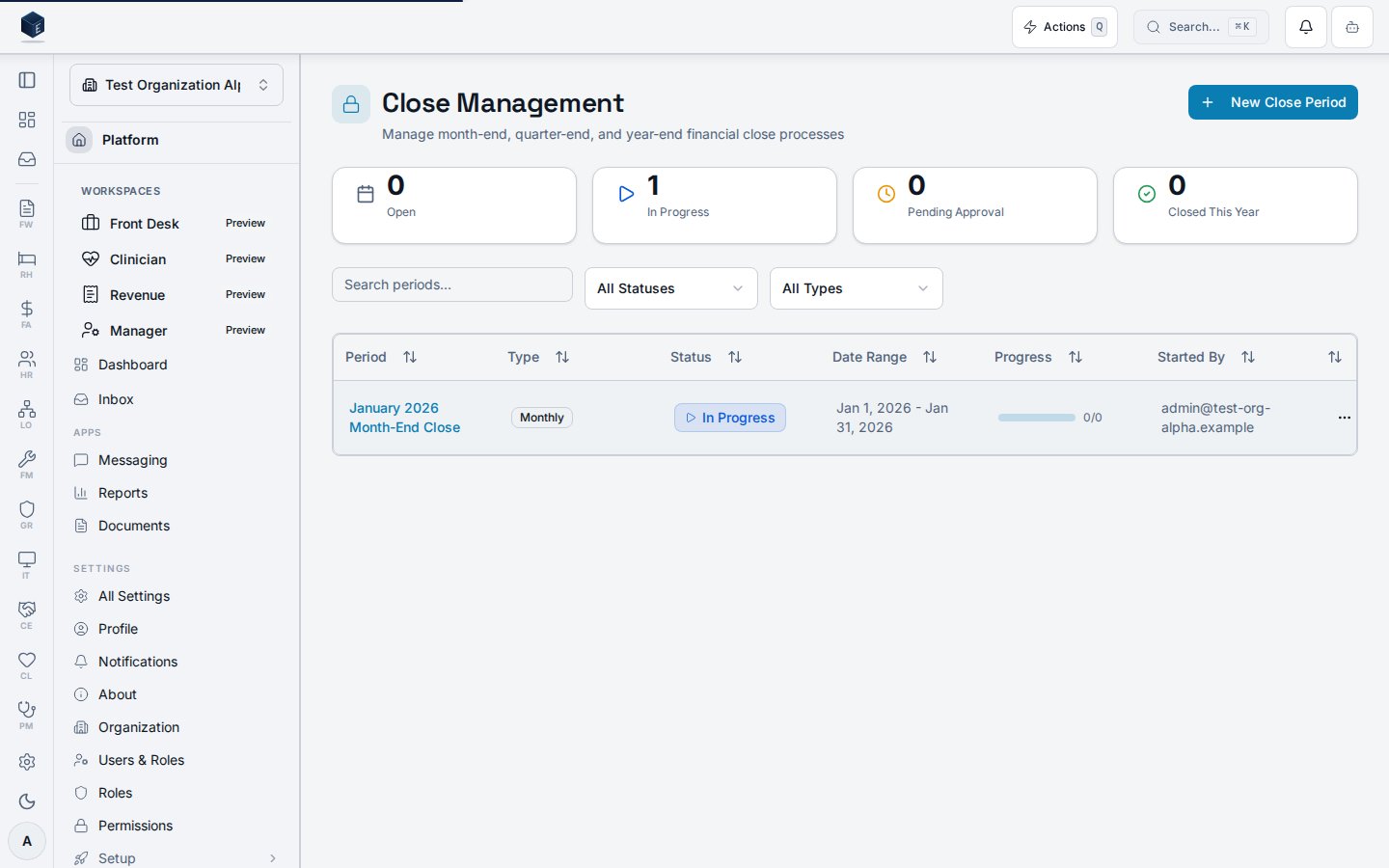
Close Periods lists all financial close periods for the organization, with filtering by status and period type, summary statistics, and the ability to create new periods. Route: `/fa/close`
 ## Overview
The page fetches all close periods via `useClosePeriodsList` filtered by `status` and `period_type`. A client-side search filter applies on `period_name`. Stat cards show counts of open, in-progress, pending-approval, and closed-this-year periods. The `ClosePeriodsTable` lists periods; clicking a row navigates to `/fa/close/:id`. The **New Close Period** button (gated by `fa.close.create` via `PermissionGate`) opens `CreateClosePeriodDialog`.
## Who it's for
Requires permission: `fa.close.view`. Creating new periods requires `fa.close.create`.
## Before you start
* You must hold the `fa.close.view` permission.
* Creating new periods requires `fa.close.create`.
## Steps
Go to `/fa/close`.
Use the status and period-type dropdowns, or type in the search box, to narrow the list.
Stat cards at the top summarize open, in-progress, pending-approval, and closed-this-year counts.
Click a period row to navigate to its detail page at `/fa/close/:id`.
Click **New Close Period** to open `CreateClosePeriodDialog`.
## Key concepts
* **`ClosePeriodStatus`** — Type for the period lifecycle state (open, in\_progress, pending\_approval, closed, etc.).
* **`ClosePeriodType`** — Type for period classification: `month`, `quarter`, `year`.
* **`useClosePeriodsList`** — Primary data hook; accepts `organizationId` and filter object.
* **`PermissionGate`** — Platform component used here to gate the Create button on `fa.close.create`.
## Viewing a close period
The detail view at `/fa/close/:id` provides a full view of a single financial close period, including its checklists, tasks, documentation attachments, validation status, and lifecycle controls.
The page loads the close period via `useClosePeriodDetail`, its checklists via `useClosePeriodChecklists`, tasks via `useCloseTasksByPeriod`, and attached documentation via `useCloseDocumentationList`. The `ClosePeriodProgress` component shows overall completion. The `CloseChecklistSection` renders each checklist with expandable tasks. The `CloseStatusBadge` reflects the current `CloseStatus`. Lifecycle actions include Start, Submit for Approval, Approve, Complete (with audit), and Reopen (with audit). Period types are: `month` (Monthly Close), `quarter` (Quarterly Close), `year` (Year-End Close).
Before you start:
* A close period must be created before it can be viewed here.
* The Start action transitions the period from open to in-progress.
* Task completion is required before attempting to submit for approval or complete.
Key concepts:
* **`CloseStatus`** — Enum/type for period lifecycle states (open, in\_progress, pending\_approval, closed, etc.).
* **`periodTypeLabels`** — Maps `month`, `quarter`, `year` to display labels.
* **`PeriodCloseValidationWidget`** — Renders validation checks required before completion.
* **`useCompleteClosePeriodWithAudit` / `useReopenClosePeriodWithAudit`** — Audit-trail hooks for lifecycle transitions.
1. Go to `/fa/close` and click a period row, or navigate directly to `/fa/close/:id`.
2. Review `ClosePeriodProgress` for overall task completion and expand checklist sections to see individual tasks.
3. Click Start to call `useStartClosePeriod` and transition the period to in-progress (if not started).
4. Mark each checklist task complete via `CloseTaskDetailDialog`.
5. Click Submit to call `useSubmitClosePeriodForApproval`.
6. Approvers can approve via `useApproveClosePeriod` and complete the period via `useCompleteClosePeriodWithAudit`.
7. Click Reopen to call `useReopenClosePeriodWithAudit` if needed.
## Related
Finance & Revenue core overview.
This page documents shipped product behavior. It is not medical, legal, or
billing advice. Verify against your organization's policies and applicable
regulations before using it for clinical, compliance, or billing decisions.
Protected health information (PHI) shown in the product is governed by your
tenant's access controls and is never exposed in this documentation.
* src/routes/fa.tsx
* src/cores/fa/pages/ClosePeriodsPage.tsx
* src/cores/fa/pages/ClosePeriodDetailPage.tsx
* src/cores/fa/components/ClosePeriodsTable.tsx
* src/cores/fa/components/CreateClosePeriodDialog.tsx
* src/cores/fa/components/CloseChecklistSection.tsx
* src/cores/fa/components/ClosePeriodProgress.tsx
* src/cores/fa/components/CloseStatusBadge.tsx
* src/cores/fa/components/PeriodCloseValidationWidget.tsx
* src/cores/fa/hooks/usePeriodCloseWithAudit.ts
* src/cores/fa/types/close.ts
## Overview
The page fetches all close periods via `useClosePeriodsList` filtered by `status` and `period_type`. A client-side search filter applies on `period_name`. Stat cards show counts of open, in-progress, pending-approval, and closed-this-year periods. The `ClosePeriodsTable` lists periods; clicking a row navigates to `/fa/close/:id`. The **New Close Period** button (gated by `fa.close.create` via `PermissionGate`) opens `CreateClosePeriodDialog`.
## Who it's for
Requires permission: `fa.close.view`. Creating new periods requires `fa.close.create`.
## Before you start
* You must hold the `fa.close.view` permission.
* Creating new periods requires `fa.close.create`.
## Steps
Go to `/fa/close`.
Use the status and period-type dropdowns, or type in the search box, to narrow the list.
Stat cards at the top summarize open, in-progress, pending-approval, and closed-this-year counts.
Click a period row to navigate to its detail page at `/fa/close/:id`.
Click **New Close Period** to open `CreateClosePeriodDialog`.
## Key concepts
* **`ClosePeriodStatus`** — Type for the period lifecycle state (open, in\_progress, pending\_approval, closed, etc.).
* **`ClosePeriodType`** — Type for period classification: `month`, `quarter`, `year`.
* **`useClosePeriodsList`** — Primary data hook; accepts `organizationId` and filter object.
* **`PermissionGate`** — Platform component used here to gate the Create button on `fa.close.create`.
## Viewing a close period
The detail view at `/fa/close/:id` provides a full view of a single financial close period, including its checklists, tasks, documentation attachments, validation status, and lifecycle controls.
The page loads the close period via `useClosePeriodDetail`, its checklists via `useClosePeriodChecklists`, tasks via `useCloseTasksByPeriod`, and attached documentation via `useCloseDocumentationList`. The `ClosePeriodProgress` component shows overall completion. The `CloseChecklistSection` renders each checklist with expandable tasks. The `CloseStatusBadge` reflects the current `CloseStatus`. Lifecycle actions include Start, Submit for Approval, Approve, Complete (with audit), and Reopen (with audit). Period types are: `month` (Monthly Close), `quarter` (Quarterly Close), `year` (Year-End Close).
Before you start:
* A close period must be created before it can be viewed here.
* The Start action transitions the period from open to in-progress.
* Task completion is required before attempting to submit for approval or complete.
Key concepts:
* **`CloseStatus`** — Enum/type for period lifecycle states (open, in\_progress, pending\_approval, closed, etc.).
* **`periodTypeLabels`** — Maps `month`, `quarter`, `year` to display labels.
* **`PeriodCloseValidationWidget`** — Renders validation checks required before completion.
* **`useCompleteClosePeriodWithAudit` / `useReopenClosePeriodWithAudit`** — Audit-trail hooks for lifecycle transitions.
1. Go to `/fa/close` and click a period row, or navigate directly to `/fa/close/:id`.
2. Review `ClosePeriodProgress` for overall task completion and expand checklist sections to see individual tasks.
3. Click Start to call `useStartClosePeriod` and transition the period to in-progress (if not started).
4. Mark each checklist task complete via `CloseTaskDetailDialog`.
5. Click Submit to call `useSubmitClosePeriodForApproval`.
6. Approvers can approve via `useApproveClosePeriod` and complete the period via `useCompleteClosePeriodWithAudit`.
7. Click Reopen to call `useReopenClosePeriodWithAudit` if needed.
## Related
Finance & Revenue core overview.
This page documents shipped product behavior. It is not medical, legal, or
billing advice. Verify against your organization's policies and applicable
regulations before using it for clinical, compliance, or billing decisions.
Protected health information (PHI) shown in the product is governed by your
tenant's access controls and is never exposed in this documentation.
* src/routes/fa.tsx
* src/cores/fa/pages/ClosePeriodsPage.tsx
* src/cores/fa/pages/ClosePeriodDetailPage.tsx
* src/cores/fa/components/ClosePeriodsTable.tsx
* src/cores/fa/components/CreateClosePeriodDialog.tsx
* src/cores/fa/components/CloseChecklistSection.tsx
* src/cores/fa/components/ClosePeriodProgress.tsx
* src/cores/fa/components/CloseStatusBadge.tsx
* src/cores/fa/components/PeriodCloseValidationWidget.tsx
* src/cores/fa/hooks/usePeriodCloseWithAudit.ts
* src/cores/fa/types/close.ts