> ## Documentation Index
> Fetch the complete documentation index at: https://docs.encoreos.io/llms.txt
> Use this file to discover all available pages before exploring further.
# Cash Management
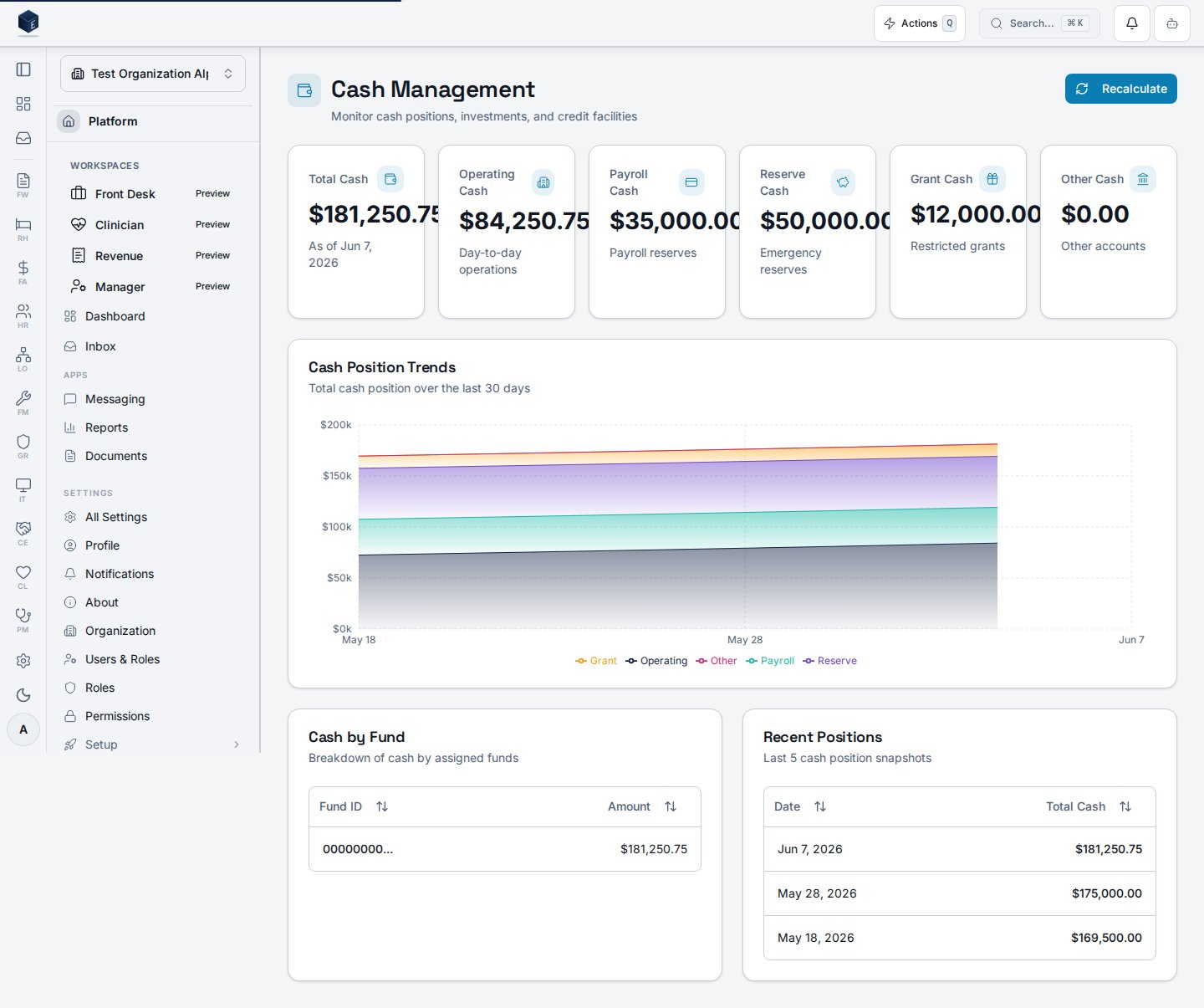
> Dashboard showing the organization's current cash position, 30-day trend chart, and per-fund cash breakdown with drill-down to bank accounts.
Cash Management is a dashboard displaying the latest cash position, a 30-day historical trend chart, and a per-fund breakdown, with navigation to bank account details. Route: `/fa/cash-management`
 ## Overview
The dashboard fetches the latest cash position via `useLatestCashPosition` and historical positions for the past 30 days via `useCashPositionList`. The `CashPositionTrendsChart` renders the trend. A data table breaks down cash by fund (`CashByFundRow`). Clicking on a bank account row navigates to the bank account detail page. The refresh button calls `useCalculateCashPosition`.
## Who it's for
Requires permission: `fa.cash_management.view`
## Before you start
* Bank accounts must be configured and linked.
* You must hold the `fa.cash_management.view` permission.
## Steps
Go to `/fa/cash-management`.
Stat cards show the latest total cash and related metrics from `useLatestCashPosition`.
The `CashPositionTrendsChart` shows cash position history over the past 30 days.
The per-fund table shows cash allocated by fund.
Click a bank account row to navigate to its detail page.
Click Refresh to trigger `useCalculateCashPosition` and update the displayed data.
## Key concepts
* **`useLatestCashPosition`** — Hook fetching the most recent cash position record.
* **`useCashPositionList`** — Hook fetching historical positions; accepts a `startDate` filter.
* **`useCalculateCashPosition`** — Hook triggering a cash position recalculation.
* **`CashPositionTrendsChart`** — Chart component for the 30-day trend visualization.
## Related
Finance & Revenue core overview.
This page documents shipped product behavior. It is not medical, legal, or
billing advice. Verify against your organization's policies and applicable
regulations before using it for clinical, compliance, or billing decisions.
Protected health information (PHI) shown in the product is governed by your
tenant's access controls and is never exposed in this documentation.
* src/routes/fa.tsx
* src/cores/fa/pages/CashManagementDashboard.tsx
* src/cores/fa/hooks/useCashPositions.ts
* src/cores/fa/components/CashPositionTrendsChart.tsx
## Overview
The dashboard fetches the latest cash position via `useLatestCashPosition` and historical positions for the past 30 days via `useCashPositionList`. The `CashPositionTrendsChart` renders the trend. A data table breaks down cash by fund (`CashByFundRow`). Clicking on a bank account row navigates to the bank account detail page. The refresh button calls `useCalculateCashPosition`.
## Who it's for
Requires permission: `fa.cash_management.view`
## Before you start
* Bank accounts must be configured and linked.
* You must hold the `fa.cash_management.view` permission.
## Steps
Go to `/fa/cash-management`.
Stat cards show the latest total cash and related metrics from `useLatestCashPosition`.
The `CashPositionTrendsChart` shows cash position history over the past 30 days.
The per-fund table shows cash allocated by fund.
Click a bank account row to navigate to its detail page.
Click Refresh to trigger `useCalculateCashPosition` and update the displayed data.
## Key concepts
* **`useLatestCashPosition`** — Hook fetching the most recent cash position record.
* **`useCashPositionList`** — Hook fetching historical positions; accepts a `startDate` filter.
* **`useCalculateCashPosition`** — Hook triggering a cash position recalculation.
* **`CashPositionTrendsChart`** — Chart component for the 30-day trend visualization.
## Related
Finance & Revenue core overview.
This page documents shipped product behavior. It is not medical, legal, or
billing advice. Verify against your organization's policies and applicable
regulations before using it for clinical, compliance, or billing decisions.
Protected health information (PHI) shown in the product is governed by your
tenant's access controls and is never exposed in this documentation.
* src/routes/fa.tsx
* src/cores/fa/pages/CashManagementDashboard.tsx
* src/cores/fa/hooks/useCashPositions.ts
* src/cores/fa/components/CashPositionTrendsChart.tsx