> ## Documentation Index
> Fetch the complete documentation index at: https://docs.encoreos.io/llms.txt
> Use this file to discover all available pages before exploring further.
# Bank Transactions User Guide
> The Transactions tab in the Banking Hub provides a QuickBooks-style view for reviewing, categorizing, and posting bank transaction lines. It surfaces AI-sugges…
 ## Overview
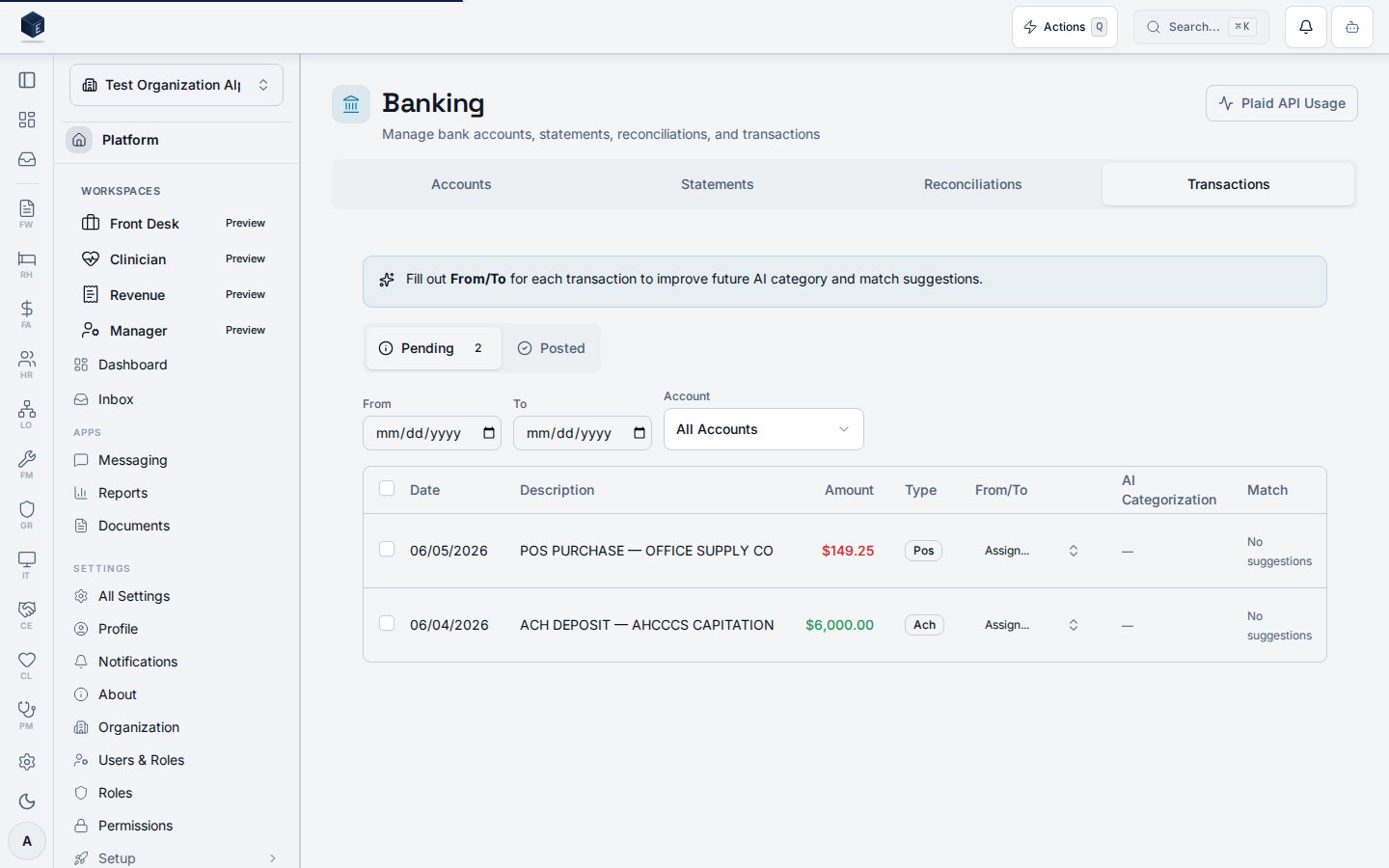
The **Transactions** tab in the Banking Hub provides a QuickBooks-style view for reviewing, categorizing, and posting bank transaction lines. It surfaces AI-suggested categorizations and match suggestions inline, enabling rapid bookkeeping.
***
## Permissions
| Permission | Key | Who Has It |
| ----------------- | --------------------------- | ---------------------------------------- |
| View Transactions | `fa.bank-transactions.view` | org\_admin, site\_admin, staff, readonly |
| Post Transactions | `fa.bank-transactions.post` | org\_admin, site\_admin, staff |
Users without `fa.bank-transactions.view` will not see the Transactions tab.
***
## Navigating to Transactions
1. Go to **Finance → Banking**
2. Click the **Transactions** tab
3. You'll see two sub-tabs: **Pending** and **Posted**
***
## Pending Tab
Shows all unmatched bank transaction lines (imported from bank statements).
### Columns
| Column | Description |
| --------------------- | ---------------------------------------------------------- |
| **Date** | Transaction date from the bank |
| **Description** | Bank-provided description and check number |
| **Amount** | Transaction amount (red = debit, green = credit) |
| **Type** | Transaction type (debit, credit, check, etc.) |
| **From/To** | Assignable vendor or customer (persisted in custom fields) |
| **AI Categorization** | Confidence percentage with reasoning tooltip |
| **Action** | Post button to mark as matched |
### Filtering
* **Date range:** Set From and To dates to narrow results
* **Account:** Filter by specific bank account
* **Clear:** Reset all filters
### From/To Assignment
Click the "Assign..." button in the From/To column to:
1. Search vendors and customers by name
2. Select the appropriate party
3. The selection is saved immediately
A sparkle (✨) icon appears when AI has account suggestions you should review.
### AI Categorization
When the AI categorization engine has processed a transaction:
* A confidence percentage appears (green ≥85%, yellow ≥60%, gray \<60%)
* Hover to see the AI's reasoning
* Use Accept (✓) or Reject (✗) to train the system
### Posting Transactions
**Single post:** Click the "Post" button on any row.
**Bulk post:**
1. Check the boxes next to transactions you want to post
2. Click "Post Selected (N)" in the toolbar
3. All selected transactions are marked as matched
Posted transactions move to the Posted tab.
### AI Match Suggestions
When a reconciliation has been started for the transaction's account:
* Match suggestions appear inline with confidence scores
* Accept or reject suggestions to improve future accuracy
> **Note:** Match suggestions are only available for lines that have been part of a reconciliation. Lines in accounts where no reconciliation has been started will show "No suggestions." This is a Phase 1 limitation.
***
## Posted Tab
Shows all matched/posted transactions (read-only view).
* Same columns as Pending (minus the action column)
* Useful for reviewing what has already been processed
* Filterable by date range and account
***
## Tips
* **Fill out From/To** for every transaction to improve future AI suggestions
* **Review AI categorizations** before posting to ensure accuracy
* **Use date filters** to focus on specific periods during month-end close
* **Bulk post** saves time when you've reviewed multiple transactions at once
***
## Related Features
* **Bank Accounts:** Manage connected bank accounts
* **Bank Statements:** Import and view statement files
* **Reconciliations:** Full bank-to-GL reconciliation workflow
* **AI Categorization (FA-28):** Automatic transaction categorization
## Overview
The **Transactions** tab in the Banking Hub provides a QuickBooks-style view for reviewing, categorizing, and posting bank transaction lines. It surfaces AI-suggested categorizations and match suggestions inline, enabling rapid bookkeeping.
***
## Permissions
| Permission | Key | Who Has It |
| ----------------- | --------------------------- | ---------------------------------------- |
| View Transactions | `fa.bank-transactions.view` | org\_admin, site\_admin, staff, readonly |
| Post Transactions | `fa.bank-transactions.post` | org\_admin, site\_admin, staff |
Users without `fa.bank-transactions.view` will not see the Transactions tab.
***
## Navigating to Transactions
1. Go to **Finance → Banking**
2. Click the **Transactions** tab
3. You'll see two sub-tabs: **Pending** and **Posted**
***
## Pending Tab
Shows all unmatched bank transaction lines (imported from bank statements).
### Columns
| Column | Description |
| --------------------- | ---------------------------------------------------------- |
| **Date** | Transaction date from the bank |
| **Description** | Bank-provided description and check number |
| **Amount** | Transaction amount (red = debit, green = credit) |
| **Type** | Transaction type (debit, credit, check, etc.) |
| **From/To** | Assignable vendor or customer (persisted in custom fields) |
| **AI Categorization** | Confidence percentage with reasoning tooltip |
| **Action** | Post button to mark as matched |
### Filtering
* **Date range:** Set From and To dates to narrow results
* **Account:** Filter by specific bank account
* **Clear:** Reset all filters
### From/To Assignment
Click the "Assign..." button in the From/To column to:
1. Search vendors and customers by name
2. Select the appropriate party
3. The selection is saved immediately
A sparkle (✨) icon appears when AI has account suggestions you should review.
### AI Categorization
When the AI categorization engine has processed a transaction:
* A confidence percentage appears (green ≥85%, yellow ≥60%, gray \<60%)
* Hover to see the AI's reasoning
* Use Accept (✓) or Reject (✗) to train the system
### Posting Transactions
**Single post:** Click the "Post" button on any row.
**Bulk post:**
1. Check the boxes next to transactions you want to post
2. Click "Post Selected (N)" in the toolbar
3. All selected transactions are marked as matched
Posted transactions move to the Posted tab.
### AI Match Suggestions
When a reconciliation has been started for the transaction's account:
* Match suggestions appear inline with confidence scores
* Accept or reject suggestions to improve future accuracy
> **Note:** Match suggestions are only available for lines that have been part of a reconciliation. Lines in accounts where no reconciliation has been started will show "No suggestions." This is a Phase 1 limitation.
***
## Posted Tab
Shows all matched/posted transactions (read-only view).
* Same columns as Pending (minus the action column)
* Useful for reviewing what has already been processed
* Filterable by date range and account
***
## Tips
* **Fill out From/To** for every transaction to improve future AI suggestions
* **Review AI categorizations** before posting to ensure accuracy
* **Use date filters** to focus on specific periods during month-end close
* **Bulk post** saves time when you've reviewed multiple transactions at once
***
## Related Features
* **Bank Accounts:** Manage connected bank accounts
* **Bank Statements:** Import and view statement files
* **Reconciliations:** Full bank-to-GL reconciliation workflow
* **AI Categorization (FA-28):** Automatic transaction categorization