> ## Documentation Index
> Fetch the complete documentation index at: https://docs.encoreos.io/llms.txt
> Use this file to discover all available pages before exploring further.
# Audit Log Viewer
> Search and review all journal entry activity across the organization with date, entry number, and status filters.
Search and review all journal entry activity across the organization at the in-app route `/fa/audit`.
 ## Overview
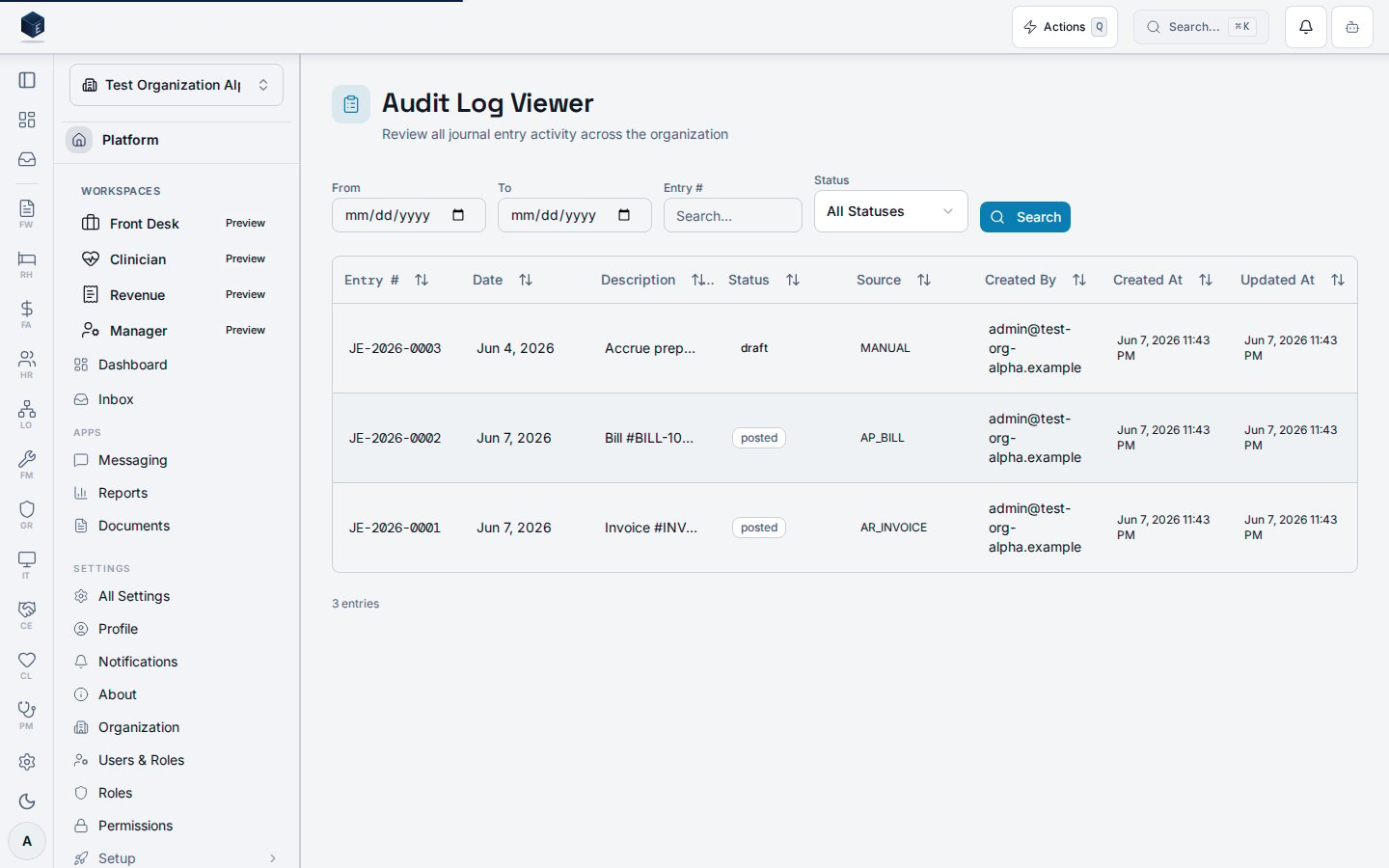
This screen provides a searchable and filterable log of all journal entry activity for the organization. Filters include date range (From/To), entry number search, and status (`draft`, `pending_approval`, `posted`, `reversed`). Results are displayed in a data table with columns for entry number, transaction date, description, status badge, source type, created-by user name, created at, and updated at. A count of returned entries is shown below the table. The page wraps its content in a `PermissionGate` requiring `FA_PERMISSIONS.AUDIT_VIEW` (`fa.audit.view`).
## Who it's for
Required permission: `fa.audit.view` (enforced at the route via `RequirePermission` and also via `PermissionGate` inside the component).
## Before you start
* An organization must be selected.
* Journal entries must exist to appear in the log.
## Steps
Go to `/fa/audit` via Finance & Revenue audit/compliance section.
Enter optional date range, entry number, and status filters.
Click the Search button to execute the query. Results populate the table.
Each row shows entry number, date, description, status, source, and user details.
## Key concepts
* `entry_number` — the journal entry identifier (displayed in monospace)
* `status` values: `draft`, `pending_approval`, `posted`, `reversed`
* `source_type` — the origin system or process that created the journal entry
* `AuditLogFilters` — filter object with `dateFrom`, `dateTo`, `entryNumber`, `status`
## Related
Finance & Revenue core overview.
Documentation coverage and governance.
This page documents shipped product behavior. It is not medical, legal, or
billing advice. Verify against your organization's policies and applicable
regulations before using it for clinical, compliance, or billing decisions.
Protected health information (PHI) shown in the product is governed by your
tenant's access controls and is never exposed in this documentation.
* src/routes/fa.tsx
* src/cores/fa/pages/AuditLogViewerPage.tsx
* src/cores/fa/hooks/useAuditLogViewerData.ts
## Overview
This screen provides a searchable and filterable log of all journal entry activity for the organization. Filters include date range (From/To), entry number search, and status (`draft`, `pending_approval`, `posted`, `reversed`). Results are displayed in a data table with columns for entry number, transaction date, description, status badge, source type, created-by user name, created at, and updated at. A count of returned entries is shown below the table. The page wraps its content in a `PermissionGate` requiring `FA_PERMISSIONS.AUDIT_VIEW` (`fa.audit.view`).
## Who it's for
Required permission: `fa.audit.view` (enforced at the route via `RequirePermission` and also via `PermissionGate` inside the component).
## Before you start
* An organization must be selected.
* Journal entries must exist to appear in the log.
## Steps
Go to `/fa/audit` via Finance & Revenue audit/compliance section.
Enter optional date range, entry number, and status filters.
Click the Search button to execute the query. Results populate the table.
Each row shows entry number, date, description, status, source, and user details.
## Key concepts
* `entry_number` — the journal entry identifier (displayed in monospace)
* `status` values: `draft`, `pending_approval`, `posted`, `reversed`
* `source_type` — the origin system or process that created the journal entry
* `AuditLogFilters` — filter object with `dateFrom`, `dateTo`, `entryNumber`, `status`
## Related
Finance & Revenue core overview.
Documentation coverage and governance.
This page documents shipped product behavior. It is not medical, legal, or
billing advice. Verify against your organization's policies and applicable
regulations before using it for clinical, compliance, or billing decisions.
Protected health information (PHI) shown in the product is governed by your
tenant's access controls and is never exposed in this documentation.
* src/routes/fa.tsx
* src/cores/fa/pages/AuditLogViewerPage.tsx
* src/cores/fa/hooks/useAuditLogViewerData.ts