> ## Documentation Index
> Fetch the complete documentation index at: https://docs.encoreos.io/llms.txt
> Use this file to discover all available pages before exploring further.
# AR Aging
> Accounts receivable aging analysis showing open invoices bucketed by days past due with DSO metric.
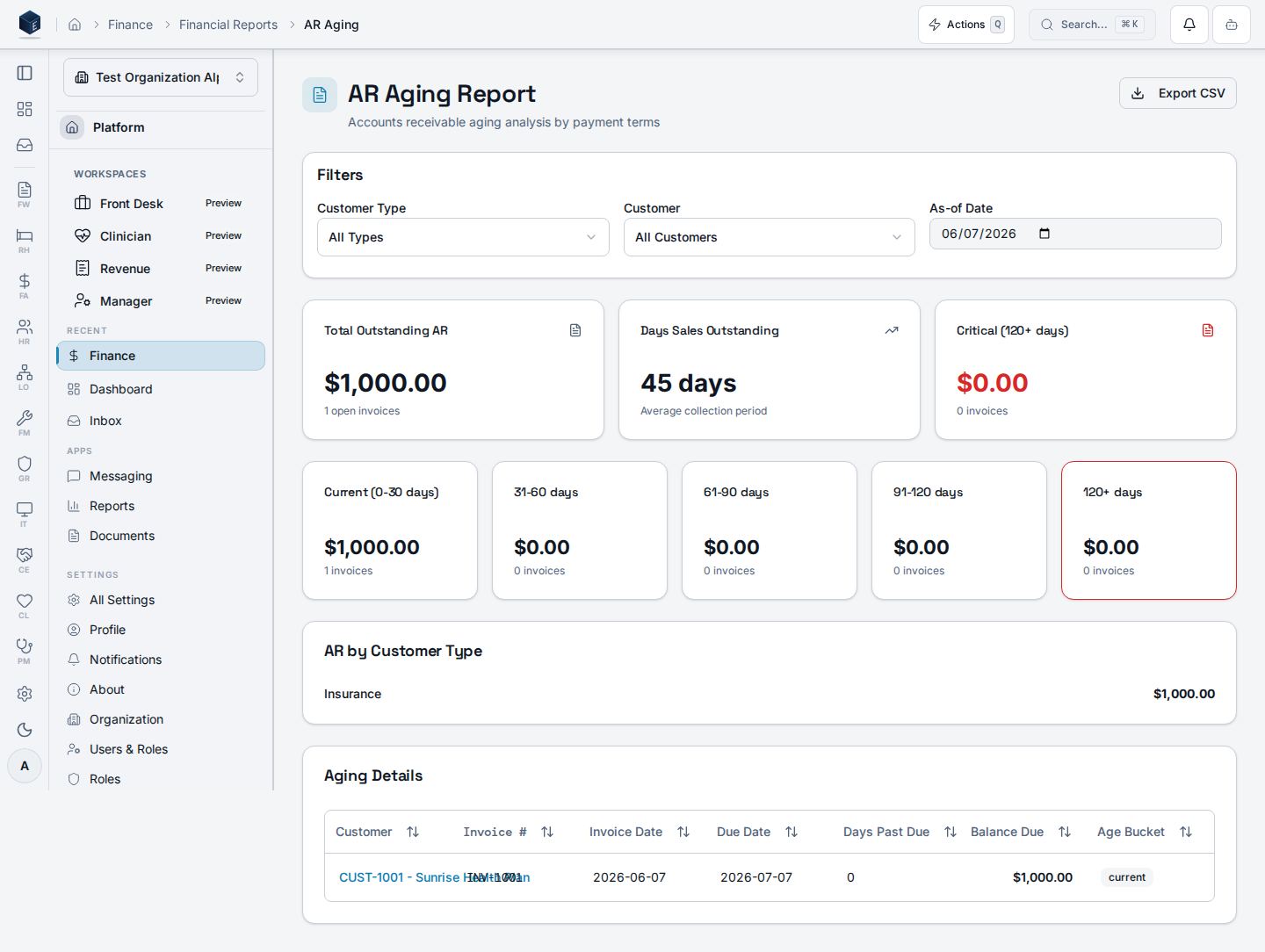
Accounts receivable aging analysis showing open invoices bucketed by days past due at the in-app route `/fa/reports/ar-aging`.
 ## Overview
This screen provides a full accounts receivable aging analysis. It supports filters for customer type, customer, and as-of date. Key metrics displayed include Total Outstanding AR, Days Sales Outstanding (DSO), and Critical (120+ days). Aging buckets are shown in five cards: current, 31–60, 61–90, 91–120, and 120+ days. A "AR by Customer Type" breakdown and a detail table with all open invoices are also shown. The detail table links to individual invoice detail pages. An Export CSV button downloads all aging data.
## Who it's for
Access follows your organization's role and module configuration. The route is registered without a `RequirePermission` wrapper in fa.tsx.
## Before you start
* An organization must be selected.
* Invoices must exist with open `balance_due` amounts.
## Steps
Go to `/fa/reports/ar-aging` via Finance & Revenue Reports, or use the Aging Reports hub.
Filter by customer type, specific customer, or as-of date.
Check Total Outstanding AR, DSO, and the 120+ critical bucket.
Five cards show invoice counts and totals per aging tier.
The AR by Customer Type section shows totals per type.
Click a customer link in the detail table to open the invoice detail page.
Click "Export CSV" to download the full aging detail.
## Key concepts
* DSO — Days Sales Outstanding, as computed by `useARAgingReport`
* Aging buckets: current, 31–60, 61–90, 91–120, 120+ days — based on `invoice.due_date`
* Customer types: `resident`, `insurance`, `government`, `grant`, `other`
* `ARAgingFilters` — filter object with `customerType`, `customerId`, and `asOfDate`
## Related
Finance & Revenue core overview.
Documentation coverage and governance.
This page documents shipped product behavior. It is not medical, legal, or
billing advice. Verify against your organization's policies and applicable
regulations before using it for clinical, compliance, or billing decisions.
Protected health information (PHI) shown in the product is governed by your
tenant's access controls and is never exposed in this documentation.
* src/routes/fa.tsx
* src/cores/fa/pages/ARAgingReportPage.tsx
* src/cores/fa/hooks/useARAgingReport.ts
## Overview
This screen provides a full accounts receivable aging analysis. It supports filters for customer type, customer, and as-of date. Key metrics displayed include Total Outstanding AR, Days Sales Outstanding (DSO), and Critical (120+ days). Aging buckets are shown in five cards: current, 31–60, 61–90, 91–120, and 120+ days. A "AR by Customer Type" breakdown and a detail table with all open invoices are also shown. The detail table links to individual invoice detail pages. An Export CSV button downloads all aging data.
## Who it's for
Access follows your organization's role and module configuration. The route is registered without a `RequirePermission` wrapper in fa.tsx.
## Before you start
* An organization must be selected.
* Invoices must exist with open `balance_due` amounts.
## Steps
Go to `/fa/reports/ar-aging` via Finance & Revenue Reports, or use the Aging Reports hub.
Filter by customer type, specific customer, or as-of date.
Check Total Outstanding AR, DSO, and the 120+ critical bucket.
Five cards show invoice counts and totals per aging tier.
The AR by Customer Type section shows totals per type.
Click a customer link in the detail table to open the invoice detail page.
Click "Export CSV" to download the full aging detail.
## Key concepts
* DSO — Days Sales Outstanding, as computed by `useARAgingReport`
* Aging buckets: current, 31–60, 61–90, 91–120, 120+ days — based on `invoice.due_date`
* Customer types: `resident`, `insurance`, `government`, `grant`, `other`
* `ARAgingFilters` — filter object with `customerType`, `customerId`, and `asOfDate`
## Related
Finance & Revenue core overview.
Documentation coverage and governance.
This page documents shipped product behavior. It is not medical, legal, or
billing advice. Verify against your organization's policies and applicable
regulations before using it for clinical, compliance, or billing decisions.
Protected health information (PHI) shown in the product is governed by your
tenant's access controls and is never exposed in this documentation.
* src/routes/fa.tsx
* src/cores/fa/pages/ARAgingReportPage.tsx
* src/cores/fa/hooks/useARAgingReport.ts