> ## Documentation Index
> Fetch the complete documentation index at: https://docs.encoreos.io/llms.txt
> Use this file to discover all available pages before exploring further.
# All Expense Reports
> View and manage all employee expense reports and reimbursements across the organization.
View and manage all employee expense reports and reimbursements across the organization at the in-app route `/fa/expenses/reports`.
 ## Overview
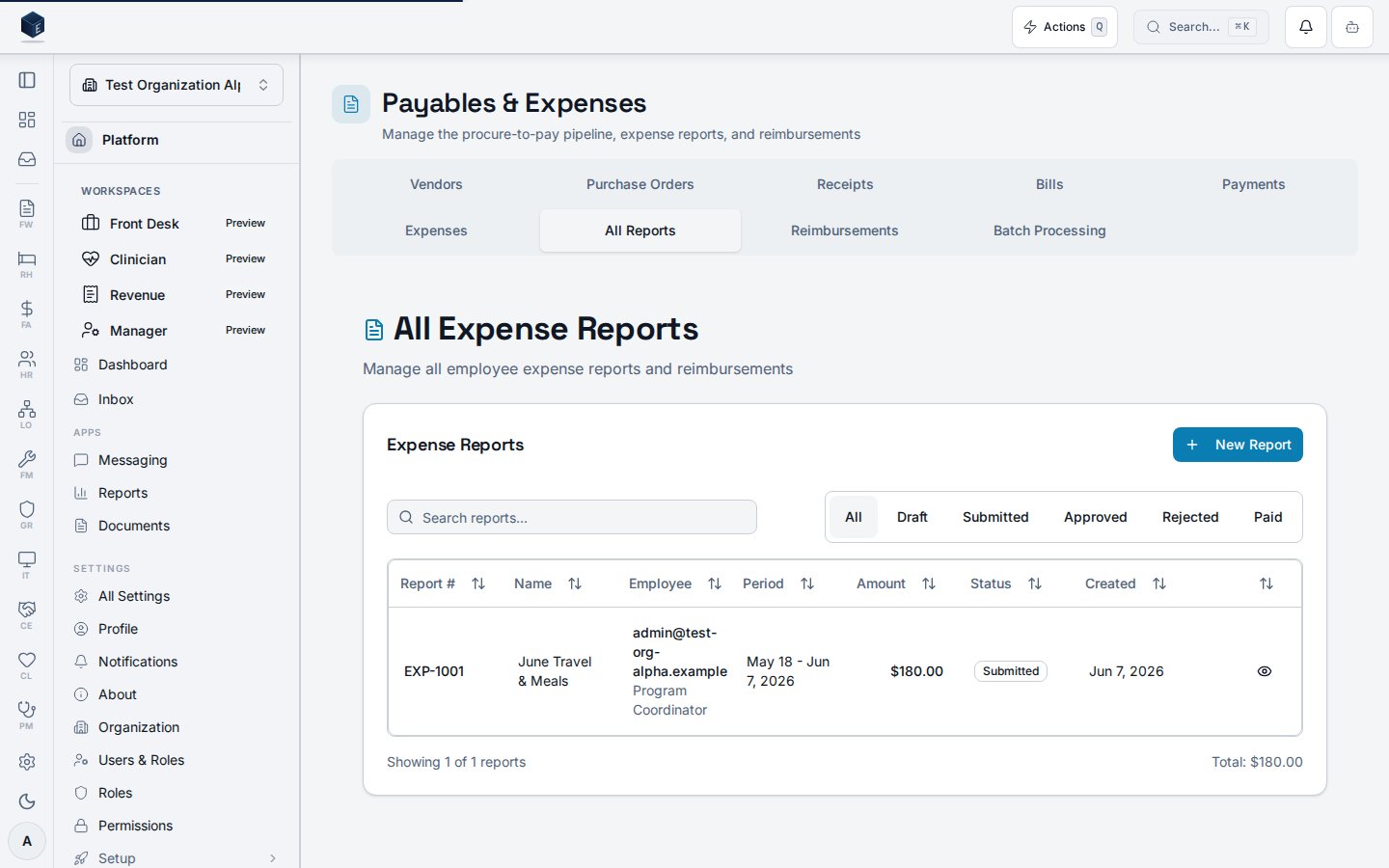
This screen renders `ExpenseReportsPage` with `filter="all"`, showing all expense reports across the organization (not filtered to the current user). The page title is "All Expense Reports" and the description reads "Manage all employee expense reports and reimbursements." A "New Report" button links to `/fa/expenses/new`. The table supports viewing, editing, submitting for approval, and soft-deleting individual reports. A confirmation dialog is presented before deletion.
## Who it's for
Required permission: `fa.expenses.view` (enforced at the route via `RequirePermission`).
## Before you start
* An organization must be selected.
* Expense reports are submitted by employees and then reviewed here by managers or finance staff.
## Steps
Go to `/fa/expenses/reports` via the Finance & Revenue Expenses section.
The table shows report number, name, date range, total amount, status, created date, and employee.
Click View on a row to open `ExpenseReportDetailPage` at `/fa/expenses/:id`.
Click Edit to open `ExpenseReportEditPage` at `/fa/expenses/:id/edit`.
Click Submit on a `draft` report. A toast confirms submission with the `report_number`.
Click Delete; confirm in the dialog. The report is soft-deleted.
## Key concepts
* `filter="all"` — this page shows all organization reports, unlike "My Expenses" which filters to the current user
* `report_number` — the display identifier for an expense report
* Soft delete — deleted reports are marked inactive, not permanently removed
## Related
Finance & Revenue core overview.
Documentation coverage and governance.
This page documents shipped product behavior. It is not medical, legal, or
billing advice. Verify against your organization's policies and applicable
regulations before using it for clinical, compliance, or billing decisions.
Protected health information (PHI) shown in the product is governed by your
tenant's access controls and is never exposed in this documentation.
* src/routes/fa.tsx
* src/cores/fa/pages/ExpenseReportsPage.tsx
* src/cores/fa/hooks/useExpenseReports.ts
## Overview
This screen renders `ExpenseReportsPage` with `filter="all"`, showing all expense reports across the organization (not filtered to the current user). The page title is "All Expense Reports" and the description reads "Manage all employee expense reports and reimbursements." A "New Report" button links to `/fa/expenses/new`. The table supports viewing, editing, submitting for approval, and soft-deleting individual reports. A confirmation dialog is presented before deletion.
## Who it's for
Required permission: `fa.expenses.view` (enforced at the route via `RequirePermission`).
## Before you start
* An organization must be selected.
* Expense reports are submitted by employees and then reviewed here by managers or finance staff.
## Steps
Go to `/fa/expenses/reports` via the Finance & Revenue Expenses section.
The table shows report number, name, date range, total amount, status, created date, and employee.
Click View on a row to open `ExpenseReportDetailPage` at `/fa/expenses/:id`.
Click Edit to open `ExpenseReportEditPage` at `/fa/expenses/:id/edit`.
Click Submit on a `draft` report. A toast confirms submission with the `report_number`.
Click Delete; confirm in the dialog. The report is soft-deleted.
## Key concepts
* `filter="all"` — this page shows all organization reports, unlike "My Expenses" which filters to the current user
* `report_number` — the display identifier for an expense report
* Soft delete — deleted reports are marked inactive, not permanently removed
## Related
Finance & Revenue core overview.
Documentation coverage and governance.
This page documents shipped product behavior. It is not medical, legal, or
billing advice. Verify against your organization's policies and applicable
regulations before using it for clinical, compliance, or billing decisions.
Protected health information (PHI) shown in the product is governed by your
tenant's access controls and is never exposed in this documentation.
* src/routes/fa.tsx
* src/cores/fa/pages/ExpenseReportsPage.tsx
* src/cores/fa/hooks/useExpenseReports.ts