> ## Documentation Index
> Fetch the complete documentation index at: https://docs.encoreos.io/llms.txt
> Use this file to discover all available pages before exploring further.
# Accounts Receivable User Guide
> The Accounts Receivable module manages customer invoicing, payment collection, credit memos, and aging analysis. It integrates with the General Ledger for auto…
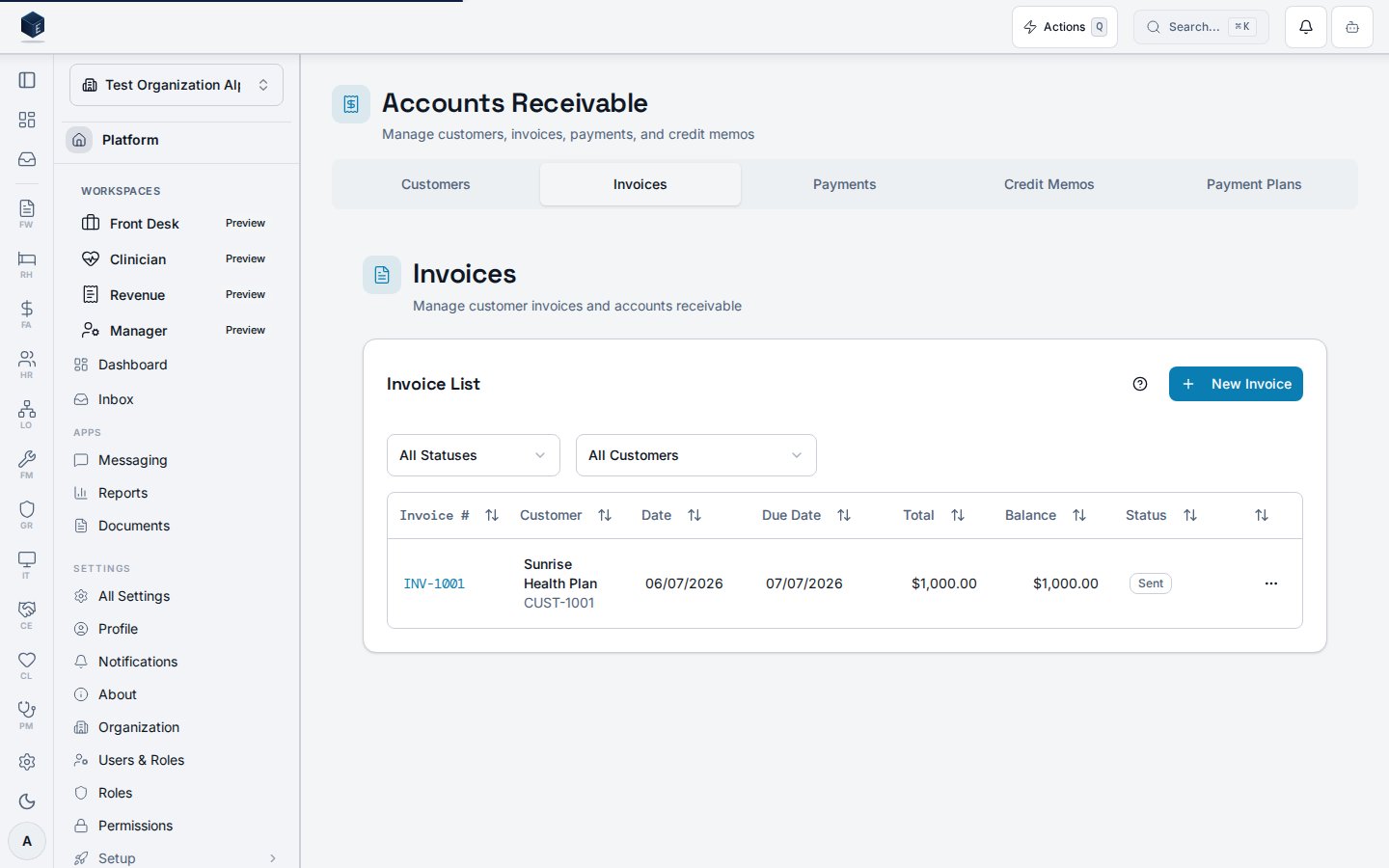 ## Overview
The Accounts Receivable module manages customer invoicing, payment collection, credit memos, and aging analysis. It integrates with the General Ledger for automatic revenue posting.
**Navigation:** Finance & Accounting → Accounts Receivable (`/fa/accounts-receivable`)
## Permissions
| Permission | Description |
| ---------------- | ---------------------------------- |
| `fa.ar.view` | View invoices, payments, and aging |
| `fa.ar.create` | Create invoices and credit memos |
| `fa.ar.edit` | Edit draft invoices |
| `fa.ar.payments` | Record and apply payments |
## Customer Management
Customers are managed within the AR module:
1. Navigate to **Customers** tab
2. Click **New Customer**
3. Enter customer details: name, contact info, billing address
4. Set **payment terms** (Net 30, Net 60, etc.)
5. Optionally assign a default **revenue account**
## Creating an Invoice
1. Click **New Invoice** from the invoices list
2. Select a **Customer**
3. Set the **Invoice Date** and **Due Date** (auto-calculated from payment terms)
4. Add **Line Items**:
* Description of service or product
* GL revenue account
* Quantity and unit price
* Fund, department, and program coding
5. Review the **Invoice Total**
6. **Save as Draft** or **Post** the invoice
### Invoice Statuses
```text theme={null}
Draft → Posted → Partially Paid → Paid → Void
```
* **Draft**: Editable, no GL impact
* **Posted**: Creates GL journal entry (debit AR, credit Revenue)
* **Partially Paid**: One or more payments applied, balance remaining
* **Paid**: Fully settled
* **Void**: Reversed; creates reversing GL entry
## Recording Payments
1. Open a posted invoice (or go to **Payments** tab)
2. Click **Record Payment**
3. Enter payment details:
* **Amount** received
* **Payment Date**
* **Payment Method** (check, ACH, wire, credit card, cash)
* **Reference Number** (check number, transaction ID)
4. **Apply** the payment to one or more open invoices
5. The system creates a GL entry: debit Cash, credit AR
### Partial Payments
* Apply any amount less than the invoice balance
* Remaining balance stays open on the invoice
* Invoice status changes to **Partially Paid**
### Overpayments
* If payment exceeds invoice balance, the excess creates a **credit balance** on the customer account
* Credits can be applied to future invoices
## Credit Memos
Credit memos reduce a customer's outstanding balance:
1. Click **New Credit Memo**
2. Select the **Customer** and optionally link to the original invoice
3. Enter credit line items with amounts
4. **Post** the credit memo
5. Apply the credit to open invoices or leave as customer credit
## AR Aging
The **Aging Report** shows outstanding balances by age bucket:
| Bucket | Description |
| ---------- | --------------------- |
| Current | Not yet due |
| 1-30 Days | 1-30 days past due |
| 31-60 Days | 31-60 days past due |
| 61-90 Days | 61-90 days past due |
| 90+ Days | Over 90 days past due |
* Filter by customer, date range, or aging bucket
* Export to CSV or PDF for collections follow-up
## GL Integration
All AR transactions automatically create GL journal entries:
| Transaction | Debit | Credit |
| ---------------- | ------------------- | ------------------------------ |
| Post Invoice | Accounts Receivable | Revenue |
| Record Payment | Cash/Bank | Accounts Receivable |
| Post Credit Memo | Revenue (or contra) | Accounts Receivable |
| Void Invoice | Revenue | Accounts Receivable (reversal) |
## Tips
* Set up **payment terms** on customers to auto-calculate due dates
* Use the **aging report** weekly to identify overdue accounts
* Apply payments promptly to keep aging accurate
* Credit memos linked to invoices provide better audit trail
## Overview
The Accounts Receivable module manages customer invoicing, payment collection, credit memos, and aging analysis. It integrates with the General Ledger for automatic revenue posting.
**Navigation:** Finance & Accounting → Accounts Receivable (`/fa/accounts-receivable`)
## Permissions
| Permission | Description |
| ---------------- | ---------------------------------- |
| `fa.ar.view` | View invoices, payments, and aging |
| `fa.ar.create` | Create invoices and credit memos |
| `fa.ar.edit` | Edit draft invoices |
| `fa.ar.payments` | Record and apply payments |
## Customer Management
Customers are managed within the AR module:
1. Navigate to **Customers** tab
2. Click **New Customer**
3. Enter customer details: name, contact info, billing address
4. Set **payment terms** (Net 30, Net 60, etc.)
5. Optionally assign a default **revenue account**
## Creating an Invoice
1. Click **New Invoice** from the invoices list
2. Select a **Customer**
3. Set the **Invoice Date** and **Due Date** (auto-calculated from payment terms)
4. Add **Line Items**:
* Description of service or product
* GL revenue account
* Quantity and unit price
* Fund, department, and program coding
5. Review the **Invoice Total**
6. **Save as Draft** or **Post** the invoice
### Invoice Statuses
```text theme={null}
Draft → Posted → Partially Paid → Paid → Void
```
* **Draft**: Editable, no GL impact
* **Posted**: Creates GL journal entry (debit AR, credit Revenue)
* **Partially Paid**: One or more payments applied, balance remaining
* **Paid**: Fully settled
* **Void**: Reversed; creates reversing GL entry
## Recording Payments
1. Open a posted invoice (or go to **Payments** tab)
2. Click **Record Payment**
3. Enter payment details:
* **Amount** received
* **Payment Date**
* **Payment Method** (check, ACH, wire, credit card, cash)
* **Reference Number** (check number, transaction ID)
4. **Apply** the payment to one or more open invoices
5. The system creates a GL entry: debit Cash, credit AR
### Partial Payments
* Apply any amount less than the invoice balance
* Remaining balance stays open on the invoice
* Invoice status changes to **Partially Paid**
### Overpayments
* If payment exceeds invoice balance, the excess creates a **credit balance** on the customer account
* Credits can be applied to future invoices
## Credit Memos
Credit memos reduce a customer's outstanding balance:
1. Click **New Credit Memo**
2. Select the **Customer** and optionally link to the original invoice
3. Enter credit line items with amounts
4. **Post** the credit memo
5. Apply the credit to open invoices or leave as customer credit
## AR Aging
The **Aging Report** shows outstanding balances by age bucket:
| Bucket | Description |
| ---------- | --------------------- |
| Current | Not yet due |
| 1-30 Days | 1-30 days past due |
| 31-60 Days | 31-60 days past due |
| 61-90 Days | 61-90 days past due |
| 90+ Days | Over 90 days past due |
* Filter by customer, date range, or aging bucket
* Export to CSV or PDF for collections follow-up
## GL Integration
All AR transactions automatically create GL journal entries:
| Transaction | Debit | Credit |
| ---------------- | ------------------- | ------------------------------ |
| Post Invoice | Accounts Receivable | Revenue |
| Record Payment | Cash/Bank | Accounts Receivable |
| Post Credit Memo | Revenue (or contra) | Accounts Receivable |
| Void Invoice | Revenue | Accounts Receivable (reversal) |
## Tips
* Set up **payment terms** on customers to auto-calculate due dates
* Use the **aging report** weekly to identify overdue accounts
* Apply payments promptly to keep aging accurate
* Credit memos linked to invoices provide better audit trail