> ## Documentation Index
> Fetch the complete documentation index at: https://docs.encoreos.io/llms.txt
> Use this file to discover all available pages before exploring further.
# Patient Charts
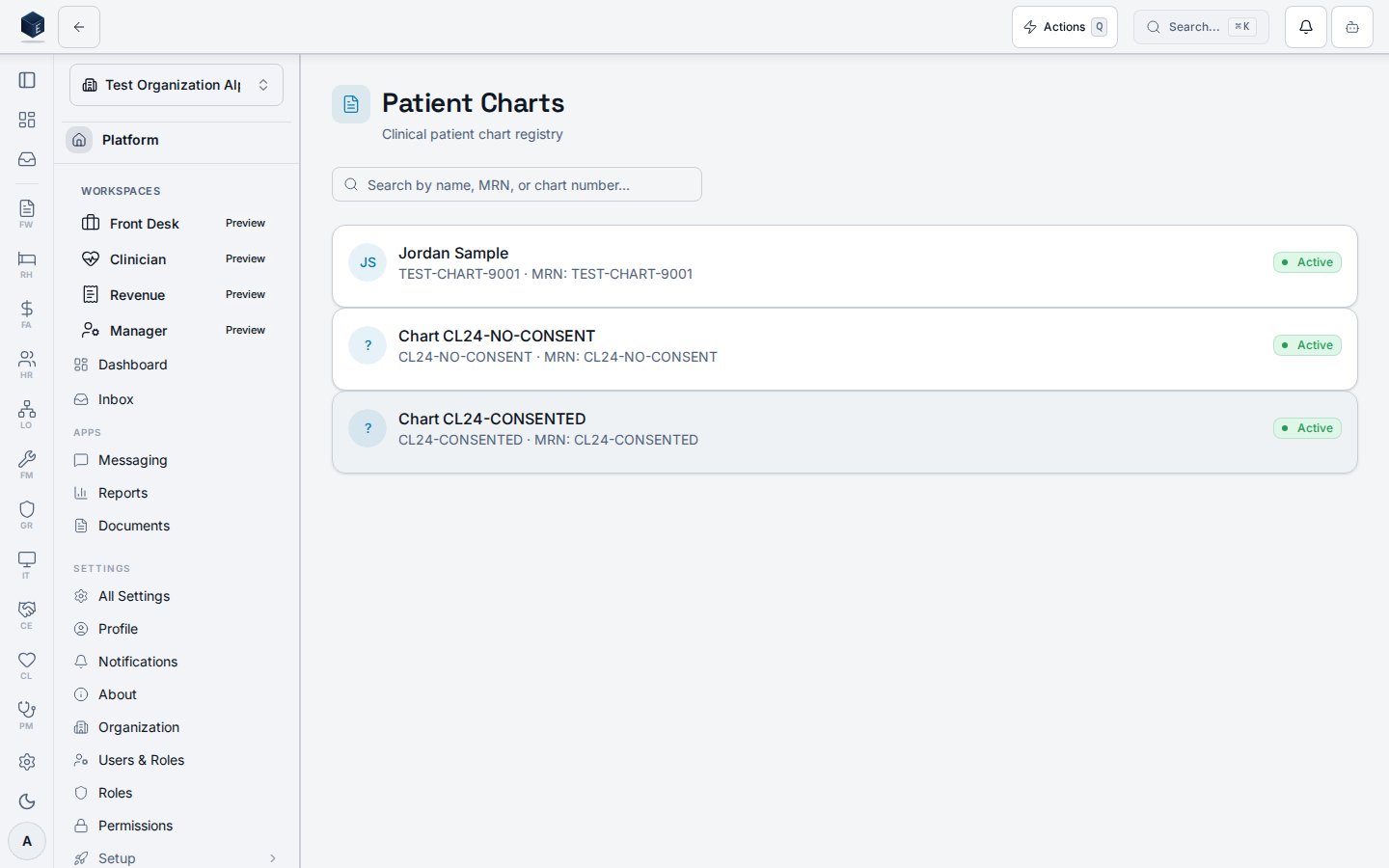
> Search and browse the clinical patient chart registry, showing chart number, MRN, name, status, and risk level.
The Patient Charts screen (`/cl/charts`) is the clinical patient chart registry — a searchable list of all patient charts for the organization.
## Overview
The page loads charts from `cl_patient_charts` joined to `pf_patient_identities` (MRN) and `pm_patients` (first/last name) via `useChartList`. When a search term is provided, up to 200 charts (`CHART_SEARCH_LIMIT`) are fetched and filtered client-side by chart number, MRN, full name, and reversed name. Without a search, all non-deleted charts for the organization are returned ordered by `created_at` descending. Each chart row is a clickable link to `/cl/charts/:chartId` and displays a name avatar with initials, full name or fallback chart number, chart number and MRN, a `ClinicalUrgencyIndicator` if `current_risk_level` is set, and an active/secondary status badge. Charts with urgency `critical` or `high` render with an urgency-specific border class.
 ## Who it's for
Requires permission: `cl.charts.view`
## Before you start
You must hold the `cl.charts.view` permission. Charts are scoped to your organization. Patient identity data (name, MRN) is PHI — handle per your organization's privacy policy and applicable regulations.
## Steps
Open the Clinical module and navigate to Patient Charts. The registry loads all non-deleted charts for your organization.
Type in the search box to filter by patient name, MRN, or chart number. The search field also supports reversed name order (last name first).
Click any chart row to navigate to the individual chart detail at `/cl/charts/:chartId`.
## Key concepts
Search is client-side after a server fetch limited to 200 rows. Matches on chart number, MRN, `first last`, and `last first` name combinations. No pagination UI is present in this version.
If `current_risk_level` is present on a chart record, a `ClinicalUrgencyIndicator` renders the value as an uppercase label. Charts with `critical` or `high` urgency also receive an urgency border class on the card.
When no charts match, the page shows: "No patient charts — Patient charts will appear here once created."
If the data fetch fails, a destructive card renders the sanitized error message above the chart list.
## Detail view
The Patient Chart screen displays the comprehensive clinical record for one patient at route `/cl/charts/:chartId`.
### Overview
The Patient Chart page loads a single `cl_patient_charts` row (filtered by `organization_id`) and renders a sticky `PatientBanner` showing patient name, MRN, allergy count, and active problem count. A contextual sidebar replaces the module navigation on desktop, providing chart section tabs with badge counts for draft notes, pending consents, and high-risk screening results. On mobile, a bottom sheet handles section navigation. A `CdsAlertsPanel` appears above content whenever CDS (clinical decision support) alerts are present for the chart. Quick-action buttons for new note, record vitals, new screening, and order-set activation are always available. A "Generate C-CDA" button is shown when the user holds the `cl.cda.view` permission.
### Who it's for
Requires permission: `cl.charts.view`
Individual chart sections enforce additional scoped permissions (e.g., `cl.progress_note.view`, `cl.medications.view`, `cl.results.view`) via `PermissionGate`.
### Before you start
* Must hold `cl.charts.view` permission to reach this page.
* The chart must exist and not be soft-deleted (`deleted_at IS NULL`).
### Steps
Navigate to `/cl/charts`, select a row, or follow any deep-link to `/cl/charts/:chartId`. The sticky Patient Banner loads immediately with name, MRN, allergy count, and active-problem count.
Use the contextual sidebar (desktop) or bottom-sheet (mobile) to switch between sections: Summary, Timeline, Notes, Assessments, COD Assessments, Treatment Plans, Orders, Labs, PDMP, Medications, Allergies, Risk, Vitals, SDOH, Care Team, Outcomes, Transitions, Peer, Discharge, Consents, Disclosures.
Use the floating `ChartQuickActions` buttons to open a new note form (navigates to Notes tab), record vitals, start a risk screening, or launch an order-set activation dialog.
If `cl.cda.view` is held, click "Generate C-CDA" to navigate to `/cl/charts/:chartId/cda`.
Click the export button on the Patient Banner to open the `ChartExportDialog`.
### Key concepts
Each tab renders a dedicated section component under a `PermissionGate`. If the user lacks the tab's permission, the section is not rendered. The active tab is persisted in the URL via the `tab` query parameter (managed by `useTabUrlState`).
Three badge counters appear on the sidebar: **Notes** shows the count of notes with `status === 'draft'`; **Consents** shows consents with no `revoked_at`, no `deleted_at`, and no `signed_by_patient_at`; **Risk** shows 1 when the most recent risk screening has `risk_level` of `high` or `imminent`.
A `CODFlagBadge` is displayed if the chart's `cod_indicator` field is truthy. The COD (co-occurring disorder) indicator enables the COD Assessments tab and the COD section inside Treatment Plans.
On chart load, `useCdsLabMonitoring` is evaluated for the chart. If evaluation fails, a destructive alert is shown. Any active CDS alerts are displayed in the `CdsAlertsPanel` above the tabbed content.
If the chart fails to load, a destructive card with a sanitized error message is shown. If the chart ID is not found or is deleted, a "Chart not found" empty-state card is shown.
## Related
Overview of the Clinical core.
Documentation coverage and governance.
This page documents shipped product behavior. It is not medical, legal, or
billing advice. Verify against your organization's policies and applicable
regulations before using it for clinical, compliance, or billing decisions.
Protected health information (PHI) shown in the product is governed by your
tenant's access controls and is never exposed in this documentation.
* src/routes/cl.tsx
* src/cores/cl/pages/ChartListPage.tsx
* src/cores/cl/hooks/useChartList.ts
* src/cores/cl/components/ClinicalUrgencyIndicator.tsx
* src/cores/cl/components/clinicalUrgencyUtils.ts
* src/cores/cl/pages/PatientChartPage.tsx
* src/cores/cl/hooks/useChartDetail.ts
## Who it's for
Requires permission: `cl.charts.view`
## Before you start
You must hold the `cl.charts.view` permission. Charts are scoped to your organization. Patient identity data (name, MRN) is PHI — handle per your organization's privacy policy and applicable regulations.
## Steps
Open the Clinical module and navigate to Patient Charts. The registry loads all non-deleted charts for your organization.
Type in the search box to filter by patient name, MRN, or chart number. The search field also supports reversed name order (last name first).
Click any chart row to navigate to the individual chart detail at `/cl/charts/:chartId`.
## Key concepts
Search is client-side after a server fetch limited to 200 rows. Matches on chart number, MRN, `first last`, and `last first` name combinations. No pagination UI is present in this version.
If `current_risk_level` is present on a chart record, a `ClinicalUrgencyIndicator` renders the value as an uppercase label. Charts with `critical` or `high` urgency also receive an urgency border class on the card.
When no charts match, the page shows: "No patient charts — Patient charts will appear here once created."
If the data fetch fails, a destructive card renders the sanitized error message above the chart list.
## Detail view
The Patient Chart screen displays the comprehensive clinical record for one patient at route `/cl/charts/:chartId`.
### Overview
The Patient Chart page loads a single `cl_patient_charts` row (filtered by `organization_id`) and renders a sticky `PatientBanner` showing patient name, MRN, allergy count, and active problem count. A contextual sidebar replaces the module navigation on desktop, providing chart section tabs with badge counts for draft notes, pending consents, and high-risk screening results. On mobile, a bottom sheet handles section navigation. A `CdsAlertsPanel` appears above content whenever CDS (clinical decision support) alerts are present for the chart. Quick-action buttons for new note, record vitals, new screening, and order-set activation are always available. A "Generate C-CDA" button is shown when the user holds the `cl.cda.view` permission.
### Who it's for
Requires permission: `cl.charts.view`
Individual chart sections enforce additional scoped permissions (e.g., `cl.progress_note.view`, `cl.medications.view`, `cl.results.view`) via `PermissionGate`.
### Before you start
* Must hold `cl.charts.view` permission to reach this page.
* The chart must exist and not be soft-deleted (`deleted_at IS NULL`).
### Steps
Navigate to `/cl/charts`, select a row, or follow any deep-link to `/cl/charts/:chartId`. The sticky Patient Banner loads immediately with name, MRN, allergy count, and active-problem count.
Use the contextual sidebar (desktop) or bottom-sheet (mobile) to switch between sections: Summary, Timeline, Notes, Assessments, COD Assessments, Treatment Plans, Orders, Labs, PDMP, Medications, Allergies, Risk, Vitals, SDOH, Care Team, Outcomes, Transitions, Peer, Discharge, Consents, Disclosures.
Use the floating `ChartQuickActions` buttons to open a new note form (navigates to Notes tab), record vitals, start a risk screening, or launch an order-set activation dialog.
If `cl.cda.view` is held, click "Generate C-CDA" to navigate to `/cl/charts/:chartId/cda`.
Click the export button on the Patient Banner to open the `ChartExportDialog`.
### Key concepts
Each tab renders a dedicated section component under a `PermissionGate`. If the user lacks the tab's permission, the section is not rendered. The active tab is persisted in the URL via the `tab` query parameter (managed by `useTabUrlState`).
Three badge counters appear on the sidebar: **Notes** shows the count of notes with `status === 'draft'`; **Consents** shows consents with no `revoked_at`, no `deleted_at`, and no `signed_by_patient_at`; **Risk** shows 1 when the most recent risk screening has `risk_level` of `high` or `imminent`.
A `CODFlagBadge` is displayed if the chart's `cod_indicator` field is truthy. The COD (co-occurring disorder) indicator enables the COD Assessments tab and the COD section inside Treatment Plans.
On chart load, `useCdsLabMonitoring` is evaluated for the chart. If evaluation fails, a destructive alert is shown. Any active CDS alerts are displayed in the `CdsAlertsPanel` above the tabbed content.
If the chart fails to load, a destructive card with a sanitized error message is shown. If the chart ID is not found or is deleted, a "Chart not found" empty-state card is shown.
## Related
Overview of the Clinical core.
Documentation coverage and governance.
This page documents shipped product behavior. It is not medical, legal, or
billing advice. Verify against your organization's policies and applicable
regulations before using it for clinical, compliance, or billing decisions.
Protected health information (PHI) shown in the product is governed by your
tenant's access controls and is never exposed in this documentation.
* src/routes/cl.tsx
* src/cores/cl/pages/ChartListPage.tsx
* src/cores/cl/hooks/useChartList.ts
* src/cores/cl/components/ClinicalUrgencyIndicator.tsx
* src/cores/cl/components/clinicalUrgencyUtils.ts
* src/cores/cl/pages/PatientChartPage.tsx
* src/cores/cl/hooks/useChartDetail.ts