> ## Documentation Index
> Fetch the complete documentation index at: https://docs.encoreos.io/llms.txt
> Use this file to discover all available pages before exploring further.
# Partners
> Manage referral partners — search, filter, create, view details, edit, and track relationship progress and conversion metrics.
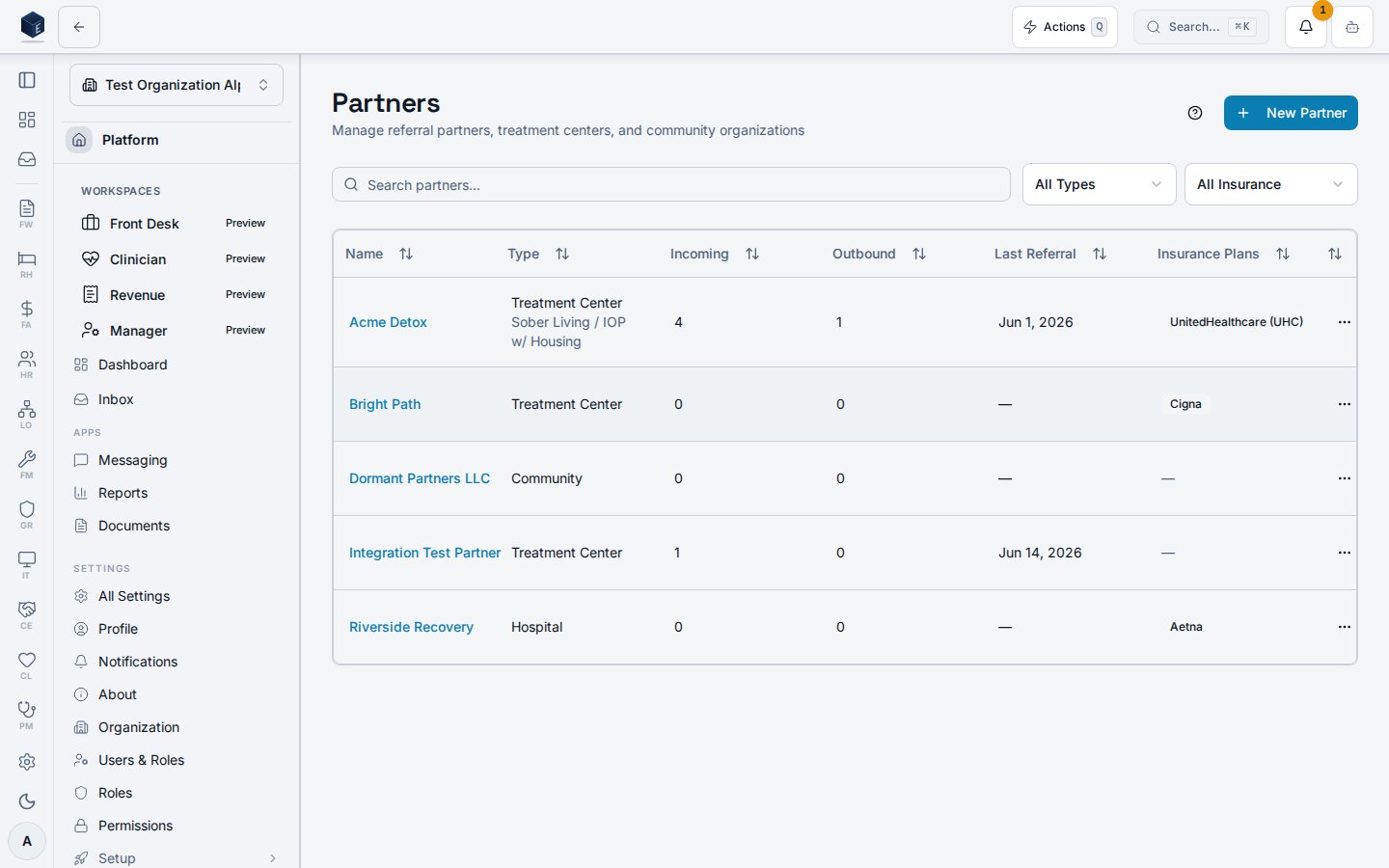
The Partners page at `/ce/partners` is the primary list view for all referral partner organizations, with search, type and status filtering, and actions to add or edit partners.
## Overview
Navigating to `/ce/partners` loads `PartnersPage`, gated by `ce.partners.view`. The page shows a searchable, filterable table of partners. Clicking a row navigates to `/ce/partners/{id}`. The **New Partner** button (also reachable via `/ce/partners?action=new`) opens the `PartnerDialog` create form. On mobile, a dedicated `MobilePartnerView` is rendered instead of the table.
 ## Who it's for
Permission required: `ce.partners.view`
## Before you start
* You need `ce.partners.view` to access the page.
* Creating partners requires `ce.partners.create` (enforced by the Partner Onboarding wizard route).
* An organization must be selected; the page shows a loading skeleton until the org context resolves.
## Steps
Navigate to `/ce/partners` from the CE sidebar.
Use the search field to filter by name. Use the **Type** dropdown (treatment center, hospital, social services, legal, employer, educational, faith based, community, other) and **Status** dropdown (active, inactive, pending, former, needs completion) to narrow results. Default status filter is "active." Select **Needs completion** to find partners created inline from the Add-Lead wizard that still need their full record filled in.
Click any partner row to navigate to its detail page at `/ce/partners/{id}`.
Click **New Partner** or go to `/ce/partners?action=new` to open the create dialog. For the guided onboarding wizard, use `/ce/partners/onboard`.
Use the row action menu to open the edit dialog for an existing partner.
Use the row action menu to delete a partner. A confirmation step is shown before deletion.
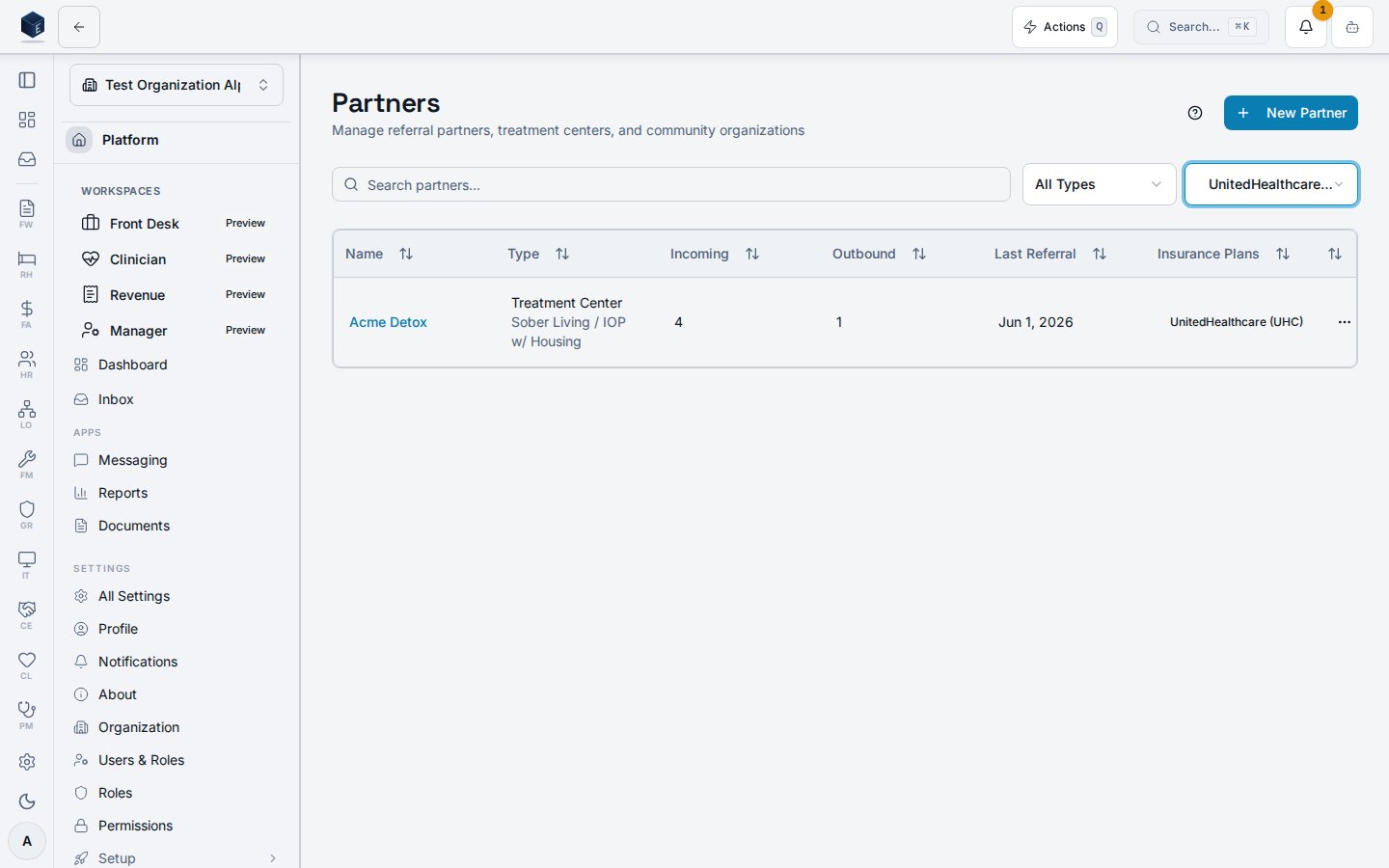
Partners can also be narrowed by accepted insurance/payer, so admissions can quickly find partners that match a lead's coverage.
## Who it's for
Permission required: `ce.partners.view`
## Before you start
* You need `ce.partners.view` to access the page.
* Creating partners requires `ce.partners.create` (enforced by the Partner Onboarding wizard route).
* An organization must be selected; the page shows a loading skeleton until the org context resolves.
## Steps
Navigate to `/ce/partners` from the CE sidebar.
Use the search field to filter by name. Use the **Type** dropdown (treatment center, hospital, social services, legal, employer, educational, faith based, community, other) and **Status** dropdown (active, inactive, pending, former, needs completion) to narrow results. Default status filter is "active." Select **Needs completion** to find partners created inline from the Add-Lead wizard that still need their full record filled in.
Click any partner row to navigate to its detail page at `/ce/partners/{id}`.
Click **New Partner** or go to `/ce/partners?action=new` to open the create dialog. For the guided onboarding wizard, use `/ce/partners/onboard`.
Use the row action menu to open the edit dialog for an existing partner.
Use the row action menu to delete a partner. A confirmation step is shown before deletion.
Partners can also be narrowed by accepted insurance/payer, so admissions can quickly find partners that match a lead's coverage.
 ## Key concepts
* **Partner types** — `treatment_center`, `hospital`, `social_services`, `legal`, `employer`, `educational`, `faith_based`, `community`, `other`.
* **Relationship statuses** — `active`, `pending`, `inactive`, `former`, `needs_completion`.
* **Needs completion** — the status applied to a partner quick-created inline from the Add-Lead wizard with only a name. The Partners table shows a warning badge with an alert icon so you can find and complete the full record. To clear the flag, edit the partner and set the relationship status to any other value.
* **Guided tour** — A `GuidedTour` component is available for onboarding new users to the Partners workflow; triggered via the help button.
## Creating a partner
The route `/ce/partners/new` is a redirect, not a standalone screen. It automatically redirects to `/ce/partners?action=new`. In `src/routes/ce.tsx`, the path `/ce/partners/new` is configured as ``. The Partners list page (`PartnersPage`) handles this parameter to open a new partner creation flow.
Note: the full partner onboarding wizard is available at `/ce/partners/onboard` (requires `ce.partners.create`), which is distinct from this redirect target.
## Viewing a partner
The Partner Details page at `/ce/partners/:id` shows the full profile of one referral partner, including summary statistics and tabbed sections for contacts, contracts, call history, activity, email timeline, and progress tracking.
Accessing `/ce/partners/:id` loads `PartnerDetailPage`, which fetches the partner record via `usePartner` and renders a header, four summary stat cards (Total Referrals, Successful, Conversion Rate, Last Referral), and a scrollable tab set. Clicking **Edit Partner** opens an inline dialog. The **Progress** tab provides a milestone tracker, progress timeline, a quick **Log Progress** dialog, and a multi-step **Guided Review** wizard.
Child components check `ce.calls.create` for the click-to-call button. To initiate a call, your account needs the `ce.calls.create` permission and a RingCentral integration configured.
**Steps to work a partner detail:**
1. From the Partners list (`/ce/partners`), click the partner's name or row to navigate to `/ce/partners/{id}`.
2. Review summary statistics — the four stat cards show Total Referrals, Successful Admissions, Conversion Rate, and Last Referral date at a glance.
3. Navigate tabs — use the tab bar to switch between **Overview**, **Contacts**, **Contracts**, **Calls**, **Activity**, **Emails**, and **Progress**.
4. Edit partner information — click **Edit Partner** in the header to open the partner edit dialog. Save changes to update the record.
5. Log or review progress — on the **Progress** tab, click **Log Progress** for a quick entry, or **Guided Review** to step through a structured review wizard.
**Conversion Rate** — Calculated as `successful_admissions / total_referrals × 100`; displayed as a whole-number percentage.
**Relationship Status** — Values include `active`, `inactive`, `pending`, and `former`; shown as a badge next to the partner name.
**Milestone Tracker** — Driven by `partner_type` and `relationship_start_date`; tracks predefined milestones for the relationship lifecycle.
**Guided Review** — A multi-step wizard (`PartnerProgressReviewWizard`) covering review period, KPI entry, milestone updates, notes, and submit/schedule.
## Related
Community Engagement core overview.
This page documents shipped product behavior. It is not medical, legal, or
billing advice. Verify against your organization's policies and applicable
regulations before using it for clinical, compliance, or billing decisions.
Protected health information (PHI) shown in the product is governed by your
tenant's access controls and is never exposed in this documentation.
* src/routes/ce.tsx
* src/cores/ce/pages/PartnersPage.tsx
* src/cores/ce/pages/PartnerDetailPage.tsx
* src/cores/ce/hooks/usePartners.ts
* src/cores/ce/hooks/usePartnerMutations.ts
* src/cores/ce/hooks/usePartner.ts
* src/cores/ce/wizards/partner-progress-review/PartnerProgressReviewWizard.tsx
* src/cores/ce/components/MilestoneTracker.tsx
* src/cores/ce/components/PartnersTable.tsx
## Key concepts
* **Partner types** — `treatment_center`, `hospital`, `social_services`, `legal`, `employer`, `educational`, `faith_based`, `community`, `other`.
* **Relationship statuses** — `active`, `pending`, `inactive`, `former`, `needs_completion`.
* **Needs completion** — the status applied to a partner quick-created inline from the Add-Lead wizard with only a name. The Partners table shows a warning badge with an alert icon so you can find and complete the full record. To clear the flag, edit the partner and set the relationship status to any other value.
* **Guided tour** — A `GuidedTour` component is available for onboarding new users to the Partners workflow; triggered via the help button.
## Creating a partner
The route `/ce/partners/new` is a redirect, not a standalone screen. It automatically redirects to `/ce/partners?action=new`. In `src/routes/ce.tsx`, the path `/ce/partners/new` is configured as ``. The Partners list page (`PartnersPage`) handles this parameter to open a new partner creation flow.
Note: the full partner onboarding wizard is available at `/ce/partners/onboard` (requires `ce.partners.create`), which is distinct from this redirect target.
## Viewing a partner
The Partner Details page at `/ce/partners/:id` shows the full profile of one referral partner, including summary statistics and tabbed sections for contacts, contracts, call history, activity, email timeline, and progress tracking.
Accessing `/ce/partners/:id` loads `PartnerDetailPage`, which fetches the partner record via `usePartner` and renders a header, four summary stat cards (Total Referrals, Successful, Conversion Rate, Last Referral), and a scrollable tab set. Clicking **Edit Partner** opens an inline dialog. The **Progress** tab provides a milestone tracker, progress timeline, a quick **Log Progress** dialog, and a multi-step **Guided Review** wizard.
Child components check `ce.calls.create` for the click-to-call button. To initiate a call, your account needs the `ce.calls.create` permission and a RingCentral integration configured.
**Steps to work a partner detail:**
1. From the Partners list (`/ce/partners`), click the partner's name or row to navigate to `/ce/partners/{id}`.
2. Review summary statistics — the four stat cards show Total Referrals, Successful Admissions, Conversion Rate, and Last Referral date at a glance.
3. Navigate tabs — use the tab bar to switch between **Overview**, **Contacts**, **Contracts**, **Calls**, **Activity**, **Emails**, and **Progress**.
4. Edit partner information — click **Edit Partner** in the header to open the partner edit dialog. Save changes to update the record.
5. Log or review progress — on the **Progress** tab, click **Log Progress** for a quick entry, or **Guided Review** to step through a structured review wizard.
**Conversion Rate** — Calculated as `successful_admissions / total_referrals × 100`; displayed as a whole-number percentage.
**Relationship Status** — Values include `active`, `inactive`, `pending`, and `former`; shown as a badge next to the partner name.
**Milestone Tracker** — Driven by `partner_type` and `relationship_start_date`; tracks predefined milestones for the relationship lifecycle.
**Guided Review** — A multi-step wizard (`PartnerProgressReviewWizard`) covering review period, KPI entry, milestone updates, notes, and submit/schedule.
## Related
Community Engagement core overview.
This page documents shipped product behavior. It is not medical, legal, or
billing advice. Verify against your organization's policies and applicable
regulations before using it for clinical, compliance, or billing decisions.
Protected health information (PHI) shown in the product is governed by your
tenant's access controls and is never exposed in this documentation.
* src/routes/ce.tsx
* src/cores/ce/pages/PartnersPage.tsx
* src/cores/ce/pages/PartnerDetailPage.tsx
* src/cores/ce/hooks/usePartners.ts
* src/cores/ce/hooks/usePartnerMutations.ts
* src/cores/ce/hooks/usePartner.ts
* src/cores/ce/wizards/partner-progress-review/PartnerProgressReviewWizard.tsx
* src/cores/ce/components/MilestoneTracker.tsx
* src/cores/ce/components/PartnersTable.tsx